Clipboard Manager For Elementor Wordpress Plugin - Rating, Reviews, Demo & Download
Plugin Description
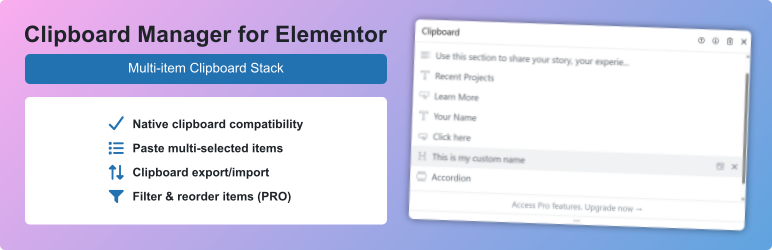
Clipboard Manager for Elementor enhances Elementor’s built-in clipboard with a multi-item stack. Every time you copy a widget or container, it’s added to your clipboard history. Select any item (or multiple items) and paste them with Ctrl+V / ⌘V — just like Elementor’s native clipboard, but better.
Features
- Multi-item clipboard stack — automatically captures every Ctrl+C / ⌘C
- Native clipboard compatibility — Ctrl+V / ⌘V pastes the selected item(s), no workflow changes
- Floating panel — draggable, resizable dialog; can be stacked below Elementor’s Structure panel
- Multi-select paste — Ctrl+Click / ⌘+Click to toggle, Shift+Click to select a range, paste them all at once via Ctrl+V / ⌘V or the header paste button
- Rename items — double-click to rename for easy identification
- Persistent storage — items survive page reloads (localStorage)
- Item type icons — visual indicators of element types
- Cut support — Ctrl+X / ⌘X cuts selected elements to the clipboard manager
- Context menu integration — “Cut” in right-click menu
- Delete key — press Del or Backspace to delete selected items from the keyboard
- Keyboard shortcut — Ctrl+Shift+C / ⌘⇧C to toggle the clipboard panel
- Top bar button — quick access from Elementor’s top bar
- Export/Import — save and share clipboard collections as JSON; move your clipboard between sites
Pro Features
- Favorites — star any item to keep it when clearing all and find it quickly in the Favorites tab
- Search/Filter — filter clipboard items by name or element type
- Drag to reorder — grab any item and drop it to rearrange your clipboard stack
- Container tree — expand containers to view, paste, or delete individual child elements
Screenshots

Clipboard panel in the Elementor editor

Multi-select items for batch paste

Rename items with double-click