
Pixelmole Campaign Scheduler Wordpress Plugin - Rating, Reviews, Demo & Download
Plugin Description
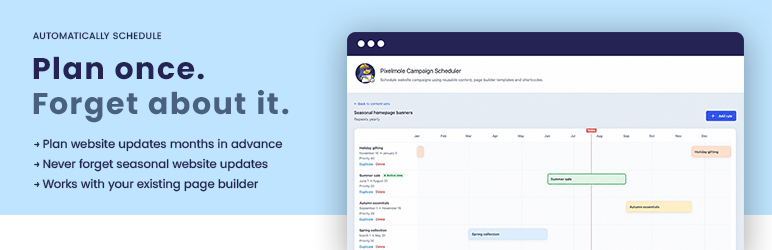
Pixelmole Campaign Scheduler is a visual WordPress content scheduler that helps you schedule reusable content and automate website campaigns, seasonal updates, temporary notices and recurring website content.
Create a content set for a reusable location such as a homepage banner, announcement or promotion. Add campaign variations, choose when each variation should appear and let the plugin automatically switch the scheduled content by date, weekday or time. When no rule is active, the content set can display its default content.
Use Pixelmole Campaign Scheduler to:
- Schedule content once or on yearly, weekly and daily recurring schedules.
- Create seasonal campaigns, holiday messages and vacation notices.
- Run temporary promotions and automatically restore default content afterward.
- Automate recurring website updates without repeatedly editing pages.
- Select reusable page builder templates as dynamic content sources.
- Schedule Flatsome UX Blocks when Flatsome is installed.
- Schedule Elementor templates when Elementor is installed.
- Render another shortcode as the content source.
- Create reusable content with the built-in WordPress editor.
- Resolve overlapping scheduled content predictably with rule priorities.
- Review schedules on a visual timeline with an active-rule indicator.
Each content set provides a shortcode that can be placed in a page, post, widget or template:
[pixelmole_campaign_scheduler id="homepage-banner"]
The id value is the content-set slug shown in the Campaign Scheduler interface.
Schedule behaviour
- One-time rules include their start moment and exclude their end moment.
- Yearly rules include both selected calendar dates and may cross New Year.
- Weekly rules include both selected weekdays and may cross the week boundary.
- Daily rules include the start time, exclude the end time and may cross midnight.
- When rules overlap, the highest priority wins. At equal priority, the oldest rule wins.
- Calculations use the timezone configured under Settings > General in WordPress.
Content sources
- Shortcodes are rendered through WordPress and protected against direct scheduler recursion.
- Custom content is sanitized with the WordPress allowed-post-HTML rules. Saving custom content additionally requires the
unfiltered_htmlcapability by default. - Flatsome UX Blocks are offered only when the Flatsome block post type and shortcode are available.
- Elementor reusable templates are offered only when Elementor and its template library are available.
The management capability defaults to manage_options and can be changed with the pixelmole_campaign_scheduler_manage_capability filter. The custom-content capability can be changed with pixelmole_campaign_scheduler_custom_html_capability.
Privacy
The plugin stores schedule configuration and administrator-authored content. It does not collect visitor data, set tracking cookies, send telemetry or make external requests. Content entered by administrators may itself contain personal information; site owners remain responsible for that content.
Screenshots
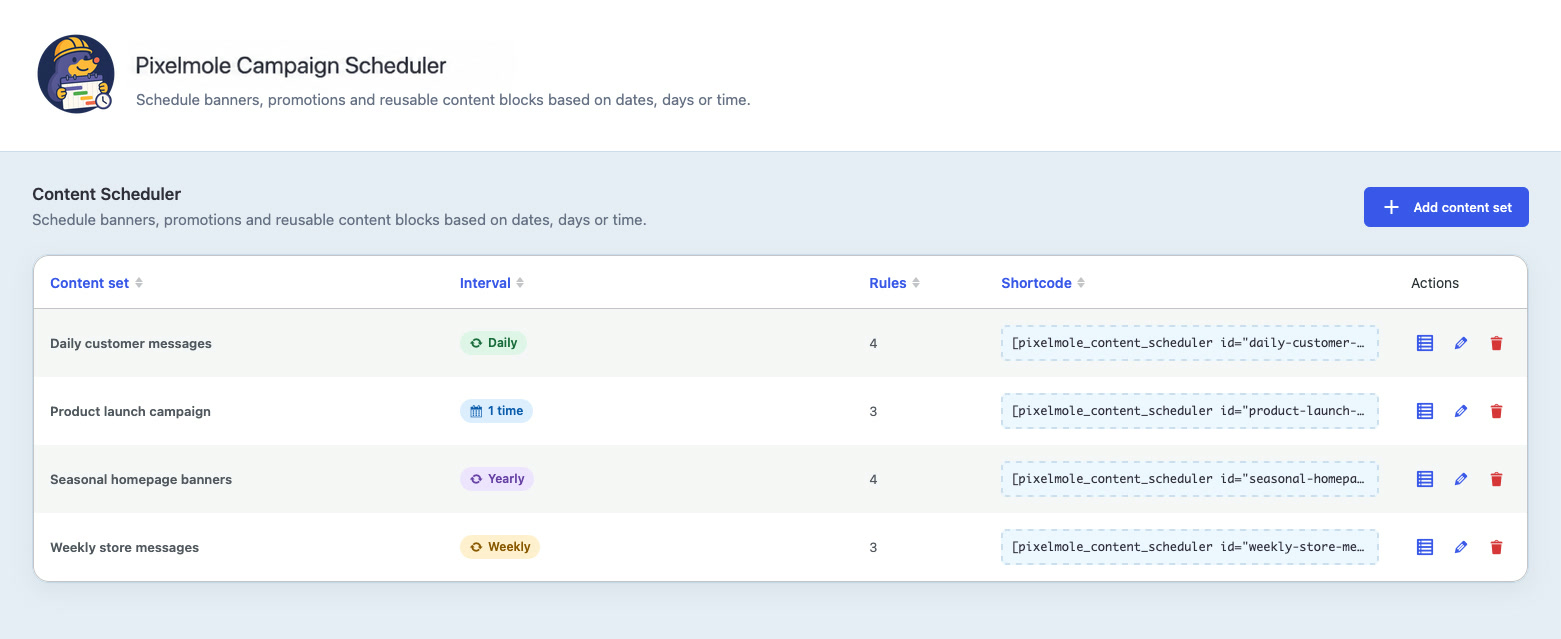
View all content sets, their schedule intervals, rule counts and generated shortcodes at a glance.
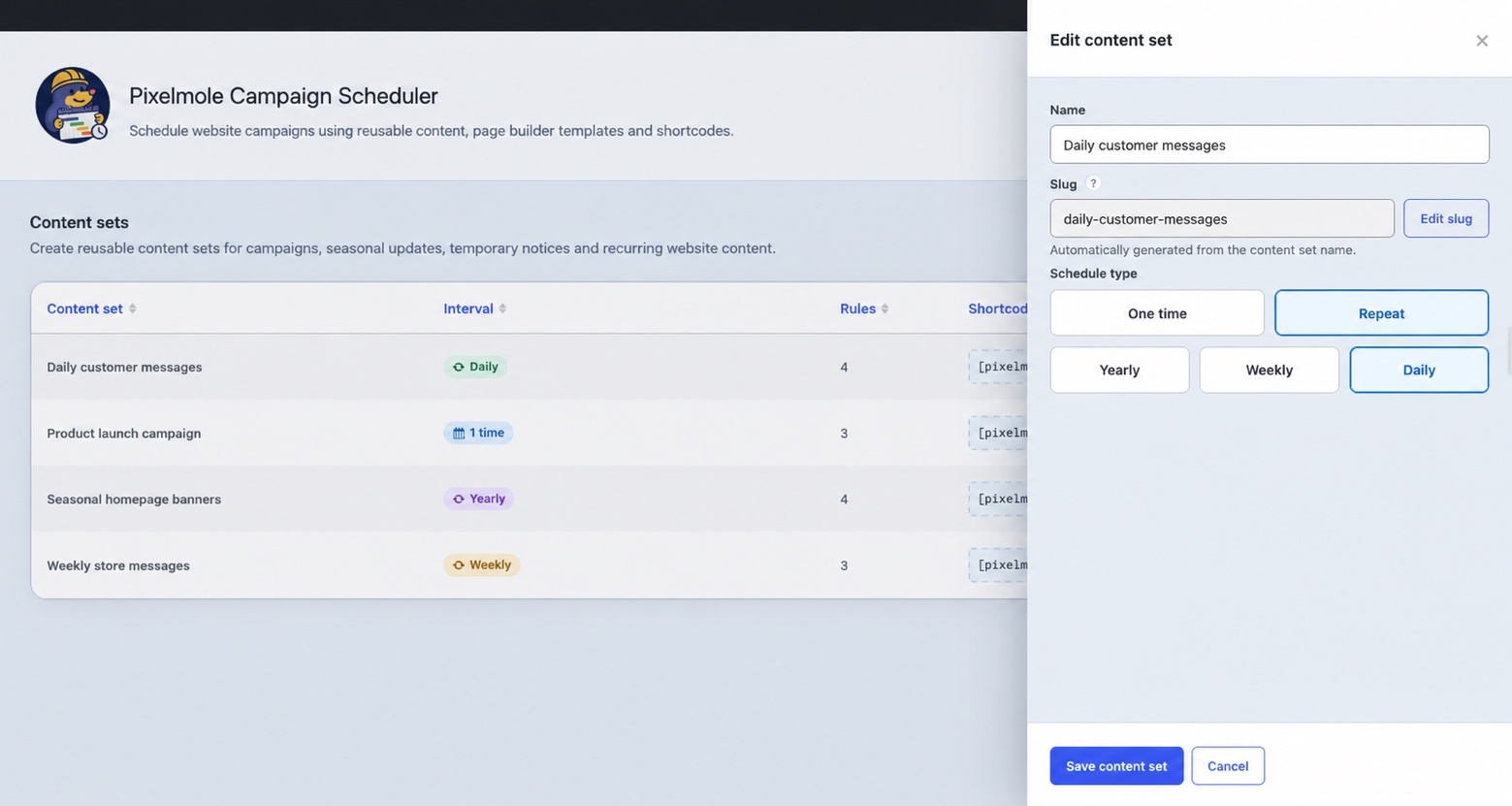
Manage content sets and choose a one-time, yearly, weekly or daily schedule.
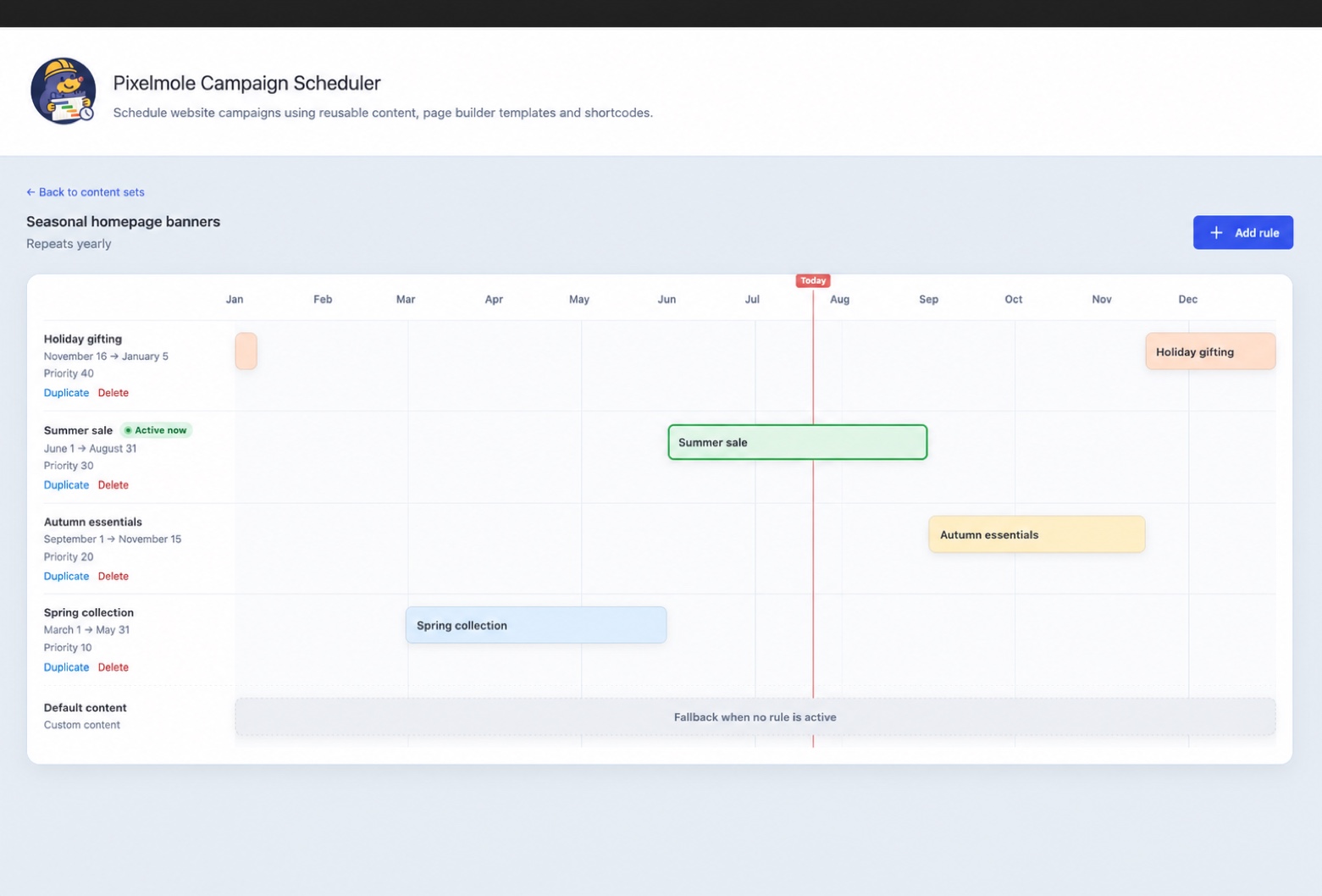
View yearly rules on a visual timeline with the current date and active rule clearly highlighted.
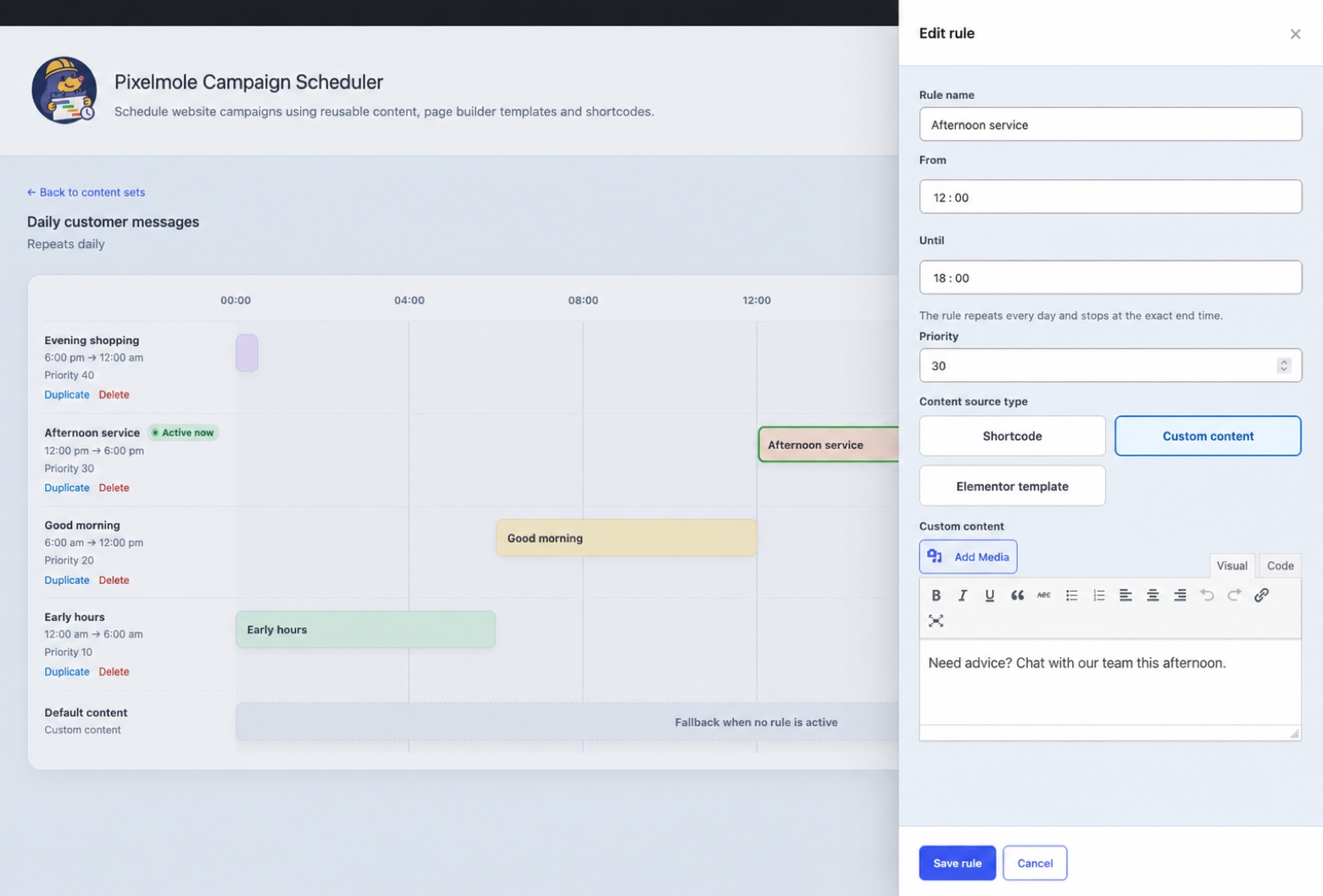
Edit a daily rule, its time range, priority and content source from the slide-out panel.
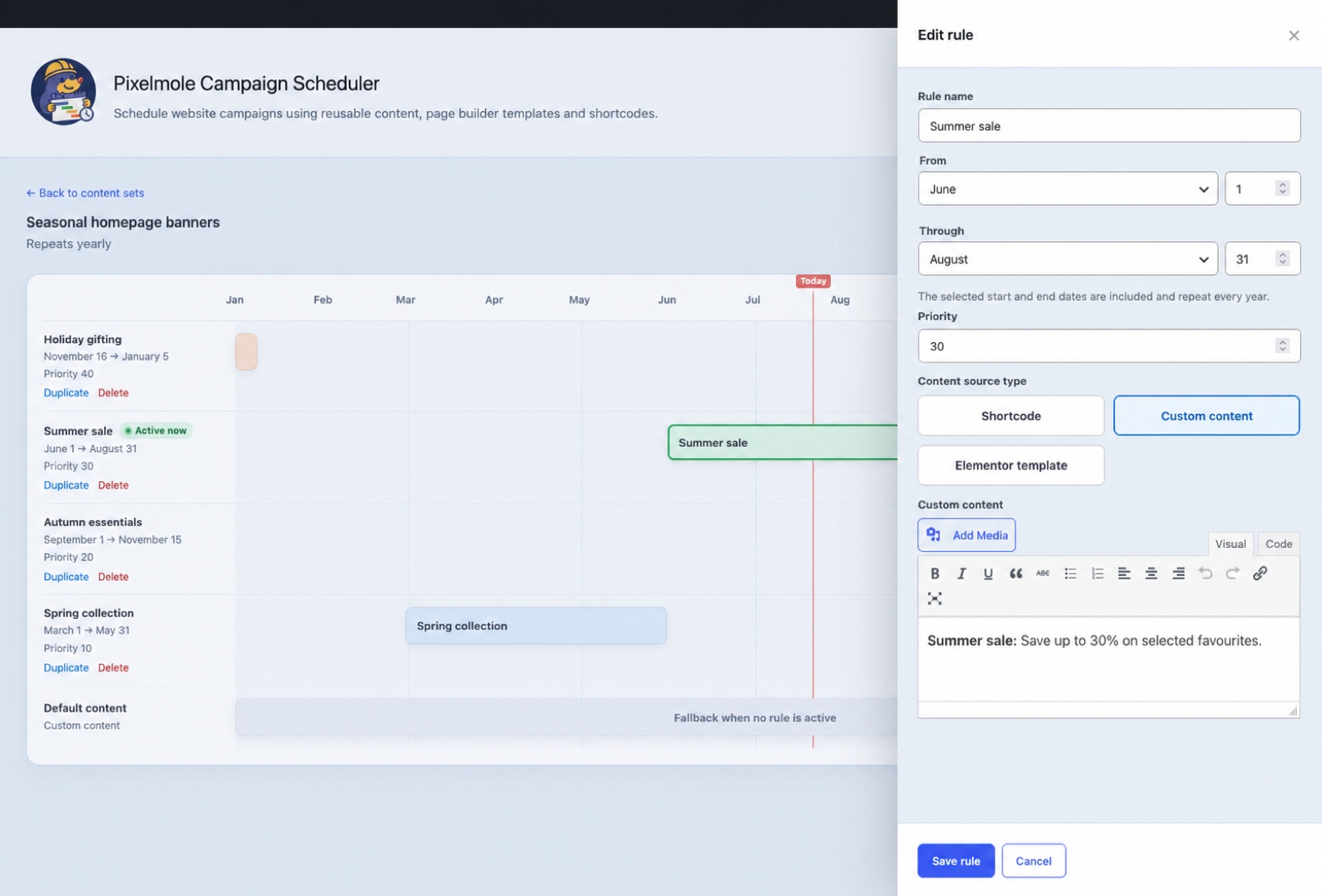
Configure a yearly rule with inclusive dates, priority and custom content.


