MOAW Price Negotiation For WooCommerce Wordpress Plugin - Rating, Reviews, Demo & Download
Plugin Description
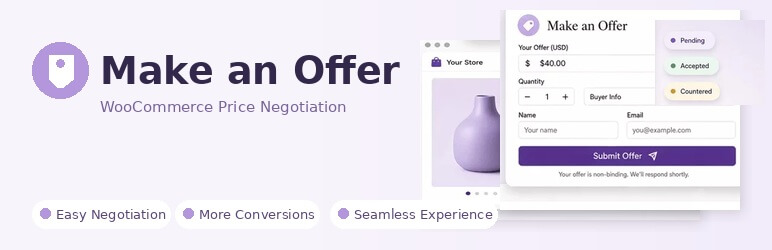
MOAW Price Negotiation for WooCommerce adds a “Make an Offer” button to your product pages so shoppers can propose their own price instead of paying the listed amount. Every offer lands on a dedicated admin screen where you simply accept or reject it — no back-and-forth is required to get a deal done. When you accept an offer, the customer receives a secure, one-time checkout link priced at the negotiated amount, for the exact quantity they offered on. Your store’s regular price is never touched.
If you want full multi-round counter-offer negotiation and more advanced targeting and display options, install the MOAW – Make an Offer & Negotiation Add-on plugin alongside this one.
Free Features
- “Make an Offer” button on single product pages, so shoppers can propose a price without leaving the product.
- Configurable offer form collecting price, quantity, name, email, phone, and an optional message.
- Fixed min/max offer amount rule, so you control the lowest and highest price a customer can propose.
- Full variable product support — customers select the required attributes/variation before their offer is stored.
- Admin “Offers” screen listing every submission with a one-click accept / reject workflow.
- “My Offers” tab in My Account so logged-in customers can track the status of every offer they’ve made.
- Guest offers, optional — allow offers without an account, or require login if you prefer.
- Secure, single-use, token-based “Accept Offer & Checkout” link, so the negotiated price can’t be tampered with or reused.
- Order-specific negotiated pricing — the accepted price applies only to that customer’s cart/order; your catalog price is never changed.
- Core email notifications for new offers, accepted offers, rejected offers, expired offers, and cancelled offers.
- Broad product support — works with simple, variable, virtual, and downloadable products.
- WooCommerce HPOS (High-Performance Order Storage) compatible, so it works with modern WooCommerce order storage.
Pro Features
- Full counter-offer negotiation — accept, reject, or counter an offer, with the customer able to accept, decline, or counter back for a configurable number of rounds, plus a stored negotiation history per offer.
- Percentage-of-price offer rules, in addition to fixed amounts, so minimum/maximum offers can scale with each product’s price.
- Min/max quantity rules, letting you require a minimum or cap the maximum quantity a shopper can negotiate on.
- Custom offer expiration windows, so pending offers and accepted checkout links automatically expire on your schedule.
- Per-category and per-product offer targeting, so you can enable or disable “Make an Offer” for specific products or entire categories.
- Offer button on shop, category, and tag pages — not just single product pages — for more visibility across your store.
- Button color and form position controls, so the offer button matches your theme and layout.
- Extra email notifications for counter-offers, keeping both merchant and customer informed at every round.
- Priority support direct from the developer.
How it works
- Customer clicks “Make an Offer” on a product and submits a price.
- You review it under the Offers admin menu.
- Accept or reject it (or, with the separate Pro plugin, send a counter-offer).
- If accepted, the customer gets a secure link to check out at the negotiated price for the exact quantity offered.
- Everyone gets emailed at each step.
Screenshots


Offer butonn on shop page

Offer modal window

Admin preview of all submitted offers

Offer settings( General )

Offer settings( Offer Rules )

Offer settings( Product Rules )

Offer settings( Notifications )