Ingenio Notice Inbox – Hide Admin Notices & Dashboard Notifications Wordpress Plugin - Rating, Reviews, Demo & Download

Plugin Description
Every plugin wants a slice of your dashboard: “Rate us 5 stars”, “Upgrade to PRO”, “Help us improve by sharing usage data”. Ingenio Notice Inbox moves all of that out of the way and keeps it in one place, so the screen you open is about your work again.
Nothing is deleted. Hidden notices go to Dashboard Notice Inbox, grouped by the plugin that sent them. Open it whenever you like, and put back anything you actually want to see.
What it hides
- Admin notices from plugins and themes: review requests, Pro upgrade banners, data-collection opt-ins and other dashboard notifications.
- Upsell links: “Upgrade to Pro” in the toolbar, “Go Pro” in the admin menu and in the plugins list.
- Footer nags such as “Please leave us a ★★★★★ rating”.
- Notices added with JavaScript after the page loads, when they look like promotions.
What it never hides
- WordPress core notices, such as updates.
- Errors and confirmations from plugins, like “Settings saved” (you can change this).
- Code from your own site, such as snippets added with Code Snippets.
It works on its own
There is nothing to click notice by notice. Ingenio Notice Inbox reads what each notice says and recognizes the usual promotions (review requests, Pro upsells, data-collection opt-ins), so a new plugin’s banner is caught the first time it shows up. The same goes for “Upgrade” and “Go Pro” links in the toolbar, the admin menu and the plugins list.
It knows which plugin sent each notice
Ingenio Notice Inbox checks the file each notice comes from, so the inbox can tell you “this came from ElementsKit” instead of showing an anonymous list. That also lets you allow a single plugin to keep showing its notices while the rest stay quiet.
Two modes
- All notices from plugins and themes (default): the cleanest dashboard. Errors and confirmations still show.
- Only promotions: hides review requests, Pro upsells and data-collection requests. Other plugin notices show as usual.
Privacy
Ingenio Notice Inbox does not connect to any external service and does not collect any data. The inbox is stored in a single option on your own site, and it is removed when you delete the plugin.
Screenshots
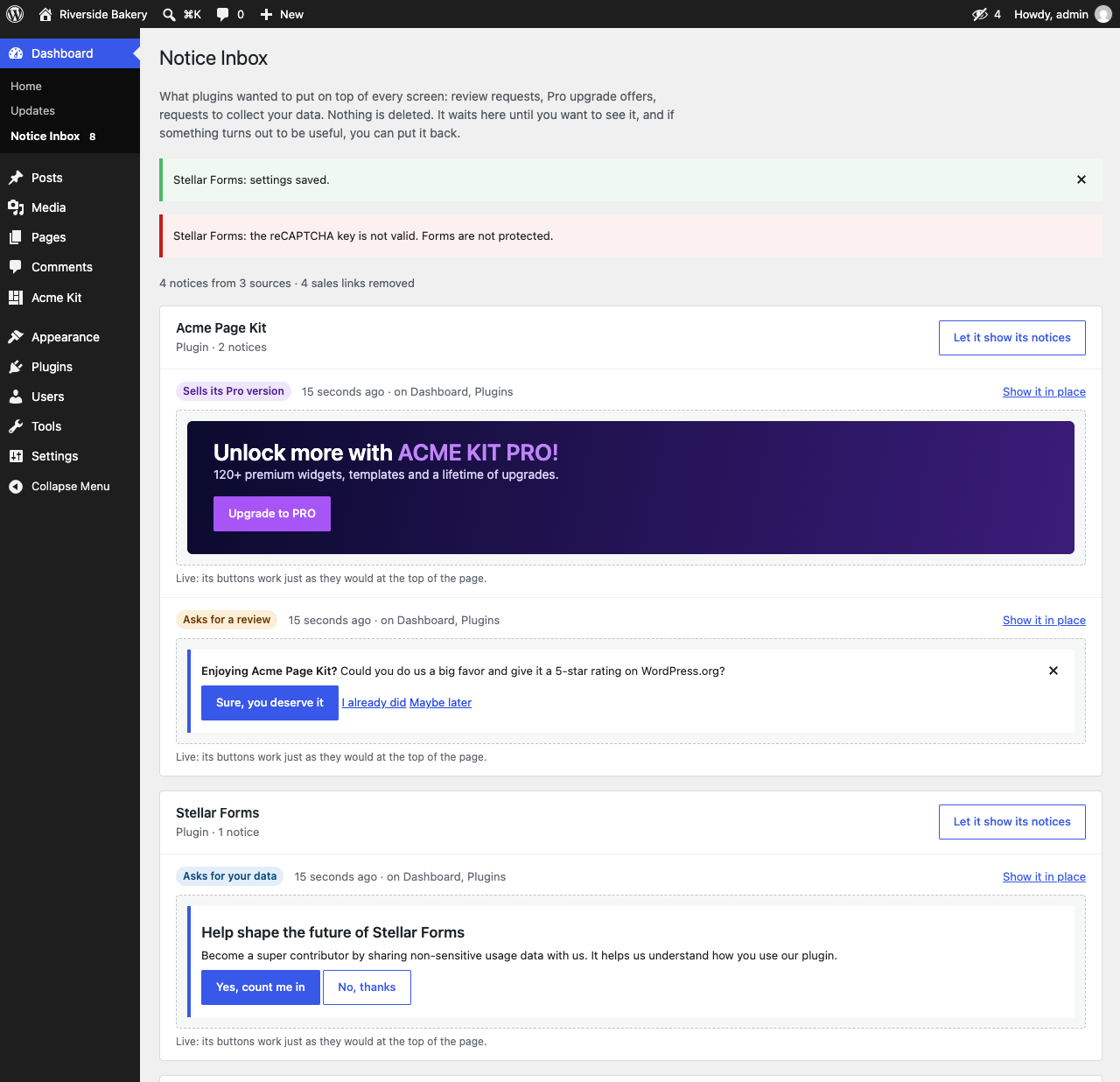
The inbox: hidden notices grouped by plugin, with a live preview of each one.

The same dashboard before and after activating Ingenio Notice Inbox. The toolbar counter shows how many notices were hidden on the screen.
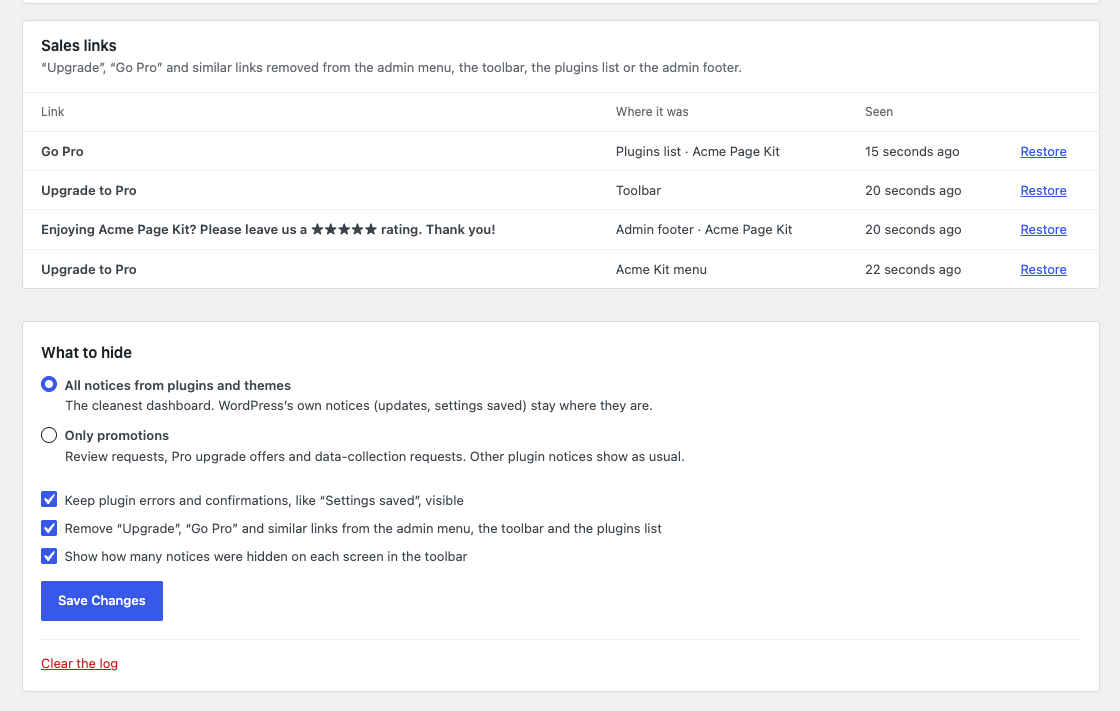
Removed sales links and the settings.