
Discounly Unused Image Cleaner Wordpress Plugin - Rating, Reviews, Demo & Download

Plugin Description
Highlights
Fast on large sites. Discounly Unused Image Cleaner reads your database once, in chunks, and builds an index of every image reference, then checks each image against that index in a single pass.
Measured on real sites:
- 5,105 images (35,685 image files including resized copies), 240,000 posts and 1.9 million custom-field rows – full scan in about 2 minutes.
- 4,132 images (27,169 files), 246,000 posts and 1.9 million custom-field rows – full scan in under a minute.
Every feature is free. No Pro version, no limits on how many images you can scan or clean, no sign-up, no ads. The careful matching, the “Where is it used?” check, CSV export and the Trash view are all included.
You stay in control. Nothing is deleted by the scan. You check results 10 at a time, look up any image with “Where is it used?”, and removal always goes to the Trash first, with each file re-checked right before it moves.
How it works
Over the years a WordPress site collects images that are no longer used: replaced product photos, old page designs, duplicate uploads, images from deleted posts. They take up disk space, bloat backups and make the Media Library hard to work with.
Discounly Unused Image Cleaner finds them carefully and lets you stay in control:
- Scan – reads every place your site can use an image and lists the images nothing points to. Scanning only reads your site; nothing is changed.
- Check them yourself, 10 at a time – see a preview, the file path, size and upload date, open the image or its Media Library page, and ask “Where is it used?” for any image.
- Full list – every unused image, largest first, with a CSV download.
- Move to Trash – removal always goes to the Trash first, and each file is re-checked right before it is moved. Restore anything from the plugin’s own Trash view.
Where it looks
- Post, page and product content, excerpts and editor data (including Web Stories)
- Custom fields and page-builder data (Elementor and others that store JSON or serialized data)
- Featured images, WooCommerce product galleries, category and tag images
- Theme settings, Customizer, site logo and icon, widgets and plugin settings
- LearnDash quiz questions and answers, and other plugin database tables
- User profiles, comments and reviews
- Theme files, must-use plugins and generated CSS (Elementor, Astra)
- Media files that use another image (for example a video’s poster)
How it decides
- Full file paths, not just names.
2023/05/banner.pngand2021/02/banner.pngare different images. - Every size of an image counts. A page that shows
photo-300x200.jpgkeepsphoto.jpg. Scaled, rotated and edited versions are recognised. - Formats are different files.
photo.jpgandphoto.webpare separate uploads; a page using one does not keep the other. - Numbers only count where an image ID belongs – an image field, a gallery, an
<img>class, a block or page-builder image setting. Unrelated numbers (quiz IDs, prices, view counts, element codes) are ignored. - Live content only. Old revisions, trashed and auto-draft posts don’t keep an image; drafts, private and scheduled posts do.
- Catalogs and caches are ignored – leftover media-cleaner catalogs, optimizer queues and caches list every file without using it.
- When in doubt, it keeps the image.
Built for large sites
The scan reads your database in chunks and works for about 20 seconds per request, so even a database with almost 2 million custom-field rows needs only a handful of requests. If you close the tab, the scan picks up where it left off when you come back.
What it can’t see
No scanner can see images used only outside your WordPress database and theme files – in emails, newsletters, social posts, other websites, or code in regular plugin files. Always review the list, keep a recent backup, and use the 10-at-a-time check before moving images to the Trash.
Screenshots
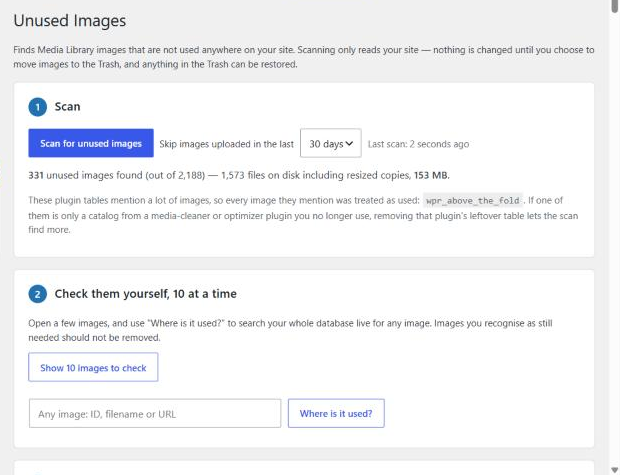
Step 1 – Scan: one click, with live progress. The summary shows how many images are unused and how much space they use.
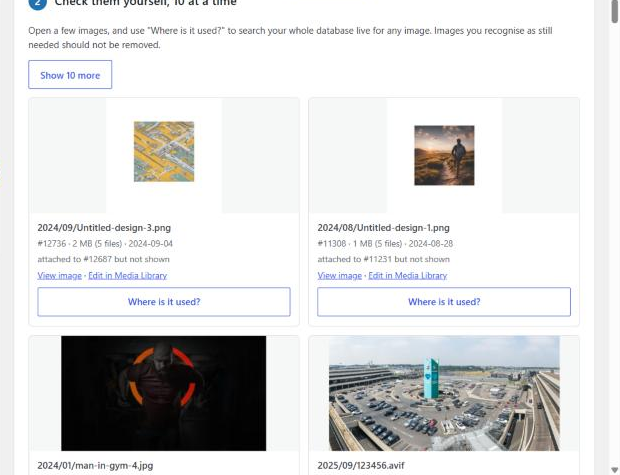
Step 2 – Check them yourself: 10 images at a time with preview, path, size, links to the image and its Media Library page.
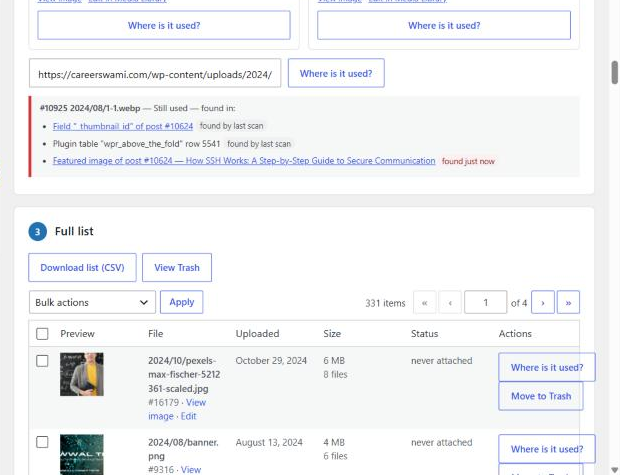
“Where is it used?” for an image in use – every place it was found, with links.
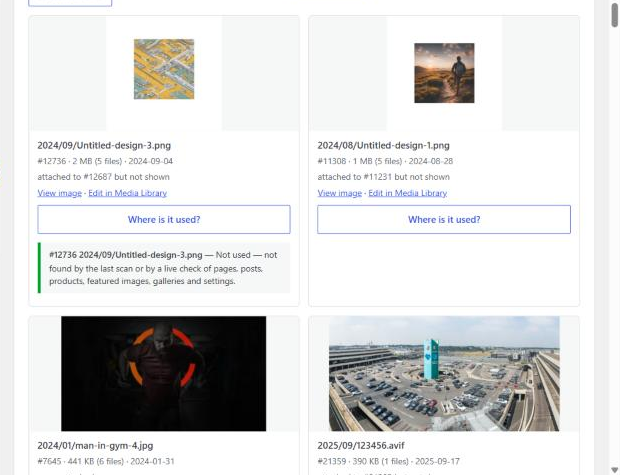
“Where is it used?” for an unused image.
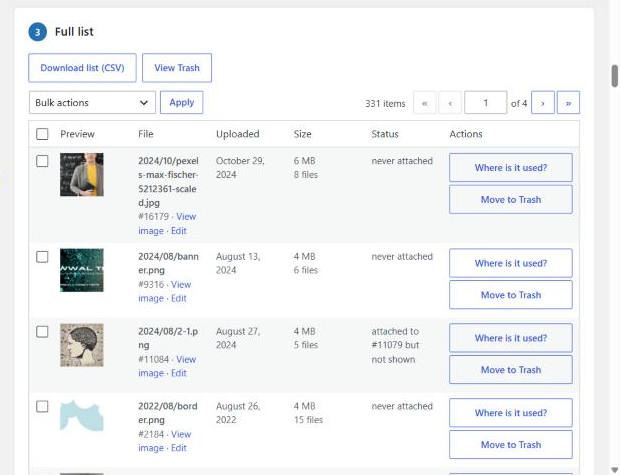
Step 3 – The full list, largest first, with CSV download and Move to Trash.
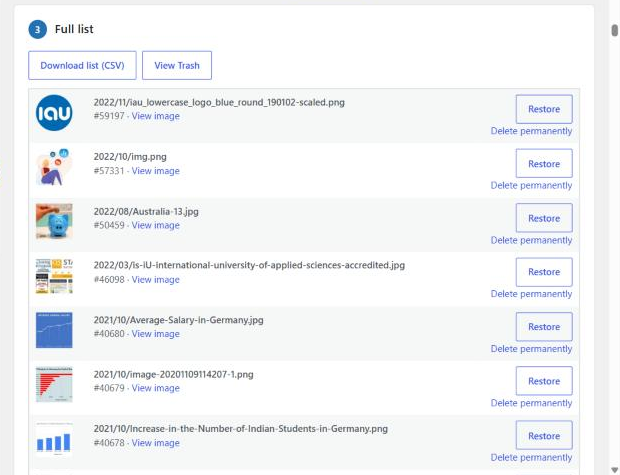
The plugin’s Trash view – restore an image or delete it permanently.


