Transtrix – Site Migration, Import & Export Wordpress Plugin - Rating, Reviews, Demo & Download

Plugin Description
Transtrix gives you two ways to move a WordPress site.
Entire site packs the database, media uploads, themes and plugins into one file. Restore that file on a new host or a new domain, or keep it as a backup of the site you have now.
Selected content moves only the pages, posts, trips and products you pick, along with their images, categories and the links between them. The rest of the other site stays as it is.
You pick the mode at the top of the Export screen, one job at a time. Use Transtrix to:
- Move a site to a new host or a new domain.
- Keep a full backup in History and restore it if an update goes wrong.
- Push twelve new trips from staging to a live site that is taking bookings, and leave every booking on the live site where it is.
- Reuse a set of pages, products or tours on a second client site without rebuilding them by hand.
- Hand a customer a ready-made demo they can import in a few clicks.
Migrate an entire site
An Entire site package has four parts, and you can leave out any of them:
- Database: all content and settings. Transtrix leaves out temporary data and spam.
- Media uploads: everything in
wp-content/uploads. - Themes: the active theme, and its parent theme when it has one.
- Plugins: your installed plugins, so the new site has the same features.
- Switch Export to Entire site. Untick any part you don’t need.
- Check the size. Click Estimate size first to see how big each part is and the total for the package.
- Build the package. A progress screen counts the database tables and files as Transtrix packs them, with an estimate of the time left. You download one .zip file, and Transtrix keeps a copy in History.
- Restore it on the new site. Upload the package on the Import screen, the same place you import content. Transtrix shows where the package came from: the site address, WordPress and PHP versions, and table prefix. Choose which parts to restore, then confirm.
When the new site lives on a different domain, Transtrix updates every link to the new address. That includes links saved inside theme and plugin settings, which a plain find-and-replace would break.
Before a restore changes anything, Transtrix checks the package against the site you are restoring to. It stops if the site runs an older PHP or WordPress version than the source, if one site is multisite and the other is not, or if the server lacks disk space. You see the reason and what to do about it. If the table prefix differs, Transtrix renames the tables as it restores them.
A restore replaces what is on the site, and you cannot undo it from History. Transtrix moves the old files aside instead of deleting them, so you can check the restored site before you remove them. To roll a site back, restore an earlier package.
Migrate selected content
- Choose what to move. Transtrix lists the plugins it found on your site and how many items each one holds. Open one, and every content type starts ticked. Untick what you don’t need, or open a type and pick single items.
- Build the package. You download one .zip file.
- Upload it on the other site. Choose what happens to items that already exist there: keep what is already on the site, replace it with the package version, or add everything as a copy.
- Check the preview. Before it writes anything, Transtrix shows how many items are new, how many it will replace, and how many it will leave as they are. It also lists links that point to content missing from both sites, by item name.
- Import. A progress screen shows each step as it runs. When it finishes, you get a report of what was added, updated, left as is, and anything that failed.
- Undo if you need to. Every import saves a restore point. Open History and undo the import in one click.
Supported content
- WordPress: posts, pages and media, with their categories and tags.
- WP Travel Engine: trips with their packages, coupons, extra services and accommodations, plus the destinations, activities, trip types, difficulty levels and trip tags they use. Bookings, customers, payments and enquiries are ticked too, so untick them if you want only the trips. When you bring bookings, Transtrix recounts the seats sold for each trip on the new site.
- WooCommerce: products with their variations, images and attributes, plus coupons, categories, tags and shipping classes. Orders, refunds and customers can come too, or you can untick them. An imported order arrives as a record of a past sale: Transtrix charges no card, sends no email, leaves stock alone and keeps the original totals. It works with High-Performance Order Storage on or off.
Transtrix shows a content type only when the plugin behind it is active.
What keeps your live site safe
- Preview before you import. You see the counts first, while you can still back out.
- One-click undo. Transtrix keeps restore points for 30 days. You can change that in Settings.
- No duplicate images. When you import a second package that shares images with the first, Transtrix reuses the images it already brought in instead of uploading copies.
- You decide what happens to matches. Transtrix matches items by slug. For each import, keep the existing item (the default), replace it with the package version, or add a copy.
- No links to the wrong page. When an item links to content that exists on neither site, Transtrix removes that link instead of pointing it at an unrelated page. The report names each one.
- Only the items in the package change. An import leaves the orders, bookings and customers already on the site alone.
- No surprise emails. Transtrix blocks outgoing mail while an import runs.
- Long jobs pick up where they stopped. If a request times out, the next one continues from the last finished item.
WP-CLI
Every action on the admin screen also runs from the command line, with no request time limit.
wp transtrix export --module=wp-core --post_type=post --limit=20
wp transtrix import /path/to/posts.zip --dry-run
wp transtrix import /path/to/posts.zip --conflict=update --user=admin
wp transtrix rollback <job-id>
wp transtrix full-export --layers=database,uploads
wp transtrix full-restore /path/to/site.zip --dry-run
Run wp help transtrix for every option.
Privacy
Transtrix sends nothing to any outside server. It has no account, no tracking and no remote calls. Packages stay on your own server, in a protected folder inside wp-content/uploads/.
Server note
On Apache and IIS, Transtrix blocks direct access to the package folder for you. nginx ignores those rules, so add one to your server block:
location ^~ /wp-content/uploads/transtrix/ {
    deny all;
}
For developers
A plugin can teach Transtrix about its own content by hooking transtrix_register_modules. A module describes its post types, taxonomies and the meta keys that hold IDs. Transtrix handles export, import, ID remapping, media and undo.
Source code
The admin screen is built from the uncompiled source in assets/admin/src/, which ships with the plugin. To rebuild dist/, run npm install and then npm run build in the plugin folder.
dist/admin.js bundles these open-source libraries, listed in `package.json`: React Query (@tanstack/react-query), Emotion (@emotion/react, @emotion/styled), React Router (react-router-dom), React-Toastify (react-toastify) and Tippy.js (@tippyjs/react). All are MIT licensed.
Screenshots
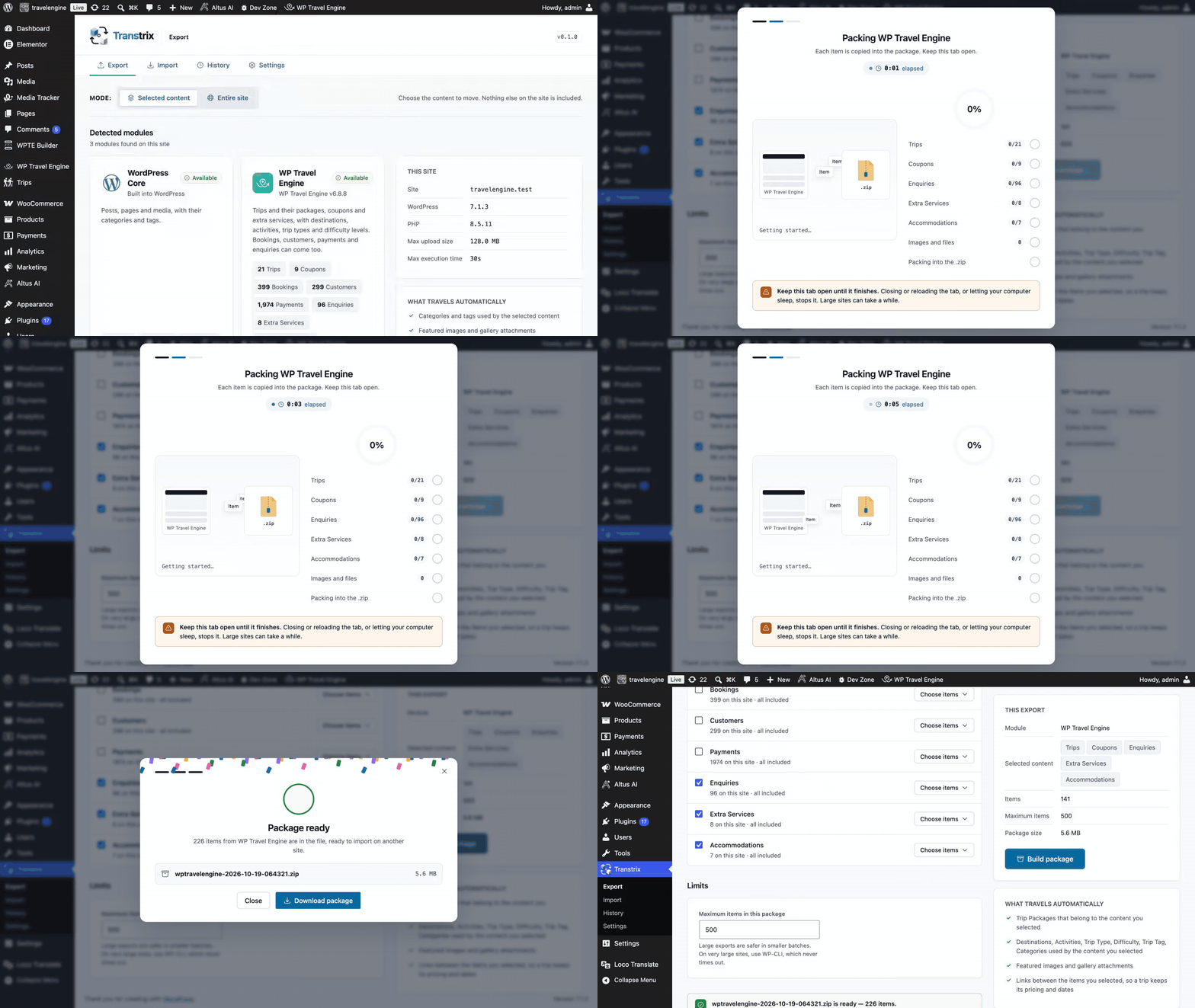
Export selected content. Transtrix finds WordPress, WP Travel Engine and WooCommerce content on the site. Pick trips, coupons, enquiries and accommodations, untick bookings, customers and payments, and build one package.
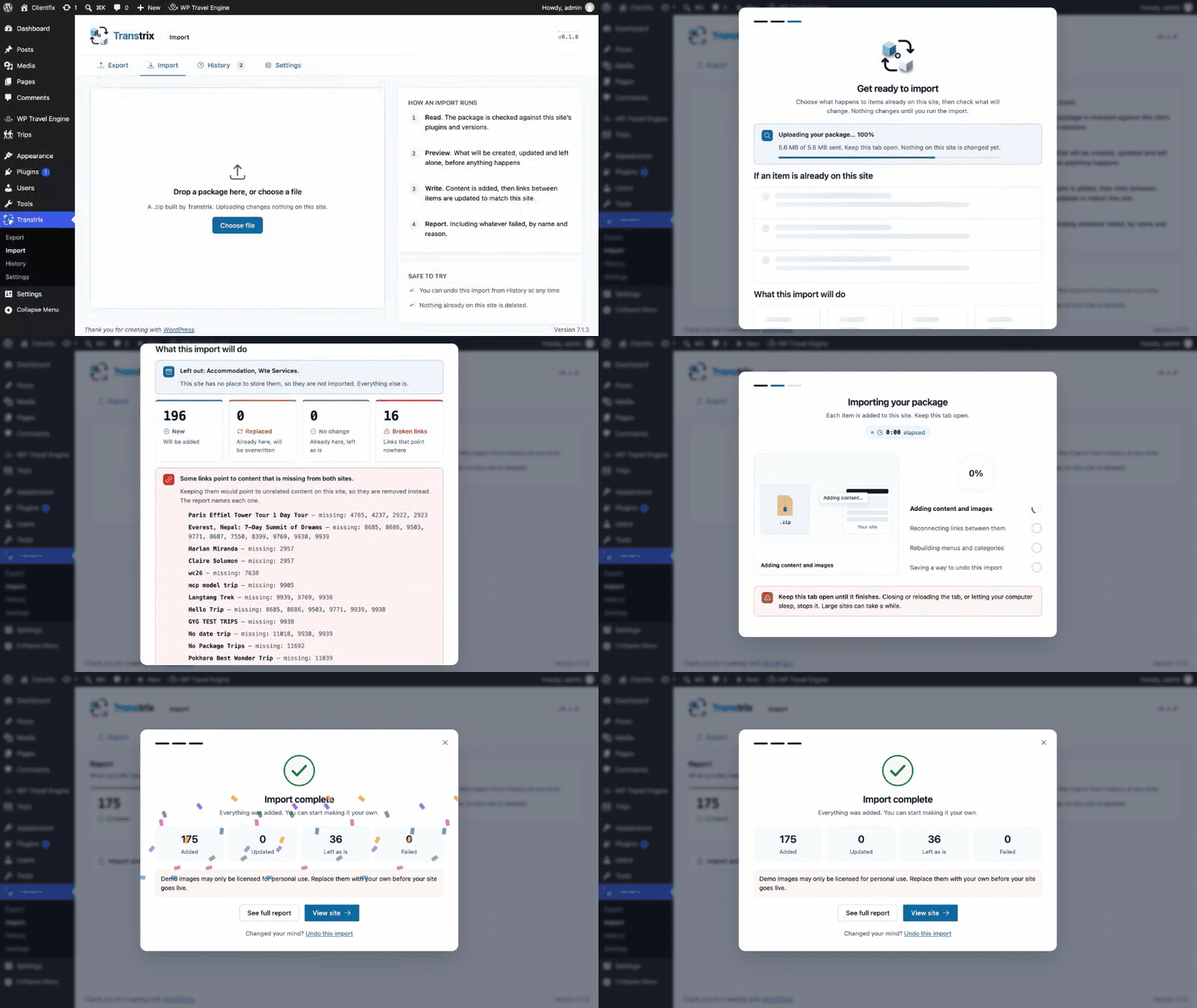
Import that package on another site. Choose what happens to items that already exist, check the preview, and run the import. The report shows what was added, and you can undo the import from the same window.
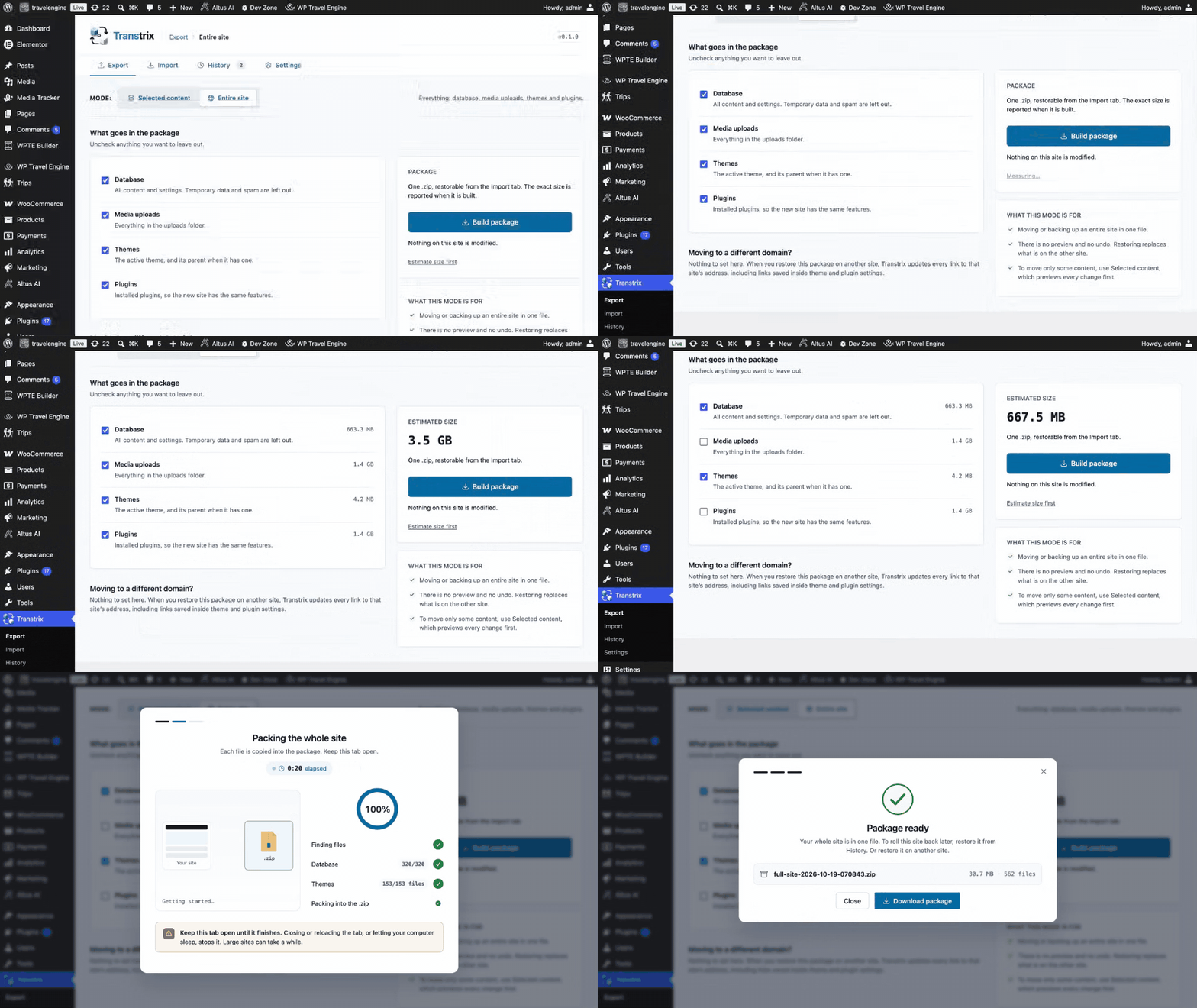
Export the entire site. Choose the database, media uploads, themes and plugins, estimate the size, and pack the whole site into one file.
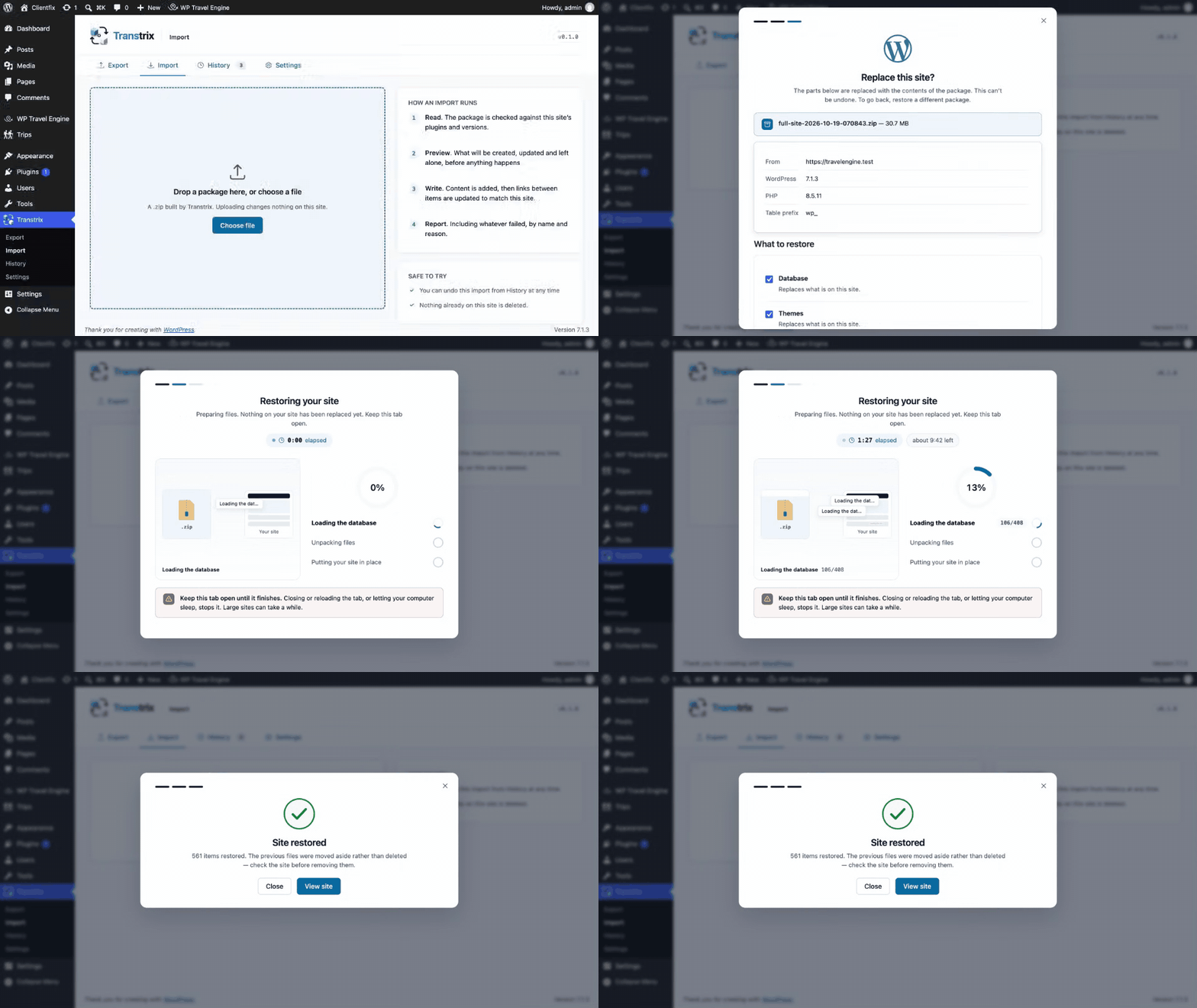
Restore the entire site. Upload the package, check where it came from, choose what to restore, and confirm.