ChatterMate Chat Wordpress Plugin - Rating, Reviews, Demo & Download
Plugin Description
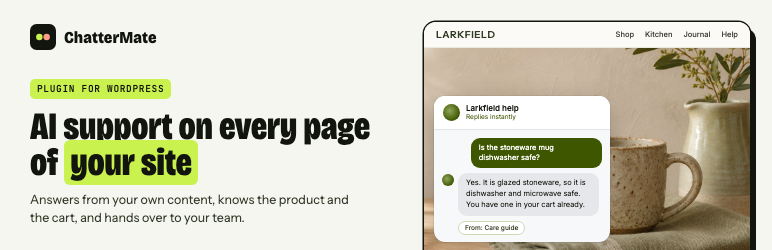
ChatterMate is customer support rebuilt around AI. It answers your visitors from your own website, docs and FAQs, hands the conversation to your team when a person should step in, and turns hard questions into tickets so nothing is lost. It runs the same way for a single shop and for a support team handling thousands of conversations a month.
This plugin puts the ChatterMate chat on your WordPress site without touching your theme. Connect it in one click, decide where the chat appears, and let the AI see what your visitor is looking at.
What you get
- One-click connect. Click Connect with ChatterMate, pick your AI agent, and you are back in WordPress with the chat live. Pasting a Widget ID works too.
- A real connection check. The settings screen confirms your widget with ChatterMate and shows which AI agent answers, or tells you plainly what is wrong.
- Choose where the chat appears. Every page, only the pages you pick, or every page except the ones you pick. Rules can also cover your homepage, all blog posts, and with WooCommerce all product pages and the shop.
- Answers that know the page. The AI can see what page the visitor is on and, in a WooCommerce store, the product they are looking at and what is in their cart.
- Signed-in customers. Visitors who are logged in to your site can chat under their own name and email, so your team knows who they are.
- Chat button block. Add a button anywhere that opens the chat, optionally with a question already typed in. There is a
[chattermate_button]shortcode too, and any menu link to#chattermateopens the chat. - Store-friendly. Hide the chat on the WooCommerce cart and checkout so buyers stay focused on paying.
- Fast pages. Load the chat as soon as the page loads, or only when the visitor first scrolls, taps, moves the mouse or types, so it stays out of PageSpeed tests.
- Try it before visitors do. A live preview loads your real chat on the settings screen.
- Hide from administrators while you work on the site.
- Self-host friendly. Point the plugin at your own ChatterMate install under Advanced.
Pricing
You need a ChatterMate account. The Free plan includes 50 AI replies a month. Paid plans start at $4.99 a month and are priced by AI replies. New accounts can try the Growth plan free for 14 days. See chattermate.chat for current plans.
External services
This plugin connects to ChatterMate, a hosted customer-support service run by ChatterMate. The service is required: the chat itself runs on ChatterMate.
1. The chat widget, on your site’s pages
- What: the widget script from
https://app.chattermate.chat/webclient/chattermate.min.js, which opens the chat window fromapp.chattermate.chatand talks to the ChatterMate API athttps://api.chattermate.chat. - When: on front-end pages where your visibility rules allow the chat. With “Load the chat” set to first interaction, nothing is loaded until the visitor scrolls, taps, moves the mouse or types.
- What is sent: your Widget ID; anything the visitor types in the chat, and any name or email they choose to give; standard request details such as IP address and browser user agent. The widget keeps a token in the visitor’s browser (
localStoragekeyctid) so the conversation continues across pages. - With “Tell the AI what the visitor is looking at” on (the default for new installs; turn it off under Personal answers): the page type and title, the store currency and, on WooCommerce product pages, the product’s name, price, SKU, stock and sale status and its URL. When the visitor opens the chat, the names, quantities, count and total of the items in their cart, read in their own browser from your site’s WooCommerce Store API (
/wp-json/wc/store/v1/cart). Search terms are never sent.
2. The connection check, in your WordPress admin only
- What: a request to
https://api.chattermate.chat/api/v1/widgets/{your Widget ID}/status, which only reads. (Against a ChatterMate API older than that endpoint, the plugin asks/widgets/{your Widget ID}instead, which also starts an anonymous chat visitor.) - When: only when the ChatterMate settings are saved (including after one-click connect) or an administrator clicks “Check again”. Never on visitor page views.
- What is sent: your Widget ID, plus standard request details from your server (its IP address and a
ChatterMate-WordPress/<version>user agent). - Why: to confirm the widget exists and show the name of the AI agent that answers.
3. Signed-in customers, only if you turn it on
- What: a request from your server to
https://api.chattermate.chat/api/v1/generate-token. - When: when a visitor who is logged in to your site loads a page with the chat, at most about twice a day per user (a failed attempt is retried after 10 minutes, and not at all for an hour if ChatterMate refuses the key), or when the widget reports that its token was refused (at most once a minute). Also when an administrator clicks “Show live preview”.
- What is sent: your Widget app API key, your Widget ID, and the logged-in user’s email address and name.
- Why: so the visitor chats under their own name and your team sees who they are. The API key stays on your server; the visitor’s browser only receives their own short-lived token, which is never written into the page, and keeps it for the browser tab (
sessionStoragekeychattermate_wp_token). A browser that signs out forgets it (localStoragekeychattermate_wp_identified). - ChatterMate trusts the email your site sends. Turn this on only if your site confirms email addresses; developers can limit it with the
chattermate_identify_userfilter.
4. The live preview and one-click connect, in your WordPress admin only
- The live preview loads the same widget as in 1 on the ChatterMate settings screen, only when an administrator clicks “Show live preview”.
- “Connect with ChatterMate” opens
https://app.chattermate.chat/connect/wordpressin the administrator’s browser with your site’s name and address, whether WooCommerce is active, the wp-admin address to return to and a one-time code. ChatterMate sends the administrator back with the chosen Widget ID. Nothing else is sent from your server, unless the administrator leaves “Teach the AI my pages and products” ticked (it is ticked by default): see 5. (Offered on ChatterMate cloud; self-hosters paste the Widget ID.)
5. Learning your site and WooCommerce orders, only with “Teach the AI my pages and products” ticked when connecting (ticked by default; untick it to connect without this)
- Linking: your server sends
https://api.chattermate.chat/api/v1/enterprise/wordpress/sites/claimthe one-time code from the connect page, your site’s address and REST API address, whether WooCommerce is active, the store’s price decimals, and a secret it makes for this link. The secret then signs every call between your site and ChatterMate. - Learning: ChatterMate reads your published pages, posts and products through your site’s public REST API (
/wp-json/wp/v2/pages,/wp-json/wp/v2/postsand/wp-json/wc/store/v1/products), the same content any visitor can see. - Keeping up: when you publish, update or unpublish a page, post or product, or a product’s stock status changes, your server sends ChatterMate a signed notice holding only your site’s address, at most once every two minutes, so it reads the site again.
- Order status (WooCommerce): ChatterMate’s AI agent can ask your site about one order through a signed REST route (
/wp-json/chattermate/v1/orders/lookup), with the order number and billing email the customer typed in the chat. Your site answers only when both match, with the order’s status, date, items, totals, city, postcode, country and any tracking numbers; never the street address or phone number. Lookups that match no order are limited to 10 per order number and 200 for the store per hour. - Add to cart (WooCommerce): product cards in the chat add to the visitor’s cart through your store’s own Store API, in the visitor’s browser. Nothing more is sent to ChatterMate.
- Uninstalling the plugin tells ChatterMate to stop and deletes the secret. Connecting again without the box ticked removes the link too.
If you self-host ChatterMate and set your own URLs under Advanced, all of this goes to your own servers instead.
ChatterMate Terms and Conditions and Privacy Policy.
The plugin also adds suggested text for your own privacy policy under Settings Privacy.
Screenshots

Connected, with the live preview, quick links and your AI agent’s name.

Choose where the chat appears, hide it on checkout, and load it on first interaction.

Personal answers: page and cart details for the AI, and signed-in customers.

First run: connect in one click, or paste your Widget ID.

The ChatterMate chat on a WordPress store.