
Integration For ActiveCampaign – Contact Form 7, WPForms, Elementor, Gravity Forms And More Wordpress Plugin - Rating, Reviews, Demo & Download
Plugin Description
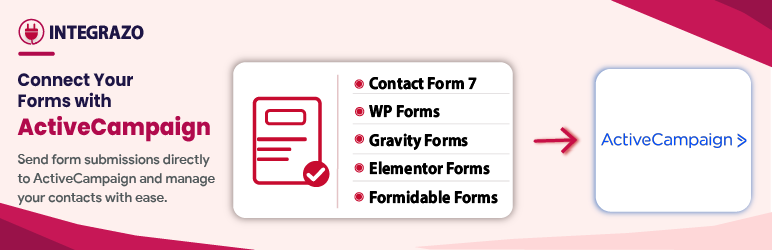
Integration for ActiveCampaign sends every new form submission straight to your ActiveCampaign account. Pick a form, choose what to create (a contact, an account, a deal or an email list subscription), match the form fields to the ActiveCampaign fields, send a test record, and you are live.
Why Use This Plugin?
- Stop copying form entries into ActiveCampaign by hand
- Create contacts, accounts, deals and email list subscriptions from any supported form
- Map standard and custom ActiveCampaign fields, with values converted to the right type
- See what happened to every entry in the Logs
- No coding or API knowledge needed
Supported WordPress Form Plugins
- Contact Form 7
- WPForms
- Gravity Forms
- Formidable Forms
- Elementor Pro Forms
The form plugin must be active for its forms to appear in the wizard.
Supported ActiveCampaign Modules
- Contacts — a contact needs an email address
- Accounts — an account needs a name
- Deals — a deal needs a title and a linked contact or account
- Email Lists — a contact is found or created by email and added to the ActiveCampaign list you choose
Features
- Unlimited connections and integrations. Connect as many ActiveCampaign accounts and forms as you need. One integration creates one kind of record.
- Field mapping. The contact, account and deal fields come from your own ActiveCampaign account. For each field pick a form field, a default value, or a custom value (text with form fields inserted). Required fields are locked in. Values are converted for the field type: text, long text, number, amount, date, date and time, single choice and multiple choice.
- Custom fields. Map form fields to your own ActiveCampaign custom fields, for contacts, accounts and deals. In the field menu they are listed under “Custom fields”.
- Linked records. An account can be linked to a contact, and a contact to an account. A contact is found by email and an account by exact name, and created when it is not there. When several integrations belong to the same form they run in this order: Account, Contact, List, Deal.
- Deals module. Create deals from a form, in the pipeline and stage you choose, with an owner, a status (open, won or lost), custom fields and an optional task. A deal belongs to a linked contact or account.
- Email Lists module. Add a contact to an ActiveCampaign email list. The contact is found by email (or created), then subscribed. A contact that unsubscribed from the list is never added again, and the log says so.
- Record actions. Create or update, update only, or skip if exists. The existing record is the contact with the same email, the account with the same exact name, or the deal with the same exact title.
- Tags. Add tags to the contact, one per row. A tag that does not exist is created.
- Automations. Add the contact to an ActiveCampaign automation.
- Owner. Set the owner of an account or deal.
- Pipeline, stage and status. Choose the pipeline and stage of a deal, and its status (open, won or lost; fixed or from a form field).
- Notes. Add a note to the contact, account or deal, with form fields inserted.
- Tasks. Create a task for the deal, or for the contact in the Contact and Email List modules, due in a number of days, with a title, a type from your ActiveCampaign task types and an optional note.
- System fields. Map the page URL, the referrer and the UTM source, medium and campaign of the visit without adding hidden fields to your form.
- Filters. Send an entry only when your AND / OR conditions on form fields match. Entries that do not match are logged as Skipped.
- Test run. Send one real test record to your ActiveCampaign account before you go live. You confirm first. A test run never changes tags, starts an automation or creates a contact task.
- Logs. Every entry is logged with its result, the request and the response. Filter by status, integration, form, time and date. Failed and skipped entries are easy to find.
- Resync. Run a failed or skipped entry again from the Logs, one by one or in bulk. A resync checks the integration’s filter again and repeats only the steps that are missing or failed.
- Connections. Add, test, edit and remove ActiveCampaign connections. A clear “Reconnect needed” alert shows when ActiveCampaign no longer accepts an API key.
- Careful with your ActiveCampaign limits. Contact and account fields are cached for about ten minutes, with a Refresh fields button. Calls are spaced to stay under the limit of 5 requests per second, a rate-limit answer is recognised and reported, and failure emails are limited to one per connection and error type per hour.
- Safe connection. Your API key is stored encrypted, shown only as its last four characters, sent to ActiveCampaign only in a request header, and never written to the logs.
External services
This plugin connects to ActiveCampaign (https://www.activecampaign.com), the service you choose to send your form entries to. Without an ActiveCampaign connection the plugin does nothing and sends nothing.
ActiveCampaign API (your own account address):
You enter the API URL of your ActiveCampaign account, which looks like https://youraccount.api-us1.com, and the plugin calls <your API URL>/api/3.
- What it is used for: checking the API URL and key, reading your contact and account fields, lists, users, automations, pipelines and task types (when those options are used) so you can map them, and creating records from your form entries.
- When: when you add, edit or test a connection; when the integration wizard or Settings load your fields and lists (and when you press Refresh fields); when a form is submitted; and when you use Test run.
- Data sent: your API key (only in the
Api-Tokenrequest header); the form values you mapped, for example a name, email address, phone number, account name or deal value; the system fields (page URL, referrer, UTM values) if you mapped them; and, for linked records, the email or name used to find or create the linked contact or account. Each request also carries aUser-Agentheader with the plugin name and version and the address of your site (for exampleIntegrazoActiveCampaign/1.0.0; https://example.com). - Terms of service: https://www.activecampaign.com/legal/terms-of-service
- Privacy policy: https://www.activecampaign.com/legal/privacy-policy
The plugin makes no other external request. It contains links to https://integrazo.com/ (help and support); following a link is your choice and sends no data.
Privacy
- Sent: form values go from your site to your own ActiveCampaign account over HTTPS, only for the integrations you set up. See “External services” above.
- Stored on your site: your connections (name, API URL and the API key, stored encrypted and shown only as its last four characters); your integrations and mappings; and the logs, which keep the form values of each entry (each value cut to 2,000 characters), the request sent and the answer from ActiveCampaign. Logs can hold personal data such as names and email addresses, so keep them only as long as you need them.
- Short-lived data: the contact and account fields read from ActiveCampaign are cached as WordPress transients for about ten minutes; the list of your Elementor forms is cached for five minutes; short markers limit failure emails (one hour, with a counter kept for one day); and a small rate-limit marker is kept per connection.
- Failure emails: if an entry fails, a notice (error code and message, no form values) can be emailed to the addresses you set in Settings Notifications through your own WordPress mail.
- Retention and deletion: under Settings General, Keep logs for (days) removes older entries automatically (0 keeps them until you delete them), and Clear All Logs on the Logs page removes them at once. Deleting a connection removes it and its stored key; deleting an integration removes its log entries. When you delete the plugin,
uninstall.phpremoves the plugin’s tables, options and transients only if Delete all plugin data on uninstall is switched on (the default is to keep the data). On a multisite network each site’s own setting decides. - Cookies: the plugin sets no cookies and shows nothing to visitors; the form plugins you use do their own thing.
Screenshots

Add ActiveCampaign Connection

Configure Your Integration

Map Your Form Fields

Configure Additional Details and Task

Record Action & Filters

Manage Notifications and Settings

View Submission Logs
Similar Plugins:
 Integration For ActiveCampaign And Contact Form 7, WPForms, Elementor, Ninja Forms
 ClickSyncr Form Sync For EmailOctopus – Contact Form 7, WPForms, Gravity Forms, Ninja Forms, Fluent Forms & Formidable
ClickSyncr Form Sync For Elastic Email – Contact Form 7, WPForms, Gravity Forms, Ninja Forms, Fluent Forms & Formidable