Morv AI Chatbot Wordpress Plugin - Rating, Reviews, Demo & Download
Plugin Description
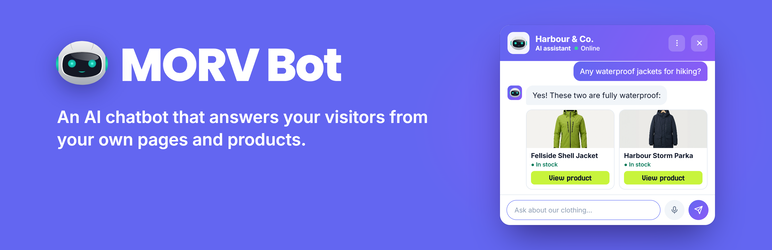
Morv AI Chatbot puts a Morv chatbot on your site with no code to paste. It answers your visitors from your own pages, posts and (with WooCommerce) products, and passes on the contact details visitors leave.
- Connect in one click. Click Connect, sign in to Morv or create an account, choose the chatbot and approve. You come straight back, connected.
- Works with block and classic themes: the plugin loads the chat for you.
- Knowledge that keeps up. When you edit or remove a post or page that is in the chatbot’s knowledge, Morv re-reads it within minutes, and a new post listed in your sitemap joins it. Posts that Yoast SEO, Rank Math or All in One SEO mark noindex are left out, and pages that have not changed cost nothing.
- WooCommerce in one click. Approve a read-only key in WooCommerce’s own screen; nothing to copy or paste.
This plugin is the connector for the Morv service (https://morv.ai). It needs a Morv account, and conversations, page reads and product syncs use the credits of your Morv plan. Every feature of the plugin itself is free.
The chat window shows a small “Powered by Morv” credit, drawn by the Morv service’s own script, not by this plugin. The plugin adds no link or credit of its own.
External services
This plugin connects to Morv (https://morv.ai), an AI chatbot service run by Morv.ai LTD. It sends data to Morv only after you click Connect, and only as listed here.
- Connect (when you click Connect): your browser goes to https://morv.ai/connect/wordpress carrying this site’s address and name, your settings page’s address, the address of the site’s sitemap, your WordPress and plugin versions, whether WooCommerce is active, your WordPress admin language (so Morv’s pages can be shown in it), and two one-time random values that secure the connection.
- Exchange (straight after you approve on Morv): this site sends Morv the one-time code, a secret it made before Connect, this site’s address and the WordPress and plugin versions, to https://morv.ai/api/v1/sites/token. Morv answers with the site’s key and the chatbot’s details.
- Status (when you open the settings page, at most every five minutes, or every minute while Morv cannot be reached; when you click Check again; and once a day): this site sends its key, the WordPress and plugin versions and whether WooCommerce is active to https://morv.ai/api/v1/sites/status, to show whether the chatbot is live.
- The chat widget (on every page of your site while connected and switched on): on every page view your visitors’ browsers load the widget, its stylesheet and the chatbot’s settings from https://morv.ai, so Morv receives their IP address, their browser’s user agent and the page’s address, whether or not they open the chat. When a visitor uses the chat, their messages, the address of the page they are on, their IP address, their browser’s user agent and how they use the chat (such as opening it or clicking a link in an answer) go to Morv, which answers on your behalf. The widget keeps a random session identifier, the conversation’s identifier, whether the visitor accepted the chat’s data notice and whether they closed its greeting in the browser’s storage; the widget sets no cookies. Product pictures in answers load from wherever the store keeps them (for WooCommerce, this site). Contact details a visitor leaves reach you through Morv.
- Spam check (when a visitor starts a conversation, and again whenever Morv asks for one): the chat runs a Cloudflare Turnstile check, which the visitor’s browser loads from https://challenges.cloudflare.com. Cloudflare receives the visitor’s IP address, user agent and other signals from the browser, and may set its own cookies. Cloudflare’s Terms of Use: https://www.cloudflare.com/website-terms/ Privacy Policy: https://www.cloudflare.com/privacypolicy/ and Turnstile Privacy Addendum: https://www.cloudflare.com/turnstile-privacy-policy/
- Page updates (a few minutes after you publish, edit, unpublish or delete a post, page, product or other public content, while that setting is on): this site sends the page’s address and whether it was published, updated or removed to https://morv.ai/api/v1/sites/content. Morv then reads the published page itself. Nothing is sent for posts that Yoast SEO, Rank Math or All in One SEO mark noindex (Morv drops them at its nightly read of your sitemap), nor for pages WooCommerce’s Coming soon mode hides.
- Site check (when you click Connect WooCommerce products, and at night if another Morv account has also connected this site’s address): Morv calls this site’s https://your-site/wp-json/morv-ai/v1/proof to confirm the site runs this plugin connected to your Morv account, and which account that is. The answer is a code derived from the site’s key; it reveals nothing else, and the route answers nothing for any other request.
- Connect WooCommerce products (only when you click it): your browser goes to https://morv.ai/connect/wordpress/woocommerce carrying this site’s connection reference and your settings page’s address, where you confirm on Morv.
- WooCommerce keys (only when you click Connect WooCommerce products and approve): WooCommerce creates a read-only API key and sends it from your site to https://morv.ai/api/v1/sites/woocommerce/keys. Morv stores it encrypted and reads your products with it. The plugin notes the key’s number (nothing else) so that it can revoke the key once Morv no longer uses it.
- Disconnect (when you click Disconnect, or delete the plugin, at the address the site was connected from; a copy of the site at another address only forgets the connection and sends nothing): this site tells https://morv.ai/api/v1/sites/disconnect to stop. If Morv cannot be reached when you click Disconnect, the site tries again every hour for a day while the plugin stays active; when you delete the plugin, Morv is told once, so if it cannot be reached then, disconnect the site in your Morv dashboard (the chatbot’s Embed Code page, Connected sites). Morv stops showing the chatbot here and removes the WooCommerce product connection made from this site, with the products it synced, and once Morv no longer uses it, the plugin revokes the read-only key WooCommerce made for Morv. If Morv refuses, the settings page says so and how to disconnect the site on Morv.
Morv’s Terms of Service: https://morv.ai/terms
Morv’s Privacy Policy: https://morv.ai/privacy
Screenshots

The settings page, connected.

Approving the connection on Morv.

The chatbot on a site.