
Picktime Booking Wordpress Plugin - Rating, Reviews, Demo & Download
Plugin Description
Picktime Booking turns your WordPress site into a 24/7 booking desk. Connect your Picktime account once and your visitors can book appointments, classes and resources straight from your pages, without phone calls or back-and-forth emails.
It works for salons, spas, clinics, therapists, tutors, fitness studios, pet groomers, consultants, repair shops and any business that takes appointments.
Don’t have a Picktime account yet? Picktime has a free plan. Sign up free and have your booking page ready in minutes.
Set up in three steps
- Paste your Picktime Account ID (or your booking page link).
- Pick your colours, text and style with a live preview.
- Add the block, Elementor widget or shortcode to any page, or switch on the floating button.
Four ways to take bookings
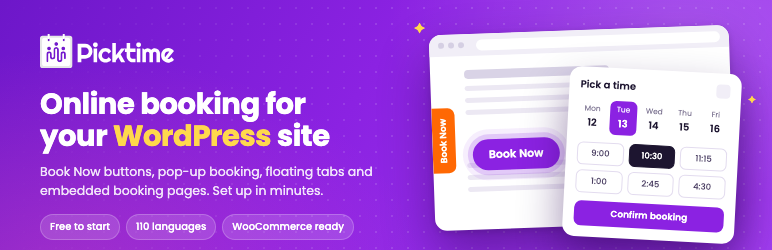
- Book Now button: place it anywhere with the Picktime Booking block, an Elementor widget or the
[picktime]shortcode. - Pop-up booking: your booking page opens in an overlay on top of your site, so visitors never leave your page.
- Floating button: a button pinned to a corner, or a tab on the left or right edge, visible on every page while visitors scroll.
- Embedded booking page: show your full booking page inside any page or post.
Book services from WooCommerce product pages
Sell services in WooCommerce? Let customers book them straight from the product page.
- Show a Book Now button after or before Add to cart, or instead of it for products that are booked rather than bought
- Or show your booking page in a “Book” tab on the product page
- Turn booking on for all products, or only the products you choose
- Link each product to a specific Picktime service or staff member, with its own button text
- Works with classic themes such as Storefront and with block themes such as Twenty Twenty-Five
- Compatible with High-Performance Order Storage (HPOS) and the Cart and Checkout blocks
- The WooCommerce options only appear when WooCommerce is active; without it the plugin works exactly as before
Elementor widgets
Building your pages with Elementor? Drag Picktime straight into your layout.
- A “Picktime” category with two widgets, Picktime Book Now Button and Picktime Booking Page
- The same settings as the block: text in 110 languages, Picktime colours or your own, style, shape, size, click behaviour, animation, alignment, embed height and a different Account ID
- See the real button or booking page in the editor as you change the settings
- Visitors get exactly the same buttons, overlay and embedded booking page as with the block and shortcode
- The widgets only load when Elementor is active
Design it to match your brand
- One-click Picktime colours, or any custom colour with the colour picker
- Filled or outline buttons, square, rounded or pill shapes, three sizes
- Attention animations (glow, pulse, wiggle, bounce) that play once or repeat, and respect visitors’ reduced-motion settings
- Live preview of the in-page and floating buttons as you edit
Speaks your customers’ language
- “Book Now” shows in your site’s language automatically
- Searchable list of ready-made “Book Now” translations in 110 languages
- Or write your own text (up to 30 characters)
- Works with WPML and Polylang, so each language on your site can have its own button text
- Supports right-to-left languages such as Arabic, Hebrew and Urdu
Built the WordPress way
- Block editor block with full settings in the sidebar, Elementor widgets and a shortcode for the classic editor and other page builders (Beaver Builder and others)
- Different settings per button: text, colour, style, click behaviour, animation, even a different Picktime account
- Lightweight: no jQuery on the front end, and styles and scripts load only on pages that show a Picktime button
- Accessible overlay with keyboard support, focus handling and Esc to close
- Stores no visitor data in WordPress
- Clean uninstall removes all plugin settings
Do more with Picktime
Everything you set up in Picktime works on your website booking page, including:
- Online payments with Stripe, Square or PayPal
- Email and SMS reminders to reduce no-shows
- Google Calendar and Outlook sync
- Zoom links for online appointments
- Classes, waitlists and packages
- Staff and resource scheduling
- Customer reviews
Some Picktime features need a paid Picktime plan. See www.picktime.com for details.
Shortcode examples
[picktime]
[picktime text="Reservar ahora" color="#009444" shape="pill" align="center"]
[picktime action="new_tab" animation="pulse"]
[picktime type="embed" height="900"]
[picktime account="otherAccountId"]
Options: text, color, text_color, style (filled, outline), shape (square, rounded, pill), size (small, medium, large), action (overlay, new_tab, same_tab), animation (none, pulse, wiggle, bounce, glow), align (left, center, right), account, type (button, embed), height.
For developers
picktime_booking_urlfilter: change the booking URL used by buttons, overlays and embeds. Arguments: the URL, the Account ID path and the source (wp, orwoocommerceon product pages).picktime_booking_show_floatingfilter: show or hide the floating button on specific requests.
Support
For live support, go to www.picktime.com and use the chat option, or email the Picktime Team at support@picktime.com.
External services
This plugin connects to Picktime (https://www.picktime.com), an online appointment booking service, to show your booking page.
- What is sent and when: The plugin itself sends no data. When a visitor clicks a booking button, opens the overlay, or views a page containing an embedded booking page, their browser loads your booking page from www.picktime.com. Like any web page, that request includes the visitor’s IP address and browser details. The link includes your Account ID and
widget-source=wp(orwidget-source=woocommercefor buttons and tabs on WooCommerce product pages) so Picktime knows the visit came from this plugin. Anything the visitor enters to make a booking is sent directly to Picktime. - Links for site administrators: The plugin’s admin screens include links to sign up for Picktime (https://www.picktime.com/register), open the Picktime dashboard (https://www.picktime.com/app) and reach live chat support (https://www.picktime.com). Nothing is sent until an administrator clicks one. These links include
utm_source,utm_medium,utm_campaignandutm_contentparameters (andsource=wordpresson signup links) so Picktime can see which part of the plugin the visit came from. No personal data is added to them. - Service provider: Picktime
- Terms of service: https://www.picktime.com/legal/terms
- Privacy policy: https://www.picktime.com/legal/privacy
Screenshots

Settings screen with a live preview of the in-page button and the floating tab.

Your Picktime booking page opened in a pop-up overlay, so visitors never leave your site.

The Picktime Booking block and its settings in the block editor.

A Book Now button on a page, with the floating booking tab on the right edge.

A WooCommerce product page with a Book Now button after Add to cart.

Per-product booking settings under Product data > Picktime.

The Picktime Book Now Button widget and its settings in the Elementor editor.

The Picktime Booking Page widget in the Elementor editor, showing your live booking page.


