
Adminlane Wordpress Plugin - Rating, Reviews, Demo & Download

Plugin Description
WordPress’ admin has looked much the same for well over a decade. Adminlane gives it a quieter, present-day look — without changing how anything works. Every screen keeps its buttons, links and forms where they were; they just look calmer.
What it restyles
- Menu and toolbar – a light (or dark) side menu with clear sections, floating sub-menus and a quiet toolbar.
- Dashboard, lists and settings – cards instead of grey boxes, tables with room to breathe, settings grouped in panels, status filters as pills.
- Posts, Pages and your other content – an overview on top (published, drafts, scheduled, without a featured image), a thumbnail per row and a short status line: categories, dates and word count.
- The classic editor (for the same content types) – a big title, a paper-like writing area, card-style boxes, a save bar that stays in view and Ctrl/⌘+S to save.
- Media, users, comments, plugins, themes, menus, Site Health, tools – the same style everywhere, including the media window and the code editor.
- Login screen – in the same style, light or dark after the device.
Five appearances, six accent colours
Each user picks their own look from the toolbar (the half-moon icon — a small card points it out the first time) or on their profile: Light, Soft, Dim, Dark, or Follow the system.
- Soft sits between Light and Dark, closer to Light: a soft grey menu and a light grey page under white cards, for less glare during long sessions.
- Dim sits between Soft and Dark, closer to Dark: a dark look in lifted slate greys with gentler contrast, for evenings — or for anyone who finds Dark too black.
- Dark covers every WordPress screen, so moving between screens never flashes white.
On top of that, each user chooses an accent colour — Blue, Violet, Teal, Green, Orange or Pink — for buttons, links and the current menu item, in every appearance. Both switch at once with a short cross-fade, without reloading the page.
Staging or live? You can tell at a glance
On a local, development or staging copy of a site, the toolbar shows a small badge after the site name and a coloured line along its top edge, so a test copy is never mistaken for the live site. It follows WordPress’ own WP_ENVIRONMENT_TYPE setting, so there is nothing to set up — and nothing is shown on the live site.
Other plugins stay as their authors made them
Screens added by other plugins keep their own design; only the menu and the toolbar around them change. That includes the lists and edit screens of things a plugin keeps to itself, such as ACF field groups or gallery and form builders: the overview, thumbnails and editor style are for content visitors can see on the site — Posts, Pages and public types like a theme’s “Museums” or WooCommerce’s products. Plugins that use WordPress’ standard tables and forms usually look fine restyled too — each user can switch that on under Profile Other plugins’ screens.
Looks only
Adminlane does not add settings pages, change menus, track anything or call outside services. Pause it from the toolbar (or untick it on your profile) and the admin is exactly as before. It stores a few small preferences per user (appearance, accent colour, paused, other plugins’ screens, and whether the first-time hint has been seen), which are removed when you delete the plugin.
The block editor, the site editor and the Customizer have their own design and are left alone.
Screenshots
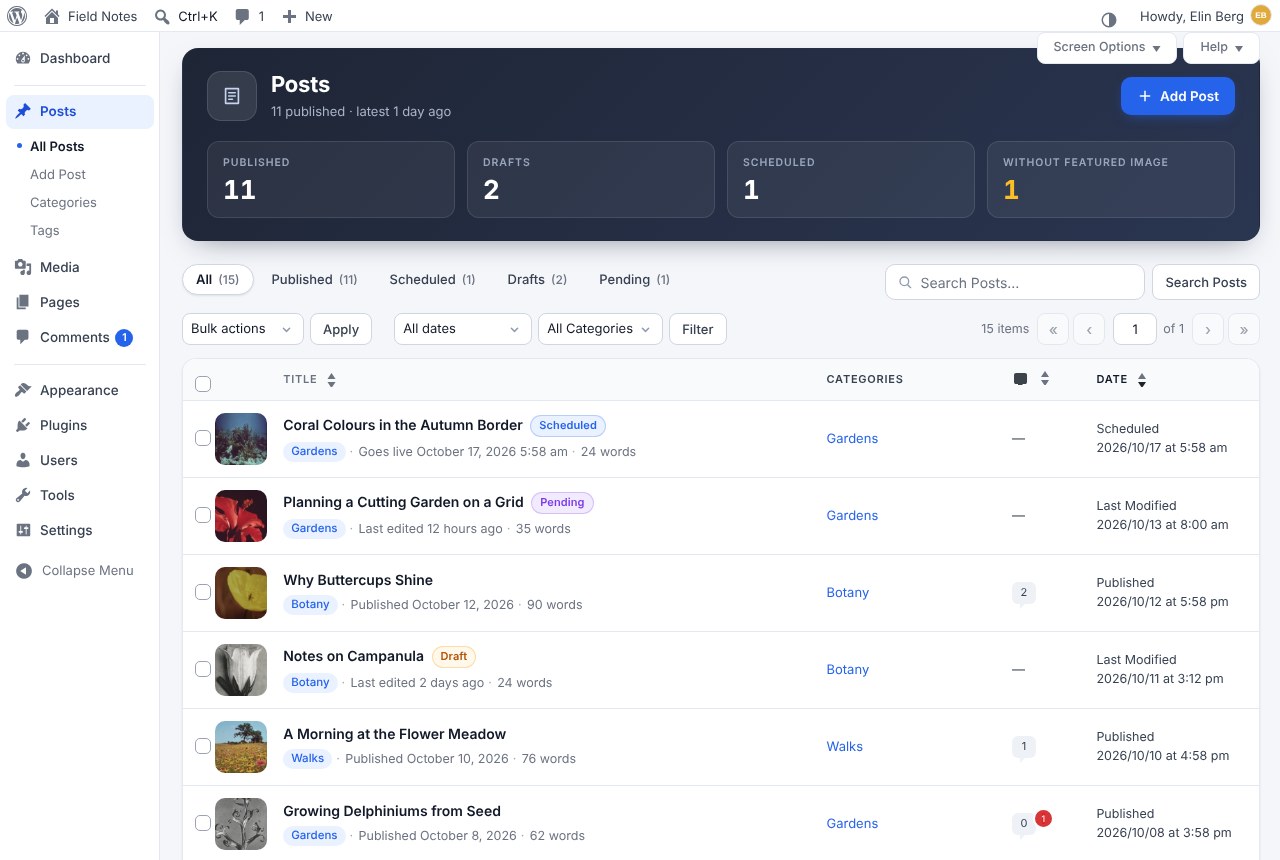
Posts list with the overview, thumbnails and status lines (light).
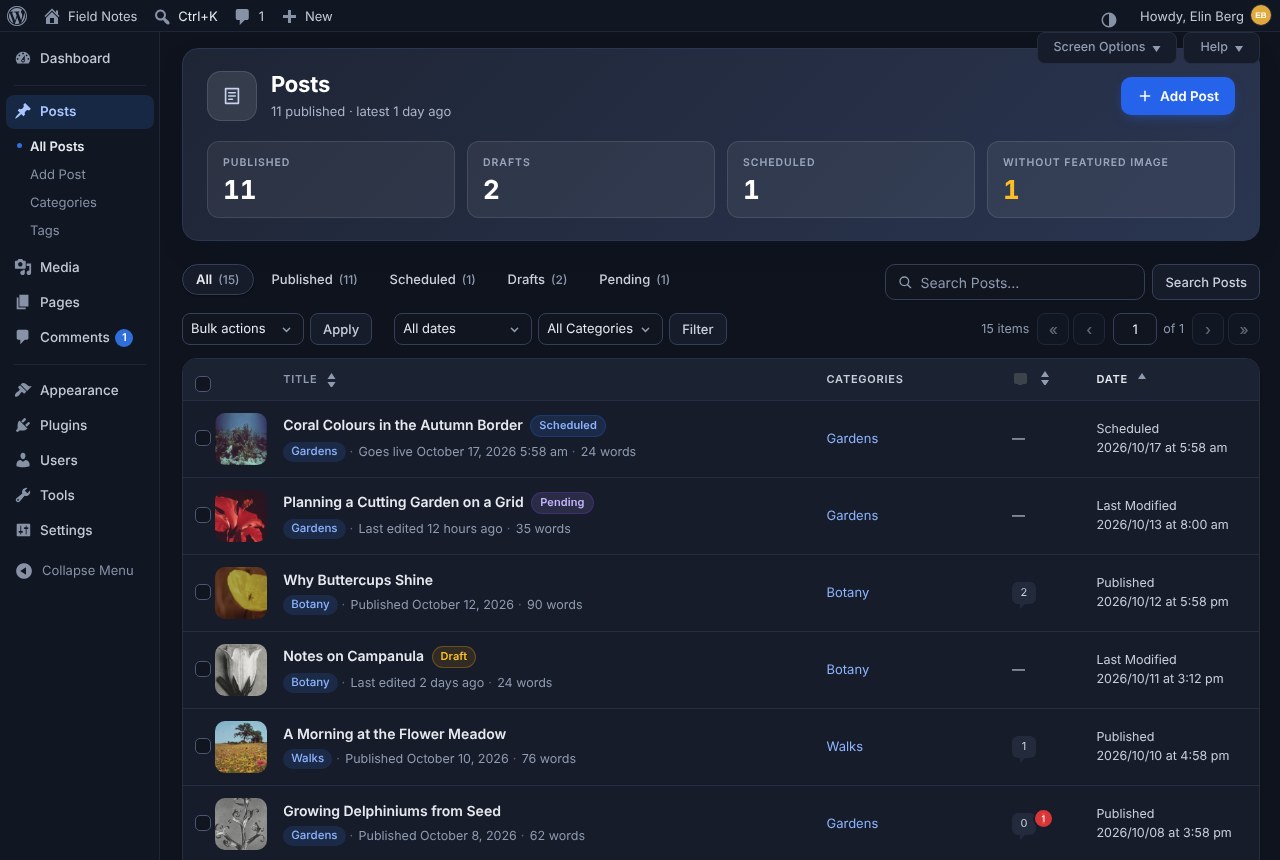
The same list in dark mode.
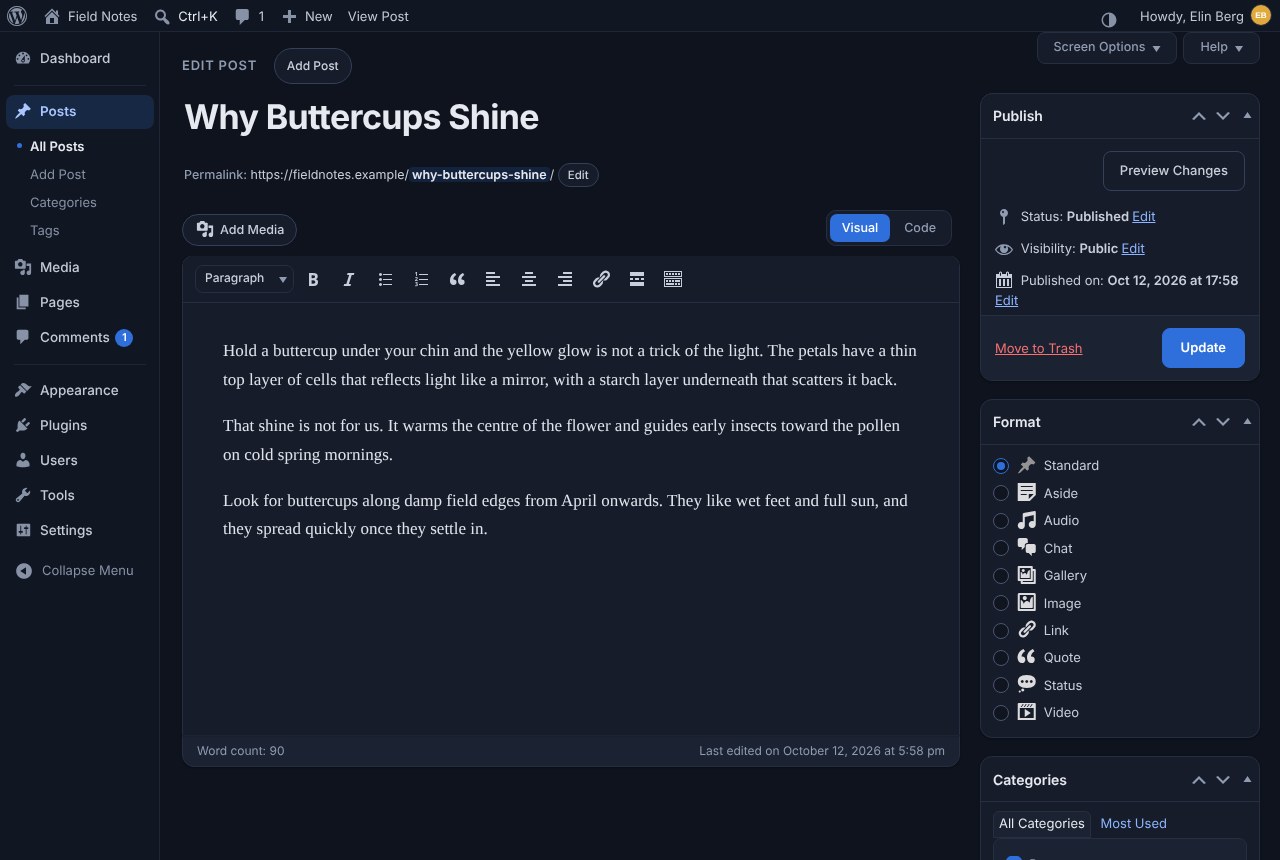
The classic editor in dark mode.
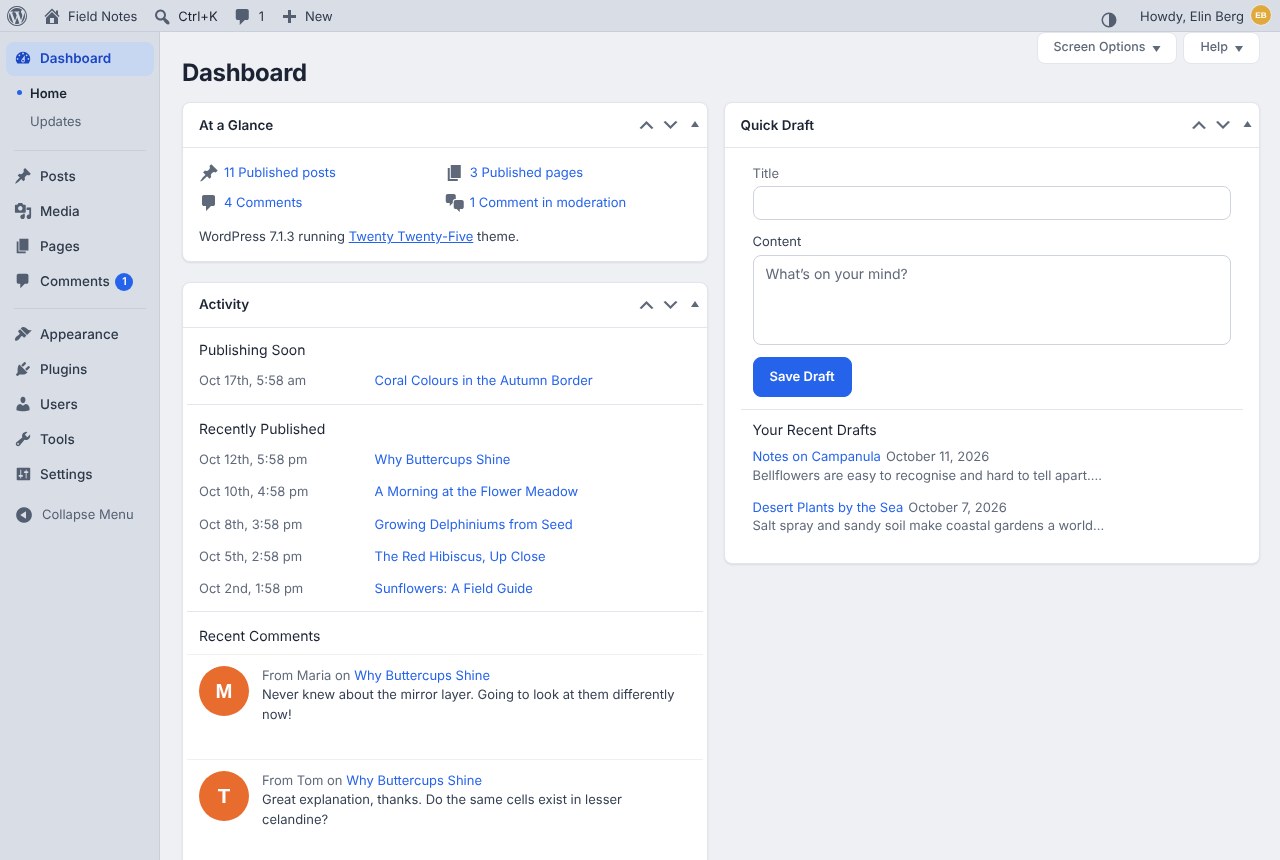
The dashboard in soft mode.
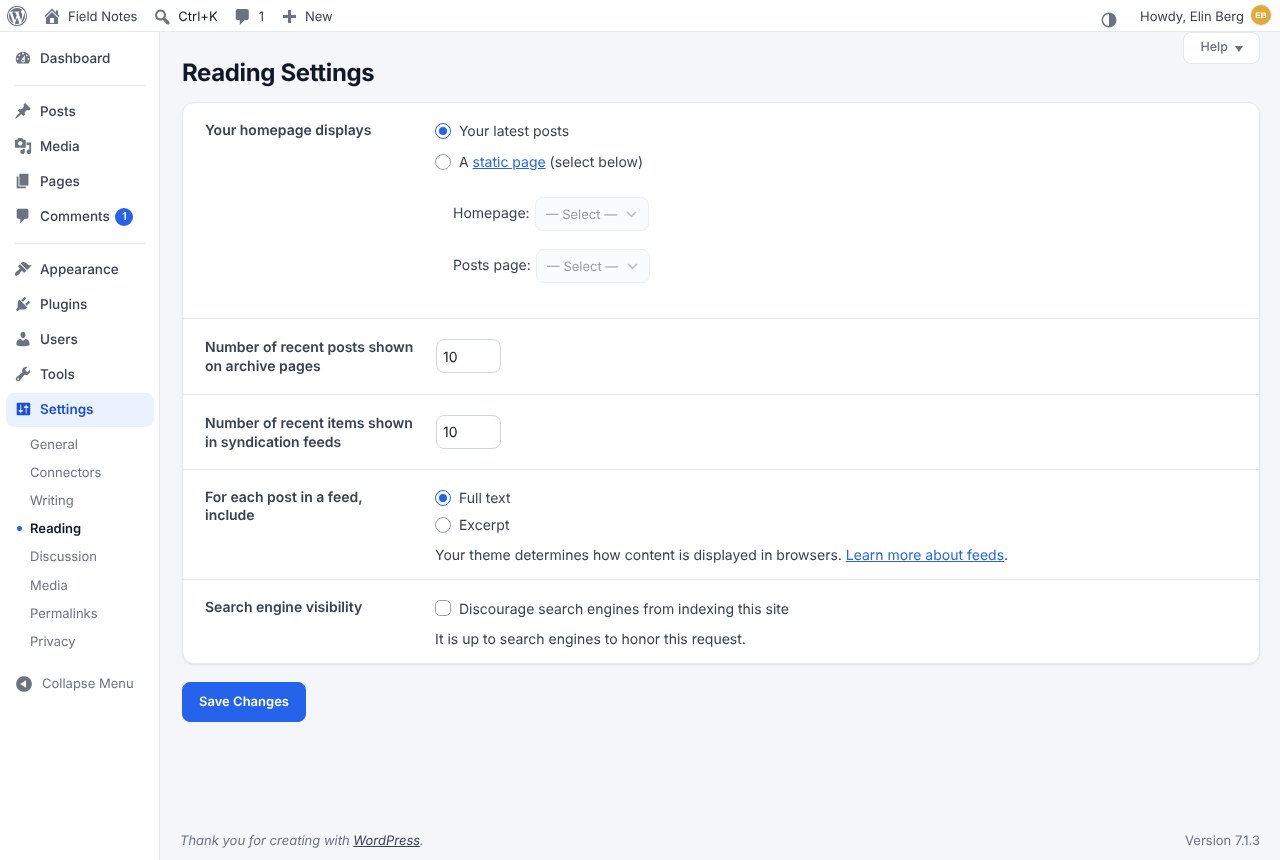
Settings in panels.
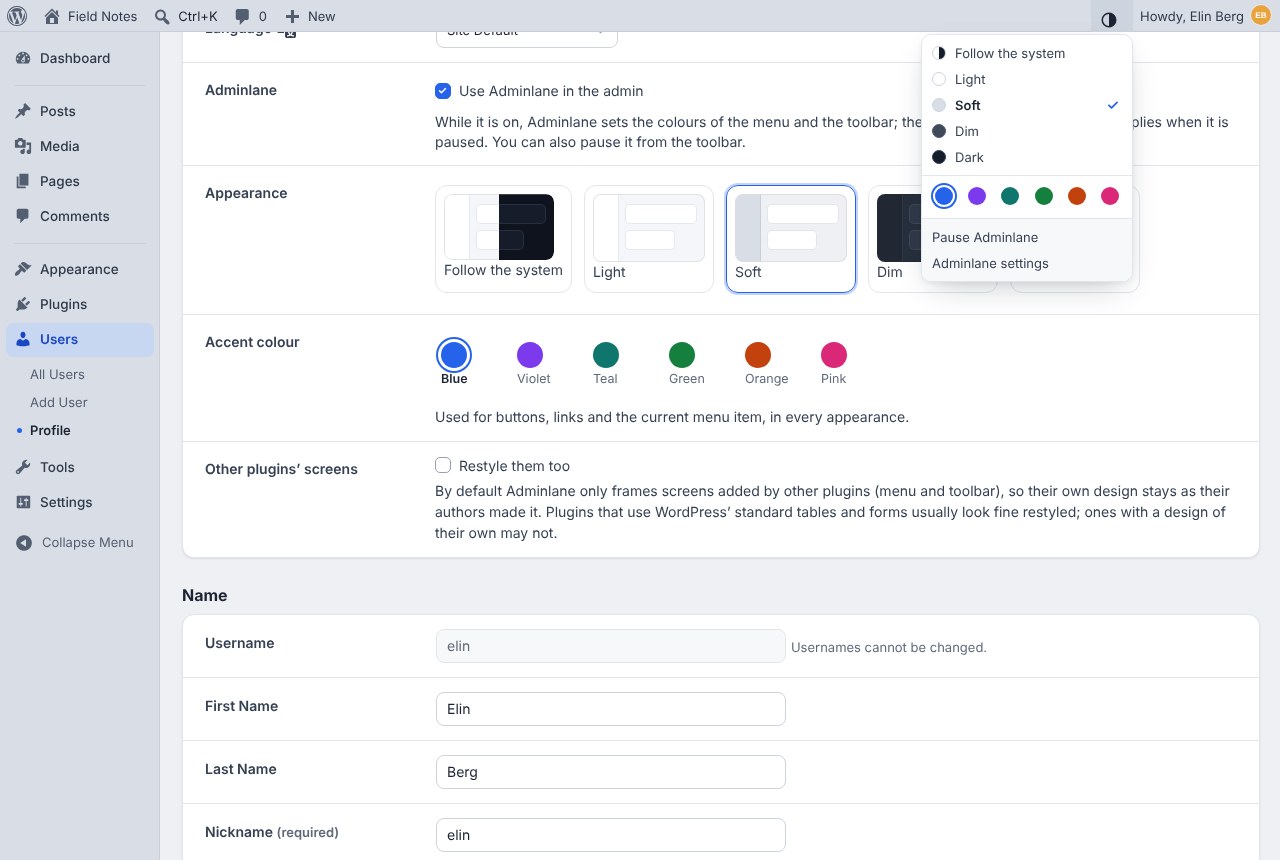
Five appearances and six accent colours — from the toolbar or the profile.
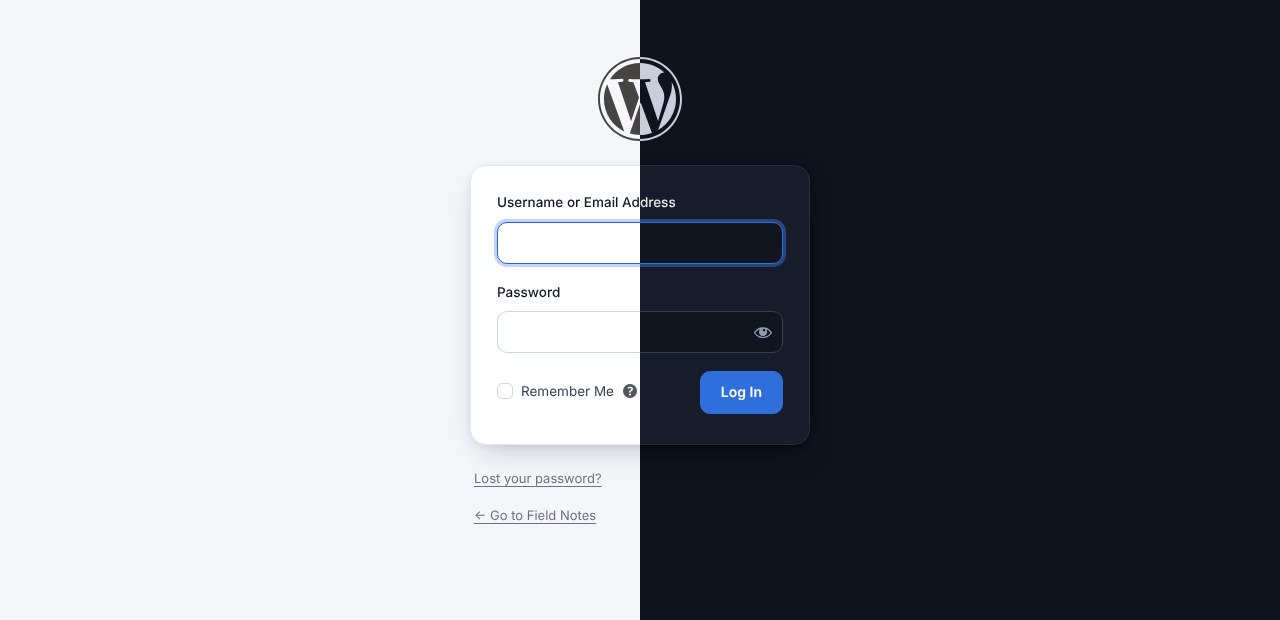
The login screen, light and dark.
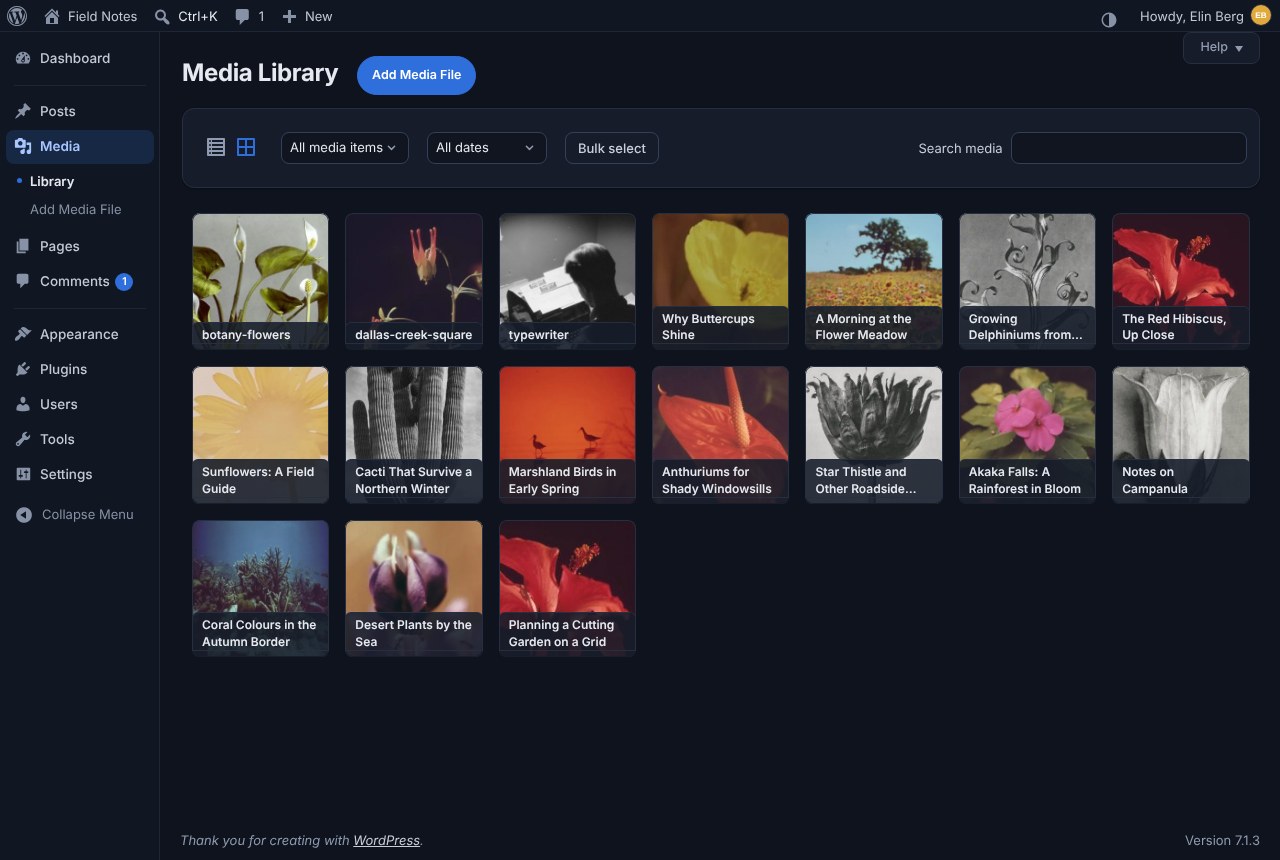
The media library in dark mode.


