
AllTerrain Photo Editor For OpenStation Wordpress Plugin - Rating, Reviews, Demo & Download

Plugin Description
WordPress has shipped the same image editor since 2008: rotate, flip, crop, scale. AllTerrain Photo Editor adds everything that was missing.
It is a real editor. You can adjust exposure and colour while watching a live histogram, paint with brushes that have shape and softness, select an area and paint only inside it, stack layers, drag a photo in from the Media Library, and type text directly onto the canvas.
Adjust
- Exposure, contrast, temperature, tint, saturation, vibrance and hue
- Curves, on RGB and on each channel separately
- Levels, with black point, white point and gamma
- Sharpen, blur, vignette and grain
- A live histogram that follows the slider as you drag it
- Presets, so a look you like can be reused on the next photo
Paint
Eighteen tools on a two column rail, grouped the way you would expect:
- Move and transform, with handles that scale, rotate and snap
- Select as a rectangle, an ellipse, a freeform lasso or a polygon
- A magnetic lasso that snaps to the edge you are tracing, so trace roughly round a subject and the outline finds its boundary for you
- Build a selection up: add to it, subtract from it, or keep only the overlap, from the options bar or by holding Shift, Alt or both
- Step a selection back when an addition went the wrong way, with Cmd/Ctrl+Shift+D or the Step back button — which also brings back a selection you dropped
- Magic wand, which selects the region around the colour you click
- Crop, with aspect presets
- Eyedropper, brush, eraser, paint bucket and gradient
- Retouch: blur, sharpen, smudge and heal
- Clone stamp, with an Alt click to set the sample point
- Dodge, burn, desaturate and saturate
- History brush, which paints the original image back
- Shapes, paths and text
- Hand and zoom, plus a quick mask and a full screen mode
Brushes have a size, a shape and a hardness, and the cursor is a ring the real size of the brush against the image, so you are never guessing at how much a stroke will cover.
Layers
Text, pasted pixels and dropped photos each arrive as their own layer, so you can move one without disturbing the others, reorder them, hide them or throw one away. Undo reaches painted pixels too, not only settings.
Drag a photo in
Drag an image from the Media Library, from the desktop, or from your computer straight onto the canvas. It lands as a new layer, where you dropped it, scaled to fit.
Open a product photo without hunting for it
Drag a WooCommerce product onto the AllTerrain Photo Editor icon and its photo opens straight away, skipping the picker. Any post with a picture works the same way, and so does dropping a photo itself.
When you save, AllTerrain Photo Editor asks whether the product should start using the edit. Either answer leaves your original where it is: choosing to update writes a new copy and points the product at it, so going back is a matter of pointing it at the old one again.
Your originals are never touched
Saving always writes a new attachment and records the edit as a recipe: the list of adjustments, not the pixels. Re-opening a photo restores every slider exactly where you left it and renders again from the original. Editing the same image ten times costs nothing in quality, because every render is a first generation one.
Fast, because of how it renders
Adjustments are composed into a single GPU pass rather than chained one after another. That is not only quicker. It also means the image is quantised once instead of once per adjustment, which is the difference between a clean gradient and visible banding in a sky.
Requires OpenStation
AllTerrain Photo Editor runs inside the OpenStation plugin (previously called Desktop Mode), which turns wp-admin into a desktop, and needs it installed. That is not decoration: the rendering engine is OpenStation’s. AllTerrain Photo Editor ships none of its own and borrows the desktop’s, which is why this plugin is a few tens of kilobytes rather than the best part of a megabyte, and why your browser only ever downloads one copy.
Install and activate OpenStation first. Without it, AllTerrain Photo Editor tells you what it needs and otherwise stays out of the way.
Where it opens
With the desktop switched on, AllTerrain Photo Editor is a real window: chrome you can move and resize, an icon on the wallpaper, and drag and drop between windows.
The desktop is a per-user preference, and with it switched off AllTerrain Photo Editor still opens — under Media Edit Photos, and over the top of whatever you were doing when you choose “Edit with AllTerrain Photo Editor” in the Media Library, in the media picker or on an image block. Every tool is the same one. What you do not get is the window, the wallpaper icon and dragging photos between windows.
Third-party libraries
This plugin bundles no third-party libraries and makes no external or CDN requests.
Rendering uses PixiJS (MIT), which is bundled by the OpenStation plugin and served from your own server. AllTerrain Photo Editor asks OpenStation for it rather than shipping a second copy: that keeps this plugin small, and two instances of the same rendering library on one page share GPU resources through globals, where tearing one down can break the other.
Screenshots
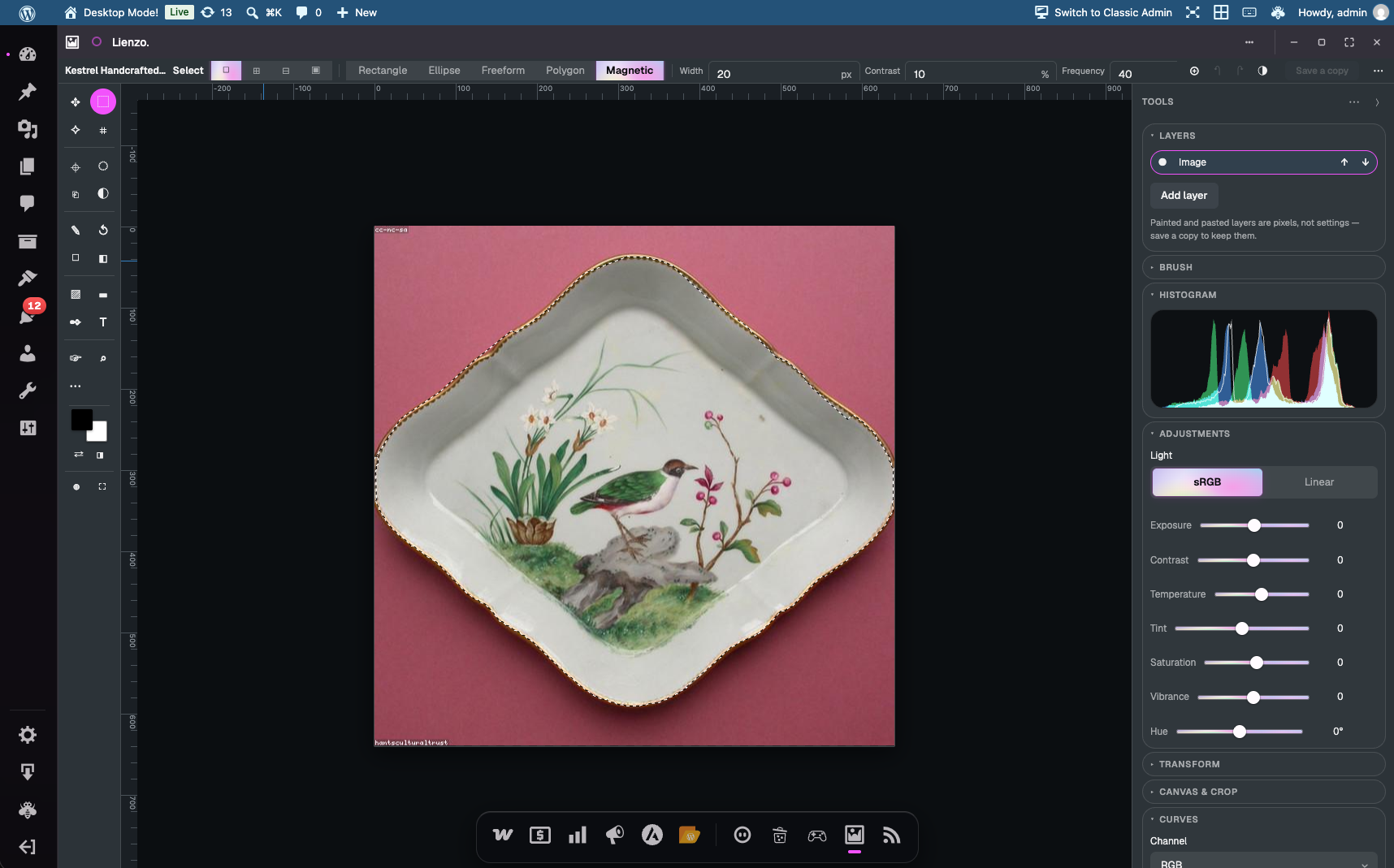
The editor as a desktop window: the tool rail on the left, the layer stack, a live histogram and every adjustment on the right, and the magnetic lasso following the edge of a plate.
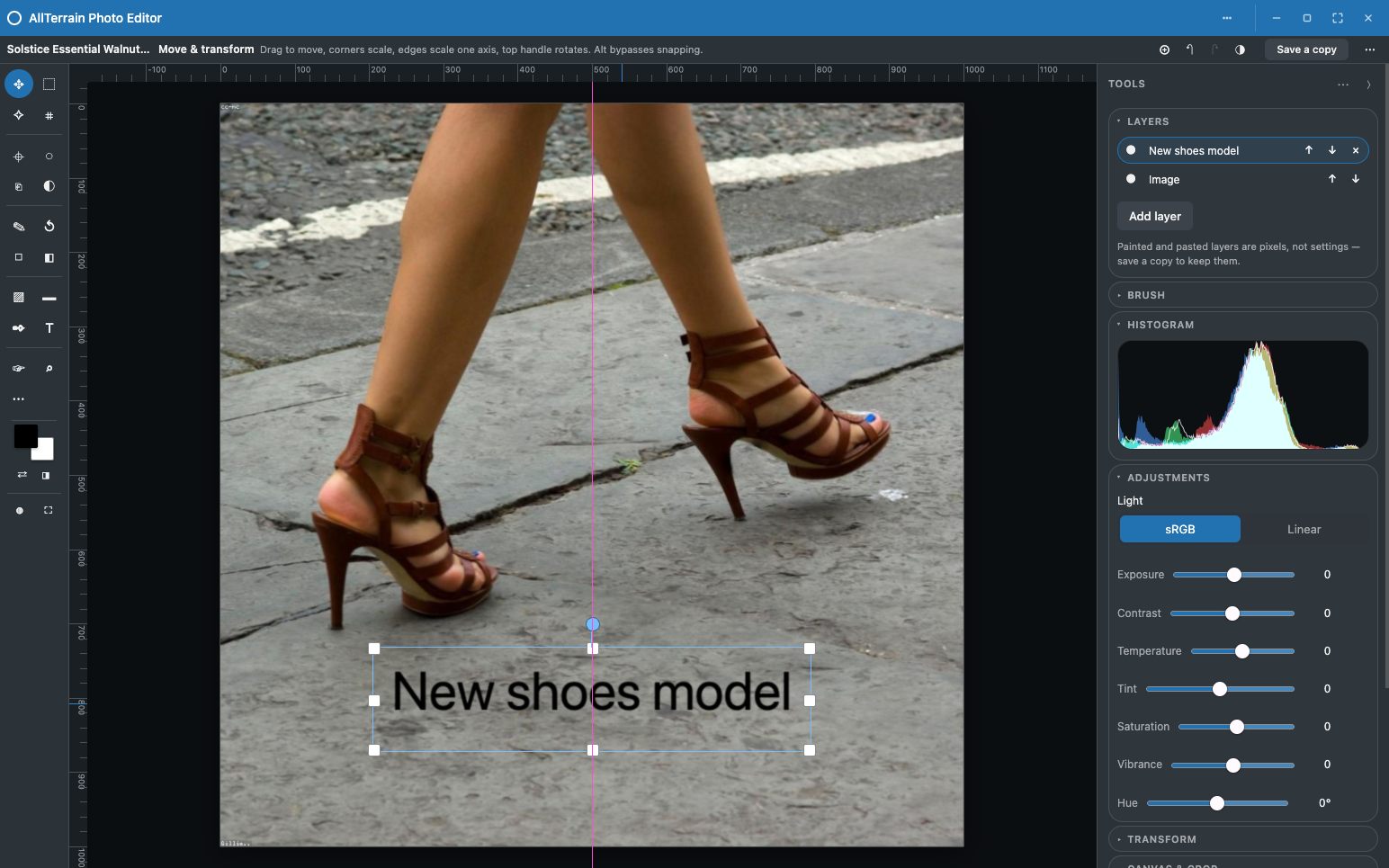
Text typed straight onto the canvas, as a layer of its own, with a transform box to move, scale and rotate it.
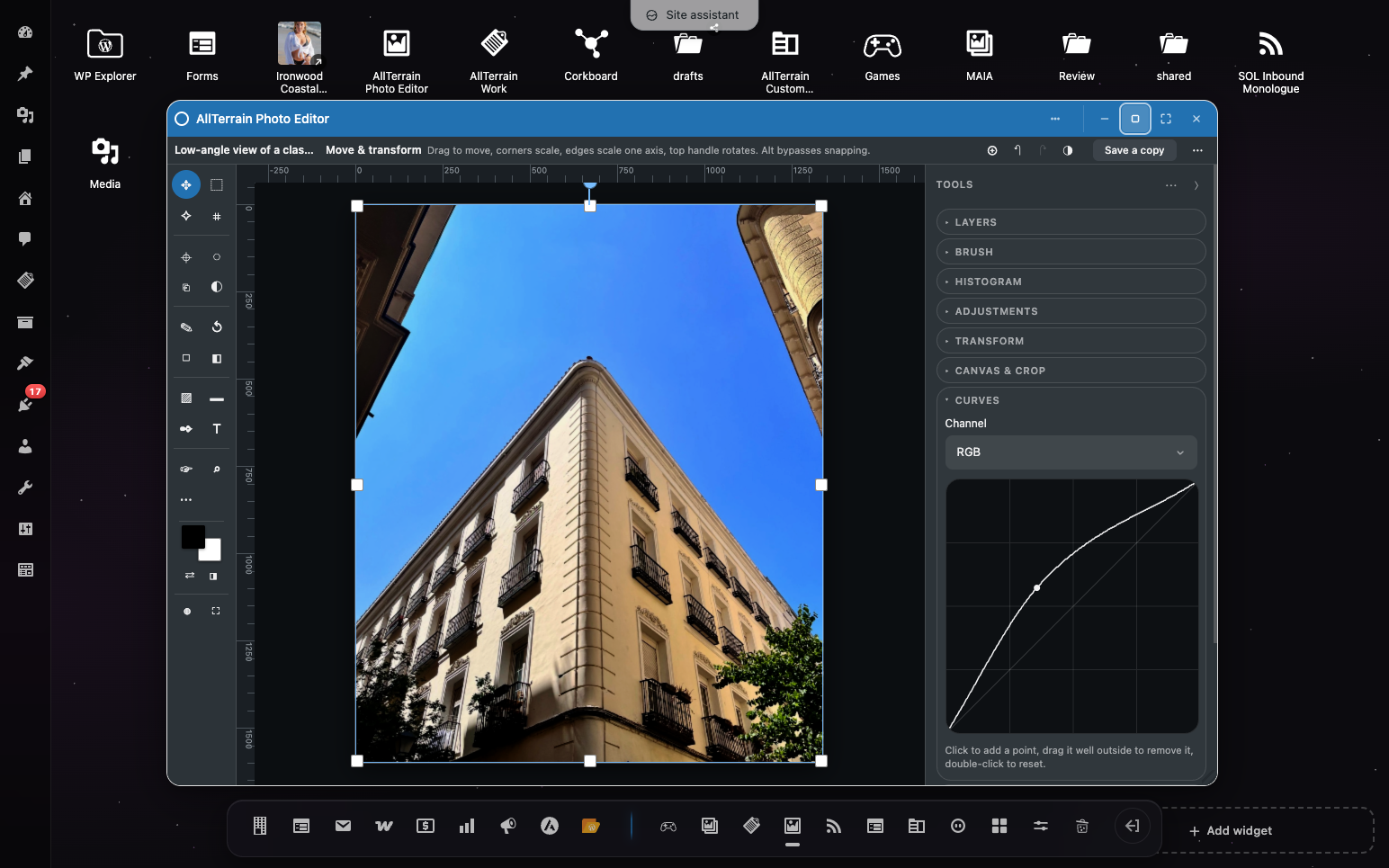
Curves, on RGB or on one channel at a time, against the photo being graded — the editor in its own window on the OpenStation desktop.
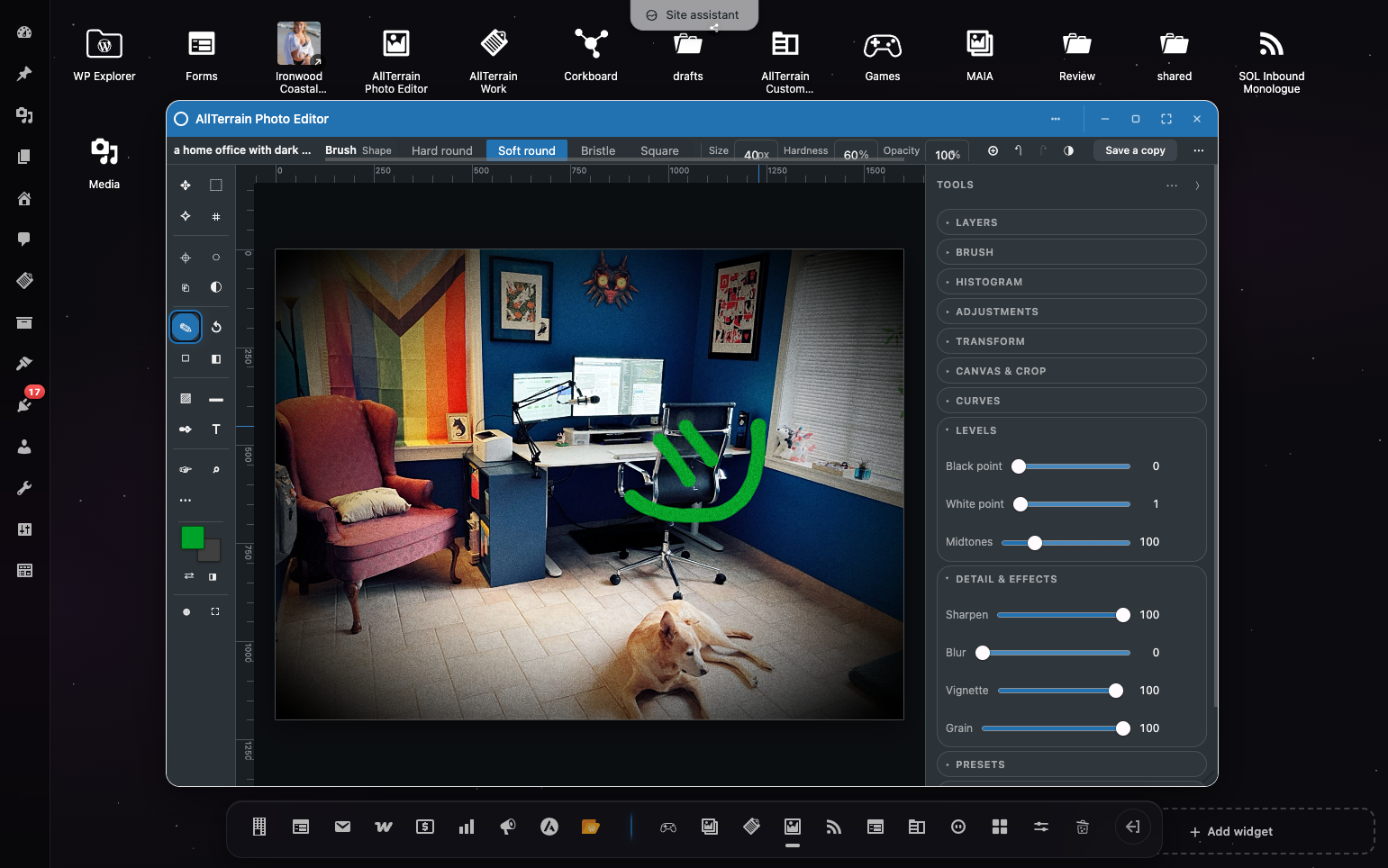
A soft round brush, its size, hardness and opacity on the options bar, over levels, sharpening, vignette and grain.


