
BlockSieve Wordpress Plugin - Rating, Reviews, Demo & Download

Plugin Description
Sometimes a block should only be there for some people, or only some of the time. A welcome message for members. A sign-up prompt for everyone else. A promo that runs for two weeks and then quietly goes away. A big hero image that looks great on desktop but gets in the way on a phone.
BlockSieve gives every block in the editor a small Visibility panel where you describe when the block should appear. That is the whole plugin. There is no separate settings screen to learn and no shortcodes to remember. Open the block, set a rule or two, and you are done.
What you can base a rule on
- Whether the visitor is logged in or logged out.
- The visitor’s user role, picked from the roles on your site.
- A date range, certain weekdays, or a time of day, all in your site’s time zone.
- The device: desktop, tablet or mobile.
- The post type, or specific pages and posts chosen from a search box.
- The kind of page being viewed: the front page, the blog index, a category or tag archive, search results, the 404 page, and so on.
- Something in the URL, or a query parameter such as a campaign tag.
Add as many rules as you like to one block and decide whether all of them have to match or any one of them is enough.
It works on the server
BlockSieve checks your rules on the server while the page is being built. If a block should not be shown, its HTML is simply left out of the page. The one exception is the device rule: it uses CSS so that it follows the screen width, which means the block stays in the page and is hidden on the devices you deselected.
Because the rules run on the server, there is no JavaScript on the front end. The only extra file your visitors might load is a tiny stylesheet, and only on pages that use the device rule.
It fails on the safe side
If a rule is ever broken, say because a plugin that provided a custom rule was removed, BlockSieve shows the block rather than hiding it. You will not find a page missing half its content because of a stale setting. The report described below will tell you about it instead.
Keep track of what you have hidden
After a while it is easy to forget which blocks have rules on them. Tools BlockSieve lists every block on the site that has a visibility rule, including blocks tucked away in site editor templates, synced patterns and block widgets. For each one you can see the rules in plain words and a preview of whether a visitor or an administrator would see it right now.
The report also points out things that probably are not what you meant:
- a rule type left behind by a plugin you no longer have,
- a role or page list that is empty and can never match,
- a date range that has already ended,
- two rules that contradict each other.
You can filter and search the list, and glance at the totals from a widget on the Dashboard.
For developers
The rule engine is plain PHP with no WordPress calls inside it, so it is easy to test and easy to extend. You can register your own rule types with one action, override any decision with a filter, and tune the report’s cache lifetime, scan limit and post types with filters. The docs/ folder inside the plugin has the details.
Privacy
BlockSieve runs entirely on your own server. It does not call out to any service, load anything from a CDN, collect usage data or set cookies. It stores one option for its settings and one short-lived transient for the cached report, and removes both when you delete the plugin. Your visibility rules are saved inside the block content itself.
Screenshots
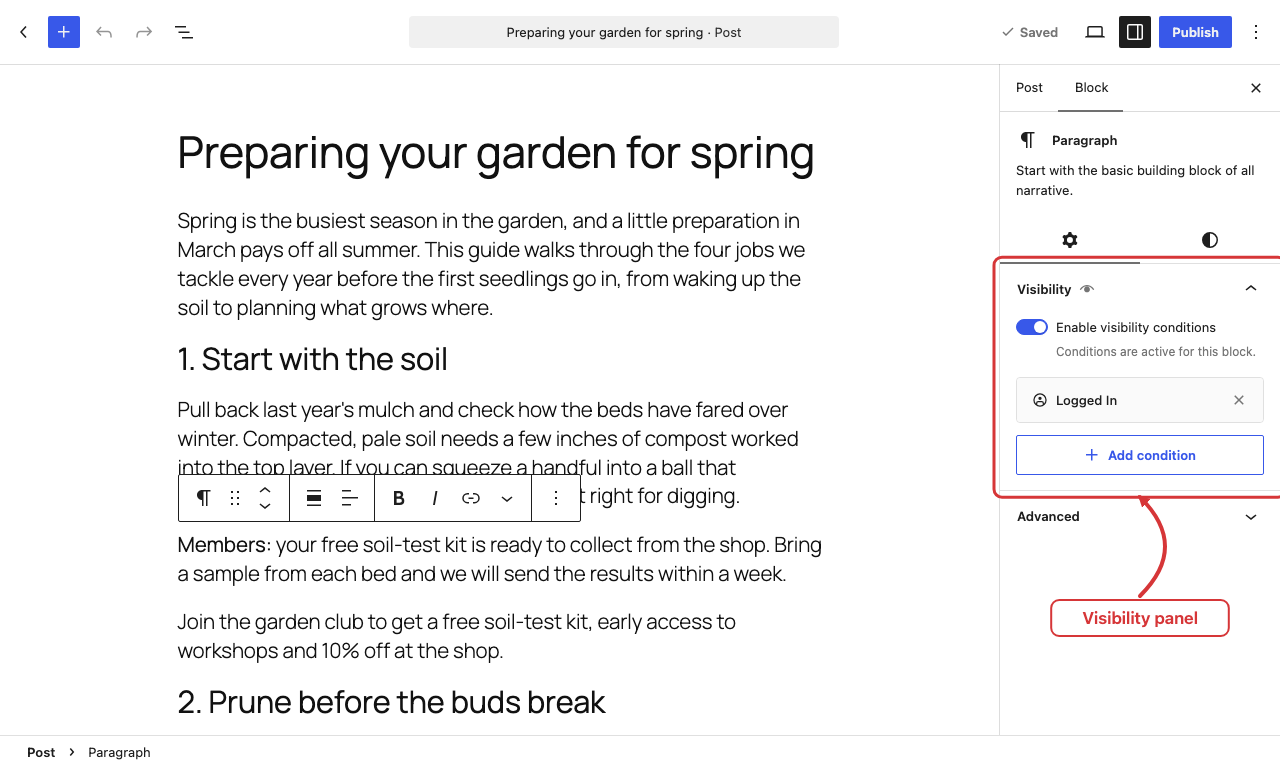
The Visibility panel in the block inspector, with a block limited to logged-in users.
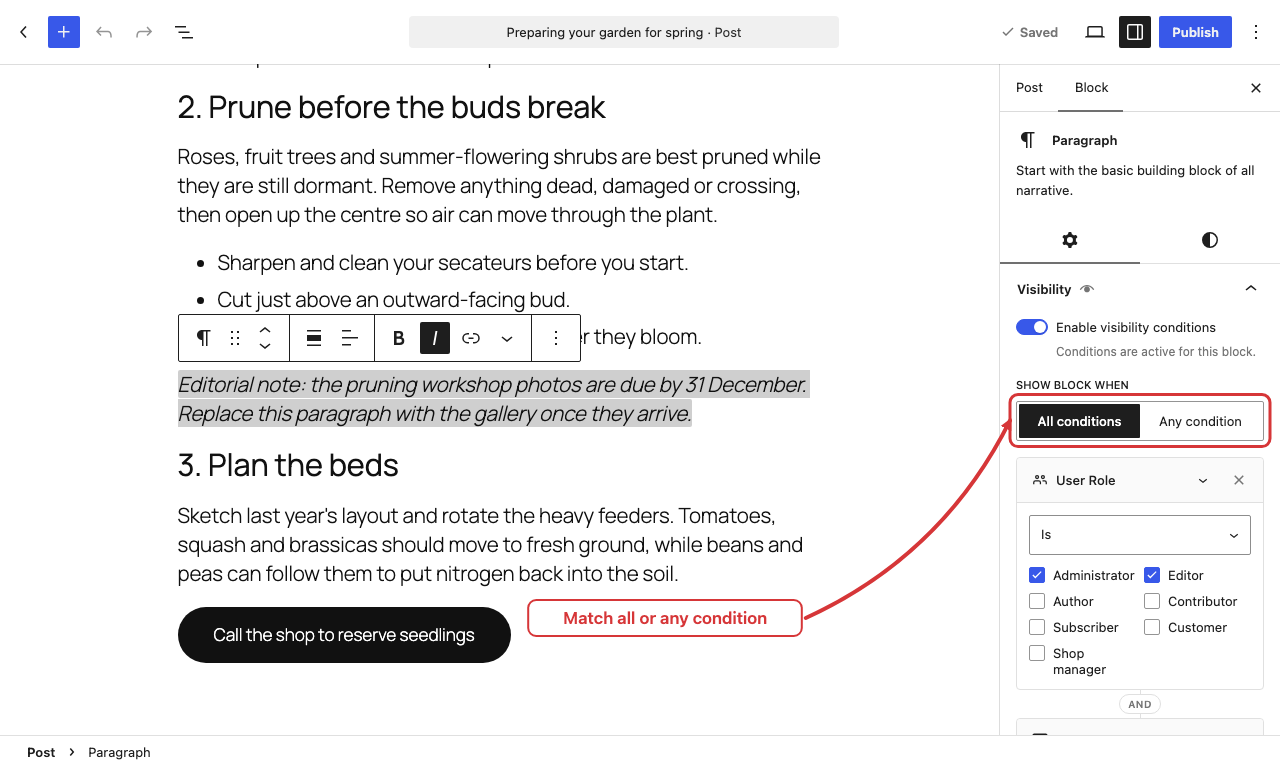
Several rules on one block, matched with “All conditions” or “Any condition”.
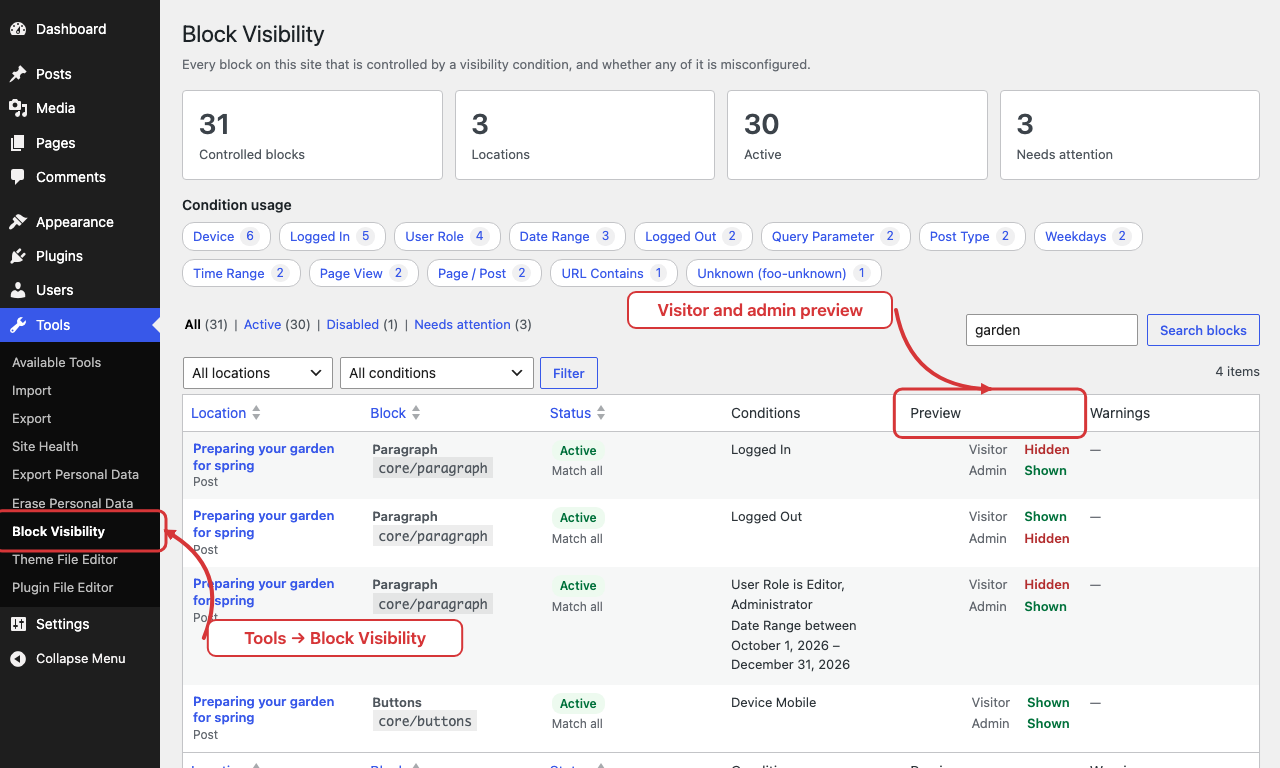
The report under Tools → BlockSieve, with a preview of how every block resolves.

The Dashboard summary widget.


