BlogCutter AI Section Builder For Elementor Wordpress Plugin - Rating, Reviews, Demo & Download
Plugin Description
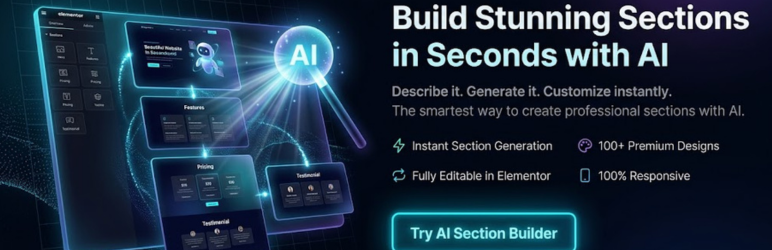
BlogCutter AI Section Builder for Elementor supercharges your Elementor workflow by integrating advanced AI models (OpenAI, Google Gemini, Anthropic Claude, and xAI Grok) directly into the Elementor editor.
Instead of building sections widget by widget, simply describe what you need. The plugin generates pure, lightweight HTML/CSS sections that you can instantly preview, edit, and insert into your page.
Watch it in action:
https://www.youtube.com/watch?v=-Yr-u2spO_s
✨ Key Features
- AI-Powered Generation: Describe your desired layout (e.g., “A modern hero section with a dark gradient and two CTA buttons”) and let the AI instantly write the code.
- Multiple Premium AI Providers: Choose between industry-leading models including OpenAI (GPT-4o, GPT-4o-mini), Google Gemini, Anthropic Claude, and xAI Grok.
- Live Preview: See a real-time, pixel-perfect rendering of the generated section before inserting it into your design.
- Built-in Code Editor: Tweak the generated HTML/CSS directly within the Elementor interface using the built-in syntax-highlighted code editor.
- One-Click Insert: Instantly push the final code into Elementor as a native HTML widget inside a new section.
- Zero Bloat & Blazing Fast: Generates pure inline HTML/CSS. No heavy external frameworks, no Tailwind dependencies, and no jQuery bloat, ensuring optimal Core Web Vitals.
- Customizable Visual Styles: Easily pick a predefined visual style (e.g., Modern, Luxury, Corporate) to automatically match your brand identity.
🛠 How it Works
- Open any page in Elementor.
- Click the floating ✨ AI button in the bottom right corner of the editor.
- Select your section type, visual style, and type your prompt.
- Click Generate.
- Preview the result, tweak the code if needed, and hit Insert into Elementor.
External services
This plugin relies on third-party AI services to generate HTML sections directly inside the Elementor editor based on user prompts.
Depending on the AI Provider configured in the plugin settings, it connects to one of the following external APIs:
-
OpenAI (GPT Models)
- Purpose: Used to generate HTML and CSS code for Elementor sections.
- Data Sent: The plugin sends the user’s custom prompt, selected section type, and visual style to the OpenAI API only when the “Generate Section” button is clicked in the editor.
- Terms of Use: https://openai.com/policies/terms-of-use
- Privacy Policy: https://openai.com/policies/privacy-policy
-
Google Gemini (Google Generative Language API)
- Purpose: Used to generate HTML and CSS code for Elementor sections.
- Data Sent: The plugin sends the user’s custom prompt, selected section type, and visual style to the Google Gemini API only when the “Generate Section” button is clicked in the editor.
- Terms of Service: https://policies.google.com/terms
- Privacy Policy: https://policies.google.com/privacy
-
Anthropic Claude
- Purpose: Used to generate HTML and CSS code for Elementor sections.
- Data Sent: The plugin sends the user’s custom prompt, selected section type, and visual style to the Anthropic API only when the “Generate Section” button is clicked in the editor.
- Terms of Service: https://www.anthropic.com/legal/consumer-terms
- Privacy Policy: https://www.anthropic.com/legal/privacy
-
xAI (Grok)
- Purpose: Used to generate HTML and CSS code for Elementor sections.
- Data Sent: The plugin sends the user’s custom prompt, selected section type, and visual style to the xAI API only when the “Generate Section” button is clicked in the editor.
- Terms of Service: https://x.ai/terms
- Privacy Policy: https://x.ai/privacy
Screenshots

screenshot-1.png // The floating AI button visible on the Elementor Editor loading screen.

screenshot-2.png // The floating AI button located at the bottom right of the Elementor Editor workspace.

screenshot-3.png // The AI Section Builder interface for entering text prompts and parameters.

screenshot-4.png // Selecting a specific visual style (e.g., Modern, Luxury) from the dropdown menu.

screenshot-5.png // The active generation state while the AI is designing your custom section.

screenshot-6.png // The live preview interface showing the generated layout before inserting it.

screenshot-7.png // The newly AI-generated section successfully inserted directly into the Elementor page.

screenshot-8.png // The WordPress settings page for configuring Section AI provider, model, and API keys.

screenshot-9.png // The WordPress settings page for configuring Style AI provider, model, and API keys.