Brand Assets Wordpress Plugin - Rating, Reviews, Demo & Download
Plugin Description
Brand Assets helps you publish a clean, usable brand assets page in WordPress. Instead of sending people to scattered folders or outdated PDFs, you can present approved colors, downloadable logos, and brand guidance directly on your site.
Whether you need a public media kit, a client handoff page, or an internal brand guidelines page, Brand Assets gives you block-based tools to build it in Gutenberg.
What you can build
- A brand assets page with your logos, color palette, and typography guidance.
- A media kit page for journalists, partners, and affiliates.
- A client-facing brand page with downloadable files and usage guidance.
- A simple internal design reference for your team.
Key features
- Add a dedicated brand color palette block to any page or post.
- Show color swatches with adjustable width, height, spacing, borders, and optional CMYK values.
- Use the included brand page pattern to launch a complete brand guidelines page faster.
- Add downloadable brand files by applying the
ba-downloadclass to list items in the editor. - Show a configurable popover on your site logo that links visitors to the right brand assets page.
- Manage plugin settings from Settings Brand Assets or the plugin row settings link.
Why site owners use Brand Assets
- Keep logos, colors, and downloadable files in one clear place.
- Make it easier for clients, press contacts, and partners to find approved assets.
- Build a more professional brand guidelines page without custom development.
- Keep your WordPress site and your brand presentation aligned.
Quick start
- Install and activate Brand Assets.
- Create a page for your brand assets or media kit.
- Insert the Brand Assets pattern or add the Color Palette – Brand Assets block.
- Add your approved colors, logo files, and supporting content.
- Go to Settings Brand Assets and connect your logo popover to the page.
Support
- Source code: https://github.com/ProgressPlanner/brand-assets
- Documentation: https://progressplanner.com/plugins/brand-assets/
- Issues: https://github.com/ProgressPlanner/brand-assets/issues
Screenshots
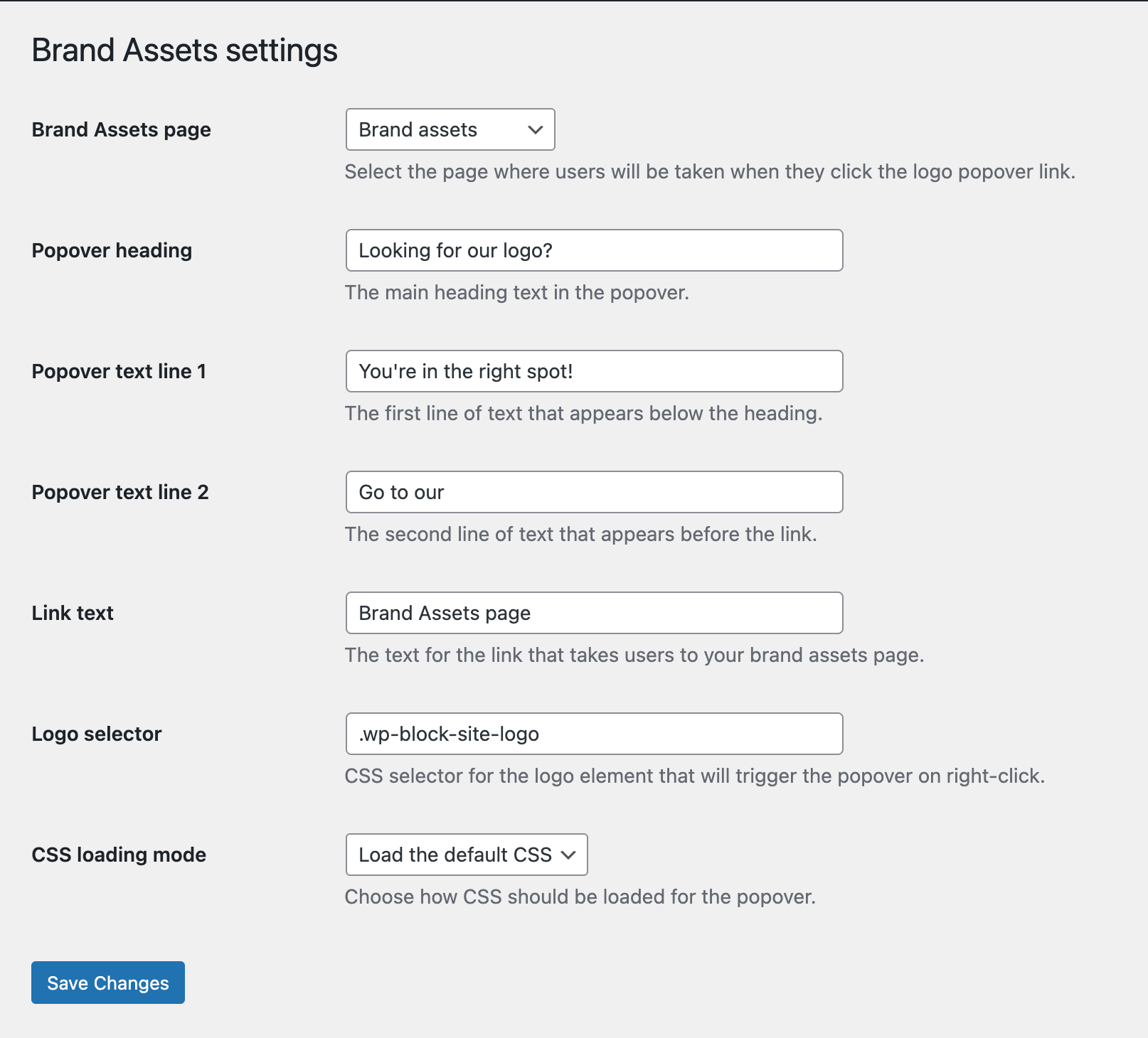
Brand Assets settings screen for choosing the brand assets page, logo selector, and popover text.
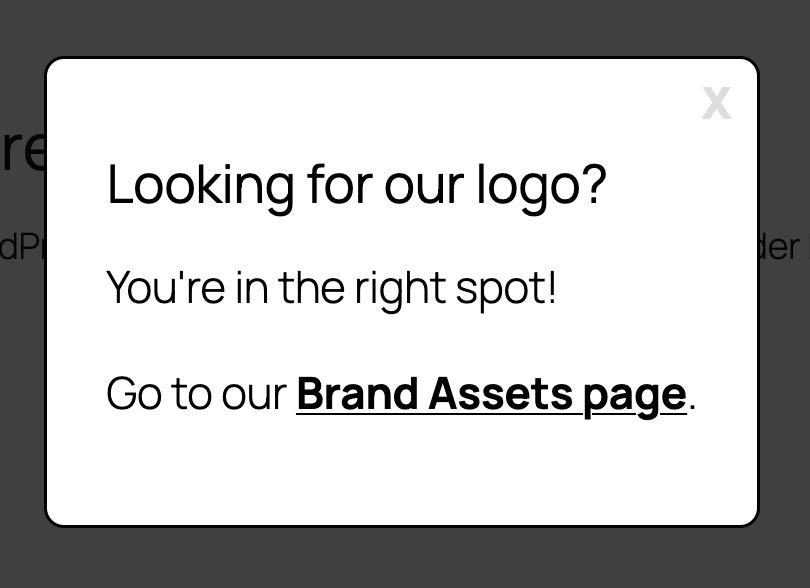
Logo popover that sends visitors from your site logo to the correct Brand Assets page.