ByteKeel PixTag Wordpress Plugin - Rating, Reviews, Demo & Download
Plugin Description
Fix the missing alt text and titles of your WordPress images from meaningful file names, one image at a time or in bulk, and keep the text that people already wrote. No AI or API key required.
ByteKeel PixTag reads what is already on your site: the file name of each image, its title and, if you use a template, the post it belongs to. It turns that into alt text (and, if you keep the option on, an image title) and writes it to the standard WordPress fields. Everything runs on your own server.
It does not look at the picture. When a file name says nothing about the image, ByteKeel PixTag writes nothing and marks the image “Needs review”, so a person can describe it.
Features
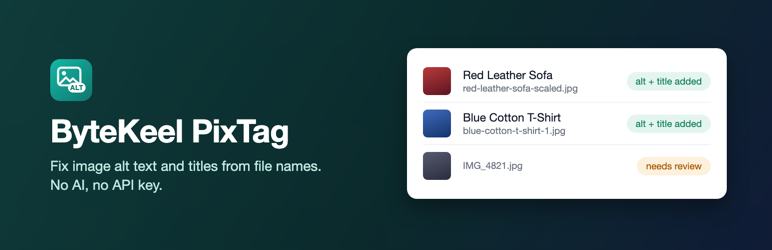
- Clean text from file names. “red-leather-sofa-scaled.jpg” becomes “Red Leather Sofa”. The “-scaled”, “-rotated”, “-1024×768” and “-e1699999999999” parts that WordPress adds, numbers, extensions and repeated separators are removed. Non-Latin file names (for example Cyrillic or Japanese) keep their characters.
- Camera and device names are not turned into alt text. Names such as IMG_1234, DSC01234, PXL_20241112_153012345, DJI_0042, “Screenshot 2026-11-12 at 10.30.45”, hashes, UUIDs and plain numbers produce no text. The image is marked “Needs review” instead.
- Titles and templates. If the file name is not useful but the image has a real title, the title is used. Context templates build text from %filename%, %posttitle%, %sitetitle%, %category%, %tag%, %author%, %date% and %postexcerpt%. The hybrid method tries the template first, then the file name.
- Keeps what people wrote. The Media Library action and the “only images missing alt text” bulk scope never change existing alt text. A title you wrote is not replaced either.
- Bulk processor. Process every image that is missing alt text, with live progress, a log of what changed and a Stop button. Images already processed keep their alt text if you stop. Choose “all images” only if you want to replace existing alt text.
- Media Library. An “Alt Text” status column (with “Needs review”), a “Generate Alt Text” bulk action and a Generate button on each image.
- Dashboard and activity log. Counts of images with and without alt text and a log of each generation, stored in your own database.
- Developer hooks. Filters for the generated text, template variables and generation methods.
More from ByteKeel
ByteKeel PixTag is made by ByteKeel. It is free and complete as it is. ByteKeel also publishes separate, paid plugins: ByteKeel PixTag Pro (AI image descriptions and alt text added on upload), TurboCache (page cache and optimization for Divi and WordPress) and Divi Smart Popup (popups for Divi). None of them is needed to use ByteKeel PixTag.
What it does not do
- It does not describe what is in a picture.
- It does not add alt text automatically when you upload an image or save a post. Run it from the Media Library or the bulk processor.
- It does not change the alt text that blocks, page builders or themes keep inside post content.
Usage
One image. In Media > Library (list view) use the Generate button next to an image, or the Generate Alt Text button on its edit screen. This replaces the alt text of that one image, because you asked for it.
Several images. In Media > Library (list view) select images, choose “Generate Alt Text” in Bulk actions and click Apply. Images that already have alt text are skipped.
The whole library. Open ByteKeel PixTag > Bulk Processor, choose “Only images missing alt text” and click Start Processing. Use “All images, replacing existing alt text” only when you want to start over.
Images marked “Needs review”. These images have file names that do not describe them. Open them from the Dashboard or the Bulk Processor (“Show them in the Media Library”), and write the alt text yourself. After you change the settings (for example a template that uses the post title) you can run only these images again from the Bulk Processor.
Privacy
ByteKeel PixTag does not send any data out of your site and does not use any external service. It makes no requests to other servers, sets no cookies and adds nothing to your public pages.
It stores data only in your own WordPress database: its settings, an activity log (date, image ID, method, result) that you can switch off in Settings, short-lived progress data while a bulk run is open, and a small marker on images that need review.
Screenshots

Dashboard: image counts, images that need review and recent activity.

Bulk Processor: choose which images to process, with live progress and a log.

Media Library: the Alt Text column with the Generate button and the “Needs review” marker.

Settings: generation method, character limit and template.