
Coaderhub Table Of Contents Wordpress Plugin - Rating, Reviews, Demo & Download
Plugin Description
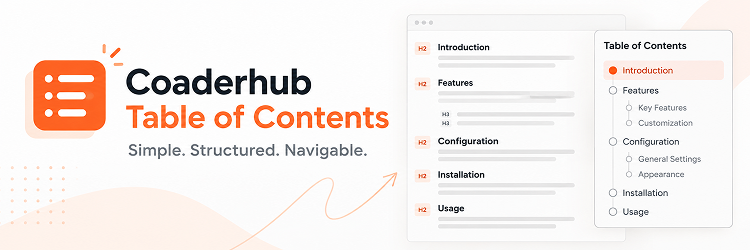
Coaderhub Table of Contents is a lightweight and customizable table of contents plugin for WordPress.
It automatically detects headings in your content and creates a clean navigation panel that helps visitors quickly move between sections of an article or page.
Control where the table of contents appears, choose which public post types support automatic insertion, customize the layout and spacing, and configure navigation behavior from the WordPress admin settings.
The plugin supports H2-H6 headings, automatic insertion, shortcode usage, multiple layouts, sticky desktop navigation, active heading highlighting, smooth scrolling, keyboard navigation, and responsive mobile layouts.
Accessibility improvements help visitors navigate the table of contents using a keyboard, identify focused controls, and move focus to the relevant content heading after navigation.
It is designed to provide useful customization without adding unnecessary complexity.
Features
- Automatically generate a table of contents from H2-H6 headings.
- Choose which heading levels should appear in the TOC.
- Automatically generate unique heading anchor IDs.
- Preserve existing heading IDs where possible.
- Handle duplicate heading names.
- Configure the minimum number of headings required before displaying the TOC.
- Insert the TOC before content or after the first paragraph.
- Choose which public post types display the automatic TOC.
- Enable automatic TOC display on posts, pages, and supported public custom post types.
- Keep automatic TOC display limited to selected content types.
- Display the TOC manually using a shortcode, independently of automatic post-type selection.
- Choose Full Width, Compact, or Sidebar layout.
- Choose left or right sidebar positioning.
- Configure the TOC width.
- Configure top, right, bottom, and left spacing.
- Enable sticky TOC positioning on desktop.
- Automatically disable sticky positioning on mobile devices.
- Enable or disable smooth scrolling.
- Enable active heading highlighting.
- Navigate TOC links using the keyboard.
- Operate the expand and collapse control using standard keyboard interactions.
- Display visible focus indicators for keyboard-focused links and controls.
- Move keyboard focus to the relevant heading after activating a TOC link.
- Provide expanded-state information for the TOC toggle using ARIA attributes.
- Respect the operating system’s reduced-motion preference.
- Provide additional focus styling for supported Windows High Contrast settings.
- Responsive design for desktop, tablet, and mobile.
- No custom database tables.
- Uses the WordPress Options API for settings.
- No external services are required.
Shortcode
You can manually display the table of contents using:
[coaderhub_toc]
The shortcode generates the table of contents based on the supported headings in the current post or page.
The shortcode is useful when automatic insertion is disabled or when you want to control where the TOC appears within your content.
Manual shortcode placement is independent of the post types selected for automatic insertion.
Automatic Insertion
When automatic insertion is enabled, Coaderhub Table of Contents detects supported headings and automatically adds the table of contents when the configured minimum number of headings is reached.
Automatic insertion can be configured for selected public post types using the Display On setting.
You can choose between:
- Posts
- Pages
- Supported public custom post types registered by your theme or other plugins
The available content types depend on which public post types are registered on your WordPress website.
Only the selected post types receive automatic TOC insertion. For example, if only Posts is selected, automatic TOC insertion is enabled for posts and not pages.
You can also choose between these insertion positions:
- Before content
- After the first paragraph
Disabling automatic insertion does not disable the [coaderhub_toc] shortcode.
Heading Levels
The plugin supports:
- H2
- H3
- H4
- H5
- H6
You can choose exactly which heading levels should be included in the table of contents.
Layouts
Coaderhub Table of Contents provides three layout options.
Full Width
Displays the table of contents across the available content width.
Compact
Displays a compact table of contents suitable for articles and standard content layouts.
Sidebar
Displays the table of contents beside the article content.
The Sidebar layout supports:
- Left sidebar
- Right sidebar
- Configurable sidebar width
- Sticky desktop positioning
Sticky Table of Contents
The Sidebar layout can use sticky positioning to keep the table of contents visible while visitors scroll through longer articles.
Sticky positioning is designed for desktop layouts and is automatically disabled on mobile devices.
Active Heading
When active heading highlighting is enabled, the table of contents automatically highlights the section currently being viewed.
This makes it easier for visitors to understand their position within a long article.
Smooth Scrolling
The plugin can provide smooth scrolling when visitors activate a table of contents link.
Smooth scrolling can be enabled or disabled from the plugin settings.
When the visitor’s operating system requests reduced motion, the plugin avoids smooth scrolling.
Responsive Design
The table of contents adapts to different screen sizes.
On smaller screens, the Sidebar layout changes to a standard stacked layout and sticky positioning is disabled to provide a better mobile experience.
Keyboard focus indicators and accessibility styling are designed to work alongside the existing responsive layouts.
Accessibility
Coaderhub Table of Contents includes accessibility improvements designed to support keyboard navigation and help visitors identify and operate navigation controls.
Accessibility features include:
- Keyboard navigation: Use Tab and Shift+Tab to move between focusable TOC controls and links.
- Keyboard activation: Press Enter to activate a TOC link. The expand/collapse button supports standard Enter and Space activation.
- Visible focus indicators: Keyboard-focused links and controls display a visible outline.
- Accessible toggle state: The expand/collapse control exposes its expanded state and identifies the collapsible content using ARIA attributes.
- Heading focus management: Activating a TOC link moves focus to the corresponding content heading.
- Reduced motion: Respects the visitor’s operating system reduced-motion preference.
- High contrast: Provides additional focus styling for supported Windows High Contrast settings.
- Semantic navigation: Uses navigation markup and interactive controls intended to support assistive technologies.
These enhancements are designed to preserve the existing TOC layout, hierarchy, active-heading styling, and responsive behavior.
Actual accessibility also depends on the surrounding theme, page markup, and other installed plugins.
Settings
Go to:
Settings > Table of Contents
Available settings include:
- Automatic insertion
- Display On: select public post types for automatic TOC display
- Insert position
- Minimum headings
- Heading levels
- TOC title
- Layout
- Sidebar position
- TOC width
- Spacing
- Smooth scrolling
- Active heading highlighting
- Sticky positioning
Privacy
Coaderhub Table of Contents does not collect, store, or transmit personal data as part of its standard functionality.
The plugin does not communicate with external services and does not create custom database tables.
Plugin settings are stored using the standard WordPress Options API.
Security
The plugin follows WordPress security practices including:
- Capability checks for administrative settings.
- WordPress Settings API.
- WordPress sanitization functions.
- WordPress escaping functions.
- Safe handling of generated HTML attributes.
- Safe handling of plugin settings.
- No storage of visitor personal data.
- No external service communication.
Requirements
- WordPress 6.0 or later.
- PHP 7.4 or later.
Screenshots
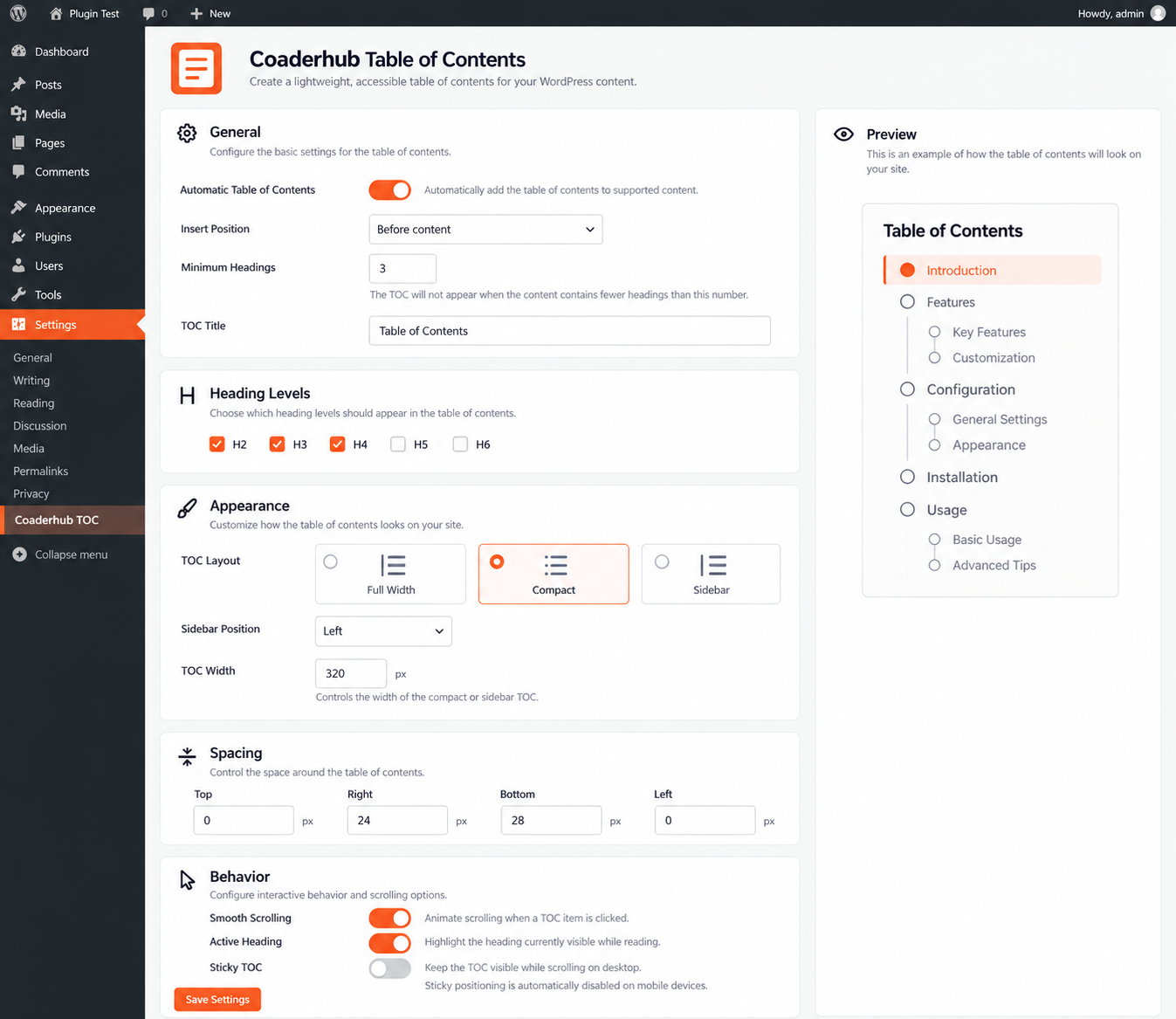
Configure automatic insertion, display post types, heading levels, layout, spacing, and behavior from the plugin settings.
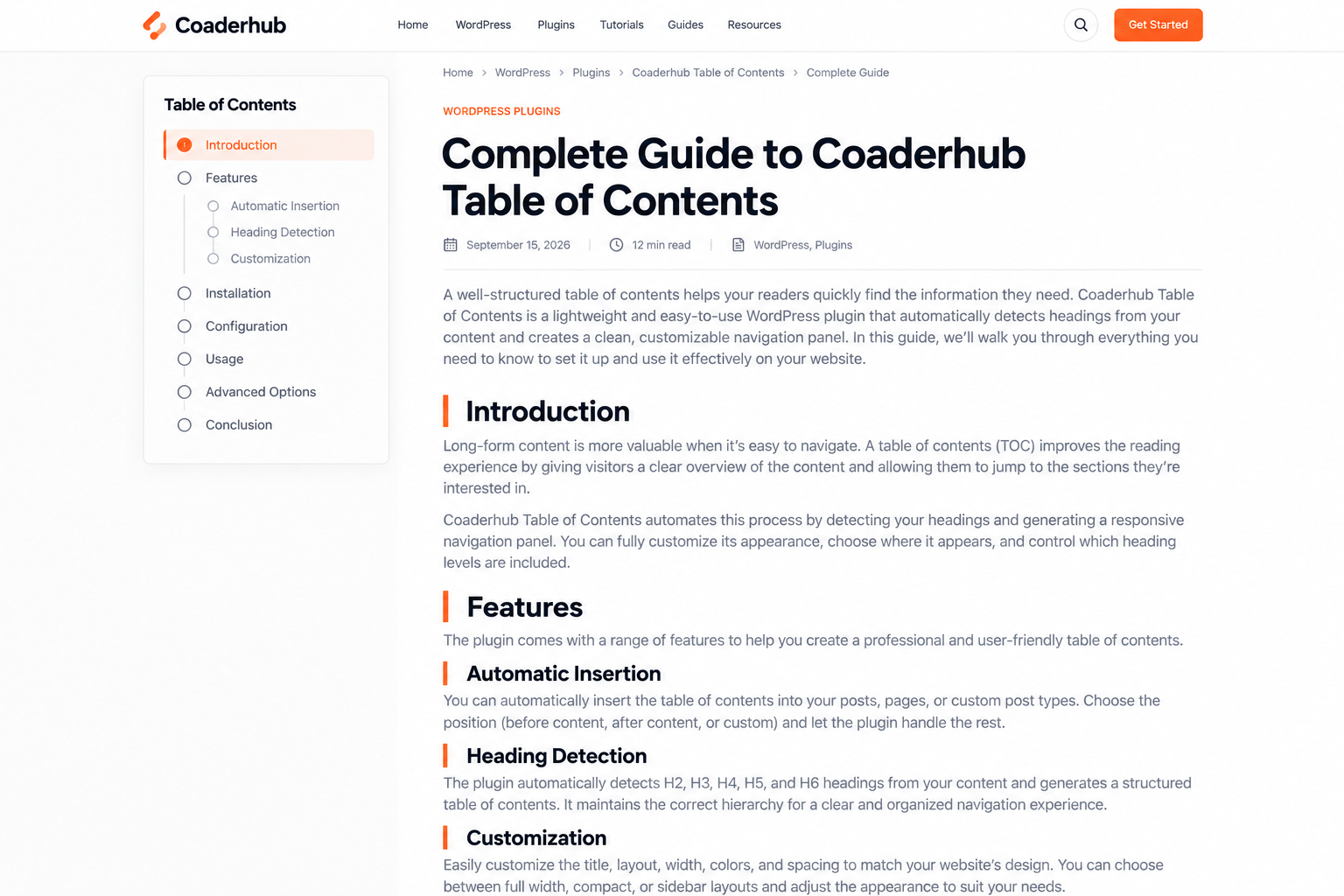
Use the Sidebar layout with sticky table of contents navigation on desktop.


