Curate Virtual Try-On For WooCommerce Wordpress Plugin - Rating, Reviews, Demo & Download
Plugin Description
Try it. Before you buy it.
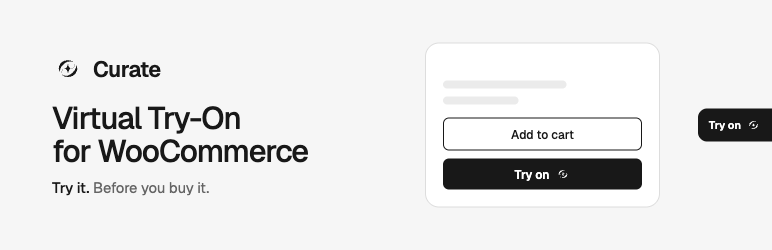
Curate Virtual Try-On adds a Try-On button to your WooCommerce store. A shopper taps it, adds a photo of themselves once, and sees your clothes on them in seconds, right on your product page. When they like what they see, they add it to the cart without leaving the panel.
It looks and works the same as Curate on Shopify:
- A Try-On button on product pages, right above Add to cart (or after it, your choice).
- The Curate tab, a small black “Try on” tab on the right edge of the screen, on every page or on product pages only.
- The try-on panel: on a laptop a window at the top right that shoppers can drag; on a phone a sheet from the bottom, with your store still visible above it.
Connect your store in one click. Press Connect to Curate, approve on your store’s own WooCommerce page, and you’re back in WordPress. Curate brings in your products and keeps them in sync, so you can see which products shoppers try on and make Studio photos in the Curate Merchant app.
Works with your theme. Classic and block themes, including Twenty Twenty-Five. Want the button somewhere specific? Use the Curate Try-On button block or the [curate_try_on] shortcode.
Light on your store. One small script, loaded with defer at the end of the page. Nothing runs in your checkout and nothing touches your orders.
What you need
- WooCommerce 3.5 or later (tested with 11.3)
- Your store on https:// to connect it to Curate (the Try-On button works without connecting)
- Pretty permalinks (any option but “Plain” in Settings Permalinks)
External services
This plugin connects your store to Curate, a virtual try-on service run by Curate (curatefashions.com). It uses Curate in three ways:
- The storefront script. On the pages where you turn Try-On on, your store loads Curate’s script from
https://snippet.curatefashions.com/curate.js. It draws the Try-On button and opens the try-on panel fromhttps://embed.curatefashions.com. When a page loads, the script tells Curate the page’s address and your store’s Curate ID, so your Curate dashboard can show that Try-On is installed and how often shoppers use it. Product details shown on the page (name, price, picture, sizes) go to Curate when a shopper starts a try-on. A shopper who tries something on signs in to Curate inside the panel; their photo and try-on results go to Curate, not to your store. - Connecting your store. Only when an administrator or shop manager presses Connect to Curate, your server sends your store’s address, the site title and the address of this settings page to
https://api.curatefashions.com. WooCommerce then shows its own approval page; if you approve, WooCommerce gives Curate a REST API key (read/write) so Curate can read your products and keep them in sync. You can revoke the key at any time in WooCommerce Settings Advanced REST API. - Linking your Curate account. After connecting, the settings page shows a QR code and a one-time code. They open
https://api.curatefashions.com(and the Curate Merchant app) to add the store to your Curate account. The QR code is drawn in your browser; nothing is sent until you scan it.
Nothing is sent to Curate when you activate the plugin.
- Terms of service: https://curatefashions.com/terms
- Privacy policy: https://curatefashions.com/privacy
Screenshots

The Try-On button above Add to cart on a product page.

The same product on a phone.

WooCommerce → Curate Try-On: connect your store in one click.

WooCommerce’s own approval page for Curate.

Connected: scan the code to add the store to your Curate account, and choose where the button and tab show.