
Devlapse Time Logging Wordpress Plugin - Rating, Reviews, Demo & Download
Plugin Description
Devlapse Time Logging is a self-contained time tracker for people who build and maintain WordPress sites. Start a timer from the admin bar, note what you worked on, and the entry is saved to your own database with its project, duration and rate.
It is aimed at freelancers, agencies and in-house developers who need to show a client or a manager where the hours went, but it works just as well for keeping your own private record of how you spend your time.
Despite the name, the plugin does not record your screen or capture video. It logs hours, tasks and billable time.
Everything runs locally. The plugin makes no external HTTP requests, contains no analytics or tracking, requires no account, and sends no data to the author or any third party.
What it does
- A start/stop timer on the Dashboard & Timer screen and a live counter in the admin bar that shows the running project, so you can see at a glance whether the clock is running.
- Dashboard totals for time tracked today, billable amount today and sessions currently running.
- Notes and commit references you can add to a running session, so the entry records what actually happened.
- Manual entries for work done away from the keyboard, such as calls, planning or meetings.
- Projects you define yourself, each with its own client name, colour and hourly rate. A project’s rate overrides your default rate.
- Billable and non-billable time, with a setting that decides whether new sessions are billable by default, so internal work never ends up on a client’s summary by accident.
- Timesheets listing date, user, project, task, duration, rate and total, with short tags on each entry, plus CSV export for your own spreadsheets or accounting tools.
- An optional Audit Log recording plugin activations, theme switches, changed setting names and post saves, with the user responsible.
- A Reports & Invoicing screen with time grouped by project, and a printable billing summary showing hours, effective rate and subtotal per project. Print it or save it as a PDF from your browser.
- A currency selector with common currencies (USD, EUR, GBP, KES, NGN, ZAR, INR, JPY, AUD, CAD, CHF) and a custom option for anything else.
- Optional session summary emails, sent to the address you choose.
- REST endpoints under
devlapse-time-logging/v1for your own tooling.
Who it is for
- Freelancers who bill by the hour and want an honest record without paying for a separate service.
- Agencies who need to show clients how much time went into maintenance, support and new work.
- Site maintainers who want a simple log of what changed on a site and when, next to the time spent on it.
- Anyone who prefers to keep their working data on their own server instead of a third-party cloud.
A typical workflow
- Add your projects, client names, colours and hourly rates in Devlapse > Settings, and choose a currency and default rate.
- Open Dashboard & Timer, choose a project, describe the task and start the timer.
- Work as normal. The admin bar shows the running project and time on every admin screen, and you can add a note or commit reference to the session at any point.
- Stop the timer when you finish. The entry is saved with its duration, rate and billable status.
- At the end of the week or month, open Timesheets to review your totals or export a CSV, then open Reports & Invoicing to print a billing summary for a client.
Permissions
Users who can edit posts can track their own time and see their own timesheets. Administrators can see everyone’s entries, the activity log, reports and settings.
Privacy
The plugin stores time entries in two custom tables in your site’s database. Each entry records the user who created it, a task description, a project name, start and end times, an hourly rate and whether the time is billable.
If you switch on activity logging, the plugin also records which user activated or deactivated a plugin, switched themes, changed a setting or saved a post. Only the name of a changed setting is stored, never its value. Log entries are deleted automatically after the retention period you choose.
Activity logging and email notifications are both off until you turn them on. Session summary emails, when enabled, are sent from your site by WordPress to the address you configure.
Time entries are included in WordPress’s personal data export and erase tools, and the plugin adds suggested wording to your privacy policy draft.
Performance
The plugin’s admin styles and scripts load only on its own screens, and the admin bar loads a small separate stylesheet. Read queries use the WordPress object cache. Nothing from the plugin is loaded on the public side of your site.
Customization and support
Need something the plugin does not do yet? Custom reports, extra fields, integrations with your invoicing or accounting tools, client-specific summaries or a tailored workflow for your team are all possible.
If you need any customization, please get in touch through peterkagunda.com. For bugs and general questions, please use the plugin’s support forum on WordPress.org so that other users can benefit from the answer too.
If Devlapse Time Logging saves you time, a review on WordPress.org helps other people find it and is much appreciated.
Screenshots

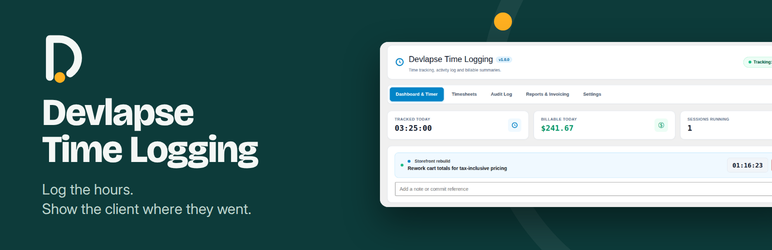
Dashboard & Timer: the running session, today’s tracked time and billable amount, a note field and recent sessions. The live counter also shows in the admin bar.

Timesheets: every logged session with project, task, tags, duration, rate and total, plus Add manual entry and Export CSV.

Settings: default hourly rate, currency, billable default, per-project client, colour and rate, and the opt-in activity logging controls.

Printable billing summary: hours, effective rate and subtotal per project, with a Print or save as PDF button.


