
Elio Blocks Wordpress Plugin - Rating, Reviews, Demo & Download

Plugin Description
Elio Blocks brings the weather to the Block Editor the way WordPress would have built it: with blocks that look, feel and behave like the ones you already use every day.
Insert the Weather block, search for your location, and the live forecast shows up right in the editor. Publish, and see if the sun shines! ☀️
No coding required. No widgets, no shortcodes, no iframe either.
Feels native, because it is
- Blocks all the way down. The Weather block is a container, like a Group. Temperature, humidity, wind, UV index, sunrise and sunset, condition icon, time of the last update and more are each a block of their own: add them, remove them, reorder them, nest them in rows, columns or groups, straight from the canvas or the List View.
- Icons for the rest of your page. The icons of Elio, weather conditions included, are an icon collection of WordPress 7.1: pick one in the Icon block, anywhere on your site.
- Forecasts that work like the Query Loop. The hourly and daily forecast lists repeat a template you design once, just like the Post Template of the Query Loop block.
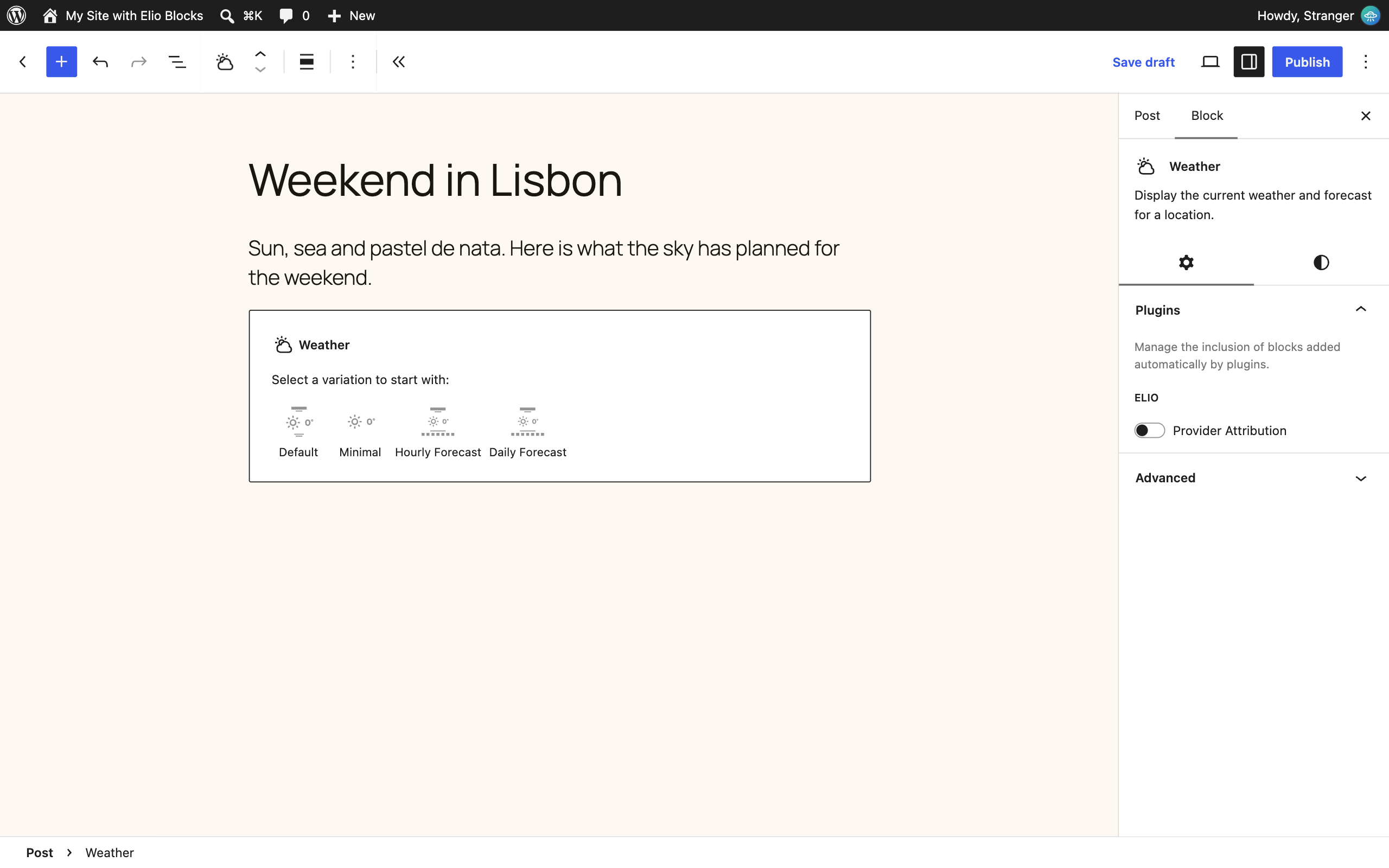
- Start from a layout. Pick one of the ready-made variations (Default, Minimal, Hourly Forecast, Daily Forecast), or start blank and build your own.
- Every design tool you expect. Colors, typography, spacing, borders and layout come from the standard block supports, so they appear in the same panels as those of core blocks, follow your theme’s presets, and can be set for the whole site in
theme.jsonor the Styles of the Site Editor. - Your site’s settings, respected. Dates and times use your site’s language and date formats, in the timezone of the location. Units are metric or imperial, site-wide or per block.
- What you see is what you get. The editor shows the real forecast of your location, styled as it will be on your site.
Fast and up to date on the front end
Blocks are rendered on the server, so the weather is in the page from the first byte. Then the Interactivity API, the front-end framework of WordPress itself, keeps the data fresh in your visitors’ browsers without reloading the page. No jQuery, no heavy scripts: condition icons are shared across the page and forecast data is cached on your server.
Weather data and location search are provided by the Open-Meteo API. See the External services section below for what is sent to it and when.
Source code
The scripts and styles in the build folder of the plugin are compiled. Their human-readable sources (the src folder) and the configuration of the build tools are public on GitHub, where the plugin is developed: https://github.com/alexandrebuffet/elio-blocks
To build the plugin from its sources, with Node.js 22 and Composer:
git clone https://github.com/alexandrebuffet/elio-blocks.gitcd elio-blockscomposer installnpm installnpm run build
The build uses @wordpress/scripts (webpack), the build tool of WordPress itself. See the README of the repository for every command.
External services
This plugin relies on Open-Meteo, an open-source weather API, to get weather data and to find locations by name. The blocks cannot display any weather without it. Open-Meteo requires no account and no API key for non-commercial use.
All requests are sent by your WordPress server, through the plugin’s REST API. Visitors’ browsers never contact Open-Meteo directly, so their IP address is not sent to it. Each request carries your server’s IP address and a user agent naming the plugin, its version, your site’s URL and the WordPress version, as the default WordPress user agent does.
Open-Meteo Weather Forecast API
- Endpoint:
https://api.open-meteo.com/v1/forecast, orhttps://customer-api.open-meteo.com/v1/forecastonce the API key of an Open-Meteo subscription is set in the plugin settings. - Used for: the current conditions and the hourly and daily weather forecasts of the location chosen in a Weather block.
- Data sent: the latitude and longitude of that location (rounded to 2 decimals), the unit system (metric or imperial), the list of requested weather variables, the number of forecast days and, with a subscription, its API key. No data about your visitors or your content is sent.
- When: when a page containing a Weather block is displayed, when the block refreshes its data, in the visitor’s browser or in the Block Editor while it is open, and when the block is edited in the Block Editor. Answers are cached in a transient, 30 minutes by default (see Elio in the admin menu), so Open-Meteo is only called again once the cached copy has expired, unless you turn the cache off.
Open-Meteo Geocoding API
- Endpoint:
https://geocoding-api.open-meteo.com/v1/search - Used for: finding a location by name in the Block Editor.
- Data sent: the text typed in the location search field and the maximum number of results.
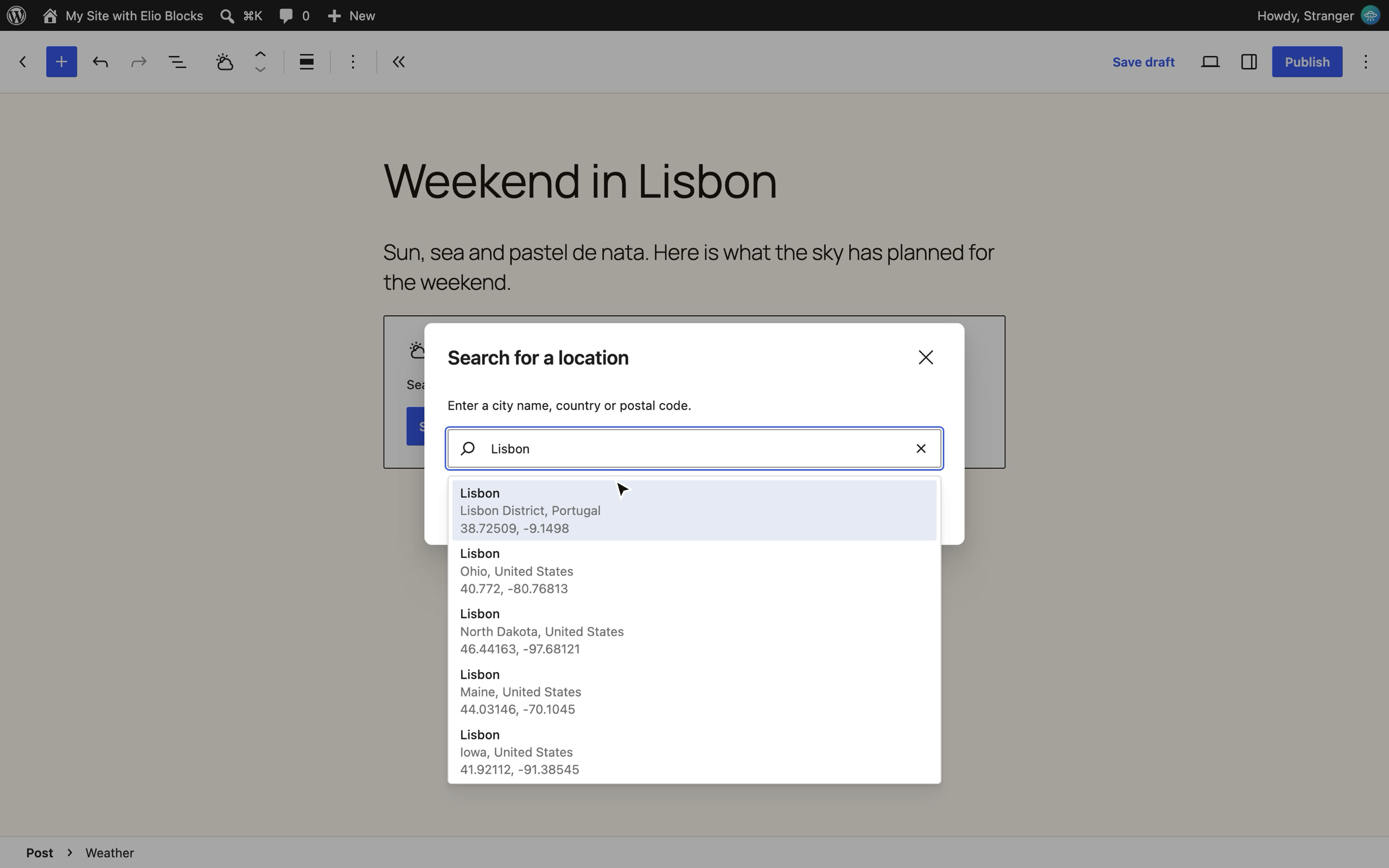
- When: only when a user who can edit posts searches for a location in the Block Editor. Answers are cached in a transient like weather forecasts. It is never called on the front end.
Terms, privacy and licence
The free Open-Meteo API, which this plugin uses, is for non-commercial use only and has daily request limits. Commercial use requires a paid Open-Meteo subscription. Open-Meteo weather data is licensed under CC BY 4.0: credit Open-Meteo where its data is shown. The Provider Attribution block does it at the bottom of every Weather block, (“Weather data by Open-Meteo, licensed under CC BY 4.0”, both names linked): keep it, or credit Open-Meteo elsewhere on the page if you remove it.
- Open-Meteo website: https://open-meteo.com/
- Terms of use: https://open-meteo.com/en/terms#terms
- Privacy policy: https://open-meteo.com/en/terms#privacy
- Data licence: https://open-meteo.com/en/licence
- Pricing for commercial use: https://open-meteo.com/en/pricing
Credits
The icons of the plugin were drawn for it. The layout illustrations of the Weather block variations include a sun from Tabler Icons, Copyright (c) 2020-2026 Paweł Kuna, released under the MIT License, which is compatible with the GPL.
Screenshots
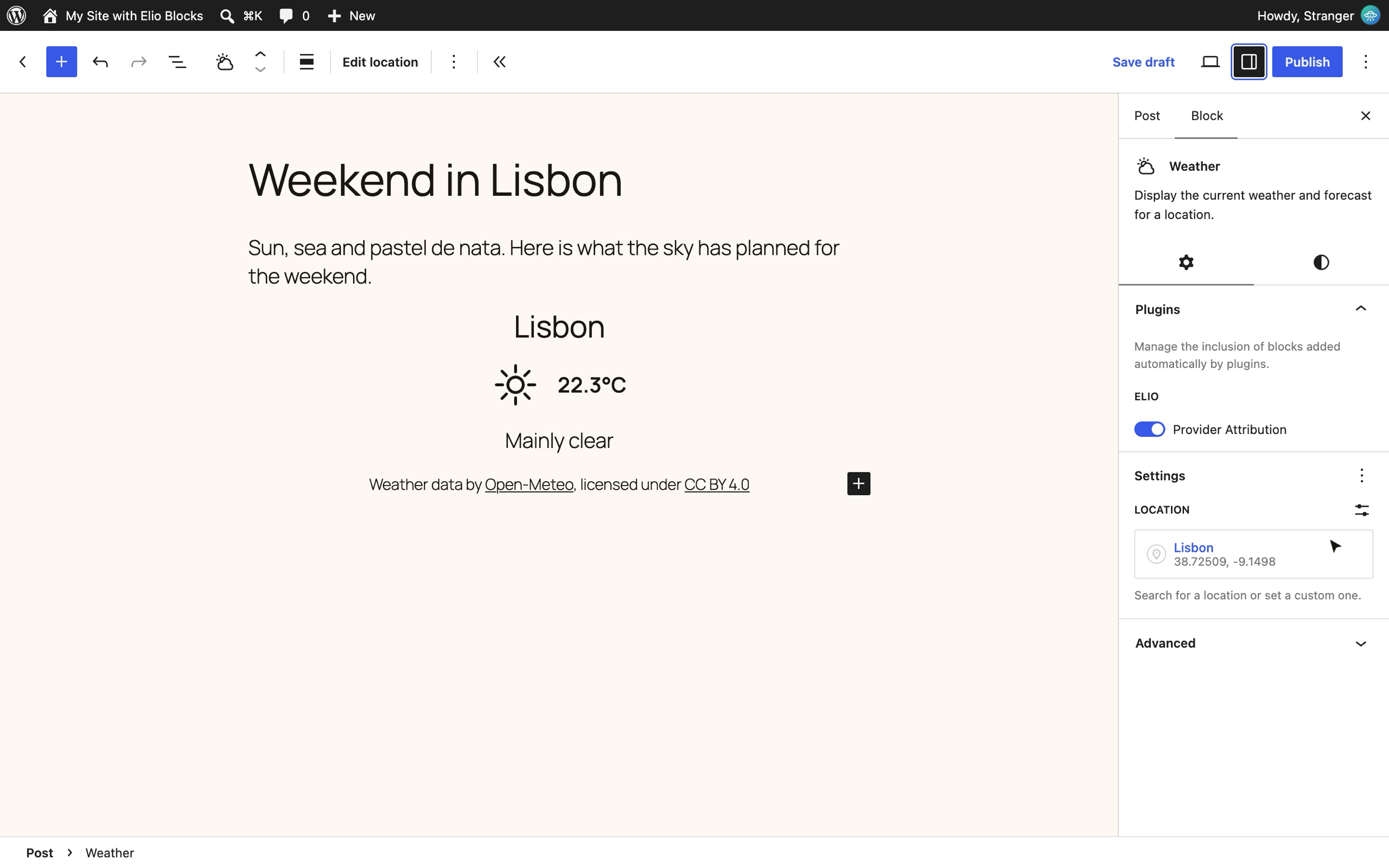
The Weather block in the Block Editor, with an hourly forecast and its location settings.
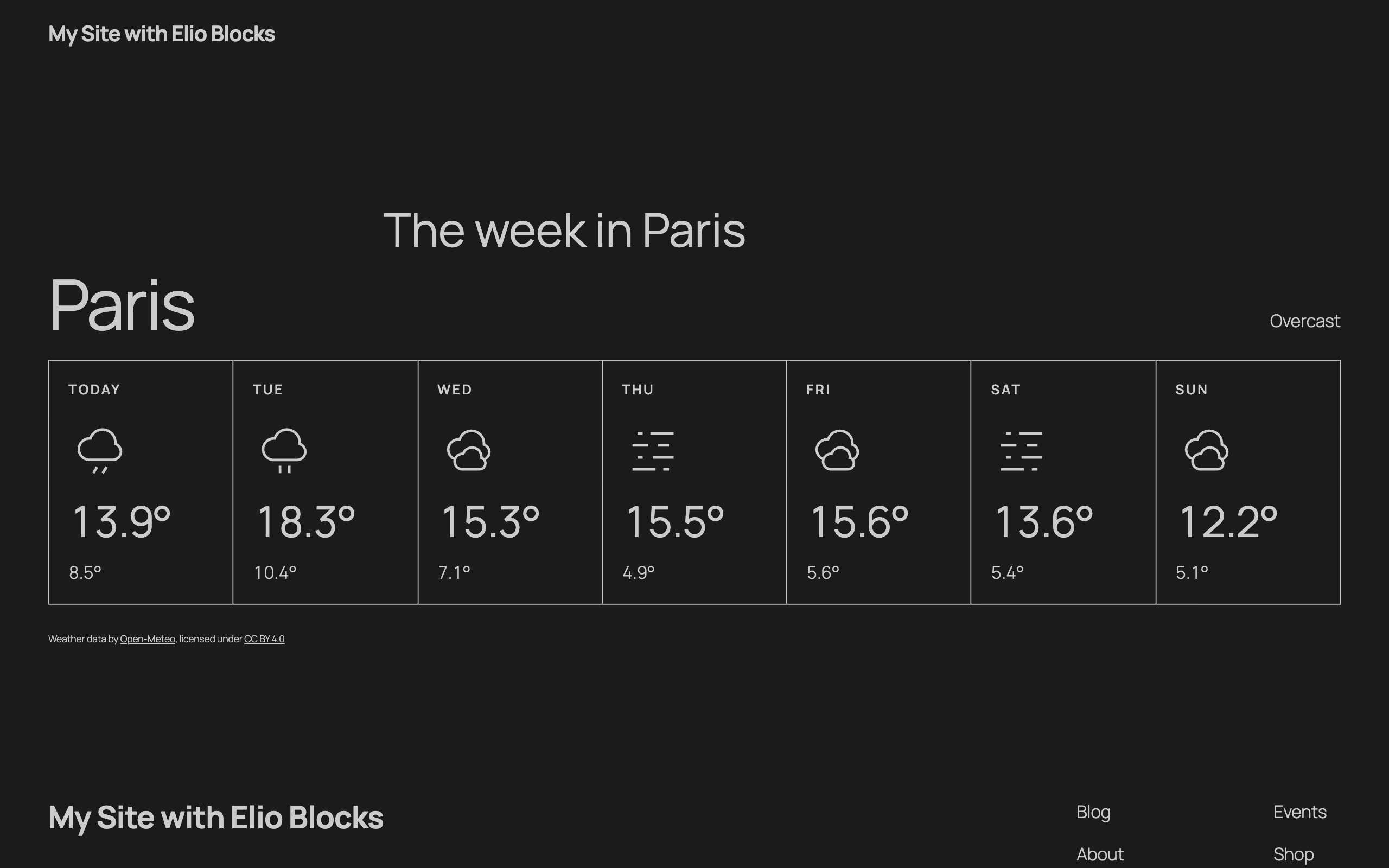
A daily forecast on the front end.
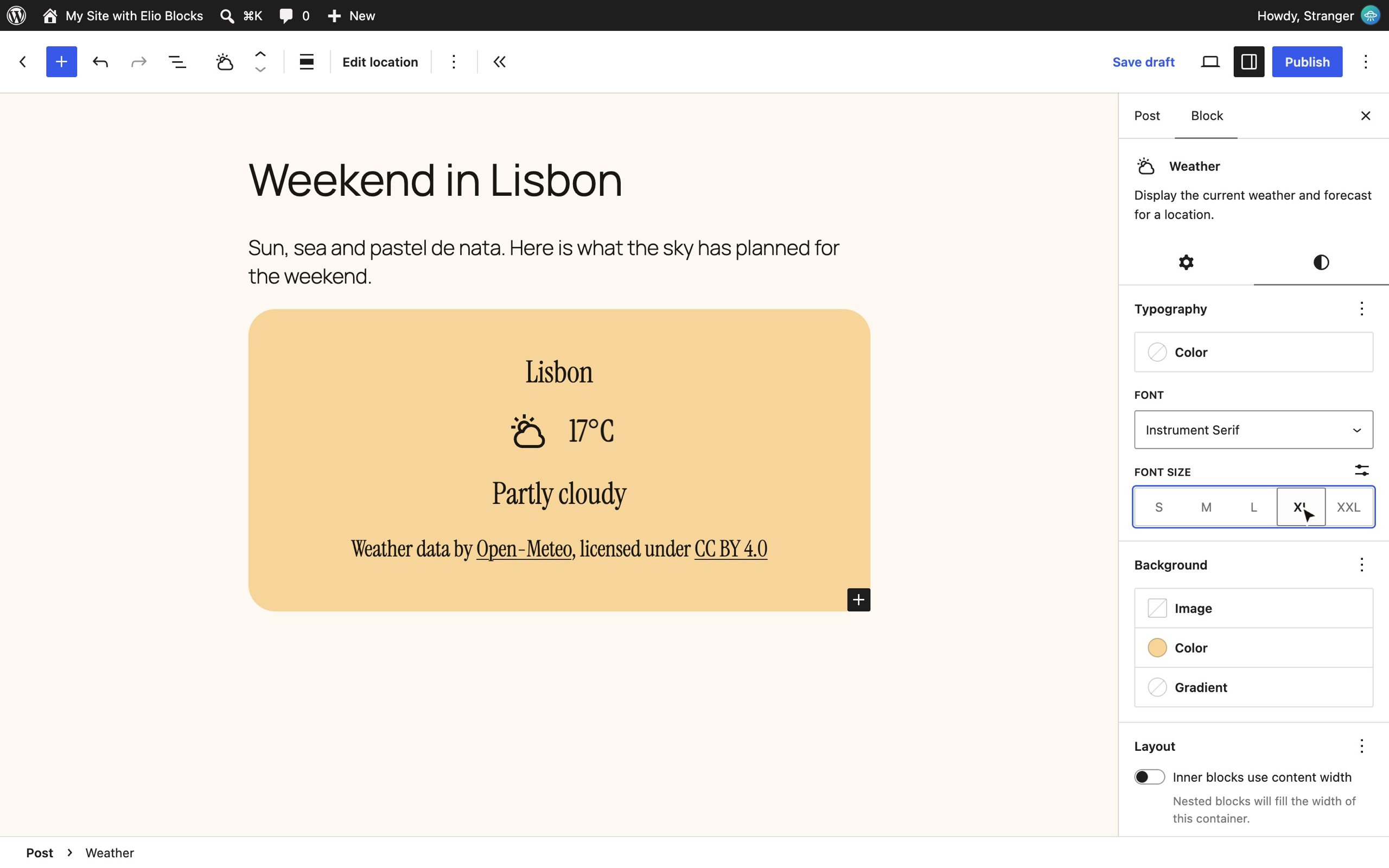
Start blank and choose a layout for the Weather block.
Search for a location by name.
The General section of the settings page: units and data refresh.


