
Extnify Fee Rules For WooCommerce Wordpress Plugin - Rating, Reviews, Demo & Download

Plugin Description
Extnify Fee Rules for WooCommerce is a lightweight and easy-to-use plugin that adds custom fees (or discounts) to the cart and checkout. Create unlimited fees, restrict each one by WooCommerce shipping zone, payment method or shipping method, and set the amount as a flat value or a percentage of the cart subtotal (positive for a fee, negative for a discount).
Features
- Unlimited Fees — Create as many fee rules as your store needs.
- Conditional Rules — Apply each fee only when the customer’s shipping zone, chosen payment method, or chosen shipping method matches.
- Flat or Percentage Amounts — Charge a flat amount or a percentage of the cart subtotal. Enter a negative value (e.g. -5 or -10%) to apply a discount instead.
- Tax Class — Configure the applicable tax class per fee (or make it non-taxable).
- Fee Ordering — Control the order fees are applied and shown.
- Easy Management — Enable, disable, copy, delete, and bulk-save fees.
Privacy
Extnify Fee Rules makes no external requests and collects no data. All fee rules and calculations run directly on your WooCommerce store.
Need More Fee Rules?
For more complex requirements, Extnify Fee Rules Pro adds product, category and manufacturer rules, tiered (range-based) amounts, advanced percentage bases (grand total, weight, quantity and more), method grouping, CSV import/export, tax-inclusive fees, and more.
Extnify Fee Rules is built by Extnify, the developer behind X-FeePro for OpenCart.
Screenshots
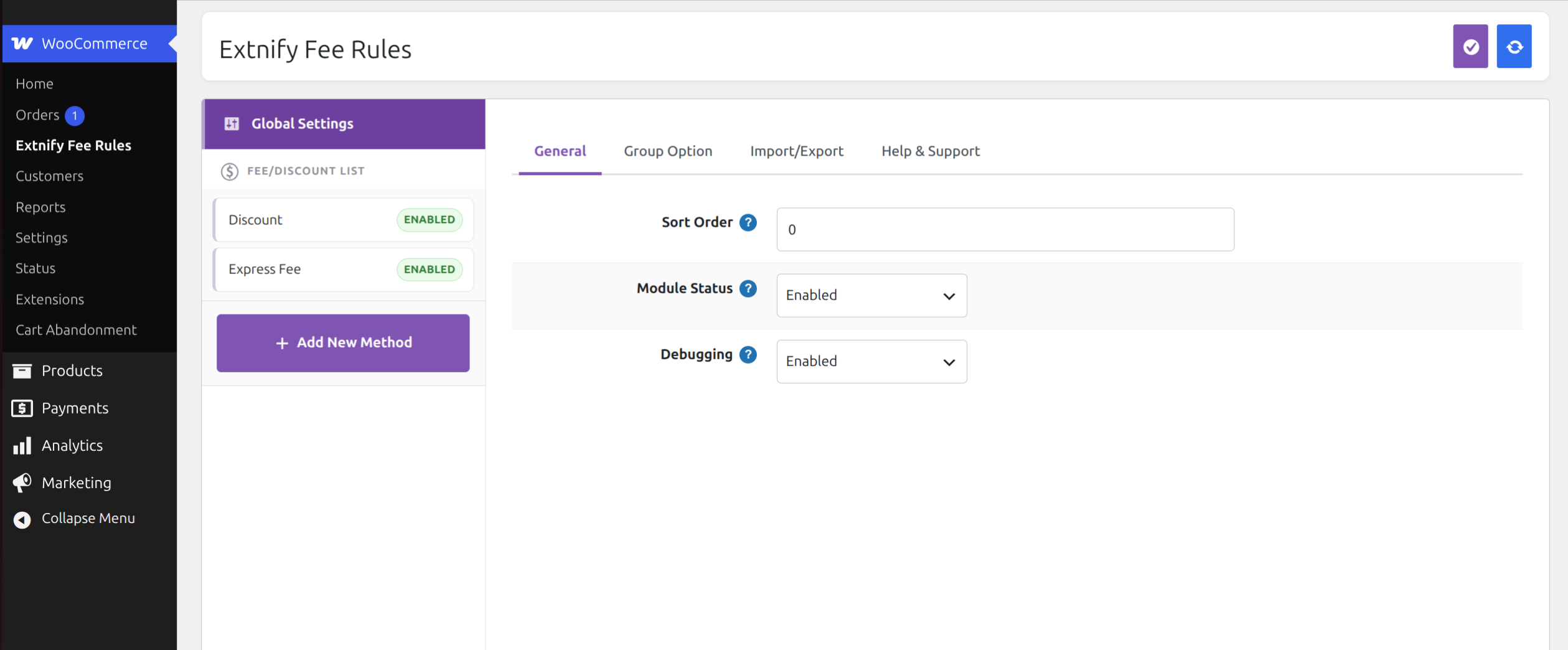
Global settings and your list of fees.
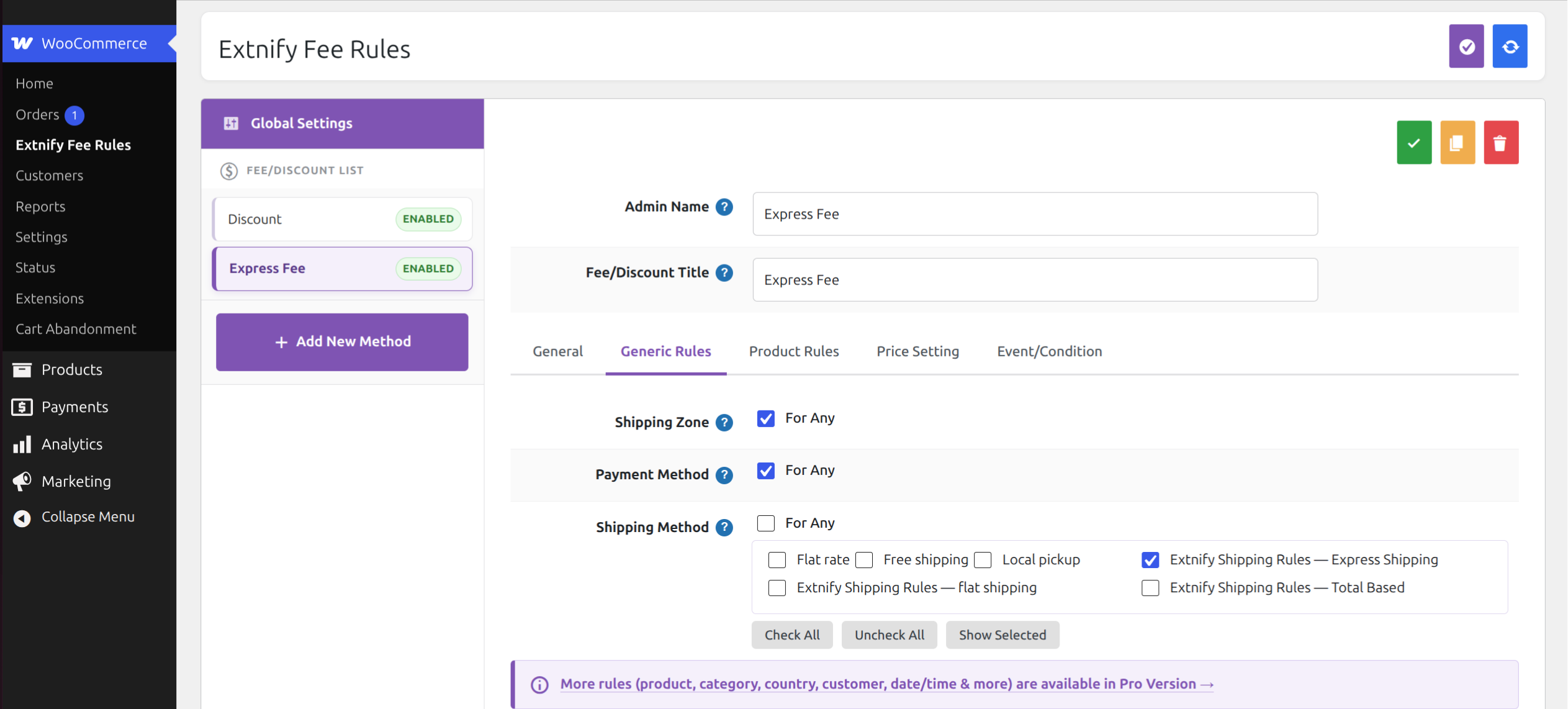
Creating a fee — general settings and its conditional rules (shipping zone, payment method, shipping method).
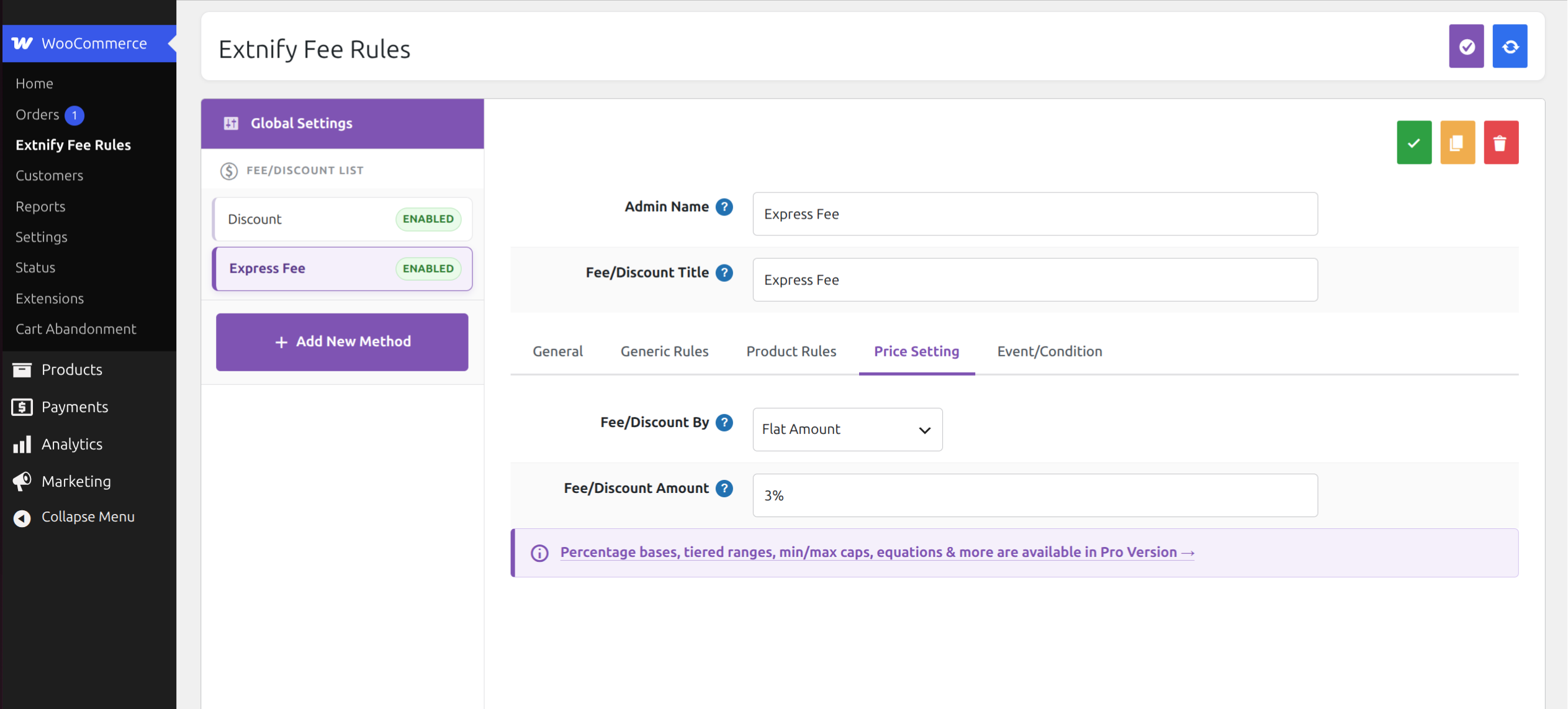
Price Setting — enter the fee amount (a flat value or a percentage).
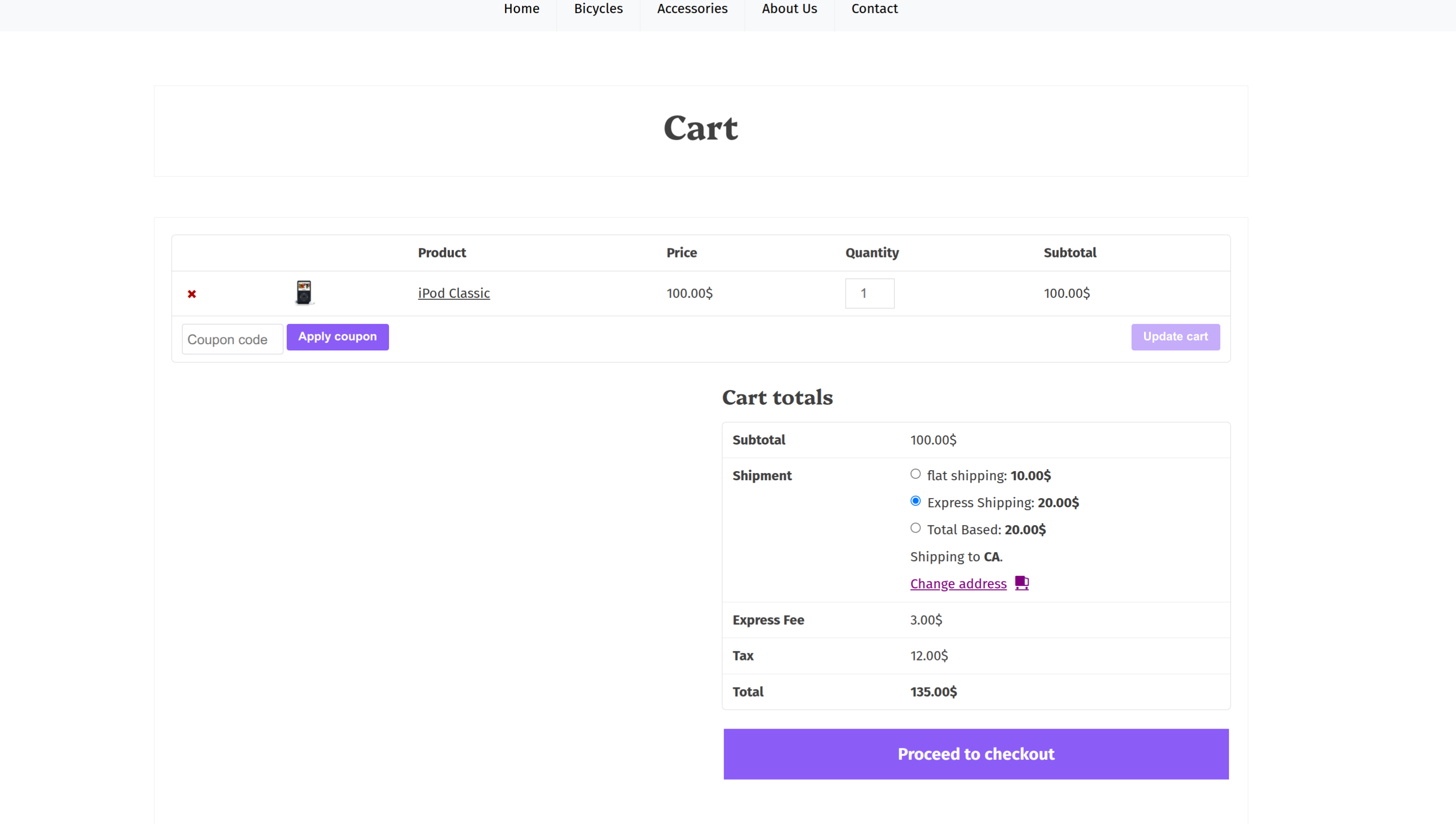
Your fees shown on the cart/checkout totals.
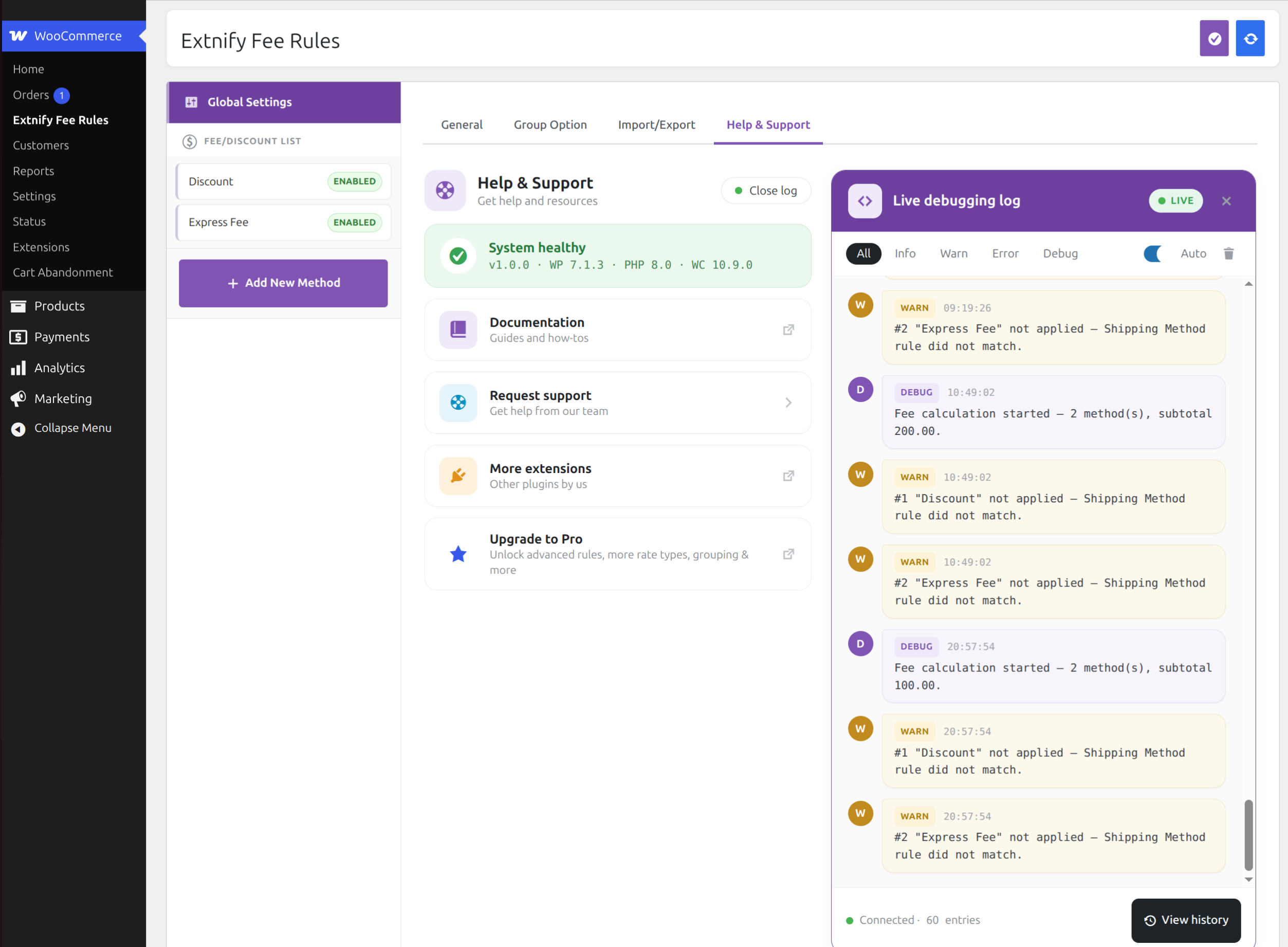
Built-in Help & Support with a live debug log.


