
Faultline – Error Log Assistant Wordpress Plugin - Rating, Reviews, Demo & Download

Plugin Description
Faultline turns your WordPress error log into an actual troubleshooting workflow: find out what broke, whose fault it is, and what to do about it – not just a wall of text to filter through.
If you have ever turned on WP_DEBUG, found a real problem in the log, and then had no idea which plugin caused it or where to even start reading the stack trace, this plugin is for you.
Find the real cause in seconds
- Source-file viewer – click straight through to the exact line in the plugin, theme or file that threw the error, with that line highlighted.
- “Caused by” attribution – every entry is matched to the specific plugin or theme responsible, with a one-click link to that plugin’s WordPress.org support forum.
- Draft forum post – generates a ready-to-post support request for a plugin-caused error, with a redacted copy of the entry and your environment details already filled in.
- Ask AI – optional links that open a redacted copy of any error in Claude, ChatGPT or Perplexity for instant troubleshooting help. Off by default – see “External services” below.
Know the moment something breaks
- Dismissible admin banner and/or email alert the instant a fatal error happens, including request context – was it the front end, wp-admin, a cron job, WP-CLI, or an AJAX call, and which URL or user was involved.
- Public-access check – fetches your own debug.log over HTTP the way a stranger would, so you find out if it is sitting publicly readable in a web-served directory before someone else does.
Quiet the noise around the errors that matter
Once the real problems are easy to find, the rest of debug.log is just noise getting in the way of the next one:
- Suppress routine severities before they are even written – notices, deprecation warnings and coding-standard suggestions never touch the disk. This uses a chained error handler rather than changing PHP’s error reporting level, so other debugging tools still see every error. An optional setting can also move this plugin to the front of your site’s plugin load order, so suppression applies before other plugins get a chance to write their own load-time notices.
- Ignore patterns with live preview – hide one specific chatty message (a plugin’s own logging, a third-party notice) without suppressing an entire severity class, and see exactly what will match before you save.
- Purge noise, prune by age, or cap the file size – manually or automatically, so a runaway error loop never fills your disk.
- Fatal errors are never hidden. Suppression only ever applies to notices, deprecation warnings and (optionally) plain warnings. Fatal errors, parse errors and uncaught exceptions are always logged.
Redaction built in, everywhere
Absolute server paths, your domain, the database table prefix, email addresses and IP addresses are stripped out before anything ever leaves your browser – whether you hit Copy or one of the Ask AI links. Nothing is submitted anywhere automatically; you always see the text first.
A guided Setup screen, not a wall of documentation
Most of the confusion around WordPress error logging comes from wp-config.php: three constants (WP_DEBUG, WP_DEBUG_LOG, WP_DEBUG_DISPLAY) have to be set correctly together or nothing gets logged, or worse, errors get shown to visitors. The Setup screen checks all three, tells you exactly what is wrong, and can write the fix for you – with an automatic backup taken first and a one-click restore always available.
What this plugin will never do
- Never writes to
.htaccess. A malformed rule there can take the whole site down with no admin screen left to fix it from – you get the exact snippet to add yourself instead. - Never edits an existing line in
wp-config.php, even a wrong one. It only appends what is missing, or – for the one narrow case of a single unambiguous wrongtrue/falsevalue – offers a separately-confirmed “Fix” action. - Never silently drops a fatal error to keep the log quiet. Fatals, parse errors and uncaught exceptions cannot be suppressed, by design.
External services
Faultline can show optional “Ask AI” links next to each log entry. These are disabled by default; you choose which ones (if any) to turn on under Settings.
When you click one of these links, your browser opens a new tab directly to that service’s own website, with a redacted copy of the log entry included in the page’s URL as a search query. The plugin itself never sends anything to these services – there is no server-side API call, and nothing is transmitted unless and until you personally click a link and the page loads in your own browser. Redaction (removing absolute paths, your domain, table prefix, email addresses and IP addresses) happens in your browser before the link is built, but it is a best-effort pattern match and cannot guarantee removal of every sensitive detail (for example an order ID or customer name embedded in an error message).
The services these optional links can point to are:
- Claude (Anthropic) – Terms of Service, Privacy Policy
- ChatGPT (OpenAI) – Terms of Use, Privacy Policy
- Perplexity – Terms of Service, Privacy Policy
None of these services are contacted unless you explicitly enable the link in Settings and then click it yourself.
Screenshots
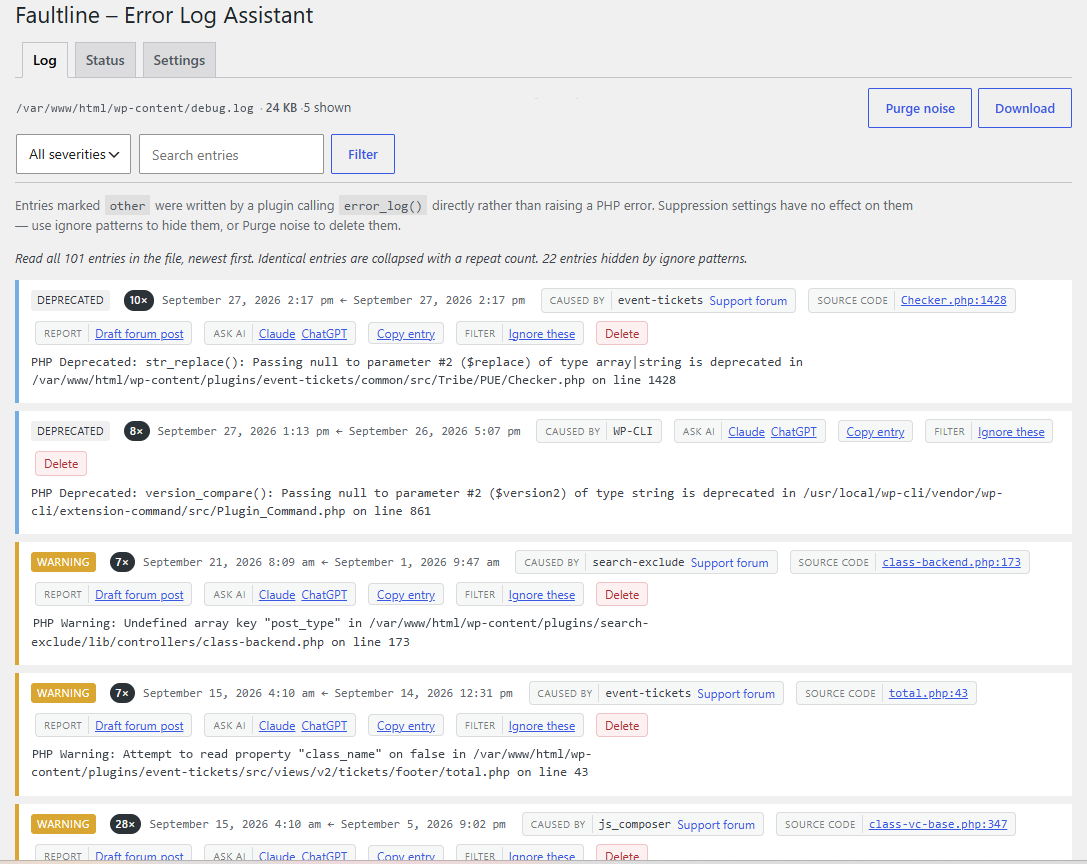
The Log tab, showing severity badges, “Caused by” attribution and the action groups (source, report, Ask AI, copy, ignore, delete) for each entry.
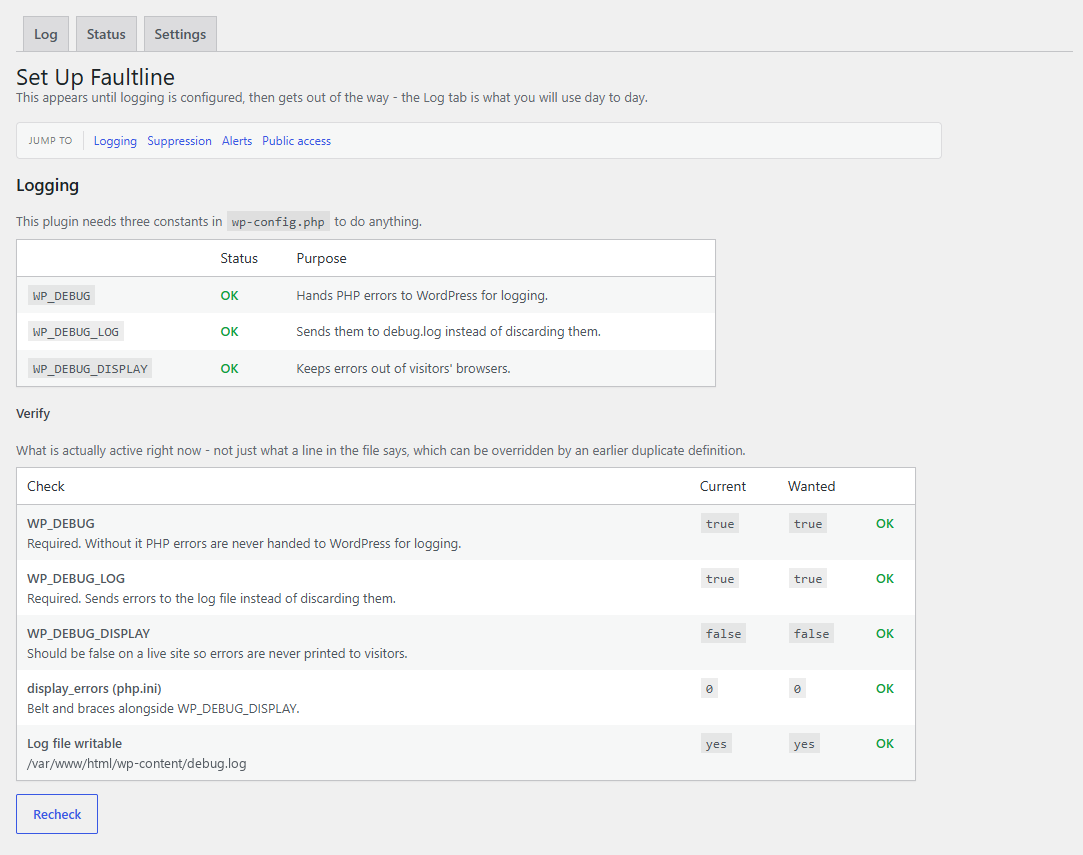
The Setup screen, showing the three required
wp-config.phpconstants and their live status.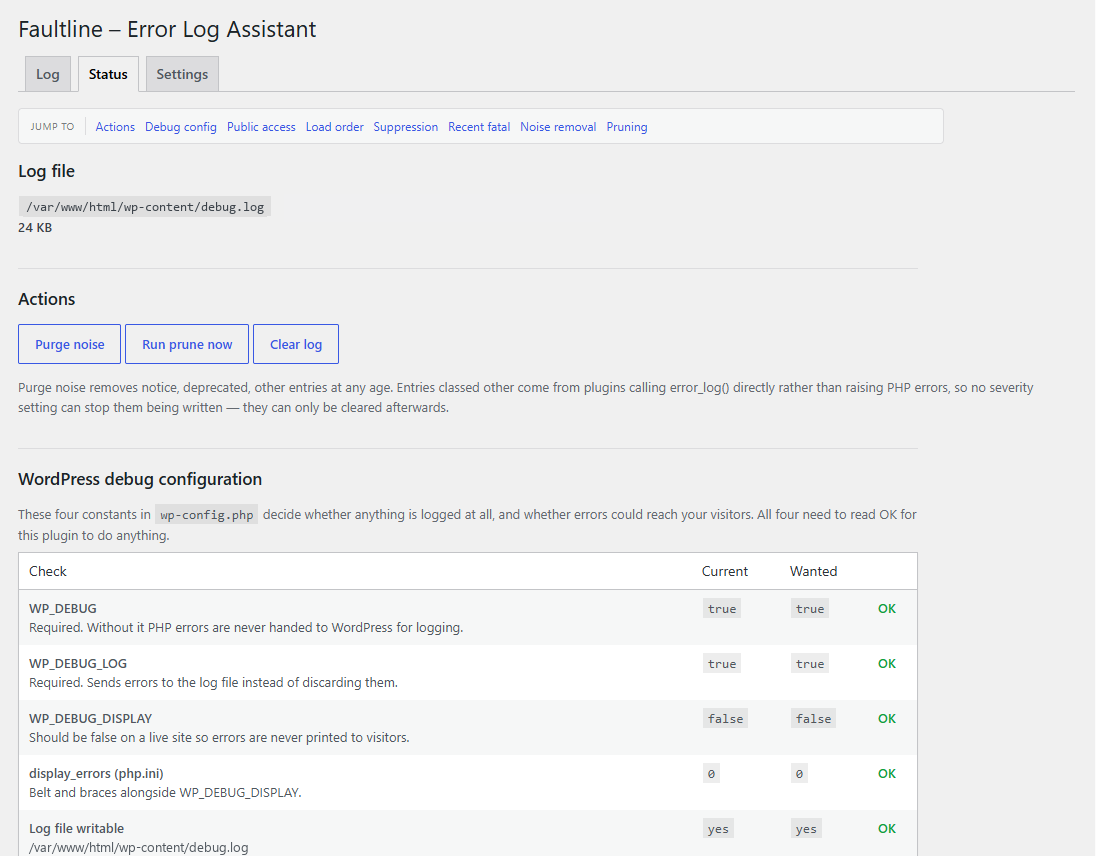
The Status tab, with one-click log actions and a check of the live debug configuration.
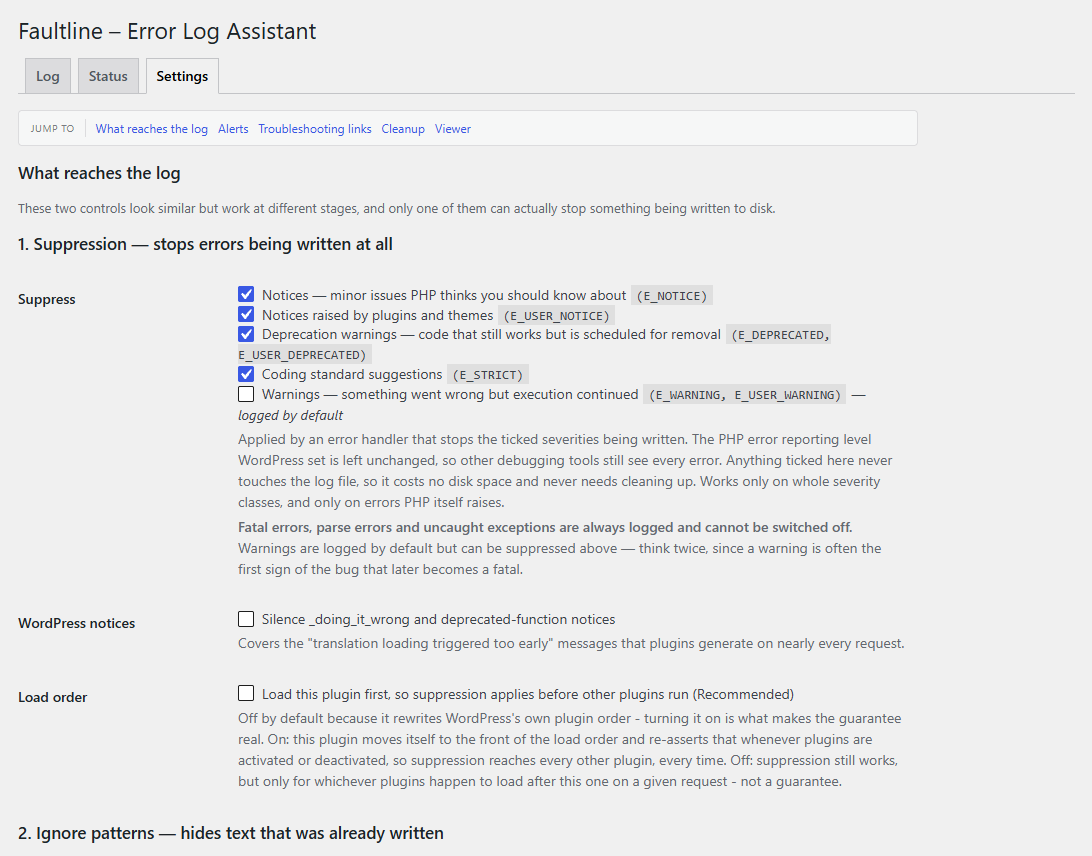
The Settings tab, where suppression stops chosen severities being written to the log at all.
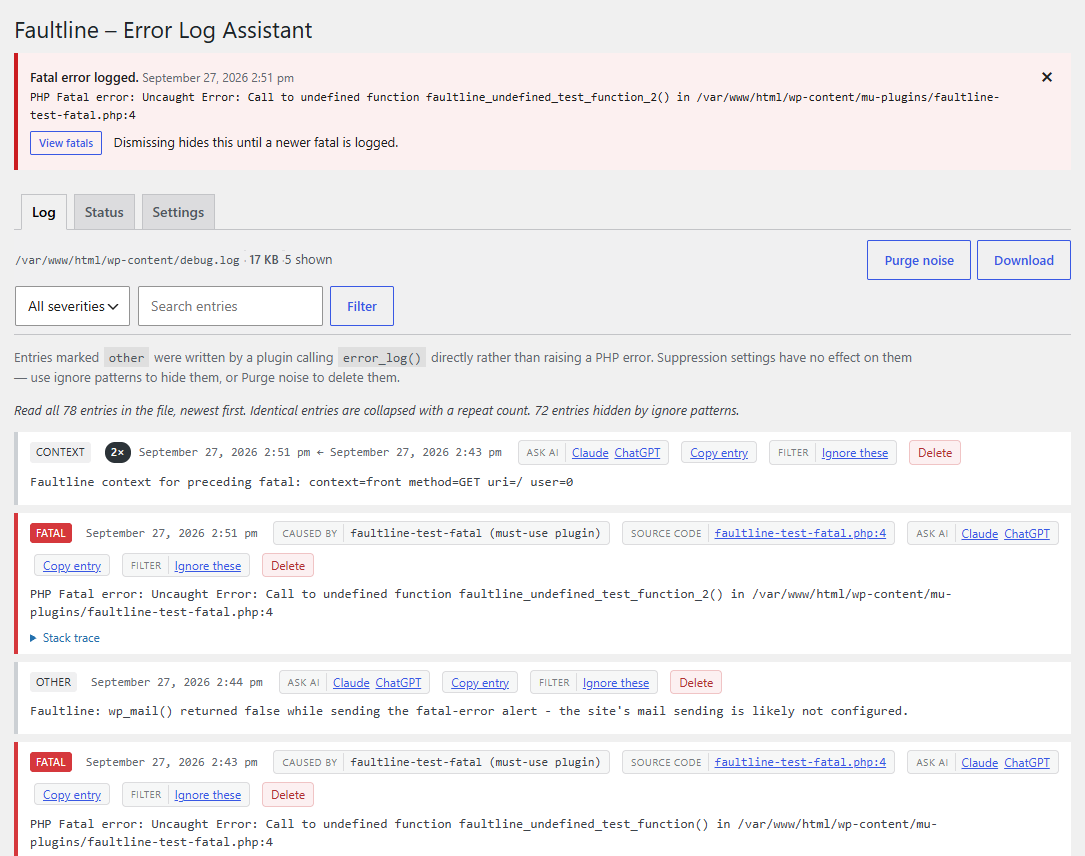
A fatal error caught as it happens: the admin alert banner, the file that caused it (here a must-use plugin), and the request context logged alongside it.


