Feature Request System Wordpress Plugin - Rating, Reviews, Demo & Download
Plugin Description
Feature Request System adds a feature request board to your WordPress site. People suggest features and vote for the ones they want. You give each request a status, such as Planned, In Progress or Shipped, and everyone who voted for a request gets an email when its status changes.
- A board that visitors can search, filter and sort, with one-click voting.
- A form that shows similar requests while someone types, so they vote instead of posting a duplicate.
- A page for every request, with comments and your team’s official response.
- A short list and a card, to show the most wanted requests on your home page and one request in a post, each with a working vote button.
- Emails that close the loop: voters follow a request and hear about every status change, in the background and with a link to stop.
- Blocks and shortcodes that take their look from your theme, and work without JavaScript and behind a page cache.
- Privacy built in: no IP addresses stored, export and erasure through WordPress’s privacy tools, and no outside service unless you use Akismet.
Adding the board
Add the Feature Request Board block to any page, or use the shortcode:
[feature_requests board="board-slug"]
Leave out the board to show the default board. Visitors can search, filter by status and category, and sort by votes or date. Voting works without reloading the page, and still works when JavaScript is off.
Collecting requests
Add the Feature Request Form block where people should suggest features, or use the shortcode:
[feature_request_form board="board-slug"]
While someone types a title, the form lists existing requests with similar titles, so they can vote for one instead of posting a duplicate. The form also works when JavaScript is off.
For a complete page, insert the Feature request page pattern. It has the form, then the board.
By default, only logged-in users can suggest features, and new requests wait for your approval under Feature Requests, marked Pending. Requests from editors and administrators are published straight away. Each board can change who may suggest features and whether requests wait for approval.
Each new request is emailed to the site’s administration email address, with a link to review it. You can change the addresses, or turn the email off, under Feature Requests Settings.
Showing requests on other pages
The board is on one page. Two more blocks bring requests, and votes, to the rest of your site.
The Feature Request List block is a short list of the requests with the most votes, or of the newest ones, with their vote buttons and a link to the board. It suits a home page, a sidebar or the end of a post. In the block, choose how many requests it shows, their order, one status and one board. It has no search and no filters. As a shortcode:
[feature_request_list count="5" sort="new" status="planned" board="board-slug"]
Leave them all out for the five requests with the most votes among those still open for voting, from every board.
The Feature Request Card block shows one request with its vote button, in a post or a page that talks about it, such as an announcement or a help article. In the block, find the request by typing a few letters of its title. The shortcode takes the request’s ID, which is the number in the address of its edit screen:
[feature_request id="123"]
Three patterns put the blocks on a page for you: Feature request form beside the board, in two columns; Most wanted feature requests, a heading above the list; and Suggest a feature, a few words with a button that leads to the board.
Managing requests
Feature Requests in the admin lists every request with its votes, status, board and categories. Sort by votes to see what people want most, and filter by status, board or category. The menu shows how many requests wait for approval.
Change a request’s status from its edit screen, from Quick Edit, or for many requests at once with Bulk Edit. The edit screen also shows who voted for the request, how many users follow it and who submitted it.
Boards and statuses
Under Feature Requests Boards, each board has its own settings: who can vote, who can suggest features (everyone, logged-in users, or nobody), whether new requests wait for approval, and the page that shows the board. Each request links back to that page. The board fills the page in by itself the first time it is shown on one.
A board can also be limited to some of your categories. Its form then offers only those, and so does its category filter. Categories themselves are under Feature Requests Categories.
Under Feature Requests Statuses, add, rename and reorder statuses. Each has a colour and a position, and can be closed for voting: requests in a closed status keep their votes, and nobody can add or remove one.
Request pages and official responses
Every request has its own page with its vote button, status, categories, description and comments. Comments are WordPress comments, so your discussion settings, comment moderation and your theme’s comment design apply.
To answer a request on behalf of your team, write a comment on its page and tick “Post as the official response” before sending it. The newest official response is pinned below the request’s description, and each one is labelled in the comments.
Editors and administrators can change the mark on any comment written by an editor or administrator, in three places:
- On the request’s page, next to the comment’s Reply link: “Mark as official response”, or “Remove official mark” once it is marked.
- On the comment’s edit screen, with the “Official response” checkbox in the Save box.
- On the Comments screen, among the actions that appear when you point at a comment.
In block themes, request pages use the Single Feature Request template, which you can change in the Site Editor. It needs WordPress 6.7 or later; on WordPress 6.6 the theme’s own template for posts is used.
Following requests and emails
Logged-in users can follow a request with the Follow button on its page. A user who votes for a request follows it too, and so does a user who suggests one. Followers get an email when the request’s status changes, and the user who suggested a request gets one when you approve it.
The emails are plain text. They go out in the background, 50 at a time, so saving a request never waits for mail. A status email goes out five minutes after the change: if you pick the wrong status, correct it within that time and nobody hears about it, and several changes in a row become one email.
Every email ends with a link that stops the emails about that request, without logging in. The page behind the link can also stop all of them at once. On their profile, users see the requests they follow, can stop following any of them, and choose whether voting makes them follow.
To change a status without an email, untick “Email followers when the status changes” next to the status, on the edit screen, in Quick Edit or in Bulk Edit. Under Feature Requests Settings you can turn following off altogether, or only for votes.
Visitors without an account cannot follow and are not emailed.
Spam protection
The form stops most spam without a captcha:
- A hidden field that people never see and bots tend to fill in.
- Forms sent within 3 seconds of loading the page are refused, as bots send them.
- Each visitor can send 5 requests an hour, and each IP address 10.
- Votes are limited too: 30 an hour for each visitor, and 60 an hour from one IP address. Logged-in users and visitors without an account are counted apart, and you can change both numbers under Feature Requests Settings.
- If the Akismet plugin is active and connected, it checks every new request. Requests it flags wait for your review instead of being deleted.
Developers can add a captcha through the mwtfrs_verify_captcha filter, or another spam service through the mwtfrs_is_spam filter.
Themes
The board, the form and the request page take their colours and spacing from your theme. To change their markup, copy a file from the plugin’s templates folder to a feature-request-system folder in your theme: board.php, request-list.php, request-card.php, request-item.php, vote-button.php, submit-form.php, request.php or official-response.php.
The text of the emails to followers can be changed the same way: copy emails/status-changed.php or emails/request-approved.php to feature-request-system/emails in your theme.
To style the blocks entirely yourself, turn the plugin’s stylesheets off from your theme or a small plugin:
add_filter( 'mwtfrs_load_styles', '__return_false' );
Accessibility
The board, the list, the card, the form and the request page aim for WCAG 2.2 level AA. Everything works with a keyboard and without JavaScript, changes are announced to screen readers, and the automated checks of axe pass in block themes and classic themes. Colours come from your theme, so the contrast of your theme’s own text and background still matters.
Privacy
Everything is stored in your own WordPress database.
Under Feature Requests Settings you can write a “How we use your data” note. Visitors without an account can open it on the form, under the name and email fields, followed by a link to your privacy policy page. The settings page suggests a text to start from.
People who suggest a feature are not stored as post authors, so their names never appear in author archives or other public data. The name and email a visitor gives are stored privately with their request and shown only to moderators. The plugin stores no IP addresses; rate limits use short-lived, hashed counters.
The description of a request is shown as plain text. A web address in it stays text, and is not turned into an embedded video or page from another site.
For each logged-in user, the plugin stores which requests they follow, so it can email them. Those emails go to the address of the user’s account, through your site’s own mail setup. Who follows a request is never shown publicly; moderators see how many users follow it.
The plugin works with WordPress’s privacy tools. Tools Export Personal Data includes the requests a person suggested, their votes and the requests they follow. Tools Erase Personal Data removes the record of who suggested a request, stops their emails, and cuts the tie between the person and their votes; the votes themselves stay, so counts stay correct. Under Settings Privacy, the policy guide offers a text about the plugin for your privacy policy.
When a user is deleted, they stop following every request, and their votes stay without the tie to the account, so counts stay correct. WordPress’s own export file (Tools Export) is a copy of your content for moving it to another site: it includes the name and email that visitors gave with their requests.
A visitor who votes without an account gets a cookie named mwtfrs_vid, which holds a random number for one year so the site remembers their votes. It is only set on boards where you allow voting without an account, and only when such a visitor votes.
External services
When the Akismet plugin is active and connected to an Akismet account, this plugin sends each new feature request to Akismet to check whether it is spam. It sends the request’s title and details, the name and email a visitor gave, and their IP address, browser user agent and referring page. Nothing is sent when Akismet is not active. Akismet is a service by Automattic: terms of service, privacy policy.
Screenshots
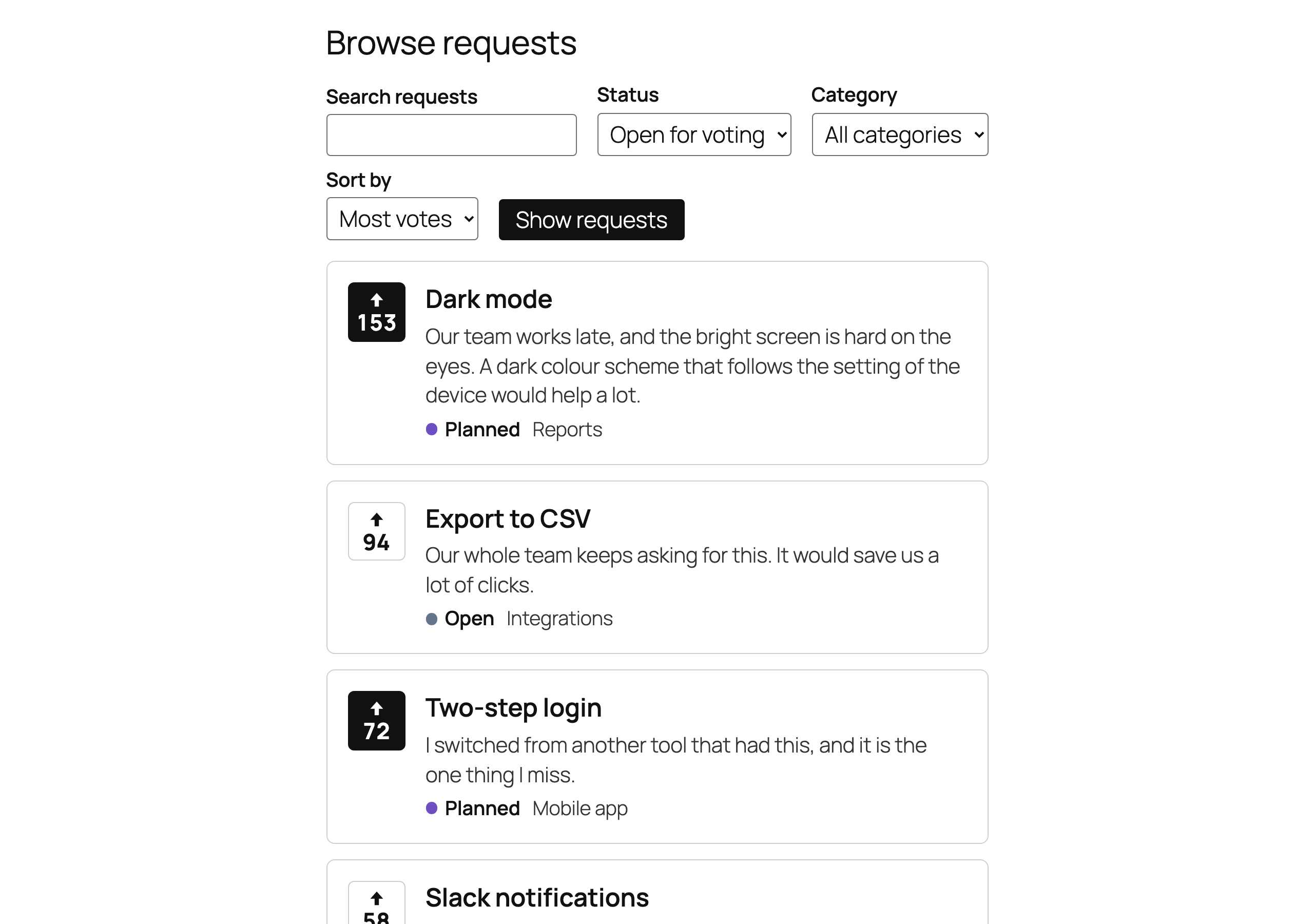
The board: search, filters and one-click voting.
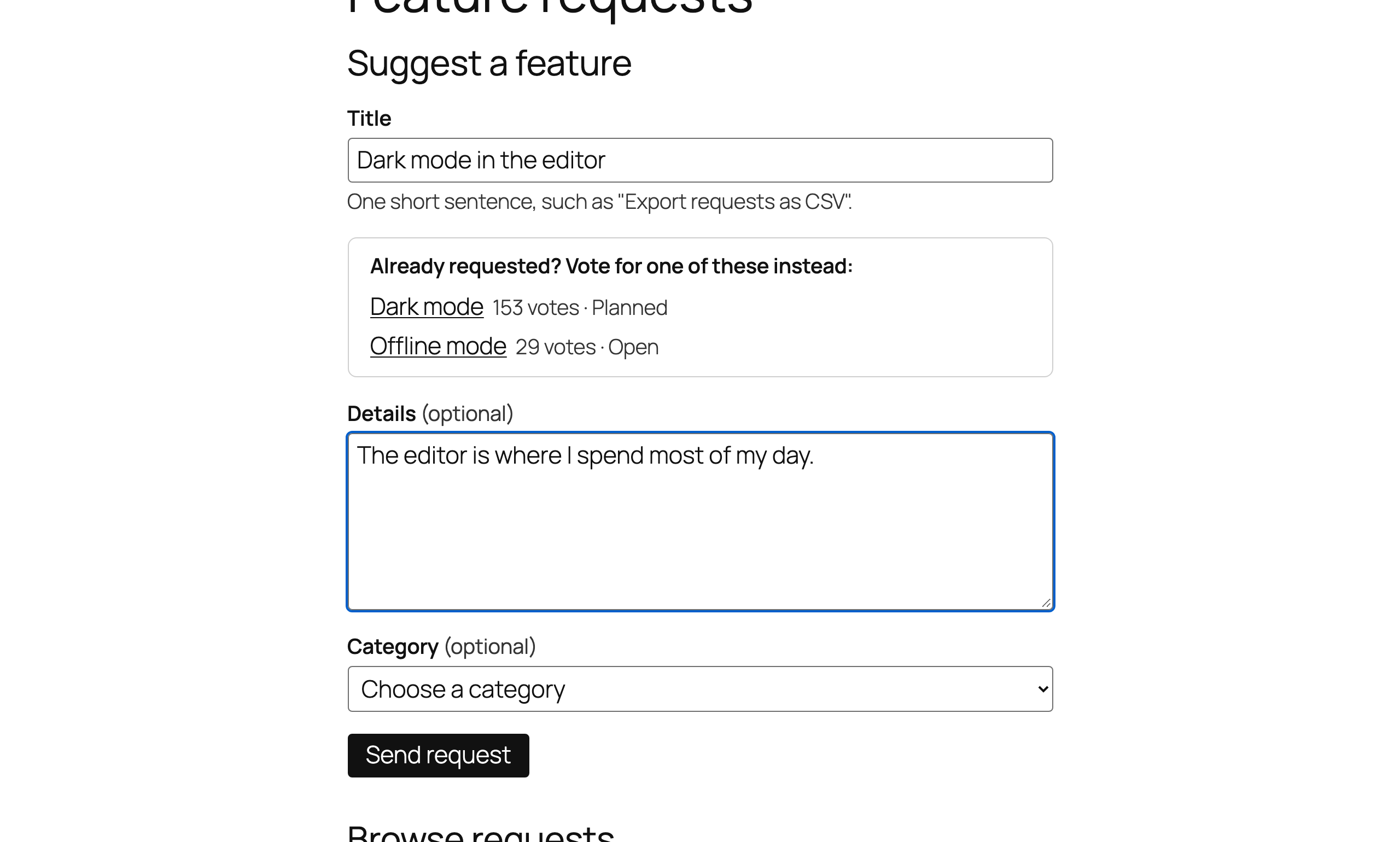
The form lists similar requests while someone types a title.
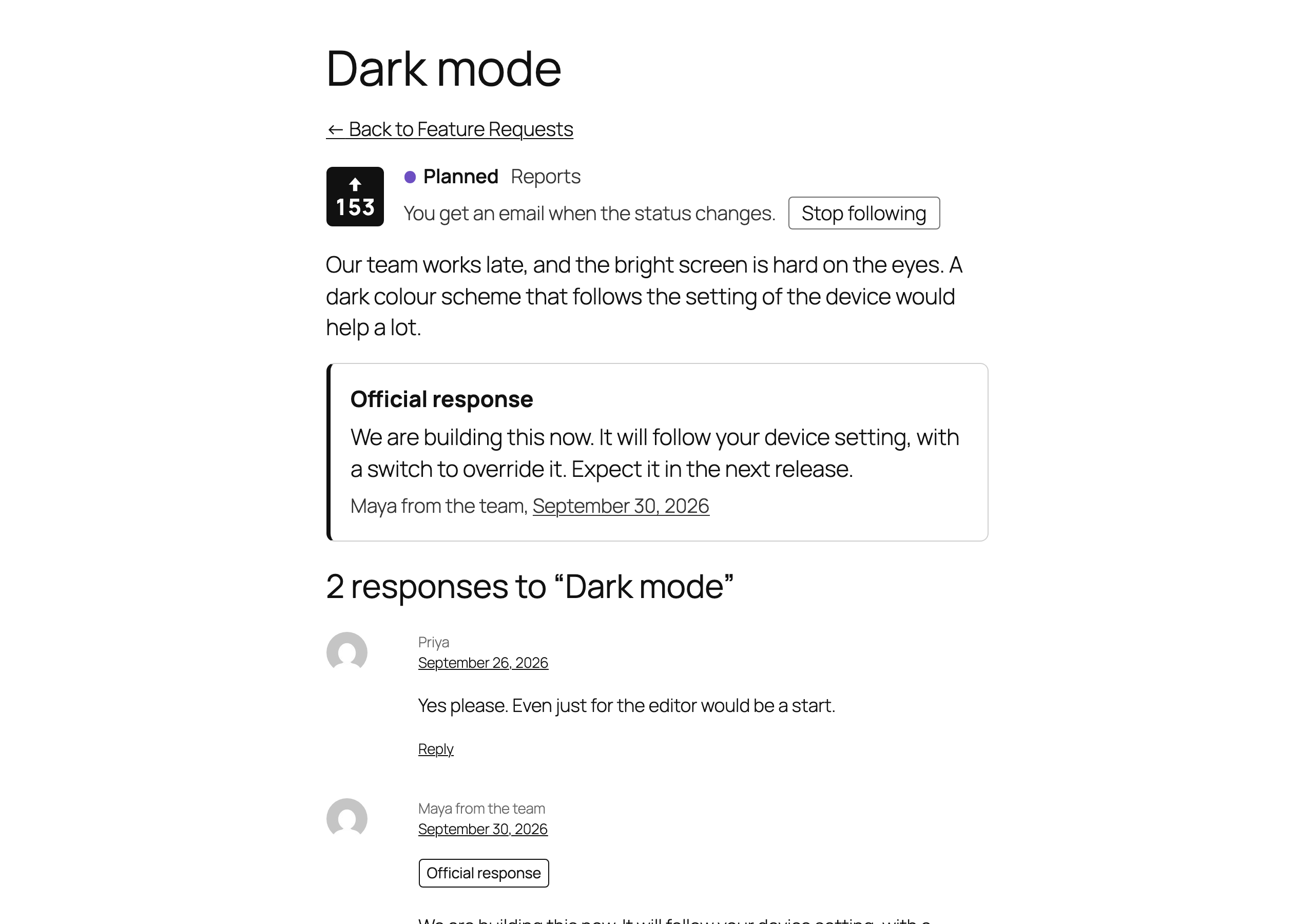
A request’s page: its status, the Follow button, your official response and the comments.
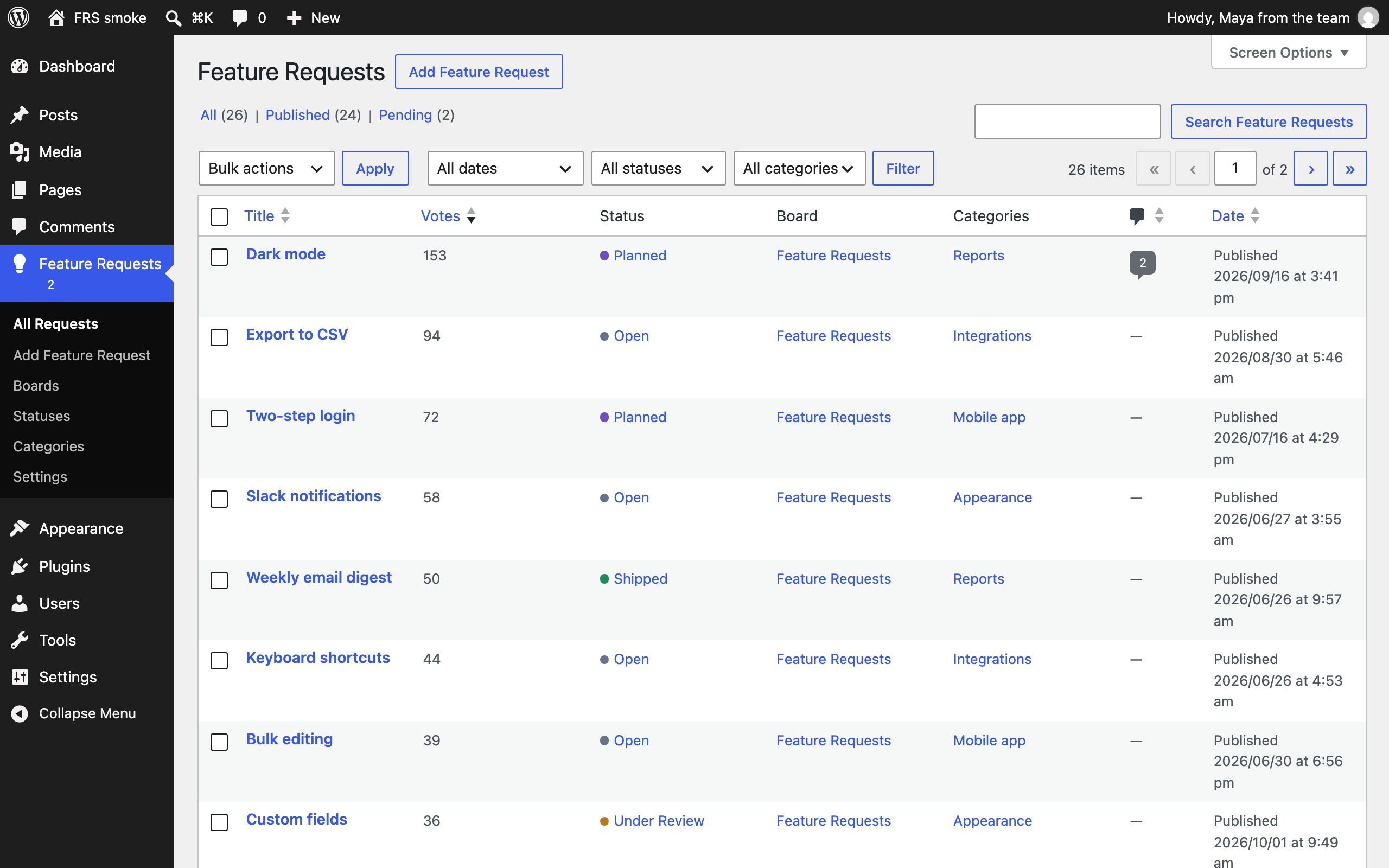
Requests in the admin, sorted by votes, each with its status.
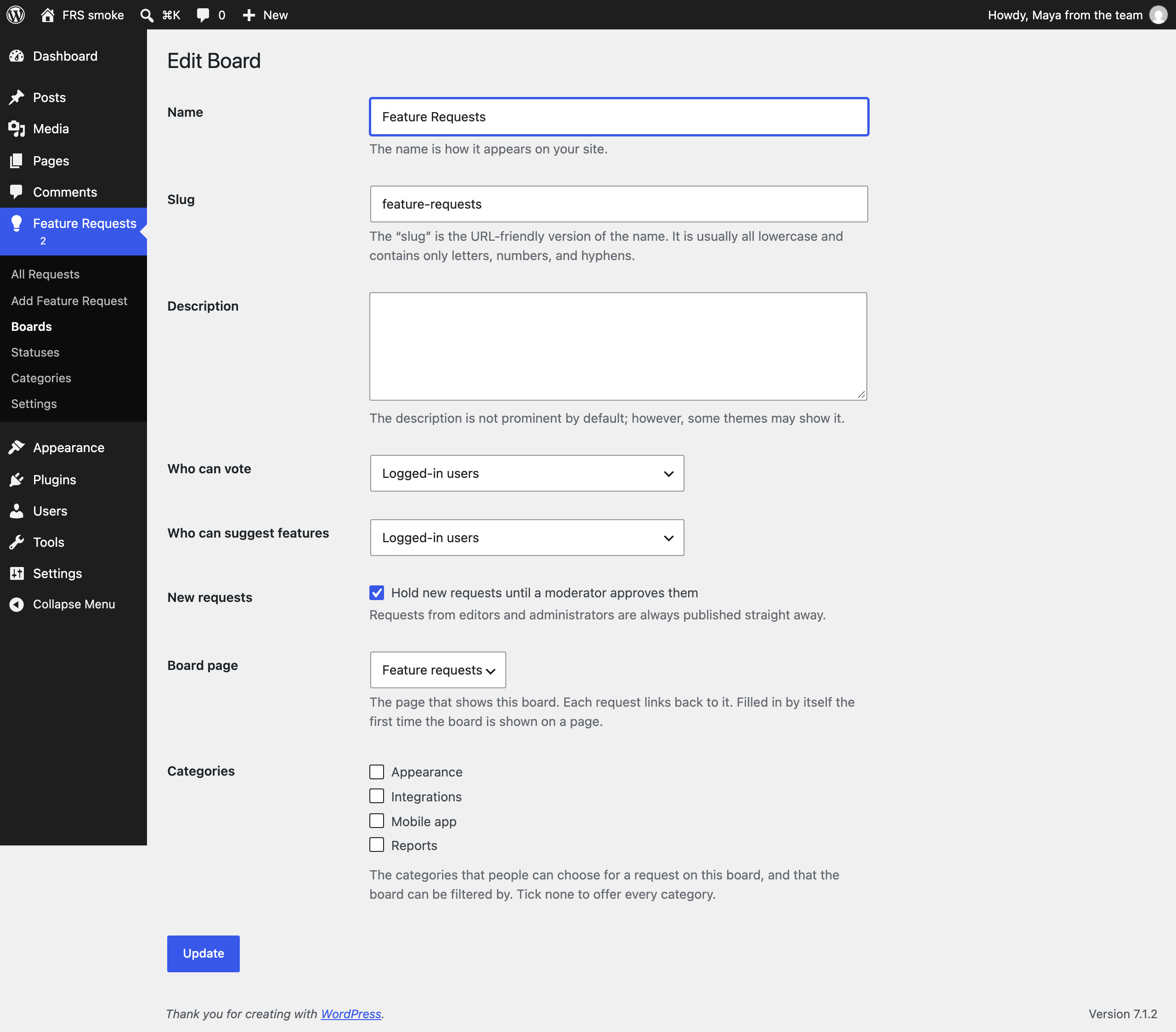
Every board has its own settings: who can vote and suggest, approval, its page and its categories.
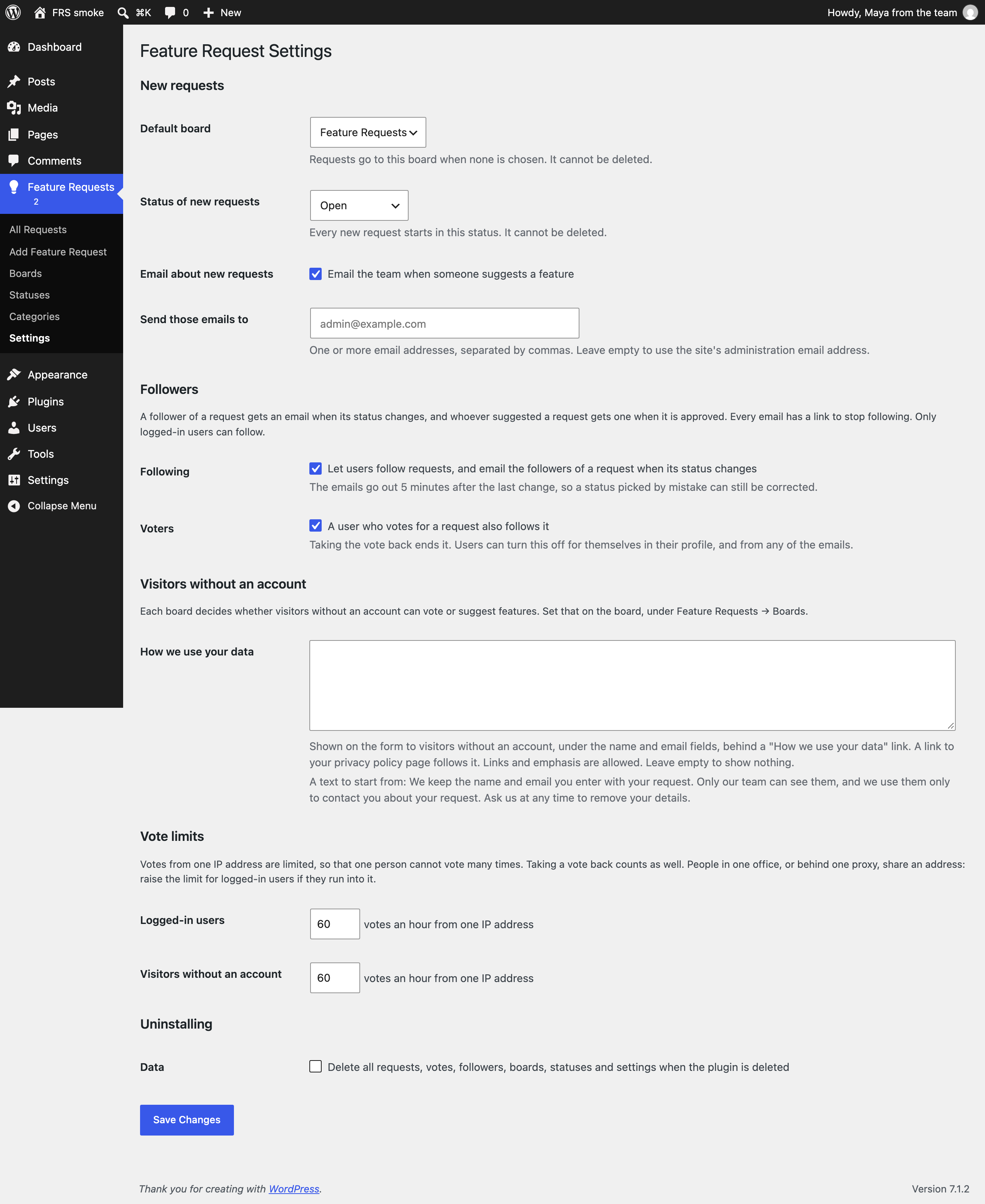
The settings page.