FFL Monkey Checkout For WooCommerce Wordpress Plugin - Rating, Reviews, Demo & Download
Plugin Description
In the United States a firearm bought online is not shipped to the buyer. It
ships to a federally licensed dealer, an FFL, who completes the transfer in
person. This plugin adds that step to a WooCommerce checkout.
What it does
- Adds a dealer picker to checkout, in both the Checkout block and the classic
checkout. The buyer searches by ZIP code, or by their location if they
choose to share it, and picks a dealer from a list and a map. - Splits a mixed cart. Items that need a dealer ship to the dealer; everything
else ships to the buyer’s own address, as a separate package. - Holds the order until the requirement is met. A dealer whose licence has
expired is refused, and an order with an NFA item needs a dealer with a
Special Occupational Tax (SOT) on record. - Records the chosen dealer on the order and shows it on the order screen, with
a link to the ATF’s FFL eZ Check. - Optionally lets buyers collect from your own premises, upload a licence for a
dealer that is not listed, or place the order now and name a dealer later. - Adds a checkbox to each product for “ships to a dealer”, and one for NFA
items that need an SOT dealer.
Requires an account
The dealer directory the picker searches is a service run by FFLMonkey.com, a
paid subscription. The plugin cannot search for dealers without an account at
https://fflmonkey.com, which the setup screen creates or signs in to.
The plugin itself is free software under the GPL and contains no locked,
time-limited or paid-only code. A subscription buys access to the service’s
dealer directory, not to features of this plugin.
Requirements
- WooCommerce
- PHP 7.2 or newer
- An account at FFLMonkey.com
External services
The plugin uses five external services. None is contacted until you choose
Create an account or I already have an account on the plugin’s page (or, if
the FFL Monkey Data Feed plugin is connected on this store, until you open the
page), or press an eZ Check control on an order (4, below).
Activating or deactivating the plugin sends nothing. Once the store is connected, the transfer of each
order that needs a dealer is sent to FFLMonkey.com, and it includes the
buyer’s name, email address, phone number and addresses (below). Nothing about
buyers is sent to OpenFreeMap or OpenStreetMap.
1. FFLMonkey.com, https://backend.fflmonkey.com
Runs the dealer directory and your account.
- Setup, from your server, while the store is not connected: when you choose
Create an account or I already have an account, a request for the sign-in
choices on offer, which says nothing about your store. When you sign in, your
email and password; when you create an account, your name, email and
password, and your business name and how you found FFL Monkey if you give
them. With either, your site’s address and name, your admin URL and an
identifier for this installation; during setup, the licence and plan you
choose. If the FFL Monkey Data Feed plugin is connected on this store, its
licence key is sent when you open the page, so you are signed in without
typing your password. Choosing a paid plan opens Stripe’s checkout in a new
tab. - Admin screens, once the store is connected: your site and admin URLs, the
licence key the plugin holds and the product name. - The Dealer licences and Account tabs, from your browser, once the store is
connected: these tabs load the dealer licences and SOT stamps you uploaded
there, and your subscription, directly from this host, using a short-lived
token the plugin obtains for them. The licence and stamp files you drop or
choose on the Dealer licences tab are sent to this host, which reads them
to find each dealer. As with any web request, the browser also sends its IP
address. Subscribing or managing billing opens a new tab on this host, which
passes you to Stripe to pay. - Dealer search, from the buyer’s browser: the ZIP code searched (or the
buyer’s coordinates, only if they choose “Use my location”), the store’s
public dealer-search key and, if the buyer uploads a dealer’s licence, that
file. As with any web request, the browser also sends its IP address. - At checkout, from your server: the chosen dealer’s licence number, to check
it is valid. - At checkout, for a connected store whose cart holds products Data Feed
brought in and ships to a US state, from your server: those products’
catalog IDs and the state, with the store’s licence ID and API token, to ask
which of them that state’s law restricts. The answer is kept for 15 minutes. - When a dealer is recorded on an order after checkout, from your server: that
dealer’s licence number, to fetch their name, address, licence expiry and
contact details. This happens whatever the dealer verification setting,
for an FFL number you type or pick in the order’s FFL transfer box, a dealer
the buyer chooses from the link in their email, and the dealer of an
approved upload. - Every 15 minutes, for a connected store with orders waiting on a dealer
licence the buyer uploaded, from your server: each upload’s reference, with
the store’s licence ID and API token, to ask whether FFLMonkey.com has read
and approved it, and for the dealer’s licence number once it has. - When an order is placed and completed: a reference for the order, made from
its order key so that the key itself is never sent, the dealer’s licence
number, name, address and licence expiry, and whether a dealer was named. - The FFL transfer of each order that needs a dealer, for a connected store,
whenever it changes: its code, status and history (who did what, and when),
the order’s number, status, currency and total, the buyer’s name, email
address, phone number and billing and shipping addresses, the items ordered,
the dealer’s details, contact and answer, and the carrier, tracking number
and serial numbers once you mark it shipped. - When a transfer request is emailed to a dealer, from your server: your FFL
number, to fetch the copy of your FFL (and SOT, for an NFA order) that
FFLMonkey.com holds, to attach it. - When a dealer sends their FFL or SOT copy from their answer page, from your
server: that file, with the store’s public dealer-search key. - When the store’s licence has stopped (a failed payment, an ended trial or
free period, a cancelled subscription) and you open the plugin’s page, from
your server: the store’s licence ID and API token, to ask whether a
subscription restores it; and when you choose a plan, that plan, to open
Stripe’s checkout (5, below). - When you download a dealer’s FFL or SOT copy from an order, from your
server: that dealer’s licence number, with the store’s API token. - Your own FFL or SOT document, if you upload one on the Your FFL tab: from
your browser, with the store’s short-lived sign-in for its FFL Monkey
screens, or from your server when the page cannot send it directly. - Support tickets, for a connected store: what you write and any files you
attach, from your browser, with the name and email of the WordPress user who
sends it, your site’s address, and your plugin, WordPress, WooCommerce and
PHP versions. Never your licence key or any password. While you are in
wp-admin, your server also asks whether a reply is waiting for you, at most
once a minute, with the store’s licence ID and API token.
Terms: https://fflmonkey.com/legal/terms
Privacy: https://fflmonkey.com/legal/privacy
2. OpenFreeMap, https://tiles.openfreemap.org
The picker’s map is drawn from OpenFreeMap’s map style, tiles and fonts,
loaded by the buyer’s browser when results are shown. Each request carries the
buyer’s IP address and the referrer your site’s policy allows (by default your
store’s origin, never the page address).
Terms: https://openfreemap.org/tos/
Privacy: https://openfreemap.org/privacy/
3. OpenStreetMap, https://tile.openstreetmap.org
When OpenFreeMap’s map cannot be drawn (it does not load, or the buyer’s
browser has no WebGL), the picker’s map is drawn from OpenStreetMap tiles
instead, loaded by the buyer’s browser. Each request carries the buyer’s IP
address and your store’s origin as the referrer (never the page address),
which the tile policy requires.
Terms: https://osmfoundation.org/wiki/Terms_of_Use
Privacy: https://osmfoundation.org/wiki/Privacy_Policy
4. ATF FFL eZ Check, https://fflezcheck.atf.gov
The public licence lookup of the U.S. Bureau of Alcohol, Tobacco, Firearms and
Explosives. When you press “ATF eZ Check” or “Verify on ATF eZ Check” in an
order’s FFL transfer box, your browser opens eZ Check in a new tab and posts
the dealer’s licence number to its search (the region, district and last five
digits, the fields the search asks for), to show whether the licence is
current. Nothing is sent until you press it, and nothing about the buyer is
sent. As with any web request, the browser also sends its IP address.
Terms: the system use notice on https://fflezcheck.atf.gov/FFLEzCheck/
Privacy: https://www.justice.gov/doj/privacy-policy
5. Stripe Checkout, https://checkout.stripe.com
Choosing a paid plan during setup, or on the plugin’s page once the store’s
licence has stopped, opens Stripe’s checkout in a new tab, where you pay. FFLMonkey.com creates the
checkout; the plugin sends nothing to Stripe itself, and your card details
never touch your site.
Terms: https://stripe.com/legal
Privacy: https://stripe.com/privacy
Credits
The merchant screens bundled in this plugin show department icons from Game
Icons (https://game-icons.net), by Lorc, Delapouite and contributors, licensed
under CC BY 3.0 (https://creativecommons.org/licenses/by/3.0/).
Screenshots
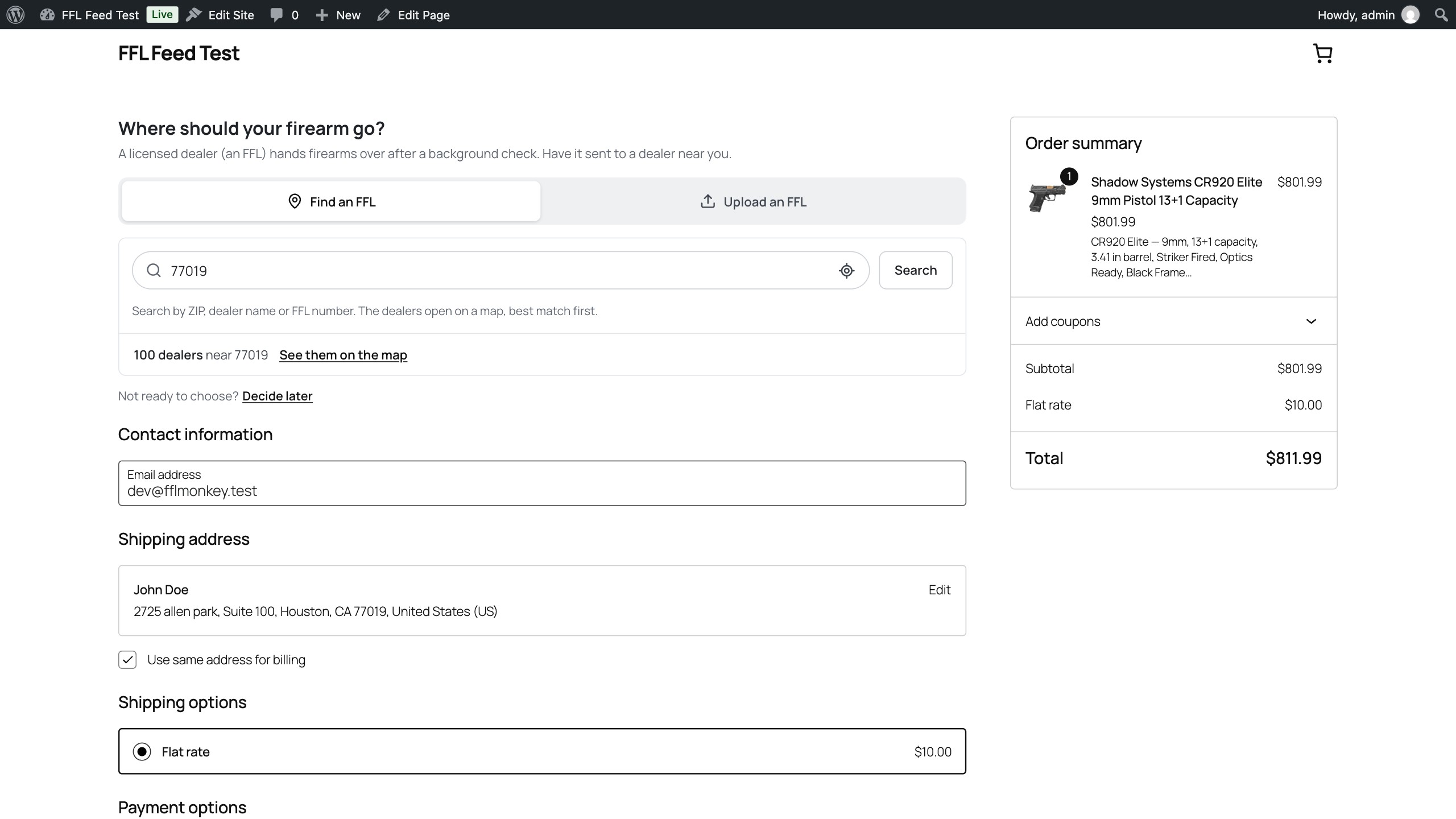
Checkout: the buyer chooses where the firearm goes, a licensed dealer near them or a dealer’s licence they upload.
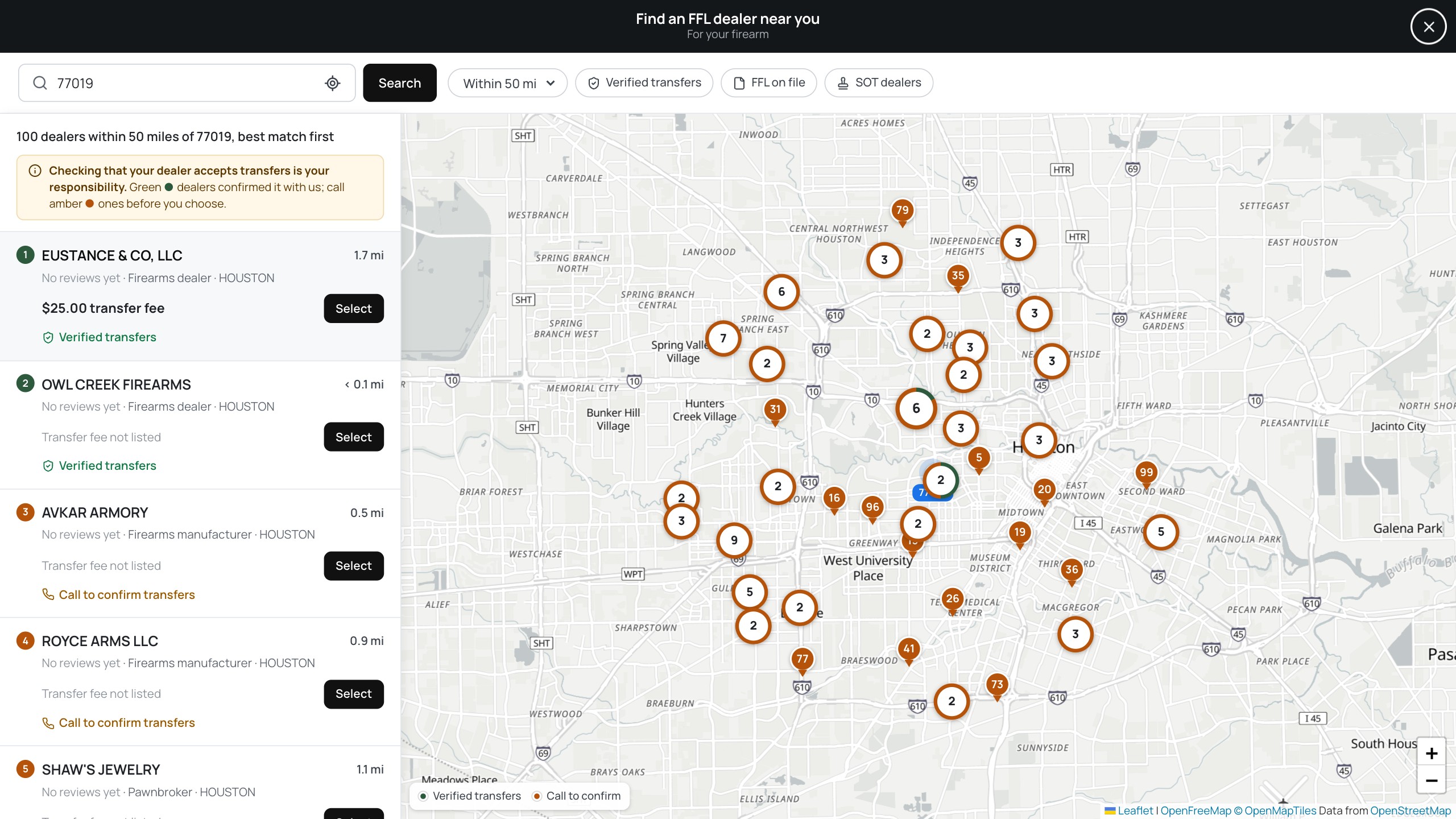
Find an FFL: licensed dealers near a ZIP code on a map, best match first, with those confirmed to accept transfers marked.
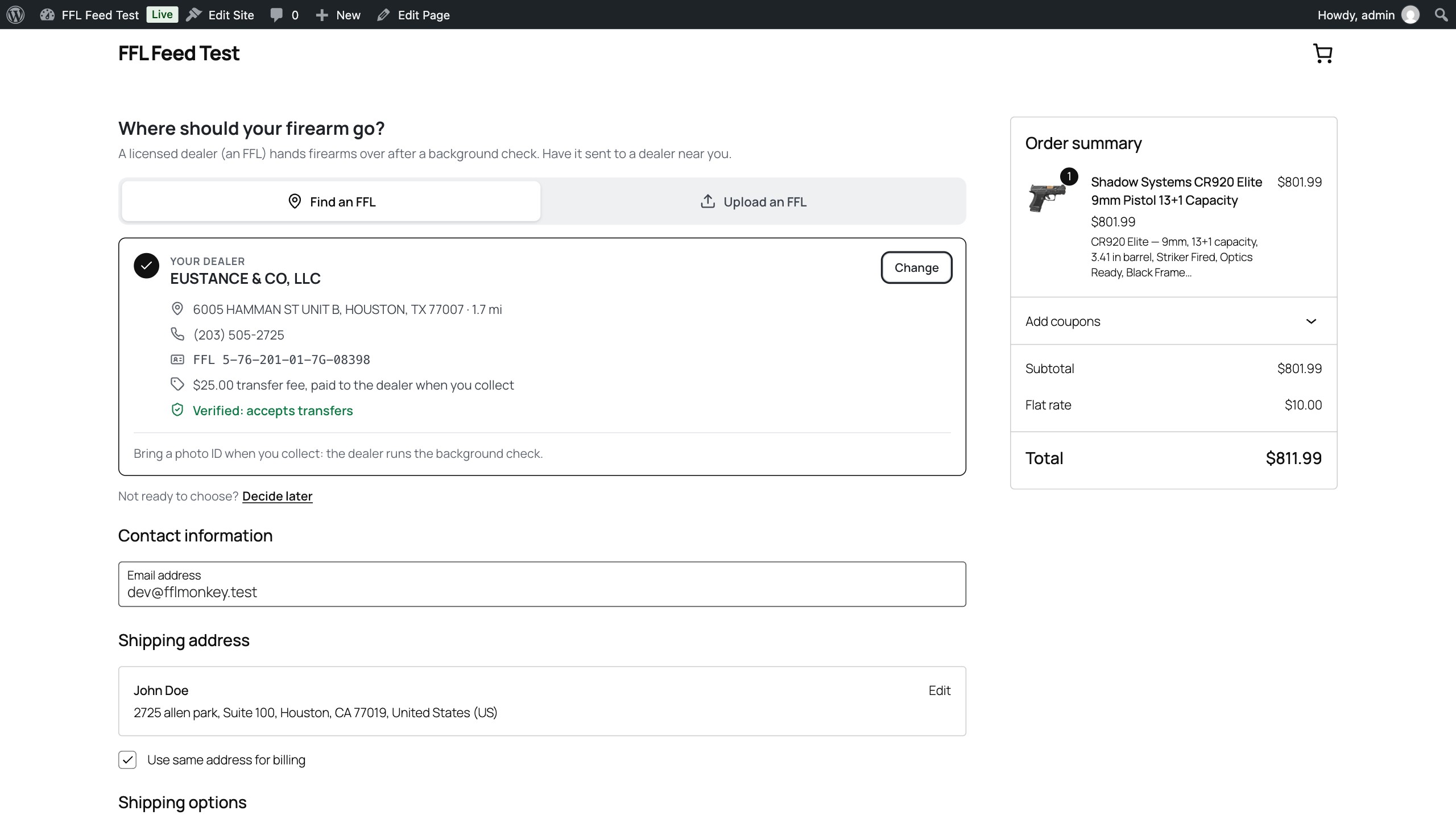
The chosen dealer: address, phone, licence number, transfer fee and whether they accept transfers.
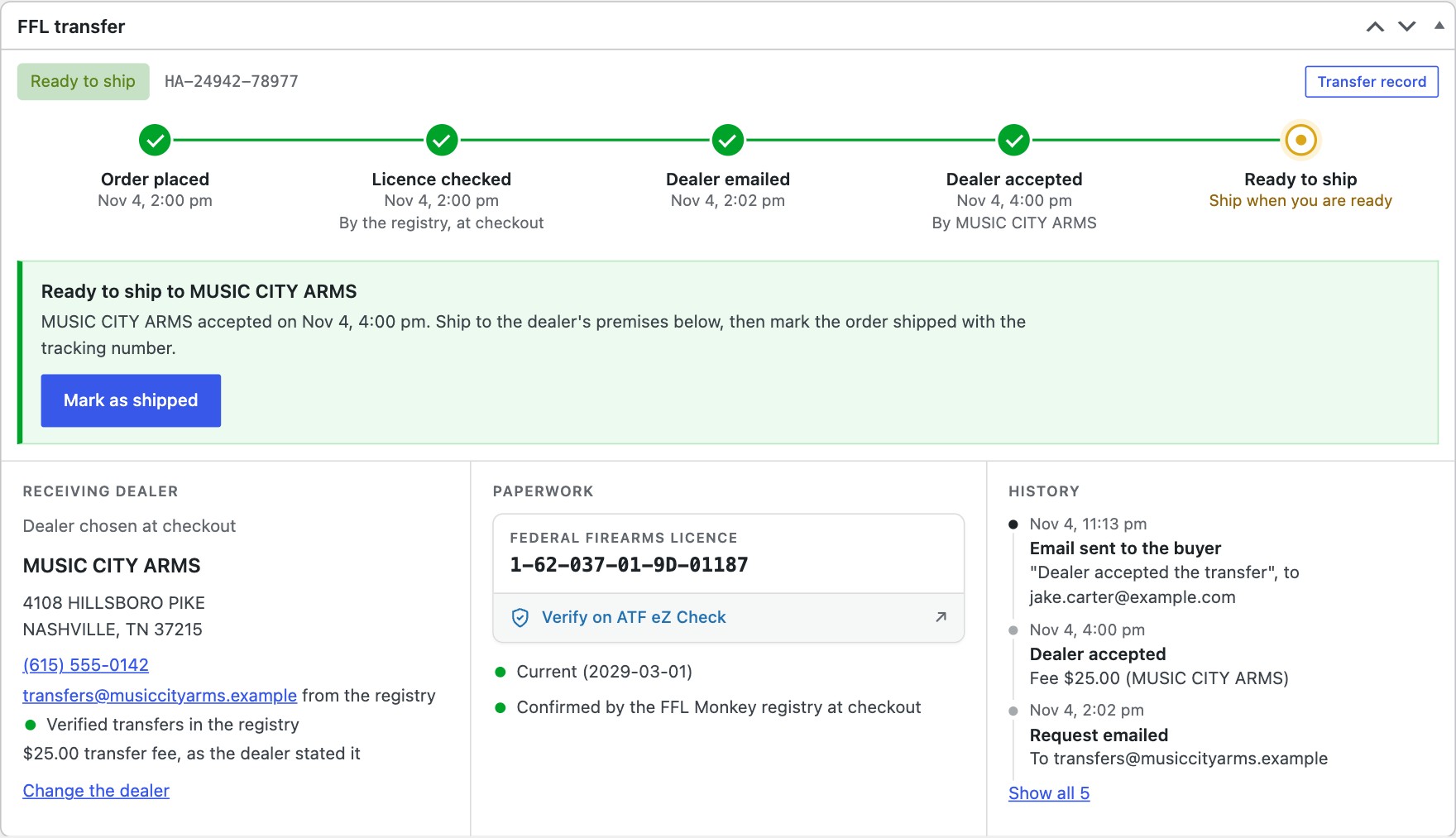
An order’s FFL transfer box: each step from the order to shipping, the dealer, the licence check and the history.
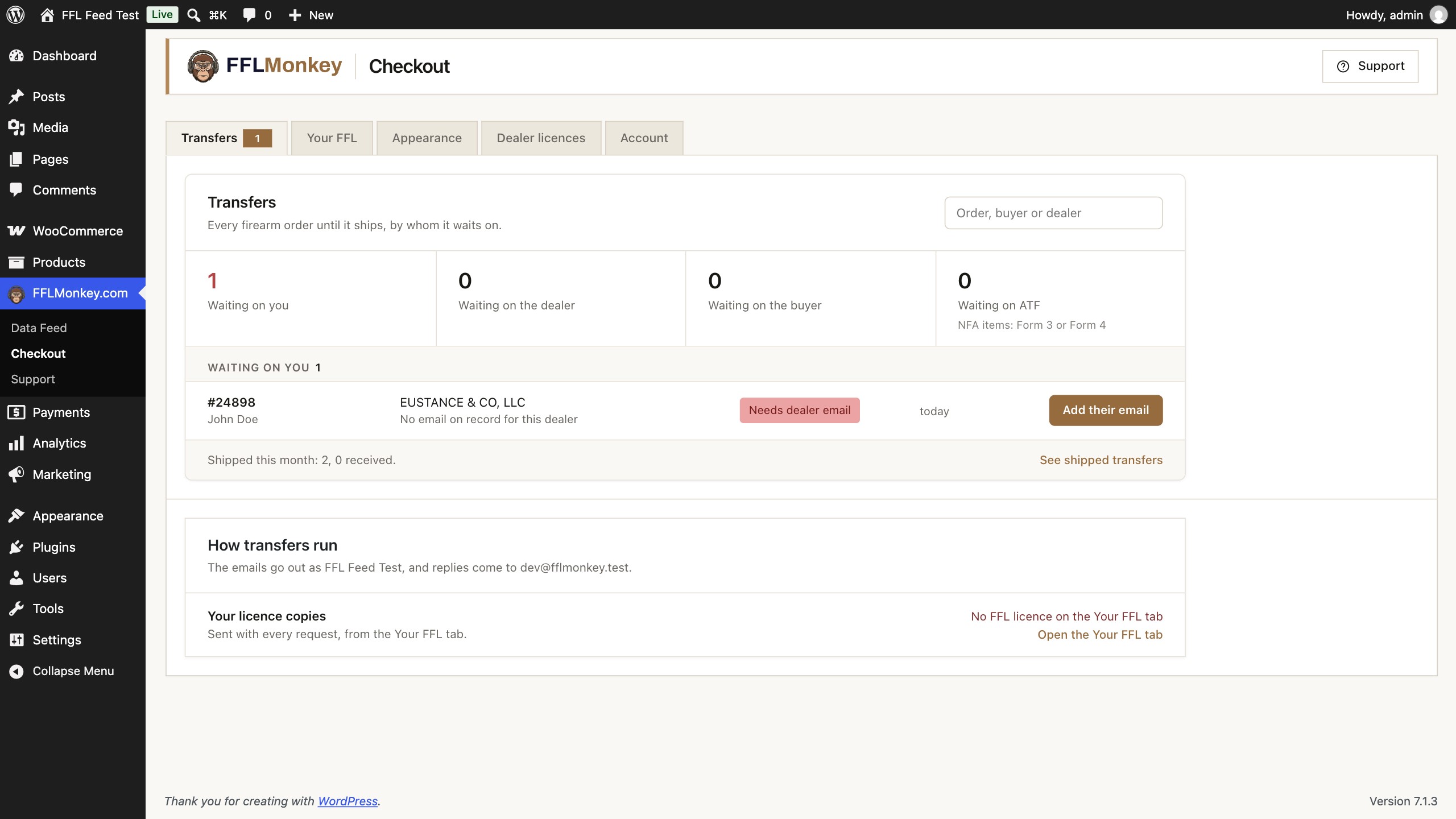
Transfers: every firearm order until it ships, and whom it waits on.
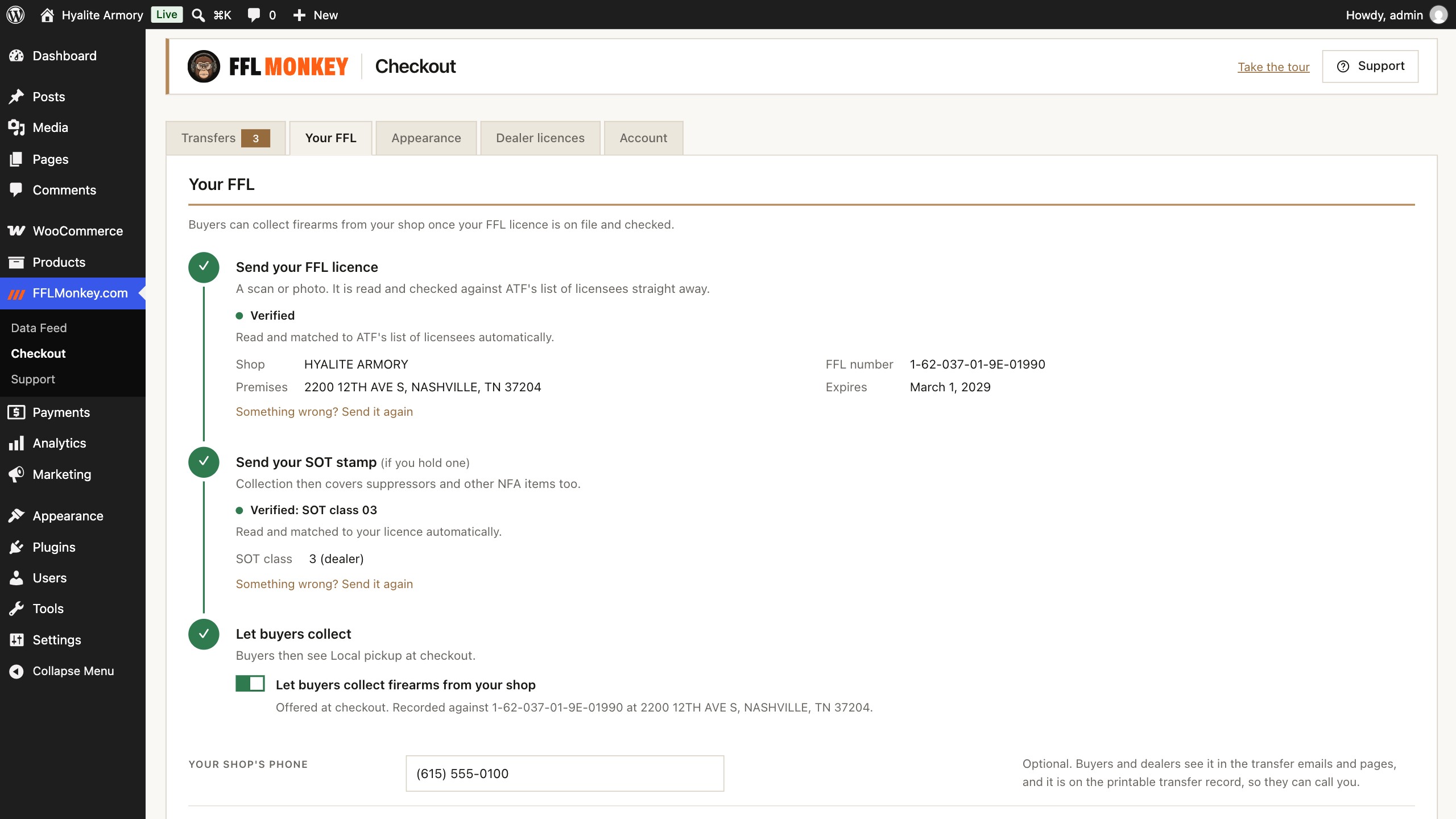
Your FFL: send your own licence and SOT stamp, and let buyers collect firearms from your shop.

Appearance: the dealer picker’s words and colour.