FlitAgent Wordpress Plugin - Rating, Reviews, Demo & Download
Plugin Description
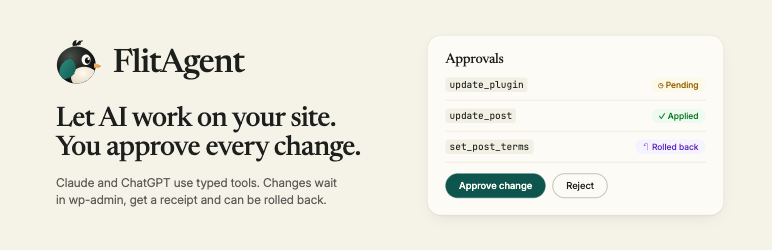
FlitAgent lets Claude, ChatGPT and other AI apps work on your WordPress site, and nothing changes until you approve it, unless you turn on auto-approve for a low-risk tool. Ask in plain words for a health check, a content fix or a plugin update. The AI proposes the change, you see a before-and-after preview in wp-admin, and you approve or reject it. Every change gets a receipt, and most can be rolled back.
FlitAgent works together with the flitagent.com service and needs a free flitagent.com account. The Free plan includes 100 tool calls a day; paid plans raise the daily limit (see the FAQ).
An MCP server for WordPress
FlitAgent gives your site a Model Context Protocol (MCP) endpoint, the open standard AI apps use to call tools. Your AI app connects once to https://mcp.flitagent.com/, and flitagent.com relays each request to your site, which checks it and answers.
Every action is a named tool with checked inputs. No tool accepts SQL queries or shell commands. Changes that add code, such as scripts, shortcodes and page-builder code elements, always wait for your approval.
Connect Claude to WordPress
Add https://mcp.flitagent.com/ to Claude as a custom connector and log in to flitagent.com when Claude asks. Then ask about your site in any chat: “What needs attention on my site?” FlitAgent > Connect shows the steps, with a Copy button for the address.
Connect ChatGPT to WordPress
Add https://mcp.flitagent.com/ to ChatGPT as a connector and log in to flitagent.com when ChatGPT asks. FlitAgent > Connect walks you through it, and the Connect your AI app guide explains each step.
Connect Claude Code, Codex and other MCP apps
Any MCP app that supports remote servers with OAuth sign-in works. FlitAgent > Connect gives you the command to copy: claude mcp add --transport http flitagent https://mcp.flitagent.com/ for Claude Code, or codex mcp add flitagent --url https://mcp.flitagent.com/ for Codex. In other apps, add a remote (Streamable HTTP) server with the same address.
Check your whole site in one question
get_health_triage checks the site at once and lists what is wrong, how serious it is and, where FlitAgent can fix it, which tool does: pending updates, inactive plugins and unused themes, overdue cron tasks, stuck maintenance mode, PHP errors shown to visitors and critical Site Health issues. `get_content_qa` finds missing alt text, broken internal links, SEO basics and stale content. Apps can also read site health, plugins and themes, settings, cron, caches and files. FlitAgent's read tools don't change anything; `wp_rest_get` and `run_readonly_ability` rely on the GET routes and abilities they call, from WordPress and other plugins, being read-only as declared (WordPress's own widget routes can tidy widget areas after a theme switch).
Manage content and settings by asking
AI apps can propose changes to posts and pages, terms and comments, media, users and roles, site settings, menus, widgets, block templates and global styles, and run cache and cron operations. Several fixes can go together as one plan with one approval, and you can untick any item.
WooCommerce, page builders and WordPress abilities
AI apps can read WooCommerce products, orders and a store overview (order counts and revenue). FlitAgent has no tools that change orders, prices or stock; products, product categories and reviews can be changed through the general content tools, with your approval, except a product’s title, description and excerpt. Elementor layouts can be read, and saved after your approval, when Elementor is active on the site. On WordPress 6.9 or later, abilities that WordPress and other plugins register can be listed and run; running one waits for your approval unless it is declared read-only.
Plugin, theme and core updates, checked afterwards
AI apps can install, update and delete plugins and themes and update WordPress core (install_plugin, update_plugin, update_core and so on). These always wait for your approval. After updating WordPress core or an active plugin or theme, FlitAgent loads the home page and warns you if it shows a server or PHP error.
Approvals, receipts and rollback
- Every change is previewed (“Preview: nothing has changed yet”) and waits for an administrator in FlitAgent > Approvals, unless the site’s own policy auto-approves low-risk changes for a tool. Auto-approve is offered only for low-risk content, term, comment and cache tools, and for
rollback_change. Destructive changes, plugin, theme and core updates, changes to existing categories, tags and media, changes that can’t be rolled back (apart from clearing caches, which rebuild themselves, and auto-approved rollbacks) and plans always wait. - Every change gets a receipt in FlitAgent > Activity, naming the app that asked and how the change was approved.
- Each receipt says whether the change can be rolled back; the AI app calls
rollback_changewith the receipt. A rollback follows the same approval rules as any other change: withrollback_changeticked for auto-approve, a low-risk rollback of the app’s own change applies at once; undoing another app’s change, or a change edited since, always waits. Theme settings, Additional CSS, block templates, menu locations and widget placements (including deleted widgets) belong to the theme they were changed on, so those changes can only be rolled back while that theme is active (a deleted menu comes back without that theme’s menu locations). Some changes can’t be rolled back, and the change’s summary says so before you approve it. Clearing a cache has nothing to roll back: it rebuilds itself.
Access for AI tools
One setting decides what every AI tool connected to the site may do: Read and propose changes, the default, or Read only. You choose it when you approve the site on flitagent.com, and can change it at any time under FlitAgent > Settings or in step 4 of the setup guide. A change applies straight away, with no need to reconnect.
FlitAgent > Connect shows the connection (account, access, when flitagent.com last made a request) with a Disconnect site button, and the AI tools that reached your site. Set each one up from there, or disconnect one tool while the others keep working. Disconnecting the site in your flitagent.com account disconnects it here too.
Who FlitAgent is for
Site owners who want to ask an AI app what needs fixing and approve the fix, without logging in to check every screen.
Developers who work in Claude Code, Codex or another MCP app and want to read and change a WordPress site from there, with a receipt for every change.
Agencies who look after many sites: one flitagent.com account connects up to 50 sites, each with its own approvals and receipts.
Features
- MCP endpoint at
https://mcp.flitagent.com/for Claude, ChatGPT, Claude Code, Codex and other MCP apps - Named tools with checked inputs; no SQL or shell commands
- Whole-site health check and content checks
- Changes to content, media, users, settings, menus, widgets, templates and styles, with approval
- Plugin, theme and core installs and updates, always with approval; the home page is checked after updates
- WooCommerce products, orders and store overview (read)
- Elementor layouts
- WordPress abilities (WordPress 6.9 or later)
- Before-and-after preview for every change
- Plans: several changes, one approval
- Receipts and rollback
- Access for AI tools: Read and propose changes or Read only
- Auto-approve per tool for low-risk changes
- Setup guide that checks HTTPS, permalinks and the MCP endpoint before you connect
Third-party service
FlitAgent needs the flitagent.com service. Nothing is sent before an administrator clicks Connect; after that, your AI app’s requests and their results pass through flitagent.com and are not stored there. External services below lists what is sent, when and why. Terms of service, privacy policy.
Source code
https://github.com/FlitAgent/flitagent
Resources
- Website: https://flitagent.com
- Connect your AI app: https://flitagent.com/connect/
- Documentation: https://flitagent.com/docs/
- Plans and pricing: https://flitagent.com/pricing/
- Security: https://flitagent.com/security/
External services
FlitAgent needs the flitagent.com service. Nothing is sent to it before an administrator clicks Connect.
- flitagent.com (https://flitagent.com, https://mcp.flitagent.com) connects your AI apps to this site. When you click Connect, your browser goes to flitagent.com with this site’s address and a one-time code, and you log in, choose the access and approve the site. After that, your AI app’s requests and their results pass through flitagent.com and are not stored there. The plugin also checks flitagent.com’s security keys (once a day, when you click Connect or open FlitAgent > Connect, and at most every five minutes when a request uses a key the site doesn’t have yet), and tells flitagent.com when you disconnect or set up an AI tool, disconnect the site or delete the plugin, and at most once an hour when FlitAgent > Connect opens; these messages carry no more than the connection id. flitagent.com keeps usage metadata (raw events for 90 days, daily totals for 25 months) and basic details about the site: its name, address, access, versions and connection status. Terms of service, privacy policy
- WordPress.org (api.wordpress.org, downloads.wordpress.org) for checksums, plugin directory searches, and installing, updating, rolling back and deleting plugins and themes and updating core. Sent: the plugin or theme name and version, or the search terms, plus the site address, WordPress version and language that WordPress sends with these requests. Packages and translations download only after your approval. After an approved install, update or update rollback, WordPress also installs available translation updates and checks WordPress.org for plugin, theme and core updates, as it does in wp-admin; those checks send what WordPress’s own update checks send, including installed plugins and themes and their versions, the PHP and database versions, and the number of users. Privacy policy
- Addresses an approved tool fetches.
upload_media_from_urldownloads the file at the address the AI app gives, only after you approve the change. - ChatGPT and Claude (https://chatgpt.com, https://claude.ai). The Set up dialog’s Try now link opens a new chat with a first question filled in; nothing is sent unless you click it. OpenAI terms and privacy policy; Anthropic terms and privacy policy
Privacy
FlitAgent stores change requests, approvals and receipts (tool, arguments, preview, result, the data needed to roll back, user, app name and time) in its own database tables on your site, the connection to flitagent.com (connection id, the connecting administrator, account hint, access, time, and flitagent.com’s public keys), and the AI apps that reached your site through it (app id and name, access, when each was first and last seen; at most 20) with the tools you disconnected. It holds no tokens or passwords for your AI apps. Nothing is sent to FlitAgent’s developers before you click Connect. Once connected, tool calls and results pass through flitagent.com and are not stored there; flitagent.com keeps usage metadata (raw events for 90 days, daily totals for 25 months), as described in its privacy policy. flitagent.com also stores this site’s name, address and access, its FlitAgent, WordPress and PHP versions, and which AI tools are disconnected, and caches the list of tools. It also keeps the connection dates (connected, last request, disconnected) and the last connection error. Receipts are kept when the plugin is deactivated. “Delete FlitAgent’s receipts, change sets and settings when the plugin is deleted” under Settings is ticked by default, so deleting the plugin removes them; untick it and save to keep them, with the settings and the finished setup guide, for a reinstall. Deleting the plugin removes the connection from your site and tells flitagent.com, which disconnects the site and its AI tools (if flitagent.com cannot be reached, or on a large network, the site only shows as unreachable there; disconnect it in your flitagent.com account); after a reinstall you connect again and set up each AI tool again. A reinstall with kept data skips the setup guide; connect again under FlitAgent > Connect.
Screenshots

A change waiting for approval: what it will change, before and after, the exact arguments that will run, and Approve or Reject.

Approvals: every change an AI app proposed, which app asked and as which user, with a Review button for each.

Activity: a receipt for every change made, refused or failed, with how it was approved and whether it can be rolled back.