
Inquix AI Wordpress Plugin - Rating, Reviews, Demo & Download
Plugin Description
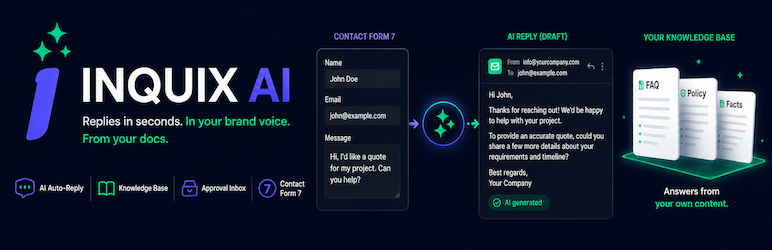
Inquix AI automatically generates and sends intelligent replies to your Contact Form 7 submissions using OpenAI’s GPT models.
How it works:
- A visitor submits your Contact Form 7
- Inquix AI generates a personalized response using OpenAI
- The visitor receives an instant, helpful reply
Features:
- 🤖 AI-powered responses using OpenAI GPT models
- ✉️ Automatic email replies to form submissions
- 📝 Customizable prompt templates
- 📊 Usage tracking and logs
- 🔒 Uses your own OpenAI API key
- 🆓 Free tier with 15 replies/month
- ⚡ Pro tier with unlimited AI replies (*)
(*) Unlimited within fair use: a high monthly cap (currently 2,000 replies) applies for security, spam protection and abuse-protection purposes. Any customer can contact support@inquix.ai to have their daily and monthly caps increased at no cost.
Requirements:
- Contact Form 7 plugin
- OpenAI API key
Third-Party Services & Data Disclosure
Inquix AI relies on the following third-party services to function. By installing, connecting your site, and enabling AI replies for a form, you consent to the data described below being transmitted to these services. No data leaves your site until you connect it and enable at least one form.
-
OpenAI — When a visitor submits a Contact Form 7 form you have enabled, the submission (visitor name, email, and message), your configured prompt/business context, and any Knowledge Base excerpts are sent to the OpenAI API to generate the reply. Requests use the OpenAI API key you provide. See OpenAI’s Terms of Use and Privacy Policy.
-
Inquix API (api.inquix.ai) — Used to connect your site (your account email and site URL), verify your email, check your plan and usage, store your selected industry and your site’s WordPress language setting (locale, e.g. sv_SE), and deliver the generated reply email to the visitor. The reply email is sent by the Inquix backend through its transactional email provider (MailerSend). See the Inquix Terms of Service and Privacy Policy.
-
Stripe (Pro subscriptions only) — If you upgrade to Pro or manage billing, you are redirected to Stripe Checkout or the Stripe Customer Portal. Payment details are entered on Stripe; no card data passes through your site or this plugin. See Stripe’s Services Agreement and Privacy Policy.
Screenshots

Setup wizard — connect your account and add your OpenAI key; sections unlock as you go

Turn on AI auto-replies, with optional Approval Mode to review every reply before it’s sent

Business Identity — company details, language and brand voice shape every reply

Form Selection — choose which Contact Form 7 forms get AI replies

Knowledge Base — add FAQs, policies and documents the AI answers from

Sender Details — the name, address and reply subject your visitors see

Escalation & Safety — route complaints and legal threats to a human

Overview dashboard — usage, setup status, quick actions and recent replies

Inbox — review, edit and approve AI replies before they’re sent

Expert Mode — full control of the system prompt template

Preview & Test — see how the AI would reply, without sending an email

Logs — success rate and full reply history with CSV export

Setup page — connection status and data controls at a glance


