IoT Data Widget Wordpress Plugin - Rating, Reviews, Demo & Download
Plugin Description
IoT Data Widget lets you embed live values from smart home sensors and devices — temperature, humidity, tank levels, device status, anything with a numeric or text value — on any WordPress page or post. Activating the plugin drops you straight into a guided setup wizard that gets you from “no connection” to a working widget and a ready-to-paste shortcode in a few clicks.
The free version is fully functional, not a crippled trial: unlimited connections, Home Assistant, push mode, Generic REST, the Card/Status list/Gauge display styles, the shortcode and Gutenberg block, the setup wizard, and the diagnostics page all work with no time limit and no license. Pro adds more data sources, history graphs and alerts — see “What’s included in Free vs Pro?” in the FAQ below for the full breakdown.
External services
This plugin connects to two services that are not the smart-home API/device you configure yourself:
- Freemius (licensing, update delivery, and — if you opt in — basic usage analytics). On first activation you’re asked whether to allow anonymous diagnostic data (server environment, WordPress/PHP version, plugin version, site URL) to be sent — you can decline, and review/opt out again later from your account on freemius.com. No data about your connections, entities, or the values they return is ever included. Terms of Service, Privacy Policy.
- Open-Meteo (optional, user-triggered) — clicking “Try it with demo data” in the setup wizard fetches live weather for a Warsaw coordinate pair from Open-Meteo, purely to show a working example widget. No account or personal data involved. Terms & Privacy. Skip this step and no request is ever made.
Every other outbound request goes only to the URL/host you configure for a connection.
Screenshots

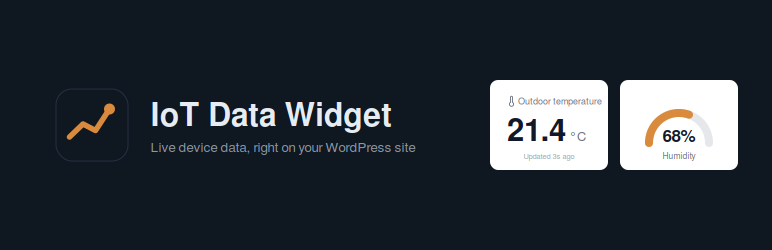
Card, gauge and list widgets showing live values on a page.

The setup wizard previews the widget and gives you a ready-to-paste shortcode.

Insert the IoT Widget block and choose the connection, entity and style in the sidebar.

The wizard starts by asking where your site runs, so the device and WordPress can actually reach each other.