Kapatagan Site Insights Wordpress Plugin - Rating, Reviews, Demo & Download
Plugin Description
Kapatagan Site Insights answers three questions every site owner has, in plain words:
- Is my search setup working?
- Is my visibility in Google improving?
- Which articles should I look at?
It’s simple, straightforward and built for humans. Every feature you see works, at no cost. There is no paid version, nothing is locked, and there are no ads.
Setup check (no Google account needed)
- Opens your home page, your newest post and your sitemaps the way Google does.
- Checks the page title and description your pages give Google, whether a page is hidden from Google, the original address (canonical), the picture when shared, and structured data.
- Checks that search engines are welcome, robots.txt doesn’t block your site, and your sitemaps open.
- Check any other address on your site, including old addresses, to see where they lead.
- One-click links to Google’s Rich Results Test, Search Console URL Inspection and the Facebook Sharing Debugger.
- Works with any SEO plugin, and behind firewalls like Cloudflare: it checks your pages directly on your own server, and tells you plainly when a firewall blocked a check.
- Length tips for titles and descriptions are advice, not errors. Google can still choose its own title or snippet.
Visibility (through Site Kit by Google)
- Before and after: compare clicks, times shown, click rate and average position before and after a change you made, such as switching SEO plugins. Periods are whole weeks, so weekdays are compared with weekdays.
- A plain-language summary of what changed, plus the pages that gained or lost the most clicks.
- Engaged visits: Google Analytics engaged sessions (10+ seconds, 2+ pages, or a key event), optionally from your main country. They leave out most bots, so they’re more trustworthy than total visits.
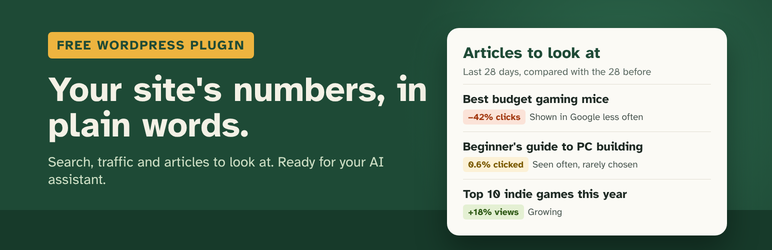
- Articles to look at:
- articles losing Google clicks, with which numbers moved (not shown anymore, a lower position, fewer searches, or fewer clicks at the same position) and the searches that dropped;
- articles Google shows a lot but few people click, compared with your own site’s usual click rate at a similar position (no industry averages).
- Works for large sites: Search Console lists cover up to 25,000 pages.
- It describes what changed. It never promises rankings or traffic.
Ask your AI assistant (WordPress 6.9 and newer)
Ask Claude or another AI assistant about your site in your own words: “How is my site doing this month?”, “Which articles are losing Google clicks, and why might that be?” or “Which articles does Google show a lot but people rarely click? Suggest better titles.”
- 15 read-only reports, including ready-made insights: a site overview, one article’s performance, articles losing traffic, and articles shown often but rarely clicked. Each answer comes with the numbers and dates it used, so you can check it.
- Uses WordPress’s own way for AI: Site Insights registers its reports as read-only WordPress abilities and, through WordPress’s official, free MCP Adapter plugin, offers them on its own connection (/wp-json/kapatagan-site-insights/mcp) that lists only Site Insights reports. Only this part needs the MCP Adapter; everything else works without it.
- Guided setup on WordPress’s own screens: you add a separate account with the “Site Insights AI reader” role in Users > Add New and give it an Application Password on its profile. Type that password into App access and you get a ready-to-paste connection for Claude Desktop, with steps for Mac and Windows. The password stays in your browser; it isn’t sent to your site or saved.
- Safe by design: the AI signs in with its own read-only account, using WordPress’s own Application Passwords. That account can use only the Site Insights connection; every other part of WordPress refuses it, including other plugins’ tools, the MCP Adapter’s shared connection, XML-RPC and the login page. Drafts and scheduled posts stay hidden unless you allow them.
- The plugin never creates, deletes or signs in users. Turning AI access off refuses the AI account at once, and deactivating or deleting the plugin removes its role, so the account keeps no permissions at all.
- Kapatagan never sees your data or runs its own AI. You choose the assistant.
Keeps an eye on its sources
- App access shows when Jetpack Stats, Google Analytics and Search Console last worked.
- If one of them stops working, or an update changes how Site Kit or Jetpack sends data, Overview tells you plainly, instead of showing wrong numbers. The other sources keep working.
App access for your own tools
Give your own apps read-only access to your Jetpack Stats, Google Analytics and Search Console with a private access key, so they can build reports without a login. Nothing can ever be changed through it.
- Read-only: no endpoint can create, edit, publish or delete anything.
- The key is stored only as a salted hash, shown once, and can be deleted anytime.
- No user email addresses or private account details are returned. Published posts include their publicly displayed author names. Unpublished post details are shared only when you explicitly allow it. Drafts and scheduled posts (titles, dates, categories and author names, never their content) are shared only if you allow it, with a separate switch for apps with the key and for AI assistants.
- Rate limited (60 requests per minute by default). Responses are marked no-store so caches don’t keep them.
Needs
- Google data needs Site Kit by Google installed and connected. Kapatagan Site Insights uses Site Kit’s existing connection, so there’s no extra Google setup. Without Site Kit, the setup check and Jetpack data still work.
- Jetpack Stats data needs Jetpack connected with Stats on (optional).
- AI assistants need WordPress 6.9+ and the free MCP Adapter plugin (optional; the plugin can install the exact official one for you), plus Node.js 22 or newer on the computer running Claude Desktop.
External services
Kapatagan Site Insights doesn’t send data to any Kapatagan server. It talks to these services only when you click a button on its screens, or when an application or AI assistant you’ve connected requests a report:
- Google Search Console and Google Analytics, through Site Kit by Google. The plugin asks Site Kit for read-only reports (dates, metrics, and optionally a page address on your site or a country name). Site Kit sends the request to Google using its own connection. Google’s Terms of Service and Privacy Policy apply.
- WordPress.com (Jetpack Stats), through Jetpack. When an app asks for Jetpack numbers, the plugin asks Jetpack, which reads them from WordPress.com using your site’s existing Jetpack connection. Automattic’s Terms of Service and Privacy Policy apply.
- WordPress.org plugin directory. Only when you click “Install MCP Adapter”, “Install Site Kit” or “Install Jetpack” and confirm, the plugin downloads that exact plugin from WordPress.org (by its official address there) and turns it on, the same way Plugins > Add New does. WordPress.org’s Privacy Policy applies.
- Your own site. The setup check opens your own pages, robots.txt and sitemaps. Nothing leaves your site.
- AI assistants (only if you connect one). The ready-to-paste connection makes Claude Desktop (or another MCP app) download Automattic’s open-source WordPress MCP connector, @automattic/mcp-wordpress-remote, from npm using Node.js on your computer. The connector sends the AI’s questions to your site and returns the answers. The reports your AI assistant asks for (numbers, dates, titles and addresses of published posts) are then sent by your AI app to the AI service you chose, under that service’s terms, for example Anthropic’s Terms and Privacy Policy for Claude. npm’s Open Source Terms and Privacy Policy apply to the download. Kapatagan runs no server in between.
The links to Google’s Rich Results Test, Search Console and the Facebook Sharing Debugger are plain links. Nothing is sent unless you click them.
Support
Enjoying Kapatagan Site Insights? It’s free, with no paid version and no ads. If it helps your site, you can buy us a coffee (https://buymeacoffee.com/pinoygaming). It keeps the updates coming!
Need help or found a problem? Visit https://kapatagan.dev/ or email support@kapatagan.dev.
For developers
All GET, under /wp-json/site-insights/v1/. Send the key in the X-Insights-Key header (or Authorization: Bearer YOUR_KEY). Never put the key in the URL.
- status
- summary?period=month&date=YYYY-MM-DD
- visits?unit=day|week|month|year&quantity=30&date=YYYY-MM-DD
- top-posts | referrers | search-terms | clicks | countries ?period=day|week|month|year&date=YYYY-MM-DD&num=1&max=50 (num > 1 combines that many periods ending on “date”; max up to 2000)
- post-views/{post_id}
- queue?limit=50 (only when “Also let apps with the key see drafts and scheduled posts” is on)
- posts?start=YYYY-MM-DD&end=YYYY-MM-DD&page=1&per_page=100 (per_page up to 500)
- ga4?start=&end=&metrics=screenPageViews,sessions&dimensions=country&limit=100&order=sessions&filter=country:Germany
- search-console?start=&end=&dimensions=query,page&limit=100&url=PAGE_URL (limit up to 25000)
- search-compare?date=YYYY-MM-DD&days=28 (days: 7, 14, 28, 56 or 84; without date, compares the latest days with the days before)
- engaged-visits?days=28&country=Germany
- overview?days=28 (site overview with a plain-language summary)
- post-insight?id=123&days=28 (or ?url=PAGE_URL)
- losing-traffic?days=28&limit=10
- low-click?days=28&limit=10
Dates default to the last 28 complete days.
Screenshots

Overview: a quick check-up of your search setup and visibility.

Setup check: what Google sees on your home page, newest post and sitemaps, with what to fix.

Visibility: before and after a change, with a plain-language summary.

Articles to look at: articles losing Google clicks, and articles shown often but rarely clicked.

Connect your AI assistant: a read-only account and a ready-to-paste connection, with steps for Mac and Windows.