
Lifesizy Cutouts For WooCommerce Wordpress Plugin - Rating, Reviews, Demo & Download
Plugin Description
If your shop already sells life-size cardboard cutouts, you know where the time
goes: someone opens the customer’s photo, traces the cutline by hand, emails a
proof, waits, adjusts, emails again. Three to five days before anything reaches
production.
Lifesizy Cutouts replaces that loop. Your customer uploads a photo on your own
product page, and within seconds sees the cutline drawn on their own photo at
the size they picked. They approve it themselves. You get the order with a
press-ready die-cut PDF — cut lines as a real spot colour, in the layers your
cutter expects.
What your customer does
- Uploads a photo on your product page.
- Watches the cutline appear on it, at the height they chose (cm or inches).
- Optionally adjusts the cutline by dragging points on it.
- Ticks “I approve this cutline and my photo quality.” and orders.
What you get
- The order in WooCommerce as usual, with the photo, the chosen height, the
approved cutline and the selected options stored on the line item. - Written proof of what the customer approved, and when.
- A Download production PDF button on the order screen: spot-colour
cutlines, your layer names, registration marks, fold line, PDF/X output
intent — generated from the PDF output profile you configured for your
cutter.
Nothing to configure in WordPress
Colours, size range, cut margin, the white-border option and its price, cutline
editing and the true-print-size magnifier are all set in your Lifesizy portal
and fetched by the plugin. Setup in WordPress is one step: paste your connect
key. Change something in the portal and your product pages follow within about
five minutes.
Honest about what this needs
This plugin is the WooCommerce front end for the Lifesizy service. It does not
work on its own — the background removal, cutline detection and PDF generation
happen on Lifesizy’s servers, and you need a Lifesizy account. See “External
services” below for exactly what is sent where.
External services
This plugin connects to the Lifesizy API (https://lifesizy.com) — the service
this plugin is a client for. Nothing is sent anywhere else, and nothing is sent
until you connect the plugin with a key from your own Lifesizy account.
1. Fetching your shop settings
- What is sent: your shop’s public identifier (its Lifesizy slug).
- When: when a product page with the configurator is rendered and the cached
copy is older than five minutes. The request happens in the background; your
product page never waits for it. - What comes back: your configurator settings (colour, size range, cut margin,
option prices). - No personal data is involved.
2. Validating your connect key
- What is sent: the connect key you paste, once, when you save it.
- When: only on that save.
- What comes back: your shop name, so the plugin can confirm which account it
connected to.
3. Tracing the cutline (your customer’s photo)
- What is sent: the photo your customer uploads, plus the chosen height and
options. This is done by the configurator in the customer’s browser, sent
directly to the Lifesizy engine. - When: each time your customer asks to see a cutline.
- Why: the cutline is produced by an image model that runs on Lifesizy’s
servers. - Note for you: an uploaded photo may show a person and is therefore personal
data. Lifesizy does not store it for this step — it is processed and
discarded. Reflect this processing in your own privacy policy.
4. Generating the production PDF
- What is sent: the stored customer photo for that order, the ordered height,
the approved cutline, the selected options and the order number, authorised
with your connect key. This happens from your server, never from a browser. - When: only when you click “Download production PDF” on an order.
- What comes back: the press-ready PDF.
5. Syncing paid orders to your Lifesizy dashboard
- What is sent: for each paid cutout order line — the stored customer
photo, the ordered height, the selected options, the approved cutline, the
customer’s approval statement and time, and the order number, authorised
with your connect key. This happens from your server in the background,
never from a browser, and never delays or blocks checkout. - When: shortly after an order is paid, with automatic retries if Lifesizy is
unreachable. Each order screen shows whether its items are synced, and has a
manual “Sync to Lifesizy now” button. - Why: so the order (with its production PDF) also appears in your Lifesizy
dashboard, and you work from one list instead of two. - What comes back: a confirmation with the order’s Lifesizy id. Repeating a
send never creates a duplicate. - Note for you: the photo may show a person and is therefore personal data.
Lifesizy stores it for fulfilment and deletes it under the retention terms
of your Lifesizy data processing agreement (30 days). Reflect this in your
own privacy policy.
The plugin also loads the configurator’s JavaScript from Lifesizy
(widget.js). It is service code — the part that talks to the cutline engine —
so it is served by the service rather than bundled, which is how it stays in
step with the engine’s API. It is only ever loaded from the Lifesizy origin the
plugin is configured for.
Where that data goes
Lifesizy is a service of KarTent B.V. (Amsterdam, the Netherlands). Photos are
processed and stored on EU servers, and they are never used to train any model
or reused for any other purpose. For the two calls that carry a customer photo
you are the data controller and Lifesizy is your processor; a data processing
agreement covering that comes with your Lifesizy account and is available on
request.
Service terms: https://lifesizy.com/terms
Privacy policy: https://lifesizy.com/privacy
Where your customers’ photos are stored on your site
Uploaded photos are re-encoded on arrival (which strips EXIF, including GPS)
and written under wp-content/uploads/lifesizy/ with unguessable filenames that
are not the identifier the browser holds. They are served only through a
capability-checked handler, never as a public URL. Photos not attached to an
order are deleted after two weeks; photos on an order are deleted when the
order is deleted, and the plugin registers a WooCommerce personal-data eraser so
an erasure request removes them too.
That eraser covers your own site. The copy that was synced to Lifesizy with the
paid order is deleted automatically 30 days after it arrives; if you need it
gone sooner, ask Lifesizy and it is deleted without undue delay. So a full
erasure request today is two steps: the WordPress tool, and a message to
Lifesizy.
Credit
Nothing is added to your storefront by default. There is a single opt-in
checkbox if you would like to show a small “Powered by Lifesizy” credit under
the configurator.
Screenshots
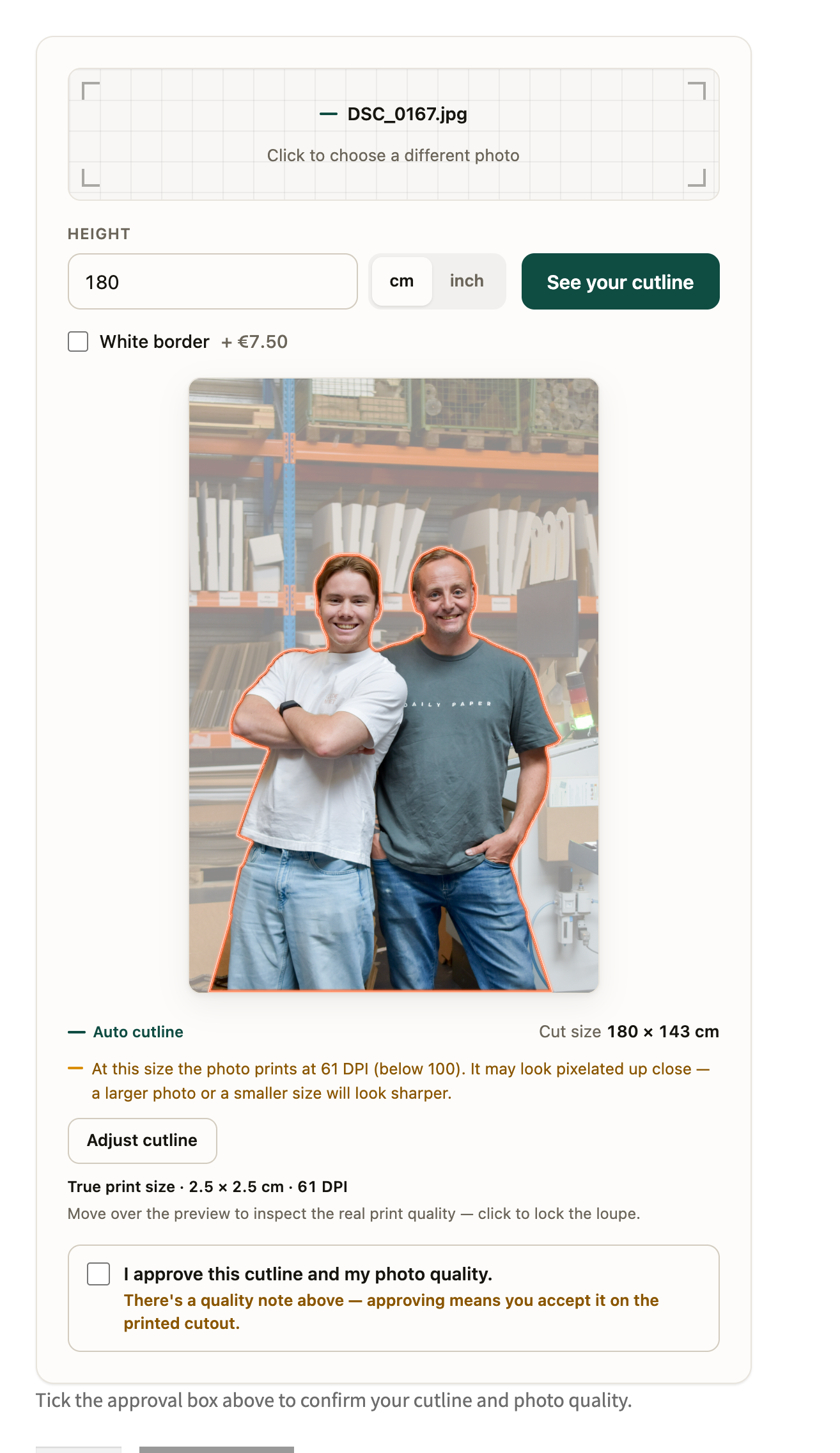
The configurator on a product page: the customer’s own photo with the cutline traced on it, the size they chose, and the approval step.
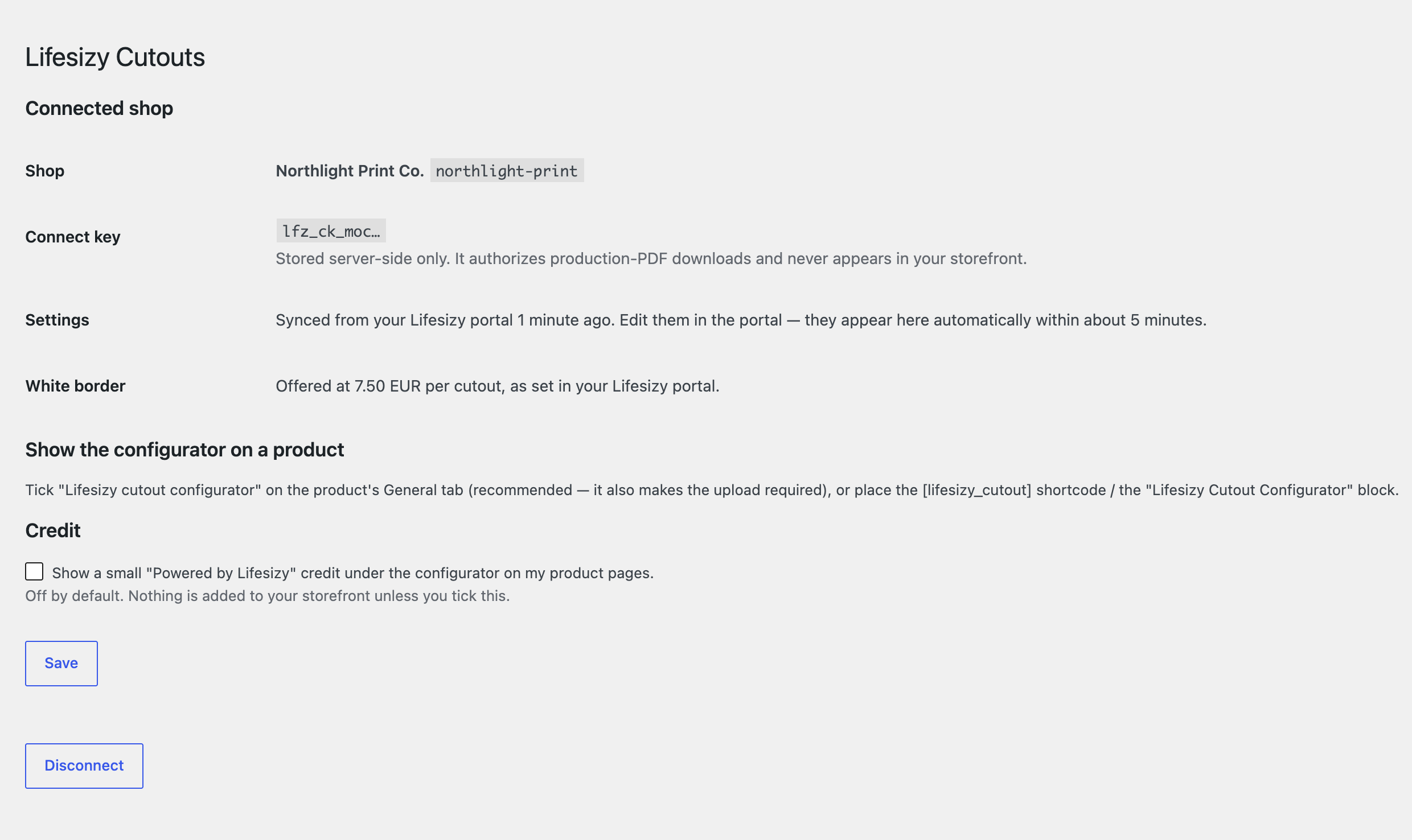
Setup is one step: paste the connect key from your Lifesizy portal. The screen then shows the shop you are linked to, when your settings last synced, and your option pricing.
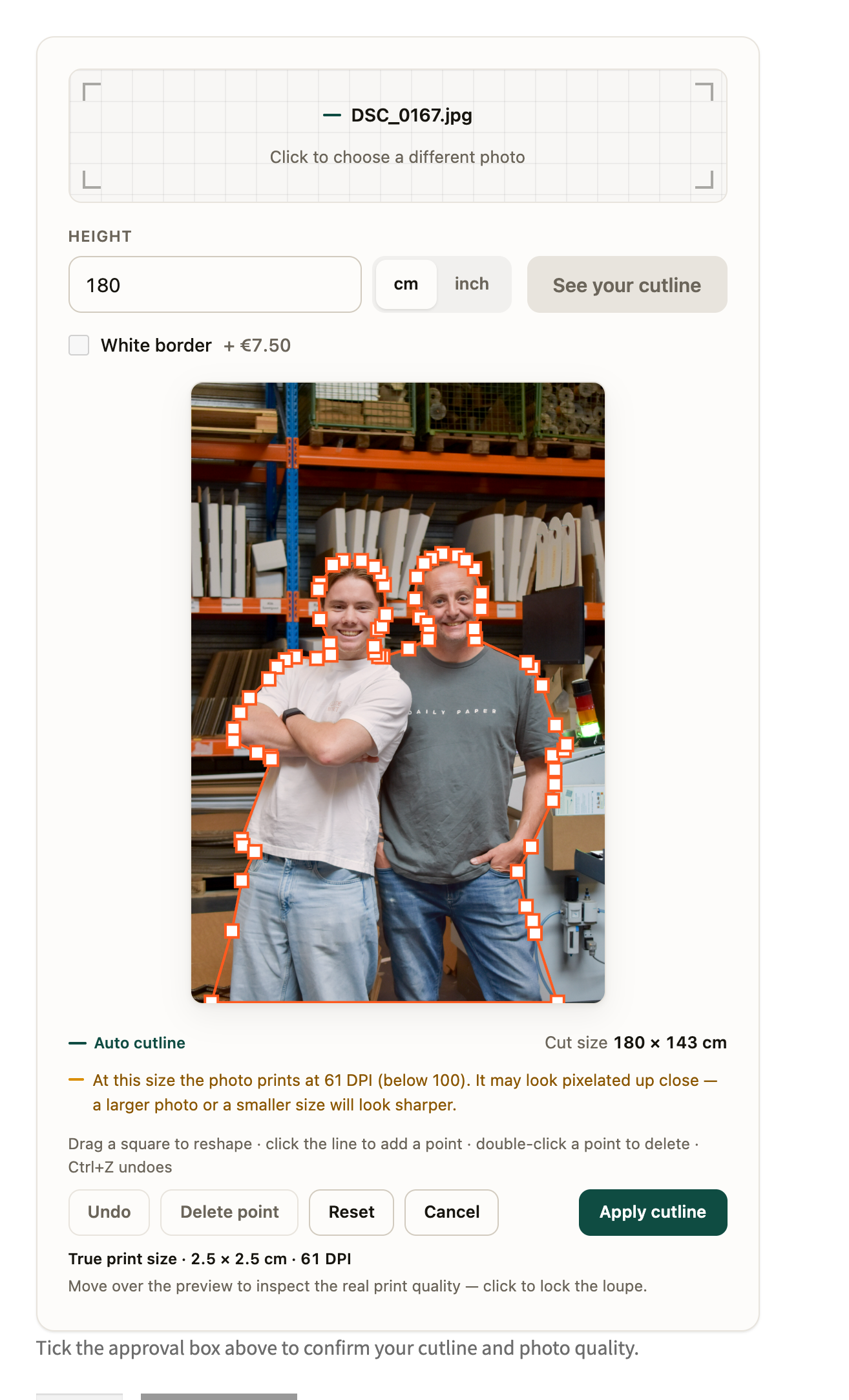
Not happy with a corner? The customer can drag the cut line themselves, and what they adjust is exactly what gets cut.
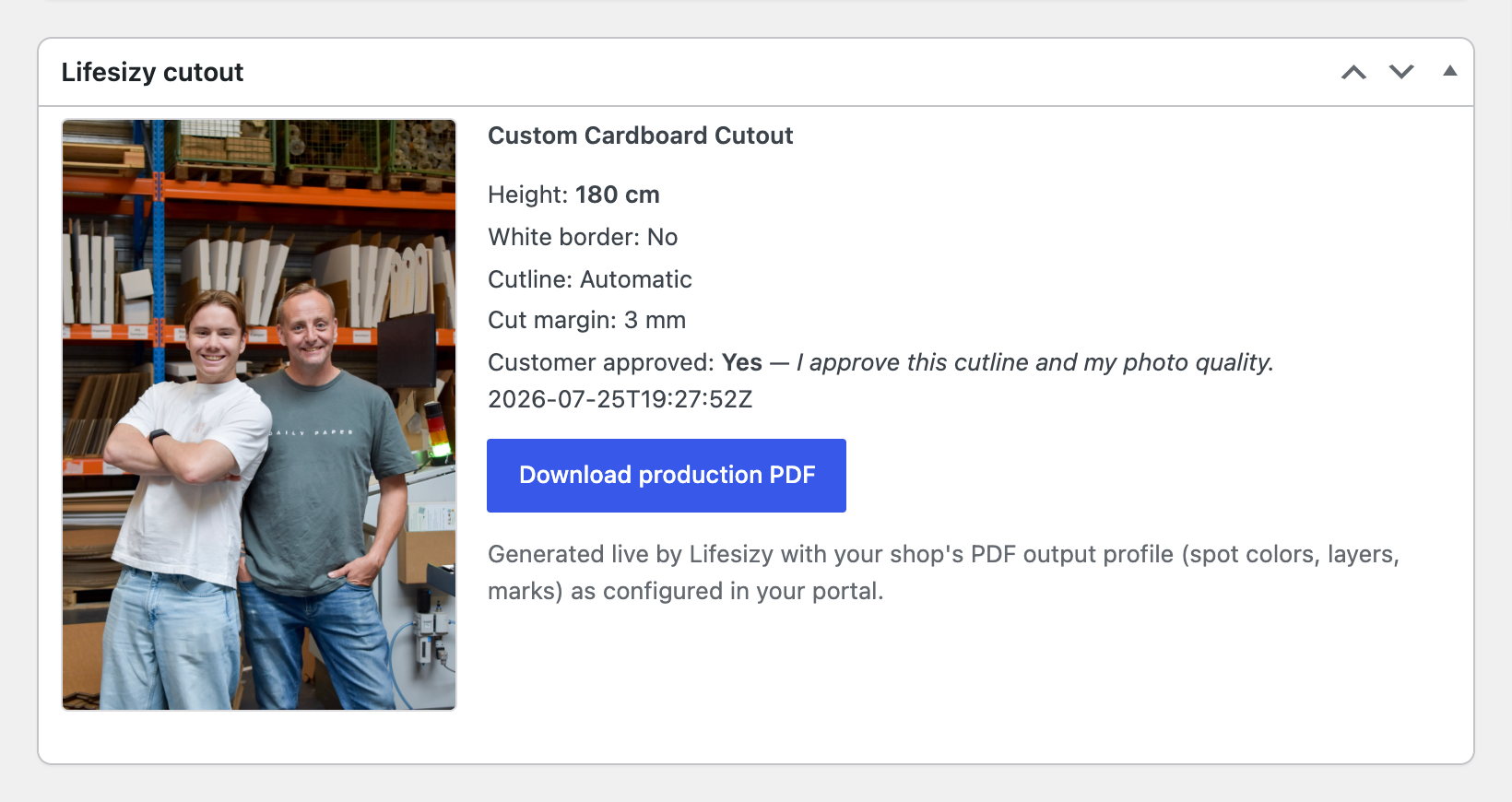
The order screen: the cutline proof, what the customer approved, and the production-PDF download.


