Lucrativeit Subscription & Recurring Billing Wordpress Plugin - Rating, Reviews, Demo & Download
Plugin Description
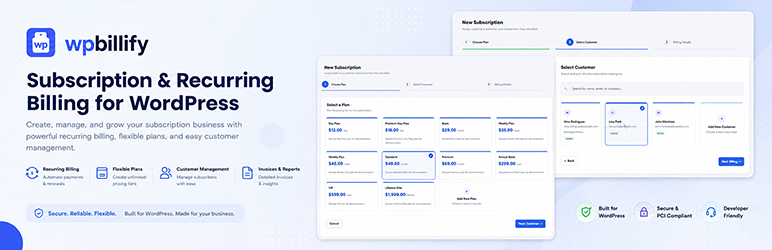
Lucrativeit Subscription & Recurring Billing(WPBillify) is a powerful WordPress subscription and recurring billing plugin that helps you create, sell, and manage subscription plans directly from your WordPress website.
Whether you’re building a SaaS platform, membership website, fitness club, coaching business, digital service, or any subscription-based business, WPBillify provides everything you need to automate recurring billing and manage subscribers without relying on third-party eCommerce platforms.
Create unlimited subscription plans, manage subscribers, automate recurring invoices, track payments, and grow your recurring revenue with an intuitive admin dashboard.
Built-in billing engine (free)
- Subscriptions, invoices, and recurring billing
- Stripe (automatic card charges each cycle) and Manual (invoice emailed each cycle)
- Public pricing pages with shortcodes and on-page checkout
Admin modules
- Executive dashboard (MRR, ARR, active subscriptions, churn, revenue growth)
- Customers with branch assignment and filtering
- Branches (regional offices with images, amenities, and opening hours)
- Plan categories (group plans for gyms, SaaS, ISP, coaching, and more)
- Plans (pricing tiers, daily/weekly/monthly/yearly/lifetime intervals, trials, features)
- Subscriptions (lifecycle: trialing, active, past_due, canceled)
- Billing & invoices (mark paid, payment links)
- Reports (last 30 days overview; custom ranges and CSV export in Pro)
- Settings: General, Payment Gateways, Email/SMTP, Notifications, Email Templates, Frontend
Public frontend
Sell subscriptions on any WordPress page with shortcodes and on-page checkout:
- Responsive pricing-table layout with interval tabs (Day, Week, Month, Year, Lifetime)
- Optional hero banner, branch locations grid, and FAQ accordion
- Customer checkout collects name, email, and phone; redirects to Stripe or emails a manual invoice
- Appearance controls for colors, fonts, and badges under Settings Frontend
Setup wizard & demo data
After activation, a setup wizard lets you import sample categories (Gym Membership, Internet ISP, Online Coaching, SaaS Software, Software License) with plans, customers, subscriptions, invoices, and public pages — or start with a blank workspace.
Pro add-on
Premium features ship in a separate add-on (not included in this free plugin):
- Staff management and module-based roles
- Email header logo and footer branding
- PDF invoices (download and email attachments)
- Additional payment gateways (SSLCommerz, Razorpay, Paypal)
- Advanced reports (custom date range, branch/plan/customer filters, CSV export)
- Advanced notification reminders
Explore the demo:
Shortcodes
[lucrsure_locations_plans category="your-category-slug"]
Full membership page: hero section + branch locations + pricing table + FAQ. Use the category slug (recommended), not the numeric ID.
[lucrsure_plans category="your-category-slug"]
Pricing table and checkout only.
[lucrsure_hero title="Your headline" image_path="https://example.com/hero.jpg"]
Hero section only. Pass title and image_path (or image) to override the global settings. Optional: subtitle, button_text, button_url, image_id.
[lucrsure_locations]
Branch locations grid only. Optional: heading, subtitle, branches (comma-separated branch IDs).
[lucrsure_faq]
FAQ accordion only. Optional: heading, subtitle. FAQ items come from Settings Frontend.
Common attributes
category— plan category slug (required for plan shortcodes)interval— default billing tab:day,week,month,year, orlifetime(default:month)show_intervals—yesorno(default:yes)popular— plan ID to highlight with a “Most Popular” badgeshow_hero,show_locations,show_faq—yesorno(override Settings Frontend defaults)branches— comma-separated branch IDs for the locations sectiontitle,image_path— hero title and image URL (for[lucrsure_hero]or[lucrsure_locations_plans])
Section headings, FAQ items, and colors are configured under Settings Frontend.
External services
This plugin uses Stripe Checkout to process payments.
It connects to the Stripe API when a customer initiates checkout. At that point, it sends order-related data (such as amount, currency, and product/line-item details) and, depending on your checkout configuration, customer information (such as name and email) needed to create the checkout session.
This connection happens whenever a user submits a purchase through the plugin’s checkout flow.
This service is provided by Stripe, Inc.:
Terms of Service: https://stripe.com/legal/consumer
Privacy Policy: https://stripe.com/privacy
Screenshots
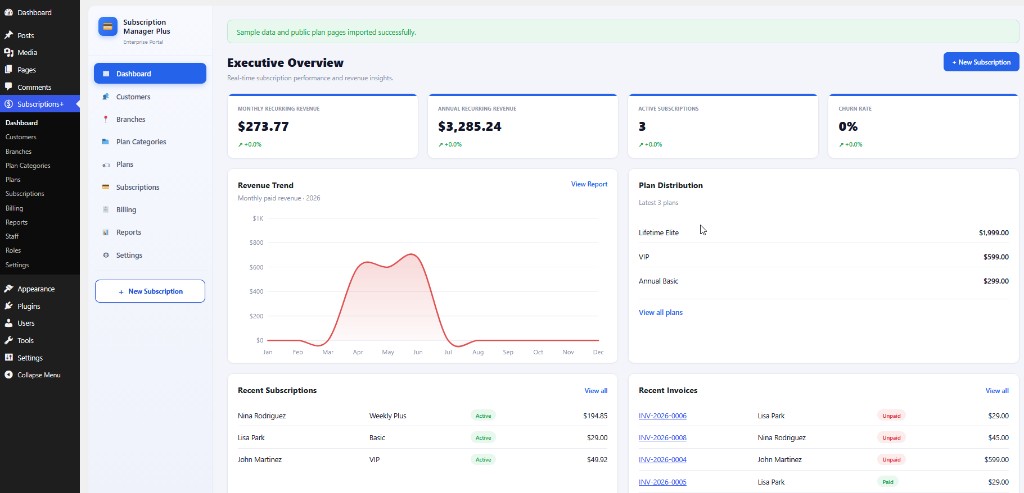
Executive Overview dashboard — MRR, ARR, active subscriptions, churn, revenue trend, recent subscriptions, and invoices.
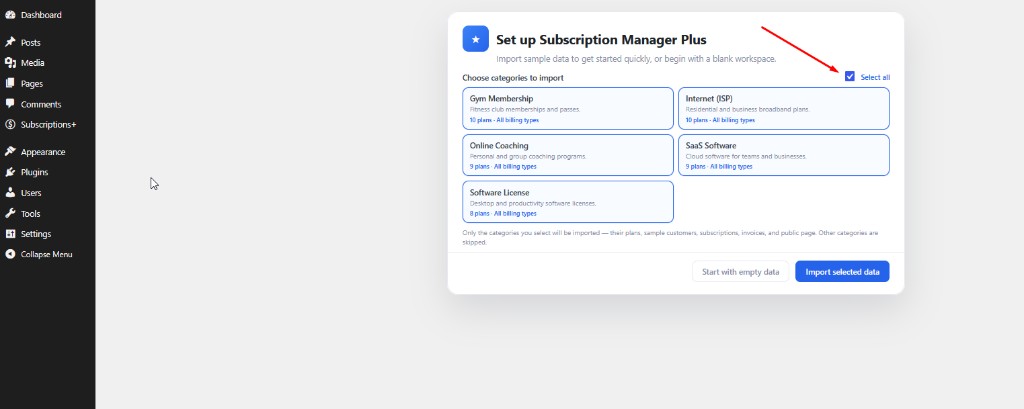
Setup wizard — import sample categories (Gym, ISP, Coaching, SaaS, Software License) or start with empty data.
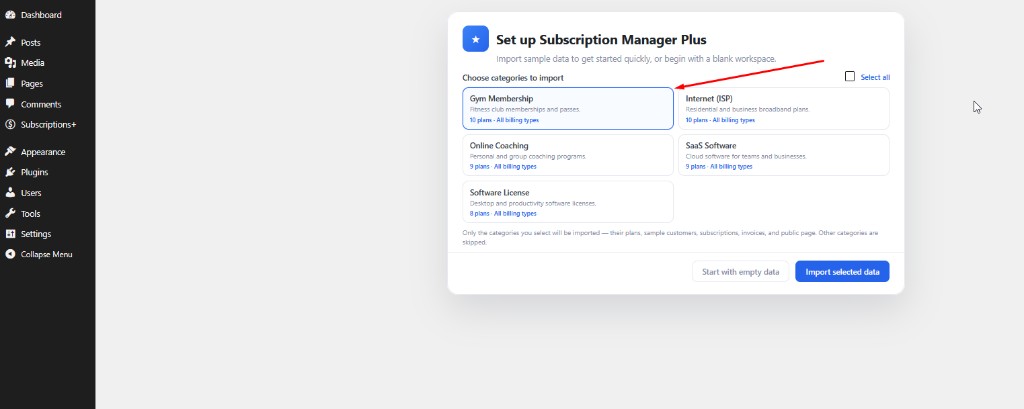
Demo category picker — choose which sample categories to import with plans, customers, subscriptions, and public pages.
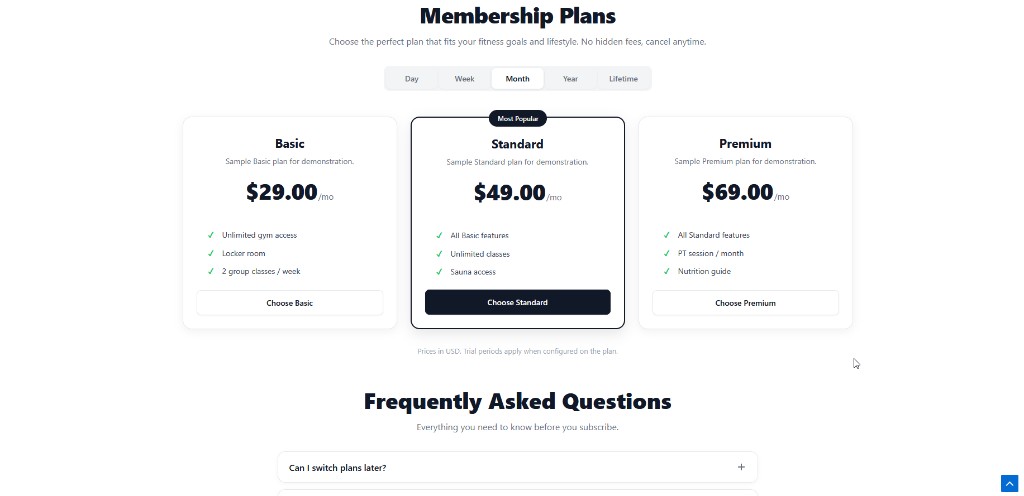
Public membership plans page — interval tabs (Day/Week/Month/Year/Lifetime), pricing cards, Most Popular badge, and FAQ.
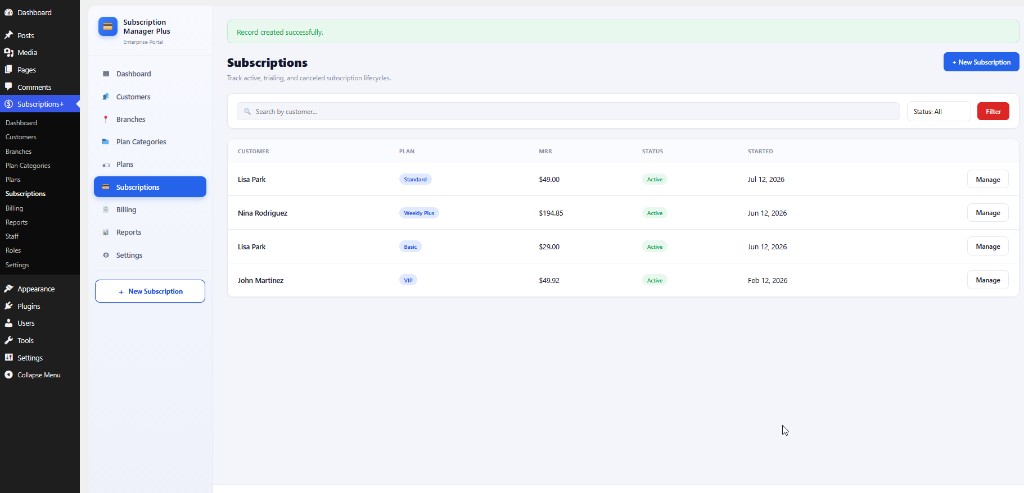
Subscriptions list — search and filter by status; track customer, plan, MRR, status, and start date.
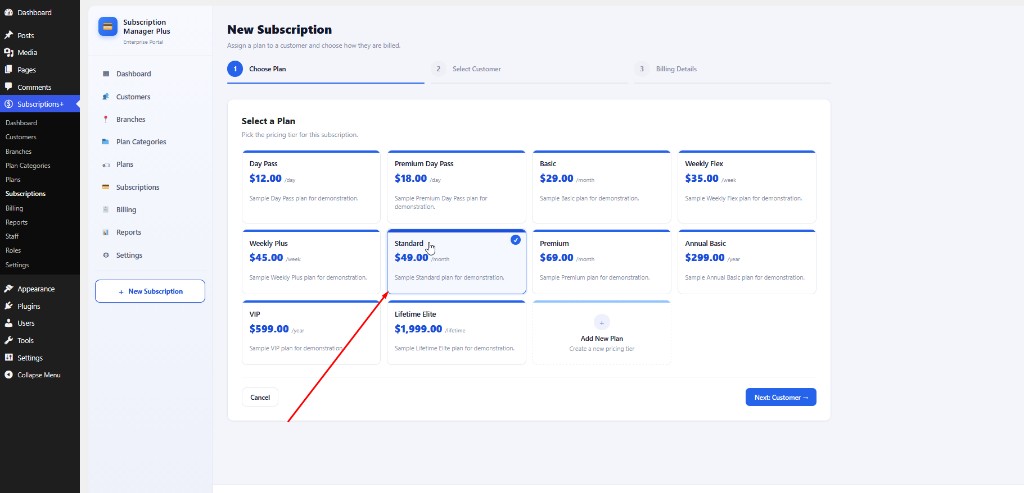
New Subscription wizard (Step 1) — choose a plan across daily, weekly, monthly, yearly, and lifetime tiers.
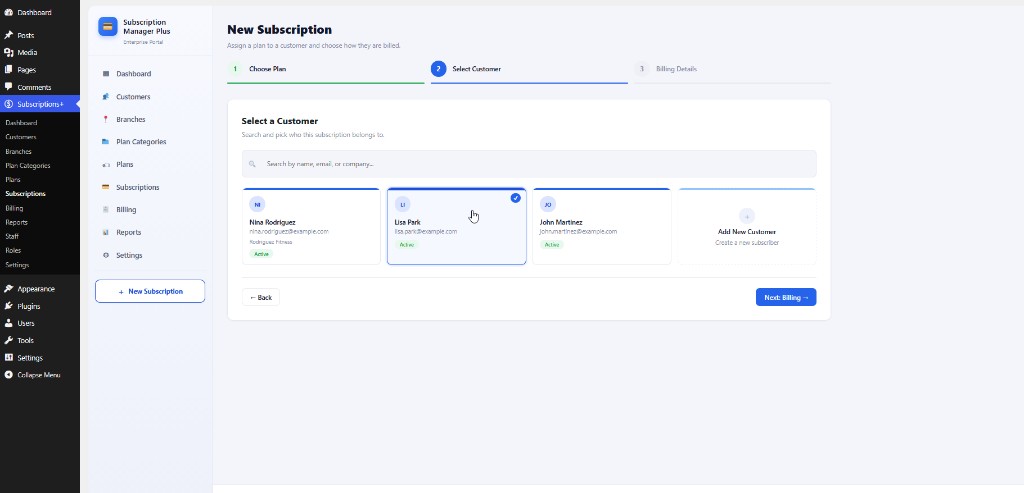
New Subscription wizard (Step 2) — search and select a customer, or add a new customer on the fly.
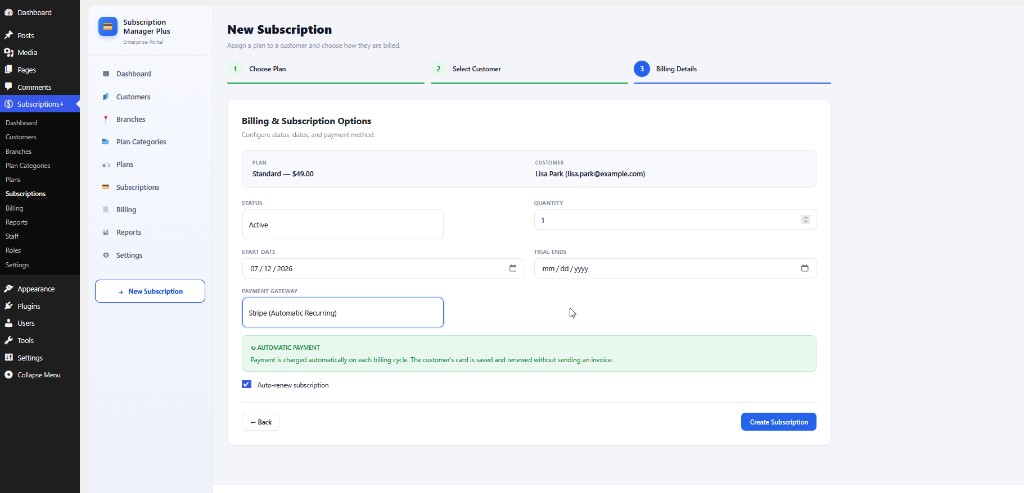
New Subscription wizard (Step 3) — billing details with Stripe automatic recurring payments and auto-renew.
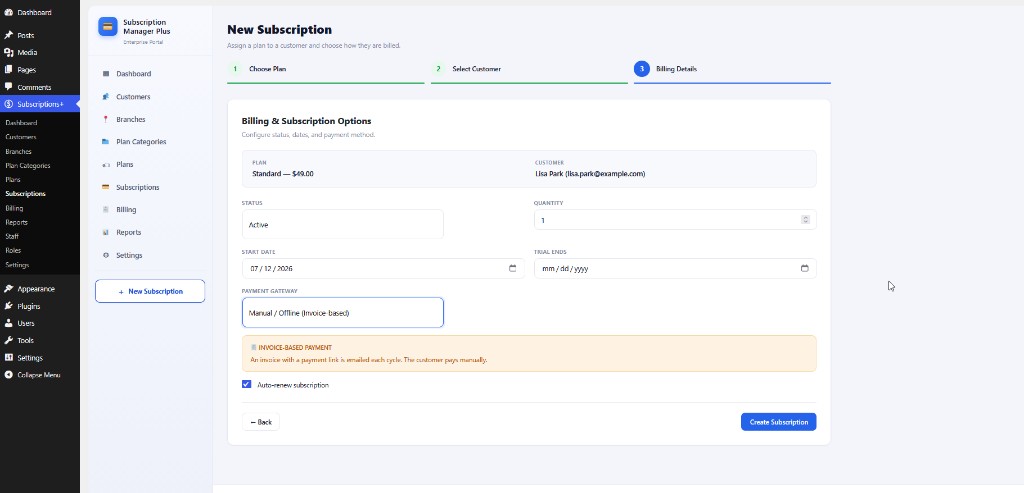
New Subscription wizard (Step 3) — manual/offline invoice-based billing with emailed payment links each cycle.
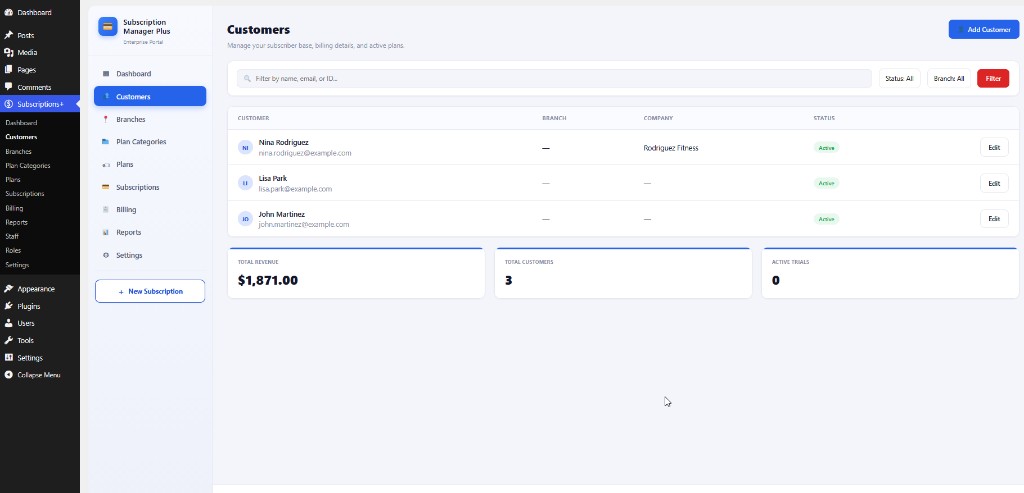
Customers list — manage subscriber profiles with search and status filters.
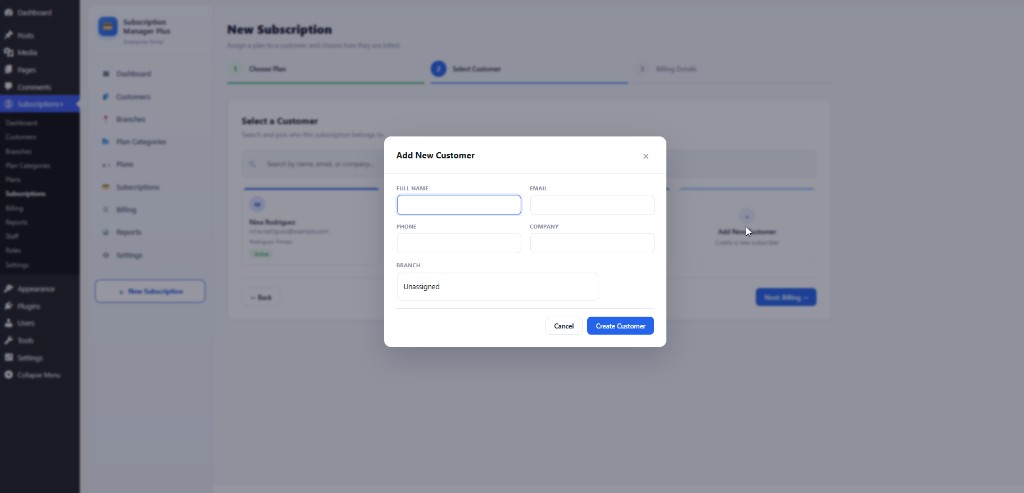
Add Customer — create a customer with name, email, phone, company, and branch assignment.
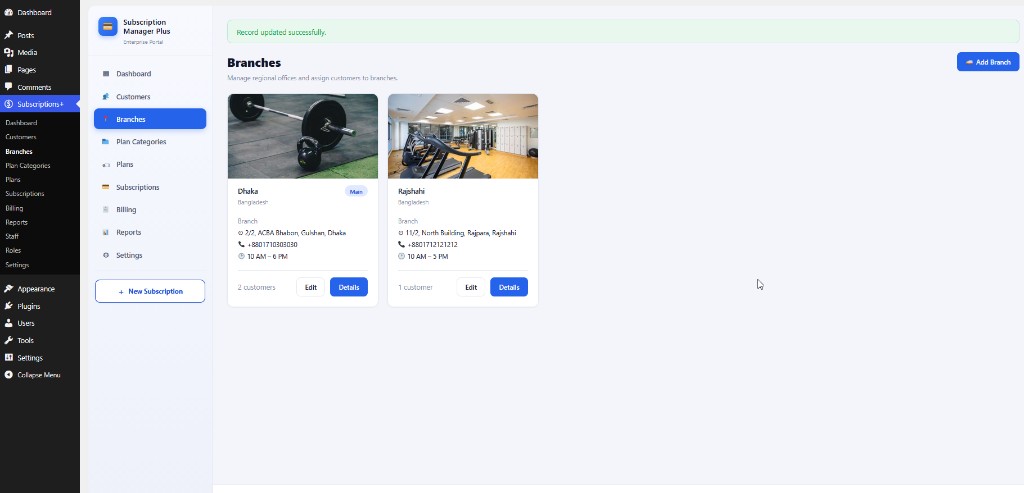
Branches list — multi-location offices with images, amenities, and opening hours.
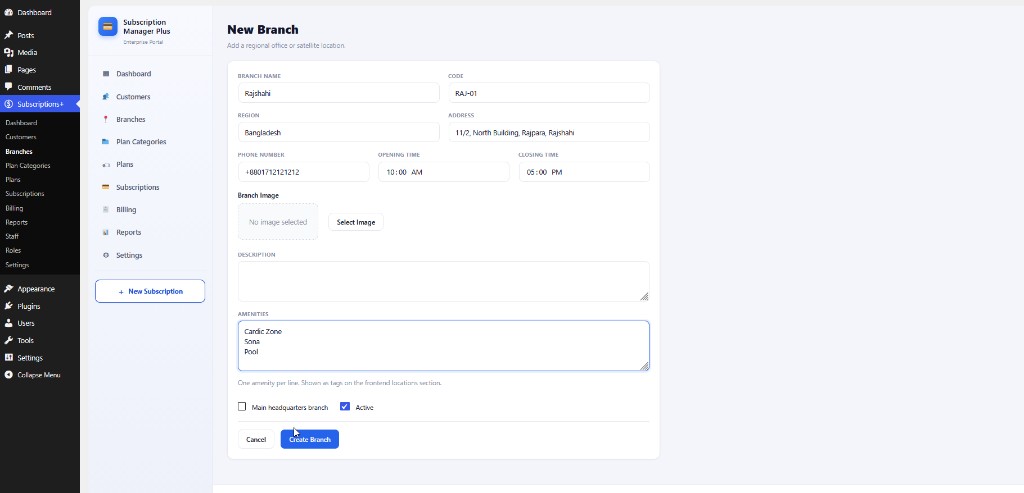
Add Branch — configure branch details, amenities, and hours for public location pages.
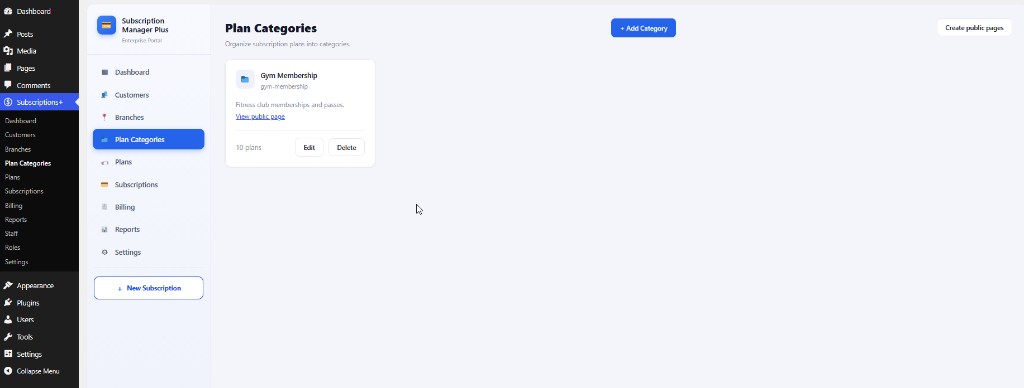
Plan Categories — organize plans into categories and create public pages with one click.
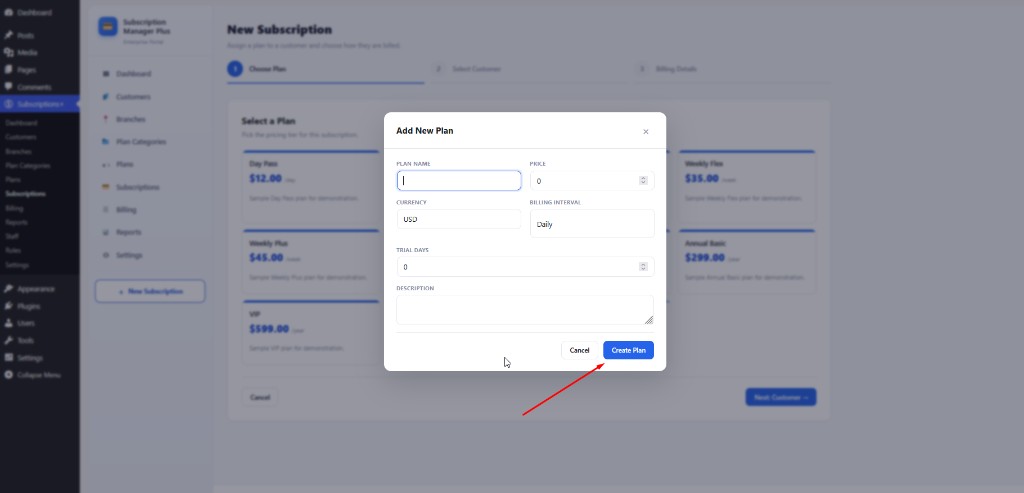
Add Plan — create pricing tiers with interval, price, trial, features, and popular badge options.
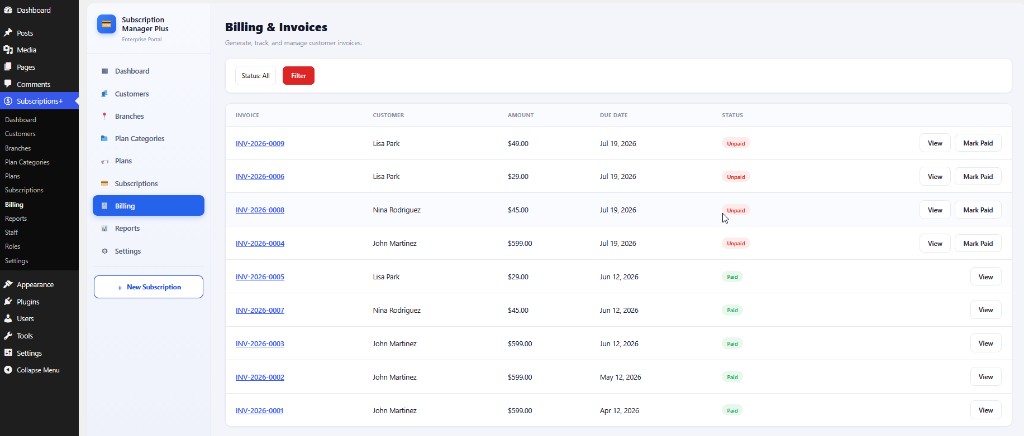
Billing & invoices list — track invoice status (paid, unpaid, overdue, void) and open payment links.
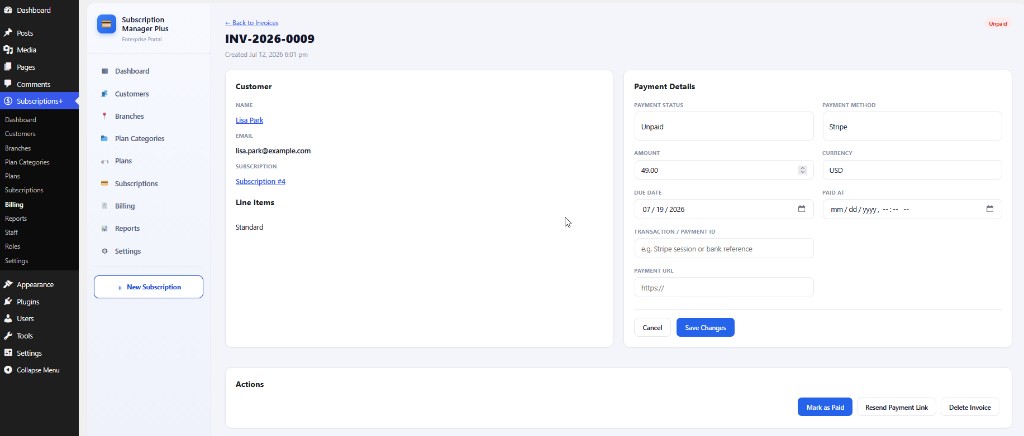
Invoice details — view line items, amounts, due dates, and mark invoices paid.
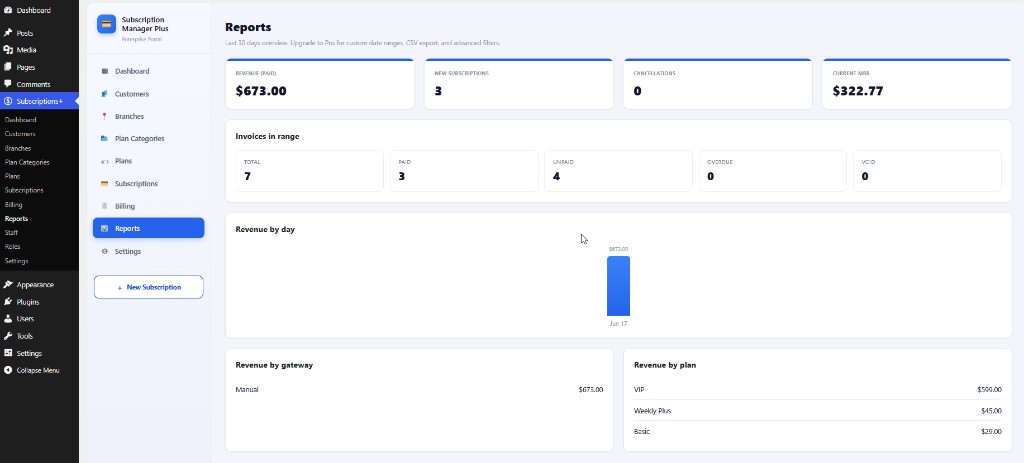
Reports — last 30 days revenue, new subscriptions, cancellations, MRR, and breakdowns by gateway and plan.
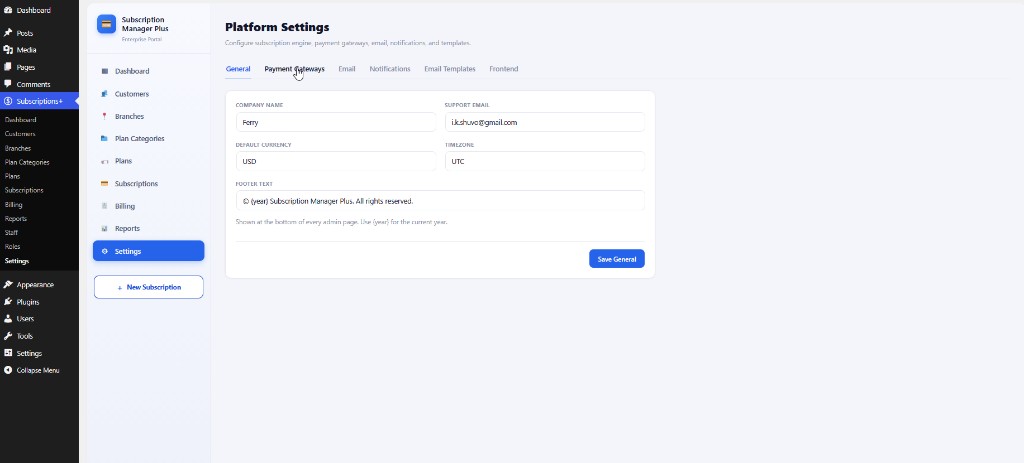
Settings → General — company name, support email, default currency, timezone, and footer text.
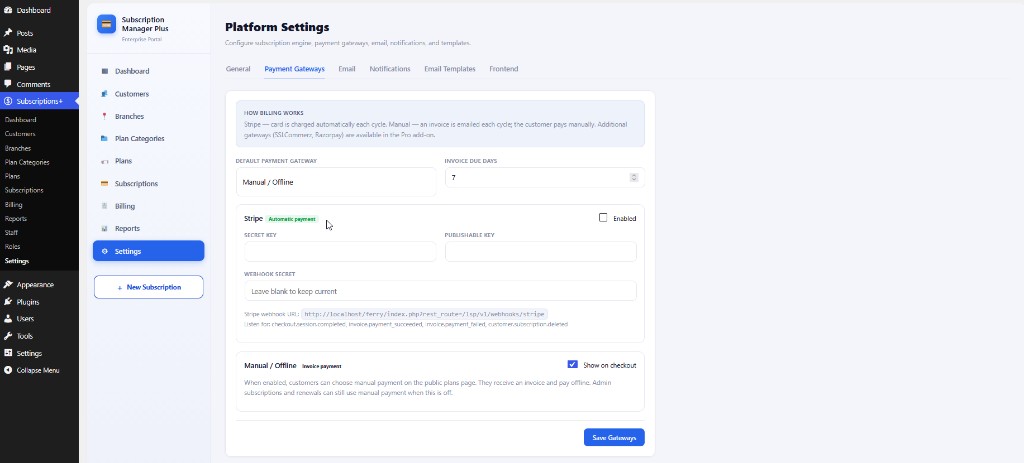
Settings → Payment Gateways — Stripe keys/webhook URL, Manual/Offline checkout, and invoice due days.
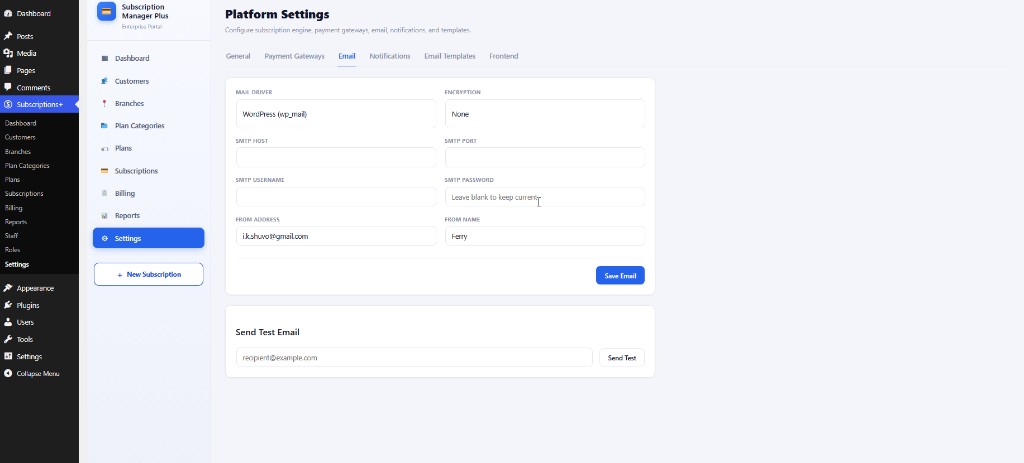
Settings → Email — SMTP and outbound mail configuration for invoices and notifications.
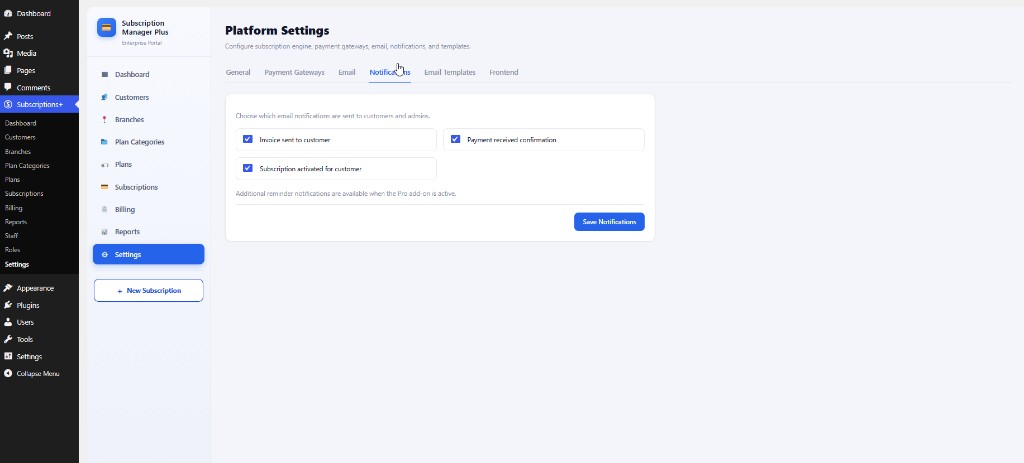
Settings → Notifications — toggle invoice sent, payment received, and subscription activated emails.
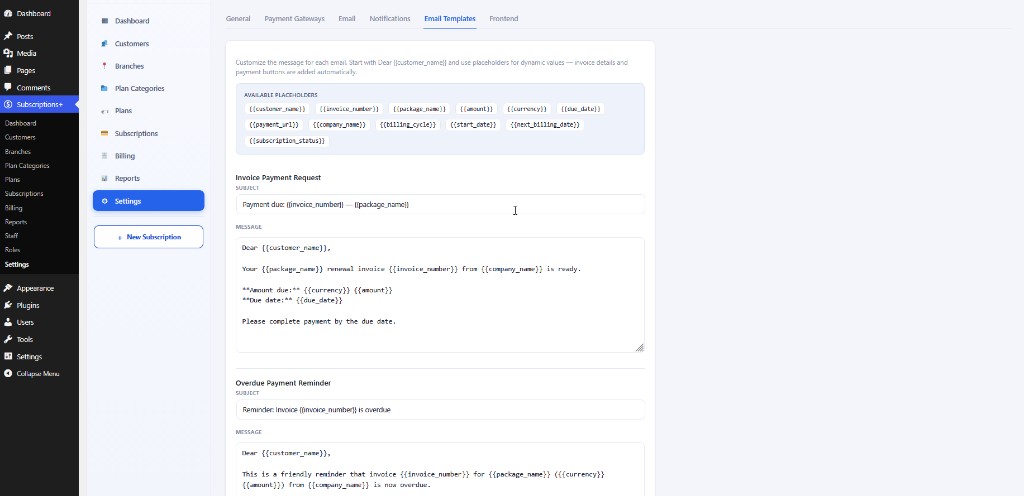
Settings → Email Templates — customize subjects and bodies for customer and admin emails.
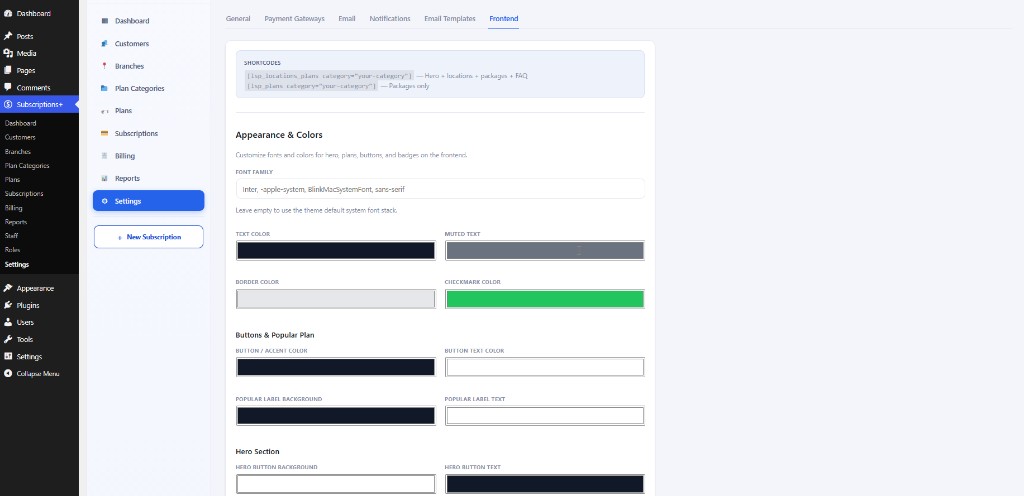
Settings → Frontend — shortcodes, fonts, and colors for hero, plans, buttons, and badges.
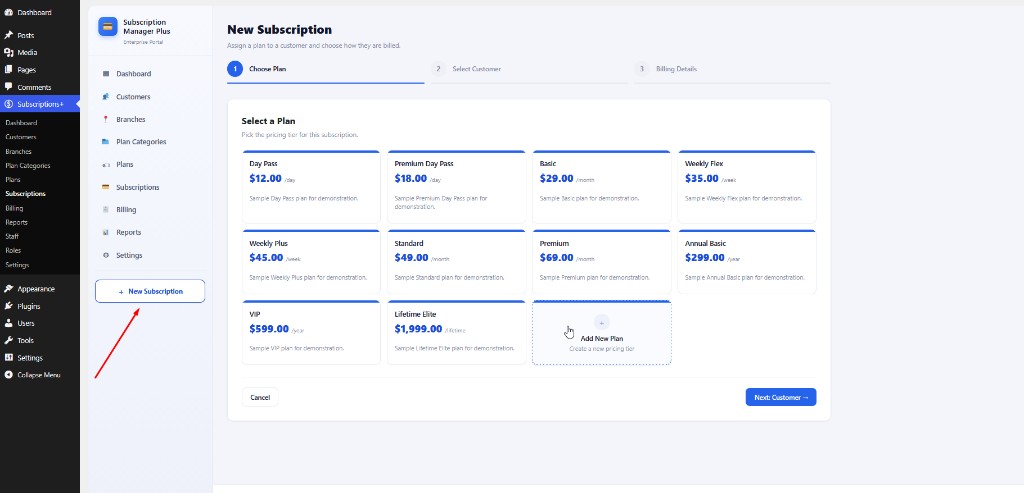
New Subscription entry — quick access via the + New Subscription button in the admin portal.