
Mailpuff: Email Marketing And Newsletters Plugin for Wordpress - Rating, Reviews, Demo & Download
Plugin Description
Mailpuff is a free email marketing plugin for WordPress. Make signup forms, grow your list, write newsletters in a visual editor, send or schedule them, and see who opened and clicked. It all happens in your WordPress dashboard, and your subscribers stay in your own database.
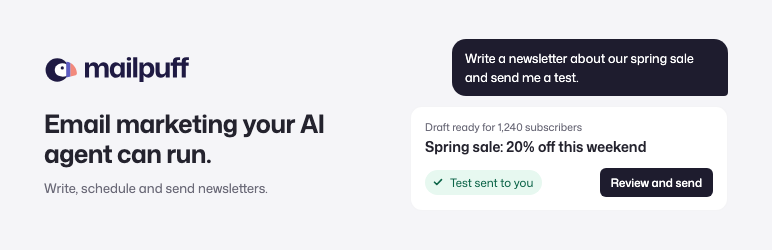
It is also email marketing for WordPress that your AI agent can run. Connect Claude, ChatGPT or any AI app that supports MCP, then ask for what you need in plain words:
- “Write a newsletter about our spring sale and send me a test.”
- “Import these customers and tag them Customers.”
- “Is anything stopping us from sending? Fix what you can.”
- “Schedule it for the best time this week.”
- “How did last Tuesday’s email do?”
Every tool an agent uses has a screen in the WordPress admin too, so you can check its work or do the job yourself. There is no subscriber limit, no locked feature and no licence key.
What you can do with Mailpuff
- Collect subscribers with inline, pop-up, slide-in and bar signup forms.
- Write emails in a visual editor with nine themes, columns and merge tags.
- Send now or schedule, after a checklist that catches problems first.
- Confirm every signup by email (double opt-in) and welcome new readers.
- Sort people with tags, segments and your own fields.
- Email each new post, or a daily, weekly or monthly digest.
- Read opens, clicks, unsubscribes and bounces for every campaign.
- Move your list from Mailchimp, MailPoet and other tools.
- Connect WooCommerce, your contact form plugin and your page builder.
- Let an AI agent do any of it, while you decide what gets sent.
How to use it
- Set up sending. Connect PostShiba, or keep the SMTP plugin you already use.
- Add subscribers. Make a signup form, or import a CSV file.
- Write a campaign. Pick a theme and write in the editor.
- Review and send. Send yourself a test, then send now or pick a time.
- Read the report. See what was opened and clicked, and resend to the people who did not open.
Home lists each setup step and shows what to do next.
Signup forms
- Form builder. Start from 11 templates. Change the words, layout, image, colours, font and thank-you step while the form updates beside you.
- Five types. Inline, pop-up, slide-in, bar or below posts. Pop-ups, slide-ins and bars open after some seconds, some scrolling, as the visitor leaves or from a link, on the pages, devices and dates you pick.
- Place it anywhere. Use the Newsletter signup block or
[mailpuff_form id="12"]. Divi 5, Elementor, Beaver Builder and Bricks have a “Mailpuff form” element. - Forms on other websites. Paste a form’s one-line tag into another site. Only the sites you list can show it.
- Double opt-in. New signups confirm by email, and forms work on cached pages.
- Spam protection. A hidden field, a timer and rate limits stop bots. Throwaway inboxes and the domains you block are refused on every form. Akismet and Cloudflare Turnstile can check signups too, once you turn them on.
- Forms from other plugins. Connect a form from Contact Form 7, WPForms, Fluent Forms, Gravity Forms, Ninja Forms, Formidable, Forminator or Elementor Pro. Only people who tick its box are signed up.
Subscribers
- Import. Bring in a CSV file or Mailchimp’s audience export zip. Exports from Mailchimp, Substack, beehiiv, Kit, MailerLite, FluentCRM and Groundhogg map their columns for you.
- Move from another plugin. With MailPoet, The Newsletter Plugin, FluentCRM or Groundhogg on the same site, move everyone in one click, tags and fields included.
- Tags and segments. Tag people, save filters as segments and export any time.
- Your own fields. Keep a city, a plan or a birthday for each subscriber, put it in an email as a merge tag, and build segments on it, such as “City is Berlin”.
- A record for each person. When and where they agreed to hear from you, and a timeline of what they did.
- Your site’s users. Accounts on your site can be added as not subscribed, so nobody gets email they did not ask for. A “Send me the newsletter” box on their profile lets them join.
- WooCommerce. An unticked “Email me news and offers” box at checkout, the Customer tag, and each buyer’s last order date and total as fields. Off until you turn it on.
Email campaigns
- Editor. Nine email themes, merge tags, two or three columns, phone and desktop previews, saved templates, and MJML when you want full control.
- Review. Before you send, Mailpuff checks the subject, preview text, From address, link shorteners and Gmail’s clipping size.
- Send or schedule. Send now, pick a time, stop and resume. Sends go out in batches in the background, and nobody gets the same email twice.
- Safer sending. Each send goes first to the people who opened or clicked lately. After the first 100 emails, a send stops itself if more than 2% of its addresses bounce or more than 0.08% mark it as spam, and tells you why.
- Reports. Deliveries, opens, clicks per link and failures, live while it sends. See who opened, clicked, unsubscribed or bounced, export each list as CSV, and resend to the people who did not open.
- Web version and archive. Turn it on for a campaign and, once sent, it becomes a page in your archive at /newsletter/, with names and personal links left out. Off by default.
Automatic emails
- Confirmation email. Pick a look (a button, a text link or your logo over a button), write the words and choose a colour, with a live preview on desktop and phone.
- Welcome email. Greet each new subscriber, in your own words.
- Emails for tags. Give a tag its own From, confirmation email and welcome email, such as one per brand or product. Its welcome email goes once to whoever gets the tag, and is off until you turn it on.
- New posts and digests. Email each new post, or a daily, weekly or monthly digest, and readers pick which they get. With WooCommerce, new products can go out the same way. You can also get an email about each new subscriber. Off until you turn it on.
What an agent can do
An agent works through Mailpuff’s own tools, on your site, with your data.
- Set up sending. Connect PostShiba, verify your domain and turn on warm-up.
- Grow your list. Add, import and tag subscribers with a note on how each one agreed, move a list from another plugin, and build signup forms from any template.
- Know your subscribers. Read one person in full, make fields such as City or Plan and fill them in, and build segments.
- Write campaigns. Build an email from headings, text, buttons, images and columns in any theme. The draft opens in the editor as normal blocks you can finish by hand.
- Check, test and send. Run the pre-send checklist, find a good time and send you a test. Then send, schedule, stop and resume.
- Run the automatic emails. Rewrite the confirmation, welcome, new-post and digest emails, and send you a test.
- Report and tidy up. Read opens and clicks per link, see who unsubscribed or bounced, clean out readers who stopped opening, and see what the signup forms refused as spam.
- Change settings. Everything except what only you can turn on: sending to your list, tracking, the automatic emails, spam services, API keys, webhooks and the “Powered by Mailpuff” line.
You stay in control
- An agent signs in as a WordPress administrator and can only use Mailpuff’s tools.
- Sending or scheduling to your list stays off until you turn on “AI agents can send campaigns” in Settings, MCP & API. Until then, an agent can only send tests to you, and can’t change who a scheduled campaign reaches by editing its tag or segment.
- An agent can withdraw a reader’s consent to tracking when they ask, but never give it, and never change whose opens and clicks are counted.
- An agent hits the same send checks you do. If your domain isn’t verified, nothing goes out.
- With Saddle, you also approve each send before it goes.
Connect an agent
- Install the free Saddle plugin or the MCP Adapter plugin.
- In Mailpuff, open Settings, MCP & API and copy the server address.
- Add that address to your AI app. Saddle guides you through signing in. With MCP Adapter, sign in with a WordPress application password.
Sending
Mailpuff sends through PostShiba, a delivery service made for newsletters. Paste your API key and Team ID in Settings, Sending. Mailpuff then shows the DNS records for your domain, warms up a new domain over 14 days, keeps to your plan’s limits, and stops mailing addresses that bounce or complain.
Already use an SMTP plugin for your WordPress email? Mailpuff sends through it. To use Amazon SES, Postmark, Resend, Brevo, Mailgun or any SMTP server, install the free Mailyard plugin.
API and webhooks
Give another app a key that can only do what you tick, and let a webhook tell another app when someone subscribes, unsubscribes or bounces, or a campaign finishes. Nothing is sent until you add one.
External services
Mailpuff sends no data to PlugPress. It loads no remote fonts and makes no license or usage calls. It talks to outside services only in these cases.
PostShiba
Delivers your email once you connect it in Settings, Sending.
- Data sent: each email (recipient, sender, subject, content and headers), Mailpuff’s IDs for the email and the contact, and your API key. When you connect or refresh, Mailpuff also reads your sending domains and creates a webhook so PostShiba can report bounces, complaints and unsubscribes back to your site.
- When: each time an email goes out, and when you open Settings, Sending (at most every six hours) or press Refresh. Nothing is sent before you connect.
- Provider: PostShiba, run by Bento (Backpack Internet Pty Ltd). https://postshiba.com/ (API at app.postshiba.com)
- Terms: https://bentonow.com/legal/terms
- Privacy: https://bentonow.com/legal/privacy
- Acceptable use: https://bentonow.com/legal/acceptable-use-policy
Your webhooks
Tells another app about events on your list, only when you add a webhook in Settings, MCP & API.
- Data sent: the event’s name, and the subscriber’s id, email address, name, status, tags and when they joined, or the campaign’s name, subject, recipients, deliveries, failures and web address. Each call is signed with the webhook’s secret.
- When: when an event you picked happens (someone is added, subscribes, unsubscribes or bounces, or a campaign finishes), and when you press Send test. Imports send nothing.
- Provider: whoever runs the https address you entered. Their terms and privacy policy apply.
Gravatar
Shows profile pictures in the admin contact list when “Show Avatars” is on in Settings, Discussion. Mailpuff uses the WordPress avatar function, so your avatar settings and plugins apply. With avatars off, the list shows initials and makes no request.
- Data sent: a hash of the contact’s email address, from the admin user’s browser.
- When: when an admin opens the contact list.
- Provider: Gravatar, run by Automattic. https://secure.gravatar.com/avatar/
- Terms: https://automattic.com/tos/
- Privacy: https://automattic.com/privacy/
YouTube
The Video block in the email editor shows a thumbnail from YouTube unless you upload your own image.
- Data sent: a request for that video’s thumbnail, from the editor’s browser and from each reader’s email app when it loads images.
- When: only for emails with a Video block and no image of your own.
- Provider: YouTube, run by Google. https://www.youtube.com/ (thumbnails from img.youtube.com)
- Terms: https://www.youtube.com/t/terms
- Privacy: https://policies.google.com/privacy
Cloudflare Turnstile
Checks that the person signing up is not a bot, when you turn it on in Settings, Spam protection and add your own Turnstile keys.
- Data sent: the visitor’s browser loads Cloudflare’s script and solves its check, which sends Cloudflare details about the browser; when the form is sent, your site sends Cloudflare the check’s token, your secret key and the visitor’s IP address.
- When: on every page with a signup form, and with every signup, only while Turnstile is on.
- Provider: Cloudflare, Inc. https://challenges.cloudflare.com/
- Terms: https://www.cloudflare.com/website-terms/
- Privacy: https://www.cloudflare.com/privacypolicy/ and https://www.cloudflare.com/turnstile-privacy-policy/
Akismet
Checks signups for spam, when you turn it on in Settings, Spam protection and the Akismet plugin is active with a key.
- Data sent: the email address, the name if given, the visitor’s IP address, browser and the page they came from, your site’s address and language, through the Akismet plugin’s own connection.
- When: with every signup on a Mailpuff form, only while the check is on.
- Provider: Akismet, run by Automattic. https://akismet.com/
- Terms: https://akismet.com/tos/
- Privacy: https://automattic.com/privacy/
Other mail plugins
Without PostShiba, Mailpuff hands each email to wp_mail(). Mailyard or your SMTP plugin then delivers it, under that plugin’s own terms.
Screenshots

Home: who joined, open and click rates, the best time to send, and what to do next.

The email editor: themes, columns and merge tags, with phone and desktop previews.

Review and send: the sender, the audience, the inbox preview, a test, then send now or schedule.

A campaign’s report: opens, clicks and unsubscribes, and who opened, clicked or did not.

Subscribers, with tags, segments, filters, import and export.

A pop-up signup form with its live preview.

Settings, MCP & API: connect an AI agent, and make API keys and webhooks.
Similar Plugins:
 Rating Widget: Post Rating, 5 Star Rating, Reviews, Thumbs Up & Down, Reaction
 Email Subscribers & Newsletters By Icegram Express – Email Marketing, Post Notifications & WooCommerce Marekting Automation For WordPress
 WeMail – Email Marketing, Lead Generation, Optin Forms, Email Newsletters, A/B Testing, And Automation