
MeloTools Image Optimizer Wordpress Plugin - Rating, Reviews, Demo & Download

Plugin Description
MeloTools Image Optimizer makes your Media Library lighter without putting your originals at risk. Everything runs on your own server: there is no image limit, no account and no external service.
- Convert JPEG and PNG images to WebP and AVIF, including every thumbnail size.
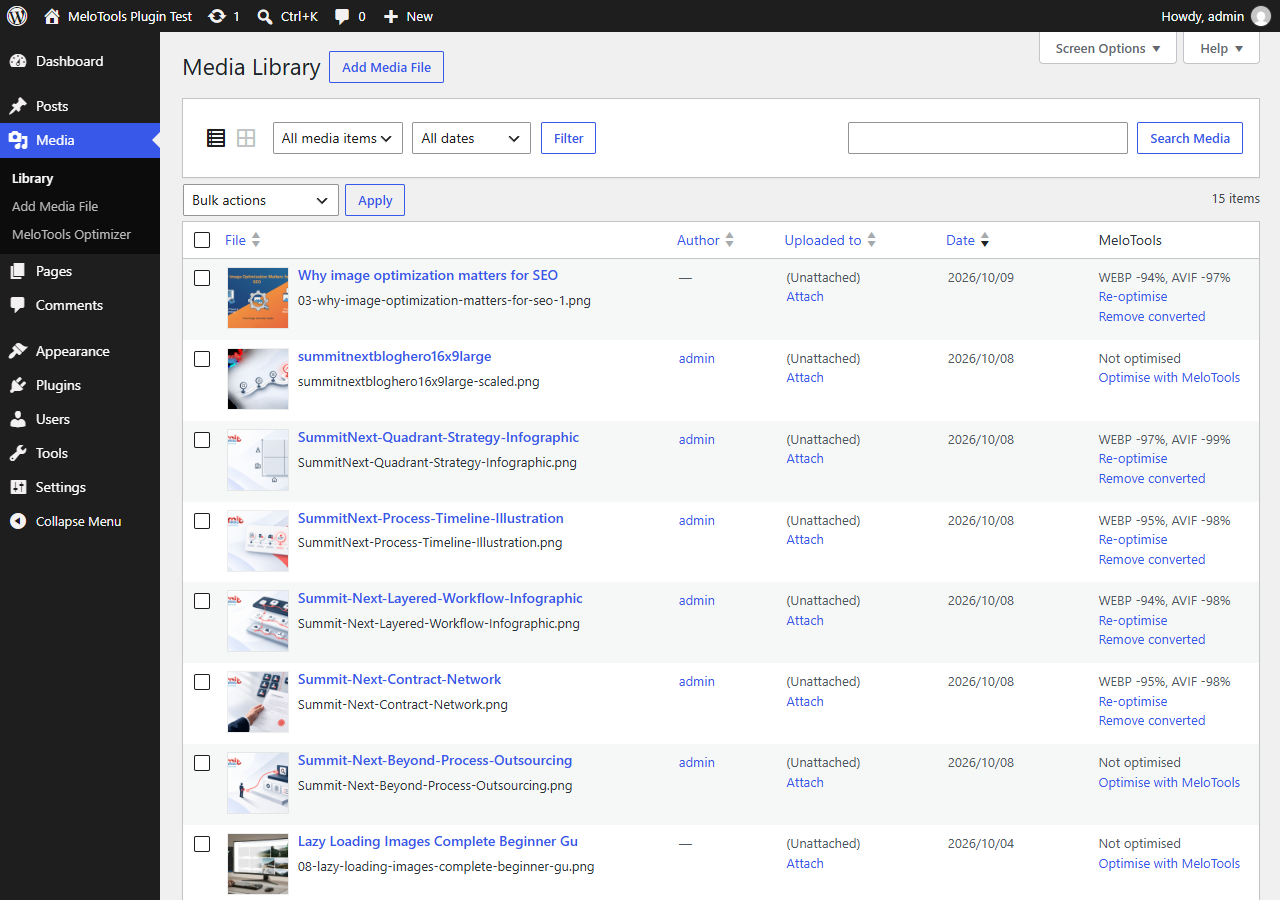
- Optimise one image from the Media Library, or run a bulk job in small safe batches.
- Optimise new uploads automatically in the background.
- Optionally recompress the original files. A backup of every file is kept and a Restore button puts it back.
- Serves lighter files with picture tags, so older browsers, feeds and social scrapers still get the original.
- No database rewriting. Image URLs in your posts never change.
- Animated images and images too large for your server are skipped safely.
Processed on your own server
The plugin uses Imagick or GD on your web server. Images never leave your site. Which formats can be written depends on your host; the settings page shows whether WebP and AVIF are available. If one is missing, ask your host to enable Imagick or GD with that format.
Privacy
The plugin does not contact any external service, does not track usage and loads nothing for visitors except the image files themselves.
This plugin is made by MeloTools, the maker of free online image tools.
Screenshots
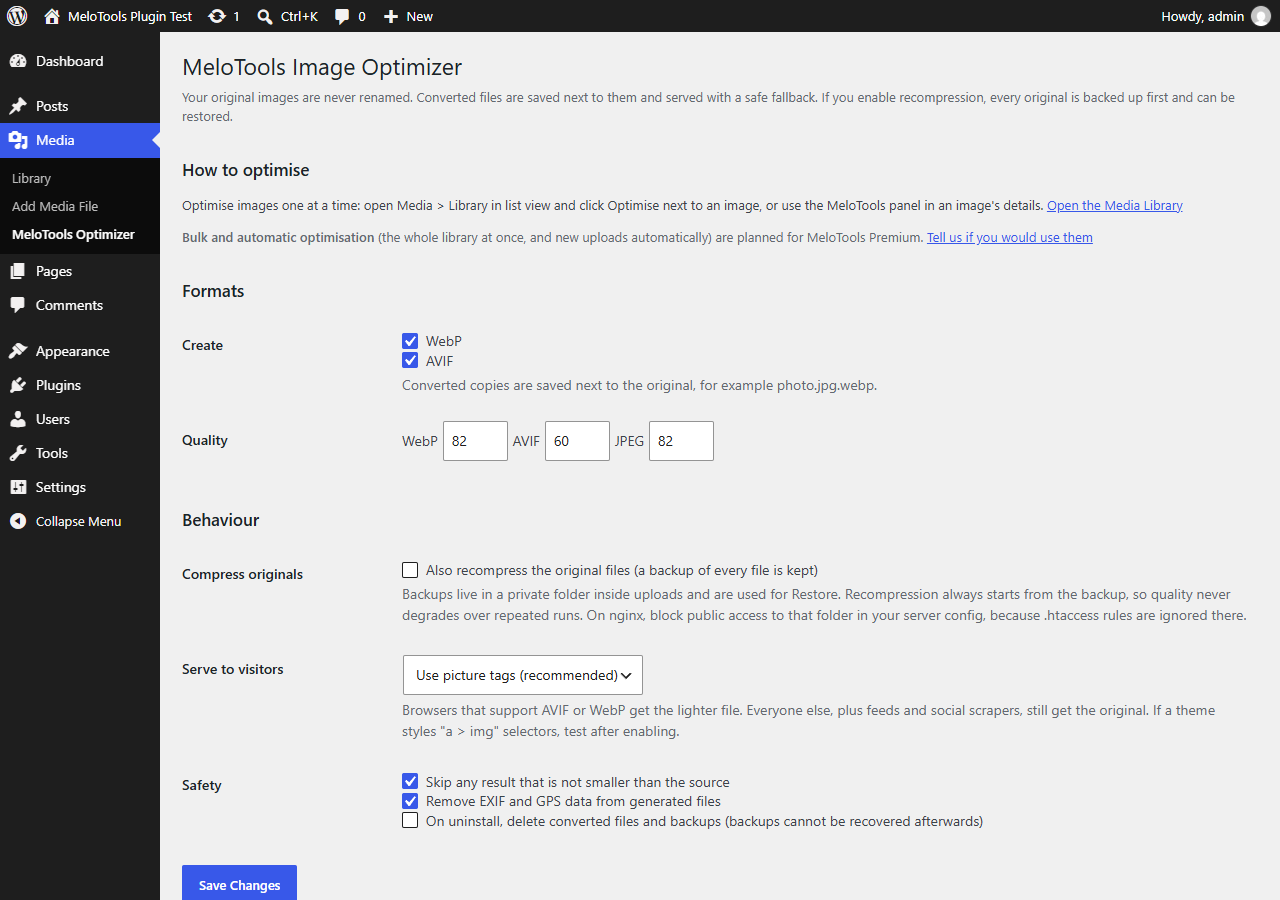
Settings: choose WebP and AVIF, quality, automatic optimisation of new uploads and recompression of originals.
Bulk optimise the whole Media Library in small safe batches.
The MeloTools column in the Media Library list shows the savings for every image, with Re-optimise, Remove converted and Restore original.

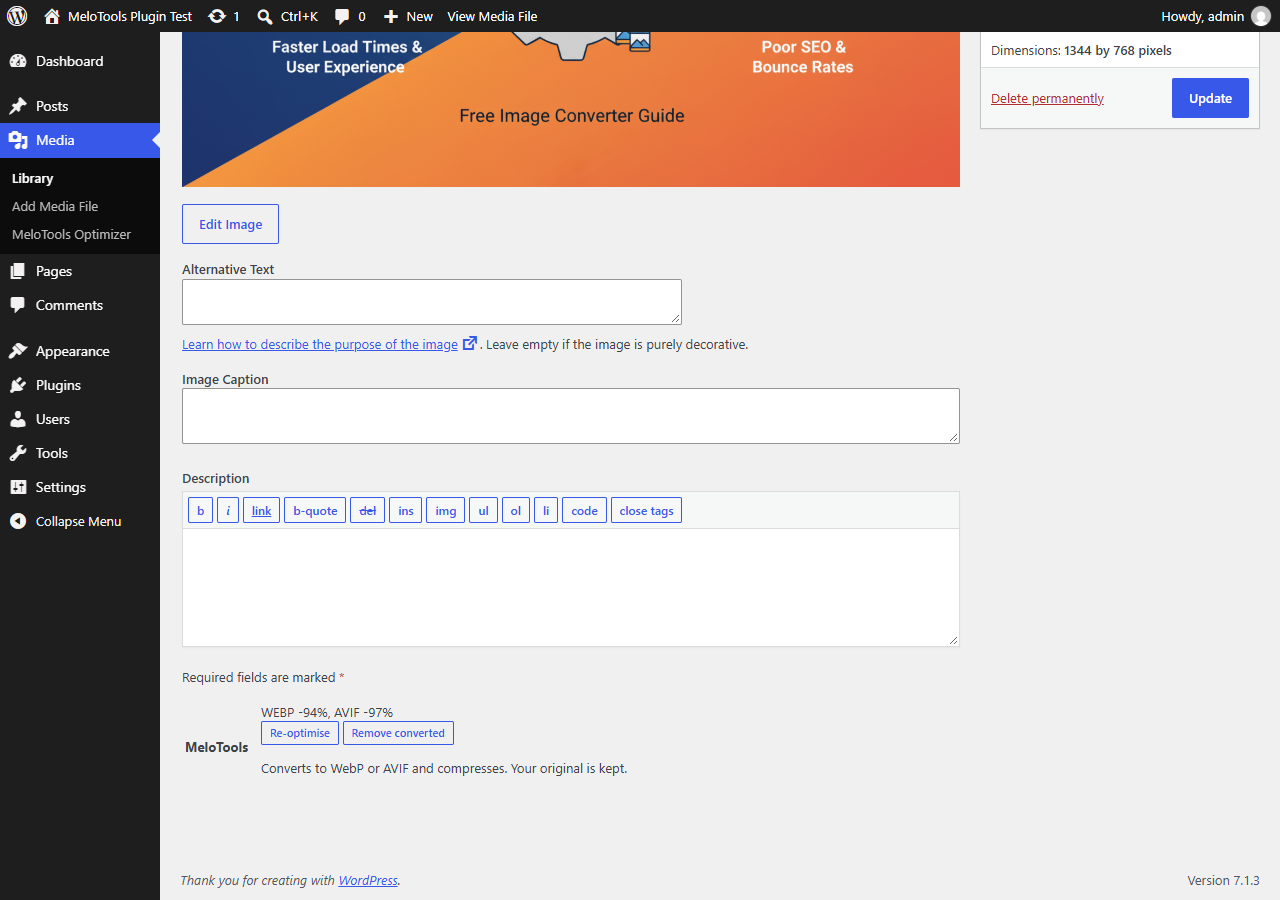
The MeloTools panel on the image edit screen.

