MenuDoc Sticky Header Menu On Scroll Wordpress Plugin - Rating, Reviews, Demo & Download
Plugin Description
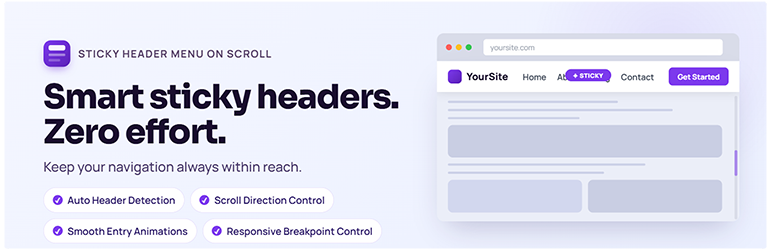
MenuDoc Sticky Header Menu on Scroll is a lightweight WordPress plugin that turns any theme’s header or navigation menu into a sticky element as soon as the user starts scrolling. It works out of the box with most themes thanks to smart auto-detection, and provides a full settings panel for fine-tuning every detail of the sticky behavior, appearance, and visibility rules.
There is no need to touch any code. Install, activate, and the plugin immediately starts working on your site.
Key Features
Smart Header Auto-Detection
The plugin scans your page for common header selectors and HTML structures used by popular WordPress themes, including full-site editing (FSE/block) themes. It checks for semantic roles, well-known CSS classes and IDs, and falls back gracefully to the outermost header tag or a nav element. In the vast majority of cases the correct element is found without any configuration.
Custom CSS Selector
If auto-detection selects the wrong element, you can switch to Custom Selector mode and enter any valid CSS selector (for example .site-header, #masthead, or header.main-nav) to target the exact element you want to stick.
Scroll Trigger Distance
Control how far the user must scroll down the page before the header becomes sticky. The default is 0 px, meaning the header sticks immediately. You can increase this value (up to 5000 px) so the header only sticks after the user has scrolled past the hero or page banner, keeping the top of the page clean.
Top Spacing (Sticky Offset)
Add extra pixel space between the very top of the viewport and the sticky header. This is useful when you want breathing room above the header or when other fixed elements occupy part of the top of the screen.
WordPress Admin Bar Awareness
When a user is logged in to WordPress, the admin toolbar appears at the top of the page and the sticky header automatically positions itself directly below it, with no overlap. This adjustment happens in real time and accounts for any height changes the admin bar makes at different screen widths.
Hide on Scroll Down
Enable this option to slide the sticky header out of view while the user is scrolling down the page. This reclaims screen real estate and gives readers more room to focus on content. When the user scrolls back up, the header smoothly returns to view.
Show on Scroll Up
Works together with Hide on Scroll Down. When enabled, the header reappears as soon as an upward scroll is detected. You can leave this off if you only want the header to return after the user scrolls all the way back to the top of the page.
Push-Up Element
Specify a CSS selector for an element (such as a footer or an in-page banner) that will push the sticky header out of view as it scrolls into the header’s position. This prevents the sticky header from overlapping important content near the bottom of the page. The push-up movement is calculated in real time based on the element’s position relative to the header.
Enter Animations
Choose an animation that plays once when the header first becomes sticky:
– None: The header sticks instantly with no animation.
– Fade In: The header fades in from transparent to fully visible.
– Slide Down: The header slides in from above the viewport, which provides the most polished and natural feel for most sites.
Animation Speed
When an animation is selected, you can set the exact duration in milliseconds (from 0 to 1000 ms) to match the pace and personality of your site.
Drop Shadow
Adds a soft box-shadow beneath the sticky header to visually separate it from the page content below. The shadow color and opacity are both configurable so you can match your design exactly. The shadow transitions in smoothly as the header sticks.
Custom Sticky Background Color
If your header uses a transparent background when it is in its normal position, enabling this option lets you set a solid background color that is applied only when the header is sticky. This is a common pattern on sites with a large hero image beneath a transparent navigation bar.
Responsive Breakpoint Control
Two independent width controls let you disable the sticky behavior at specific screen sizes:
– Disable Below Width: Enter a pixel value and the sticky header will not activate on screens narrower than that width. Set to 0 to enable on all screen sizes. Useful if your mobile header uses a different layout or a hamburger menu that should not be sticky.
– Disable Above Width: Enter a pixel value and the sticky header will not activate on screens wider than that value. Set to 0 to enable on all screen sizes.
Configurable Z-Index
Set the CSS z-index value for the sticky header directly from the settings page. The default is 1000, which works for most themes. If another plugin or theme element appears on top of your sticky header, increase this value until the header sits on top.
CSS State Classes
When enabled, the plugin adds the class mshms-is-sticky to the header element whenever it is in its sticky state, and mshms-not-sticky when it is not. These classes make it easy for developers and theme customizers to write CSS that targets each state independently, for example to change the logo size, font color, or padding when the header is sticky.
Display On (Page Type Control)
Choose exactly which types of pages the sticky header should be active on. The available options are:
– Home Page
– Blog / Posts Page
– Posts (single post pages)
– Pages (single page entries)
– Archives (category, tag, date, and author archives)
– Search Results
– 404 Page
– Attachments
– Any public custom post types registered on your site
Debug Mode
Displays a small overlay on the frontend of your site showing the currently detected header element and its CSS selector path, and logs detailed messages to the browser console. Use this mode when setting up the plugin or troubleshooting detection issues. Turn it off before going live.
No Coding Required
All settings are controlled from the WordPress admin panel under Settings – Sticky Header Menu. There is no need to edit any theme files, add custom code snippets, or write PHP. The plugin loads its scripts only on pages where the sticky header is enabled and only when the plugin itself is active.
Cache Compatibility
When you save settings the plugin automatically clears caches for the most popular WordPress caching solutions, including WP Rocket, LiteSpeed Cache, WP Super Cache, W3 Total Cache, WP Fastest Cache, Cache Enabler, Hummingbird, SiteGround Optimizer, Breeze, and FlyingPress.
Screenshots
No screenshots provided