Mintage Pay For WooCommerce Wordpress Plugin - Rating, Reviews, Demo & Download
Plugin Description
Mintage Pay sends your customer to a secure hosted checkout where they pay in stablecoins (USDC or USDT) from a wallet or an exchange, on the networks you turn on in your Mintage Pay dashboard (for example Base, Polygon, Solana or TRON). A network appears at checkout only when you have set a payout address for it.
Mintage Pay never holds your money: payments go straight to your own payout addresses.
When the payment is confirmed on chain, Mintage Pay notifies your store and the order moves to Processing automatically.
Features:
- Works with the classic checkout and the Cart/Checkout blocks.
- Compatible with High-Performance Order Storage (HPOS).
- Signed webhooks (HMAC-SHA256 with a 5 minute timestamp window). The plugin never trusts a webhook body on its own: it always re-reads the invoice from the Mintage Pay API before changing an order.
- Partial payments put the order on hold with a note showing what is still owed. If the payment window closes part paid, the order stays on hold (never cancelled or restocked) so you can refund the customer or collect the rest.
- Full payments that arrive after an order was cancelled are recorded and the order is put on hold for you to review, never shipped automatically. A late partial payment on a cancelled order keeps it cancelled and adds a note asking you to refund it.
- A paid invoice whose amount or currency does not match the order total puts the order on hold instead of completing it.
- Expired invoices cancel the unpaid order, which returns the stock. Before WooCommerce’s “Hold stock” timer cancels an order, the plugin checks the invoice with Mintage Pay and never cancels one that has money on it.
- Cancelling an order also cancels its Mintage Pay invoice, so the customer cannot pay a cancelled order.
- Order screen box with the live invoice status, payments with block explorer links, a Refresh link and a link to the payment in your Mintage Pay dashboard.
- Refunds: you send a refund from your own wallet in the Mintage Pay dashboard. When it is confirmed on chain, it is added to the order as a refund record and WooCommerce emails the customer. A refund entered by hand in WooCommerce moves no money, so the customer is not emailed until the real refund is confirmed, and the two are never counted twice.
- Optional discount for paying with Mintage Pay (for example 3%, since card payments cost you about that): the checkout says “Save 3% when you pay with USDC or USDT.” and the discount comes off the products while Mintage Pay is selected.
- Test mode: a sandbox key (mp_test_…) connects to the Mintage Pay sandbox automatically, and an admin notice reminds you while it is saved.
- WooCommerce Subscriptions: each renewal becomes a Mintage Pay invoice that the customer pays from their wallet. Mintage Pay emails them the payment link. Nothing is charged automatically.
Store currencies: USD, EUR, GBP, CAD, AUD, CHF, JPY, MXN, BRL, INR, SGD, AED, PLN, SEK, NOK, DKK, NZD, ZAR, TRY, KRW, HKD, NGN, ARS, PHP, IDR, VND, PKR, EGP, BDT, KES, GHS, TZS, COP, CLP, PEN, UYU, PYG, BOB, DOP, GTQ, CRC, THB, MYR, TWD, LKR, NPR, KZT, UAH, ILS, SAR, QAR, CZK, HUF, RON, ISK, XAF and XOF. A price in another currency than USD is converted by Mintage Pay to the USD amount the customer pays in USDC or USDT, at a checked exchange rate, rounded up to the cent. The order notes show the price, the USD amount and the rate. In any other store currency the method stays hidden at checkout and an admin notice explains why.
External services
This plugin connects to the Mintage Pay API (https://app.mintagepay.com, or https://sandbox.mintagepay.com for test keys) to take payments. It is the payment service the plugin is for, so it does not work without it.
What is sent, and when:
- When you save the settings, reconnect the webhook, or activate, deactivate or delete the plugin: your API key (in the Authorization header), this store’s webhook URL and the store name, to check the key and to add or remove the webhook endpoint.
- When a customer chooses Mintage Pay at checkout: the order total and currency, the order number, a description (“Order #1042 from Your Store”), the thank-you and cancel page addresses, the WooCommerce order id and order key, the invoice expiry, and the customer’s billing email address. Mintage Pay emails the customer a receipt only if you turn off “Let WooCommerce send the order emails”; otherwise it writes to them only when they ask for a refund on Mintage Pay’s refund page. For an order paid by card, the email is also kept as part of the record of that card payment, in case the customer disputes the charge.
- With WooCommerce Subscriptions: the subscription’s recurring total, billing period and the renewal order numbers, the customer’s email address and name so Mintage Pay can send them each renewal’s payment link, and the store language.
- When an order is updated (a webhook from Mintage Pay, the thank-you page, the order screen, the “Hold stock” timer, or cancelling an order): the Mintage Pay invoice id, to read or cancel that invoice.
- On the checkout page, at most every 12 hours: a request for the list of networks you have turned on, to describe them under the payment method.
- On the checkout page, for the order total (remembered for 10 minutes per total, 30 minutes for the card form’s address): the total, the currency and this store’s address, to ask Mintage Pay which ways to pay (card, apps, crypto) it offers for that total and in which US states card payments are not available.
- In the customer’s browser, when the pop-up payment page is closed before paying: the Mintage Pay invoice id and the step the customer was on (for example “choose”), with no cookies, so Mintage Pay can count where buyers stop.
- Card payments: when the card form is shown inside the checkout (with the pop-up on, where Mintage Pay offers it), that form is Mintage Pay’s own page from app.mintagepay.com. What the customer types there goes to Mintage Pay and the providers it uses for card payments (Stripe and Privy), as described in Mintage Pay’s privacy policy, not to this store.
Mintage Pay terms of service: https://mintagepay.com/terms.html
Mintage Pay privacy policy: https://mintagepay.com/privacy.html
Screenshots

At checkout, the customer picks the Mintage Pay method (shown with the title “Cash App / Crypto”).
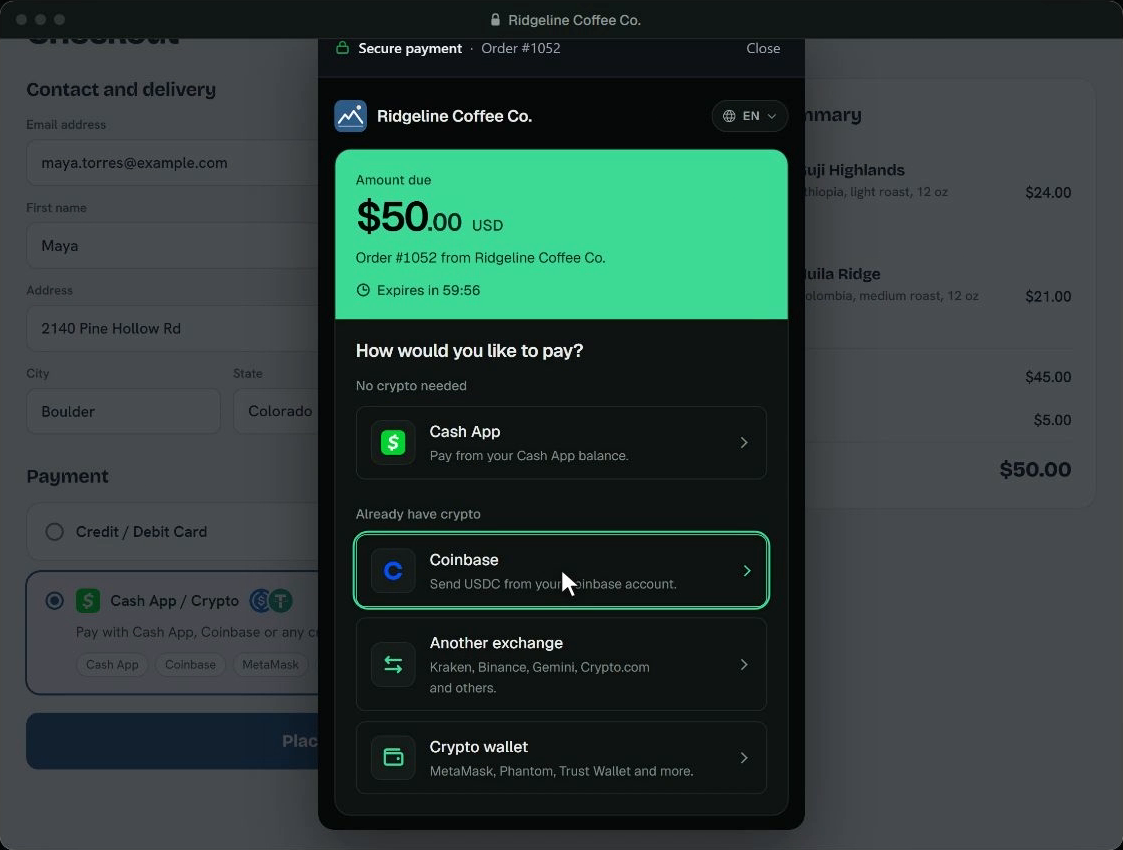
The secure payment page opens over the store’s own checkout, and the customer chooses how to pay.
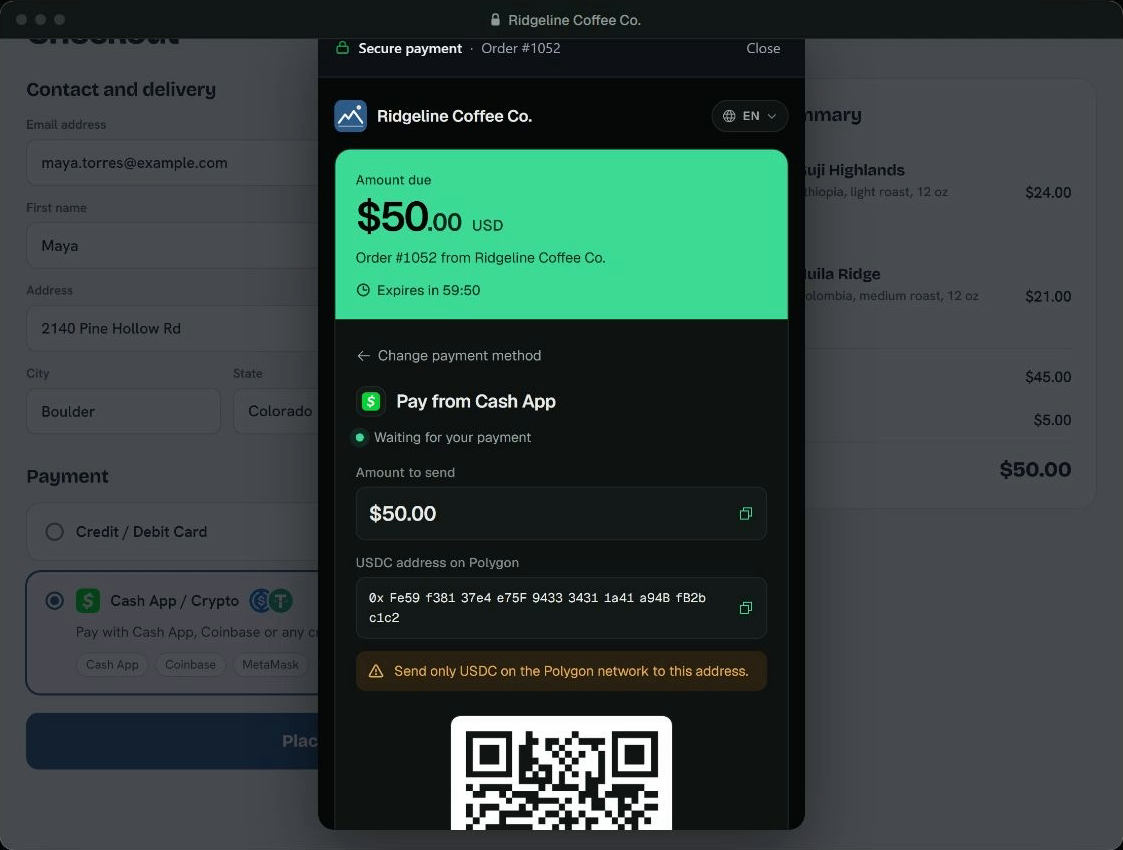
The customer scans the code with their app or wallet and sends the exact amount.
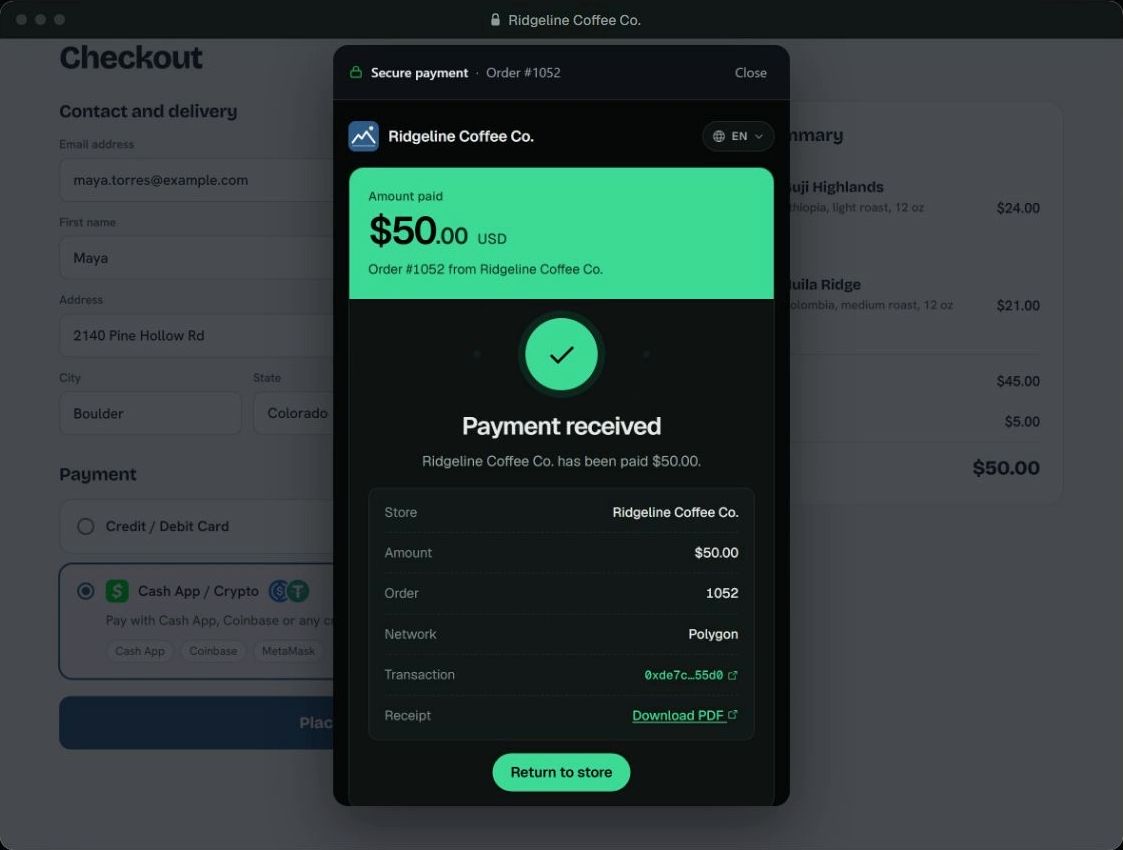
Payment received: a receipt with the network, transaction and a PDF download.
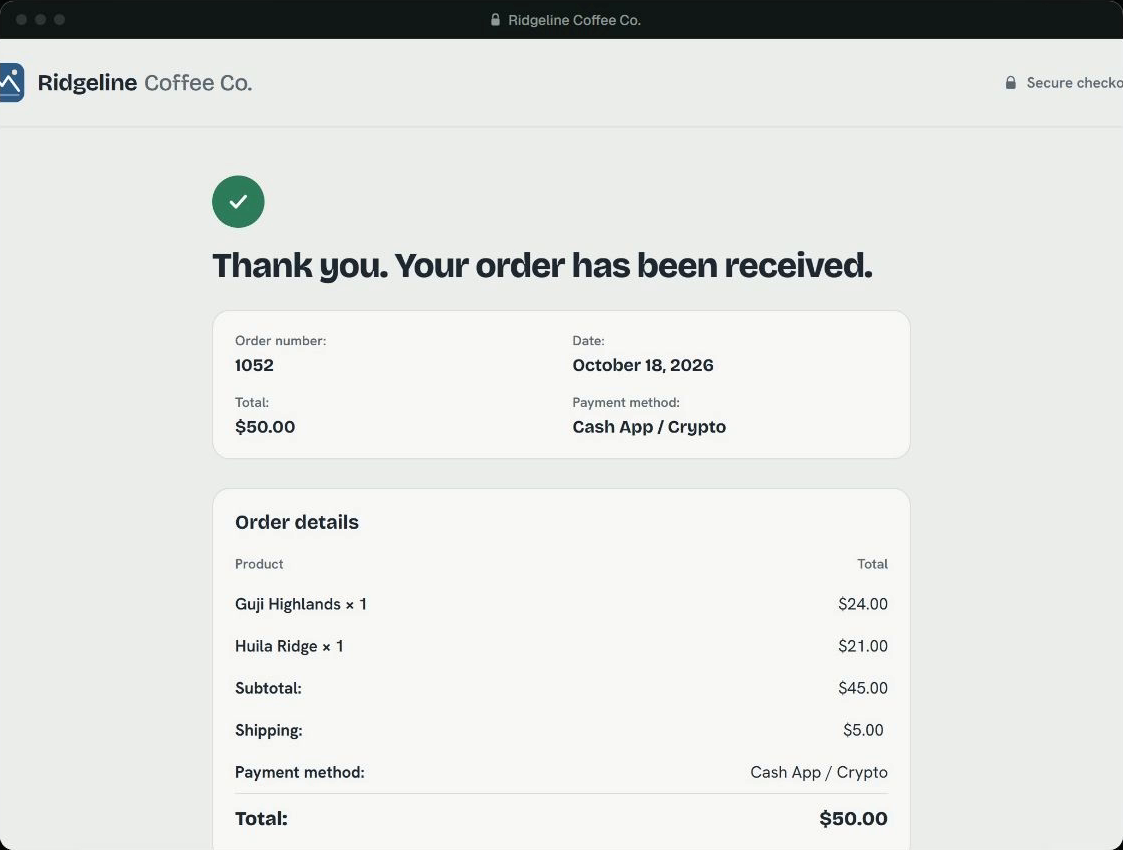
Back in the store, the order is confirmed and moves to Processing by itself.