Multi Style Kits For Elementor – Abdiel Wordpress Plugin - Rating, Reviews, Demo & Download

Plugin Description
Multi Style Kits for Elementor – Abdiel gives you the freedom to have multiple Brandboards (Style Kits) within the same website.
Elementor normally restricts you to one single Global Kit for the entire site. This plugin breaks that limit, allowing you to play with colors, typography, and styles without losing your original identity.
You can have multiple “identities” living together on the same site. It is perfect for:
* Landing Pages: Give a specific sales page a unique look without affecting your home page.
* A/B Testing: Quickly swap design systems to test what converts better.
* Multi-Brand Sites: Manage distinct color palettes for different sections of your business.
This plugin is free to use. If you find it useful for your projects, consider supporting the development using the link in the sidebar!
Key Features
- Unlimited Kits: Create as many Style Kits as you need.
- Per-Page Assignment: Assign a specific kit to any page directly from the Elementor Editor.
- Live Preview: See how the kit looks on your page before saving changes.
- Bulk Assignment: Apply a kit to multiple pages at once using the dashboard tool.
- Global Switcher: Change the default look of your entire site in one click.
- Import / Export: Move your kits between sites easily.
Screenshots
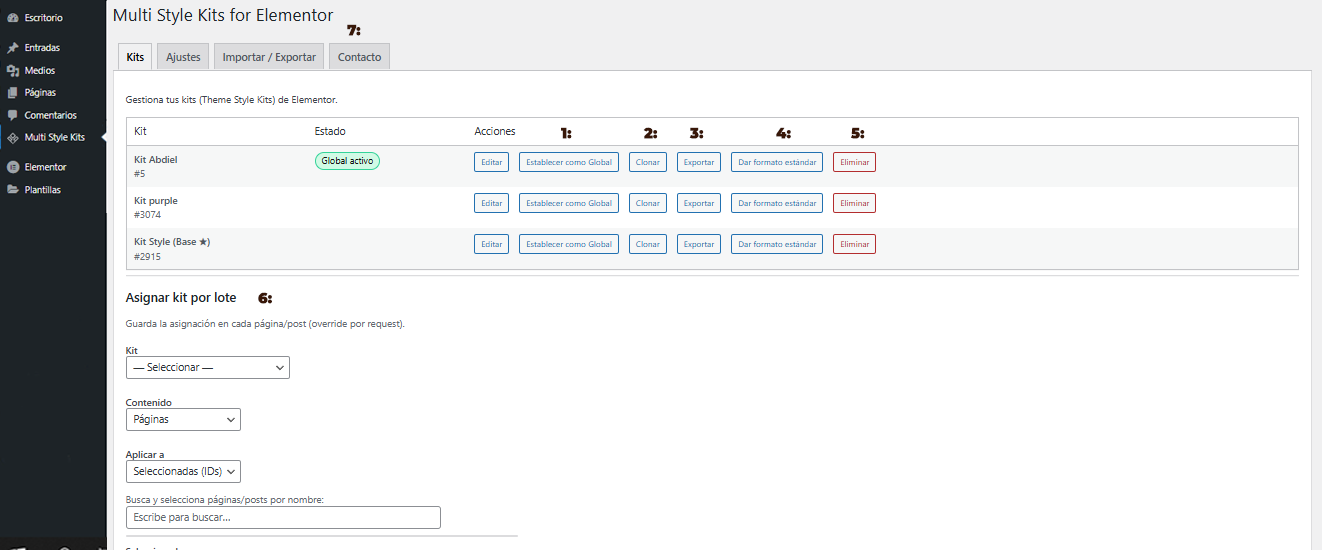
Main Dashboard: Overview of your Kits. (1) Set as Global: Makes this kit the default for the whole site. (2) Clone: Duplicates the kit. (3) Export: Downloads the kit as JSON. (4) Normalize: Fixes standard Elementor format issues. (5) Delete: Removes the kit. (6) Bulk Assignment: Tool to apply kits to many pages. (7) Contact: Support & resources tabs.
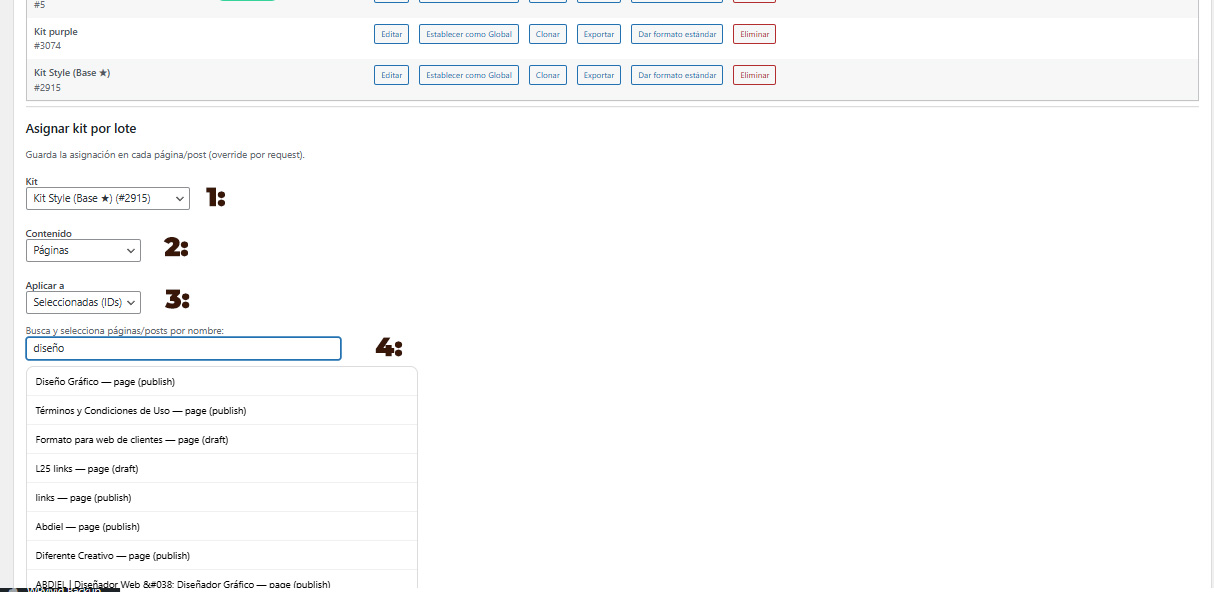
Bulk Assignment Tool: Apply styles massively. (1) Select Kit: Choose the design you want to apply. (2) Content Type: Choose between Pages or Posts. (3) Scope: “Selected (IDs)” lets you search for specific pages; “All” applies it to everything. (4) Search: Type the name of the page, click to select it, and run the batch.
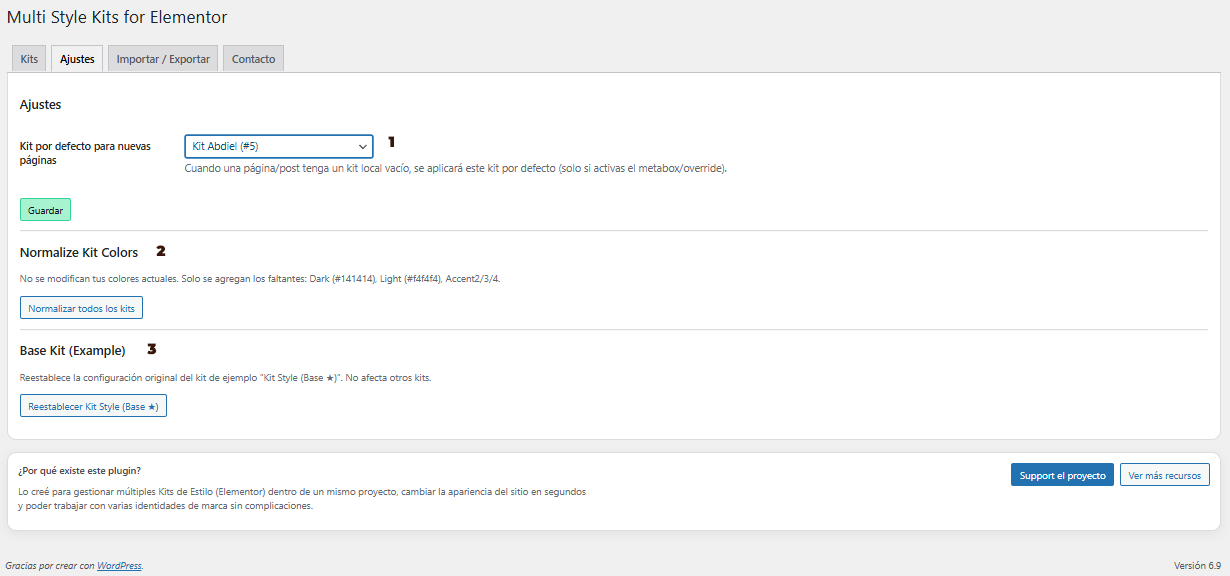
Plugin Settings: (1) Default for New Pages: Automatically assign a kit when creating content. (2) Normalize Colors: Adds missing dark/light system colors. (3) Reset Base Kit: Restores the example kit if needed.
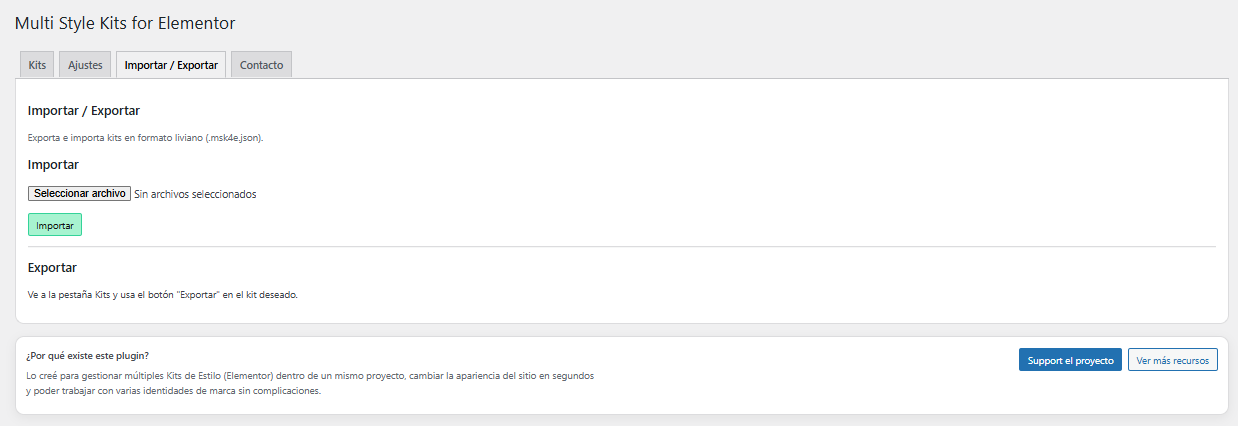
Import / Export: Backup your work or migrate your Brandboards to another website easily.
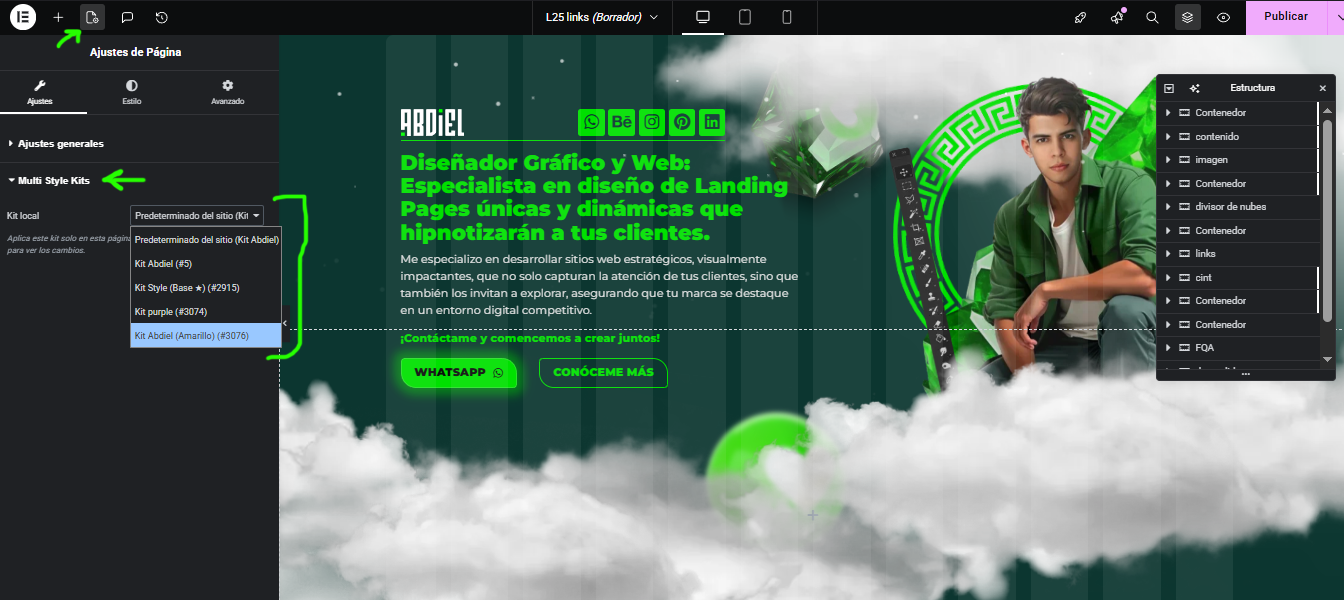
Elementor Editor Integration: Located inside Page Settings (gear icon) > Multi Style Kits. Use the dropdown to select a local kit for the current page only.
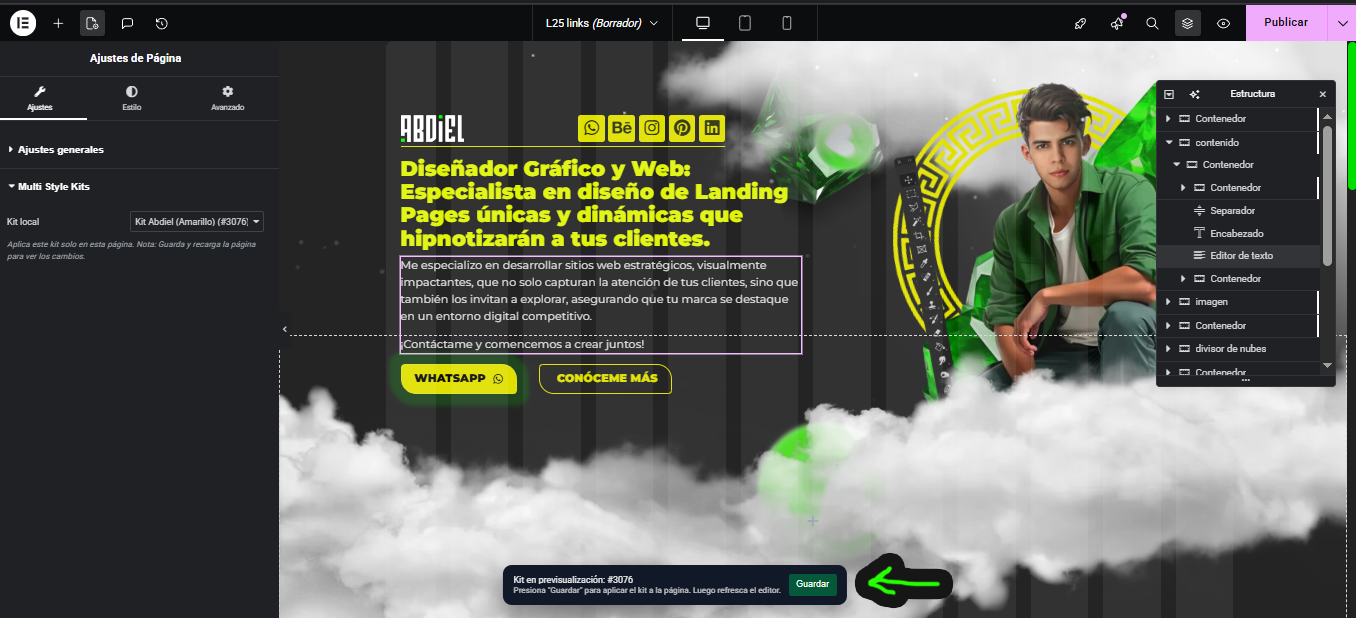
Live Preview: When you select a kit, the editor reloads with the new styles. A floating bar appears asking you to “Save” to apply the changes permanently or refresh.