MultiAddons Bulk Product & Cart Discount For WooCommerce Wordpress Plugin - Rating, Reviews, Demo & Download
Plugin Description
MultiAddons Bulk Product & Cart Discount for WooCommerce lets store owners create flexible, rule-based pricing tiers that automatically apply discounts to products at the product and cart level.
Whether you want to reward bulk buyers, offer exclusive prices to specific user roles, or run time-limited promotions, this plugin gives you full control — without writing a single line of code.
Key Features
- Discount Rules — Create unlimited discount rules (up to 2 in the free version) targeting specific products, categories, or your entire catalog.
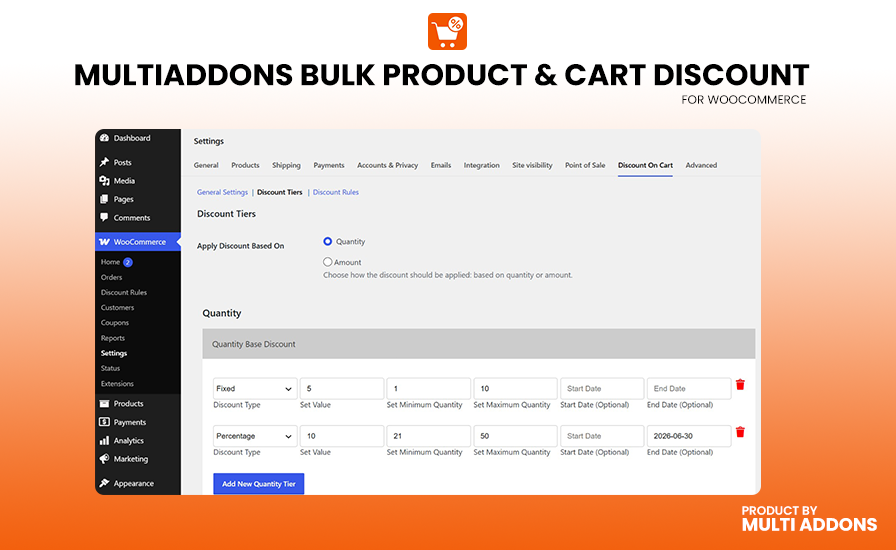
- Pricing Tiers — Set multiple quantity-based pricing tiers per rule (e.g., buy 1–4 at 10% off, buy 5+ at 20% off).
- Pricing Types — Choose between a Fixed Discount (subtract a fixed amount from the product price) or a Percentage Discount per tier.
- User Role Targeting — Restrict each pricing tier to specific WordPress user roles (e.g., Wholesale, Subscriber).
- Specific User Targeting — Assign pricing tiers to individual customer accounts by username.
- All Users Option — Apply a discount to all users regardless of role or account.
- Product & Category Rules — Target specific products, specific categories, or all products in your store.
- Exclude Products/Categories — Exclude specific products or categories from a rule.
- Date Scheduling — Set optional start and end dates on each pricing tier for time-limited promotions.
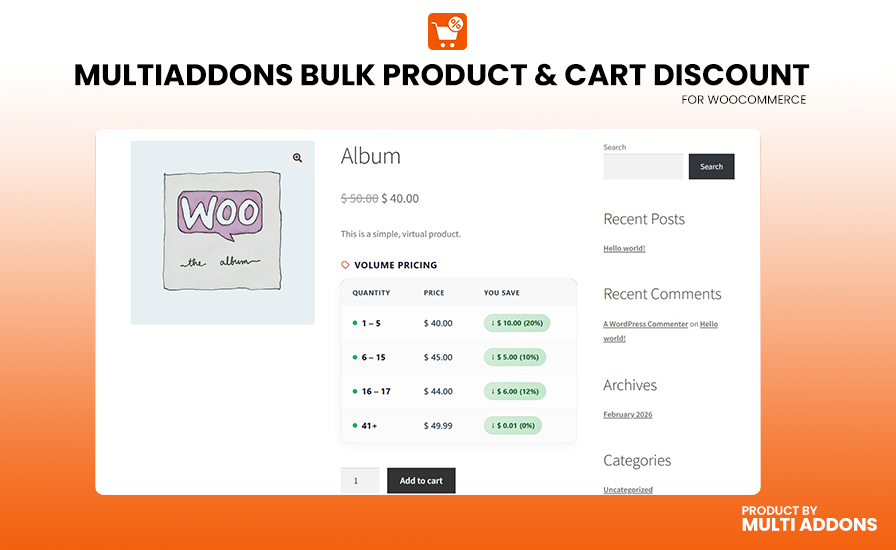
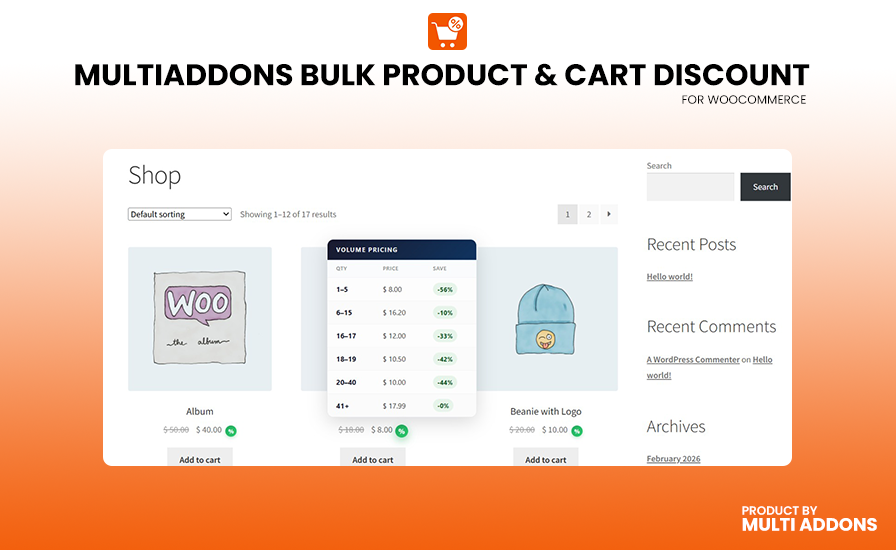
- Volume Pricing Table — A clear pricing table is automatically displayed on product pages so customers can see exactly how much they save at each quantity.
- Priority System — Assign rule priorities so the correct rule is applied when multiple rules could match a product.
- Enable/Disable Rules — Quickly enable or disable individual rules without deleting them.
- HPOS Compatible — Fully compatible with WooCommerce High-Performance Order Storage (HPOS).
- Block Compatible — Compatible with WooCommerce Cart and Checkout Blocks.
How It Works
- You create a Discount Rule and give it a name and priority.
- You choose which products or categories the rule applies to.
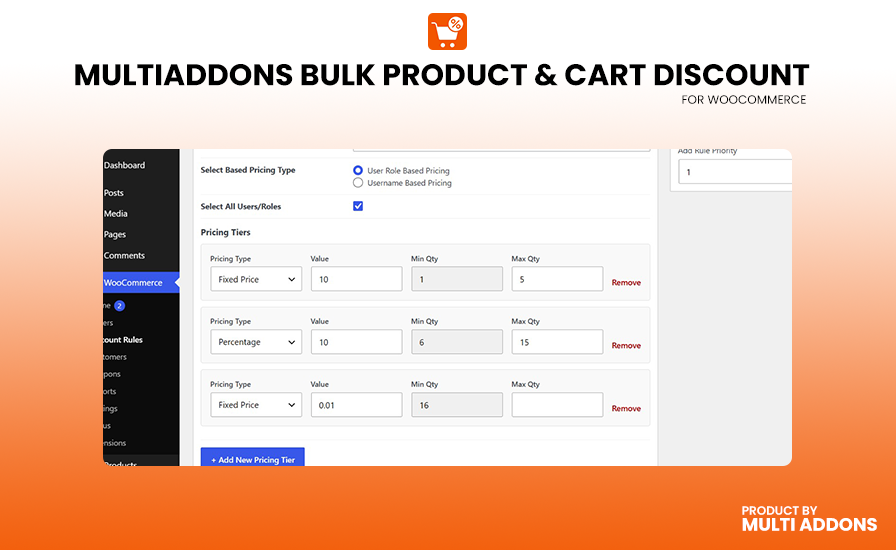
- You set one or more Pricing Tiers, each with a minimum quantity, optional maximum quantity, pricing type (fixed or percentage), and discount value.
- You optionally restrict each tier to specific user roles or customers.
- Customers automatically receive the correct discounted price on the product page and in the cart.
Free vs Pro
The free version supports up to 2 Discount Rules and up to 2 Pricing Tiers per rule. Upgrade to Pro for unlimited rules and tiers, along with advanced targeting and scheduling features.
Configuration & Usage
Step 1: Enable the Plugin
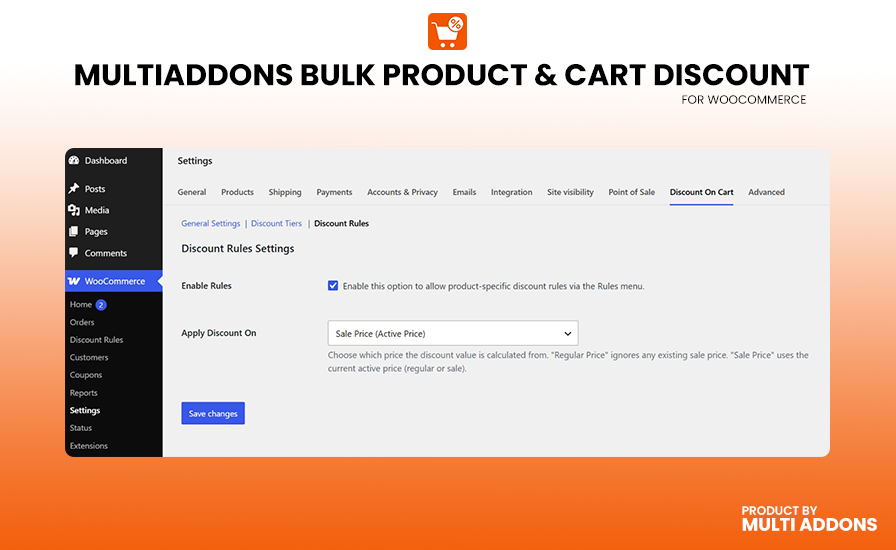
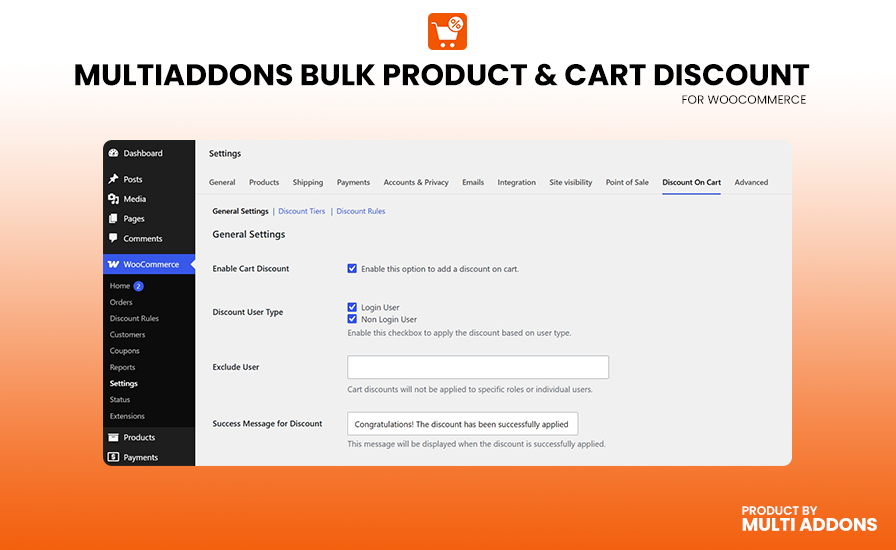
- Go to WooCommerce > Settings > Discount On Cart.
- Click the General Settings tab.
- Check Enable Discount Rules to activate the rule engine.
- Click Save Changes.
Step 2: Create a Discount Rule
- In your WordPress admin, go to Discount Rules (appears in the left admin menu after enabling).
- Click Add New Discount Rule.
- Give your rule a title (e.g., “Bulk Buyers Discount”).
- Set a Priority number — lower numbers run first when multiple rules match a product.
- Choose Enable Rule to make it active.
Step 3: Select Target Products
In the Include Products/Categories section, choose one of:
* All Products — applies to every product in your store.
* Specific Products — search and select individual products.
* Specific Categories — search and select product categories.
Optionally, use the Exclude Products/Categories section to remove specific products or categories from the rule’s scope.
Step 4: Set Up Pricing Tiers
- Scroll to the Pricing Tiers section.
- Click + Add New Pricing Tier to add a tier.
- For each tier, configure:
- Pricing Type —
Fixed Price(deducts a flat amount from the product’s regular price) orPercentage(deducts a percentage of the regular price). - Value — The discount amount or percentage.
- Min Qty — The minimum cart quantity for this tier to activate.
- Max Qty — (Optional) The maximum quantity for this tier. Leave blank for no upper limit.
- Pricing Type —
- Repeat to add more tiers for different quantity brackets.
Step 5: Set User Targeting (Optional)
Choose who receives the discount:
* All Users/Roles — Everyone gets the discount.
* User Role Based Pricing — Select one or more WordPress roles per tier.
* Username Based Pricing — Search and select specific customer accounts per tier.
Step 6: Set Dates (Optional)
Each tier supports optional Start Date and End Date fields. Leave blank to make the tier always active.
Step 7: Save
Click Publish (or Update) to save your rule. It takes effect immediately on the storefront.
Viewing the Result
- On any targeted product page, customers will see a Volume Pricing table showing each tier’s quantity range, discounted price, and savings.
- When customers add items to the cart, the discount is automatically applied to the cart price.
Screenshots
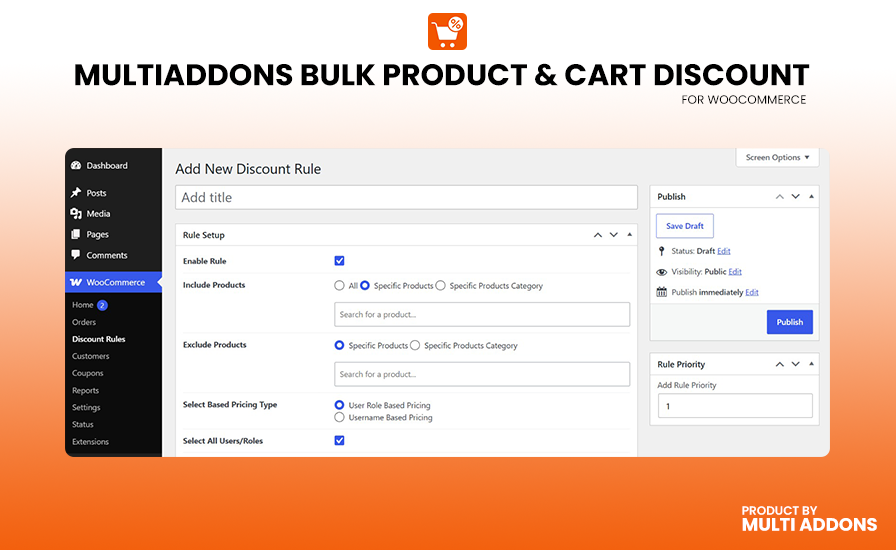
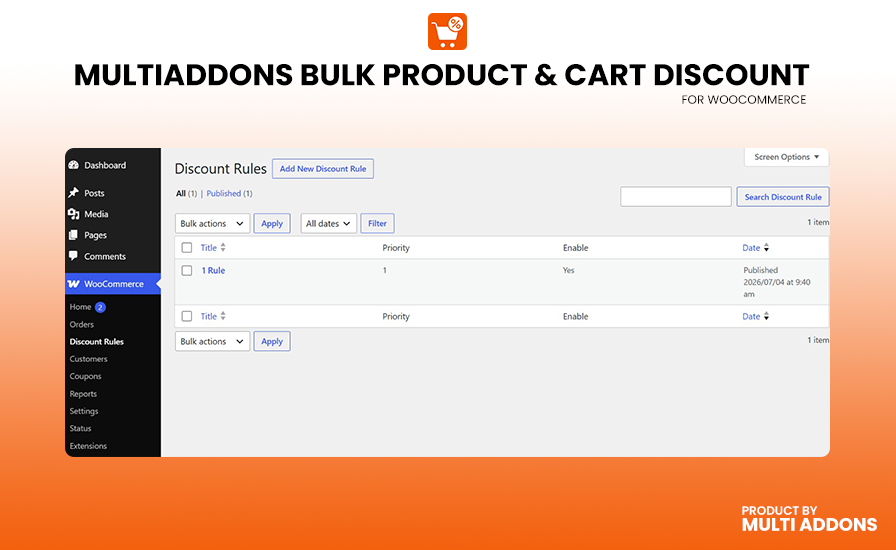
Discount Rules list — manage all your rules from one screen.
Rule editor — configure products, categories, pricing tiers, and user targeting.
Pricing tiers — set quantity brackets, pricing type, discount value, and per-tier user restrictions.
Product page — volume pricing table shown to customers.