Nevua Booking Wordpress Plugin - Rating, Reviews, Demo & Download
Plugin Description
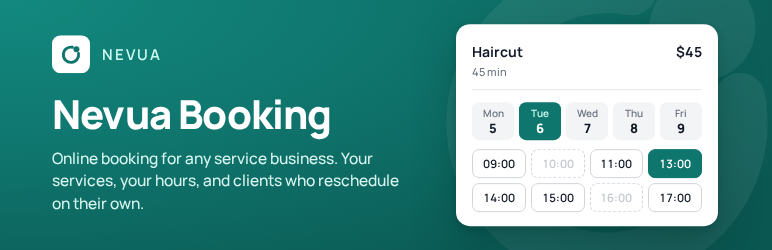
Nevua Booking turns your WordPress site into your booking desk. Clients pick a service and a time, and get a confirmation by email with the booking ready to add to their calendar. You see your day, your week and every booking from one screen in wp-admin.
It suits any business that works by appointment: studios, salons, consultants, classes, repairs, clinics, tutors.
What is included
- A booking form for any page: add the Booking form block (pages, site templates and widget areas) or the
[nevua_booking]shortcode. It takes your theme’s font and adapts to the width it is given, from a full-width page to a narrow sidebar. - The Booking Form page: a template, your brand color, font and corners, what the form shows and your own fields, with a live preview of the real form.
- Services and working hours: durations, prices and breaks between appointments; a different schedule for each weekday, with breaks such as lunch; days off; and how early and how far ahead clients can book (two hours’ notice unless you change it).
- Custom fields: ask clients exactly what you need.
- Confirm at once or approve each booking: your choice. Waiting clients are told their request was received, and get the confirmation when you confirm it.
- Emails that do the work: confirmation with a calendar file (.ics), reminder, cancellation, and a notice for you on each new booking.
- Clients reschedule or cancel on their own, from a link in their emails, up to the notice you set.
- Your day at a glance: today’s bookings around your working hours, the free time left, and the week’s load.
- Bookings: upcoming first and grouped by day, or by any period you pick, exported as a spreadsheet. Confirm, reschedule, cancel, or mark a past booking as attended or as a no-show. Book a client yourself, even one who gave you no email.
- Paid at the visit or ahead by PIX: show clients your PIX key or bank details to pay before the session, and mark a booking paid, with how it was paid. Prices are in the currency you choose in Settings.
- Answers checked as they are typed: phone and your country’s tax id are masked, and email is checked, in the form and again on the server. Tax ids: CPF or CNPJ (Brazil), RUT (Chile), CUIT or DNI (Argentina), CI or RUT (Uruguay), DNI or RUC (Peru), C.C. or NIT (Colombia), RFC (Mexico).
- No spam bookings, no puzzle: an invisible check turns away booking robots, and each visitor can book only a few times a minute.
- Privacy tools: a client’s bookings are included in WordPress’s export and erase personal data tools.
- Languages: the admin screens and the booking form come in English, Portuguese (Brazil) and Spanish. Emails and the other texts follow your site’s language as its translations reach translate.wordpress.org.
Nevua Booking PRO
An optional paid upgrade adds online payments (Stripe, PayPal and Mercado Pago, including PIX), deposits, session packages, a waitlist, receipts, several professionals with their own schedules, locations, WhatsApp and SMS notifications, online meeting links, Google Calendar and Outlook sync, weekly series of bookings and reports. None of it is needed to take bookings with this plugin. See wpnevua.com for PRO.
External services
This plugin connects to one external service:
- Freemius (freemius.com) handles the plugin’s licensing, its upgrade and its updates for PRO.
- Only if you opt in when you activate the plugin, Freemius receives your name and email, your site’s address, language and IP, the WordPress, PHP and plugin versions, and, if you allow it, the list of your plugins and themes. It is used to send you security and feature updates and to improve the plugin. Skip the opt-in and none of this is sent; you can opt out later with the Opt Out link under Nevua Booking on the Plugins screen.
- The upgrade page (Nevua > Plan > Upgrade to PRO) asks Freemius for the current PRO prices, about once a day. It sends only your site’s address (in the request’s header), nothing about you or your clients.
- When you deactivate the plugin, Freemius may ask why. Only if you answer, the reason you picked is sent; without the opt-in it goes with an anonymous id, not your name or email.
- Terms of service, privacy policy.
Bookings, clients and settings stay in your WordPress database.
Source code
The admin screens and the booking form are Vue apps. The minified JavaScript and CSS in dist/ are built from the human-readable source in src/, which ships with the plugin, together with package.json, bun.lock and the Vite, TypeScript, Tailwind and PostCSS configuration.
To build it yourself:
- Install Bun (or use npm).
- In the plugin folder, run
bun install, thenbun run build.
The build writes dist/, the same files the plugin loads.
Screenshots

Dashboard: today’s sessions around the clock, the free gaps you can still book, and the week at a glance.

Bookings: upcoming and past bookings by day, with search, status filters and one-click confirm.

Services: duration, break time and price for each service, switched on or off for the booking form.

Booking Form page: style, sections and custom fields in tabs, beside a live preview of the real form.

Booking form: clients choose a service on your own page.

Booking form: a day of the week and a free time, then the client’s details.

Client page: from the link in their email, clients reschedule or cancel on their own.