
Ni Stock Import Export Wordpress Plugin - Rating, Reviews, Demo & Download
Plugin Description
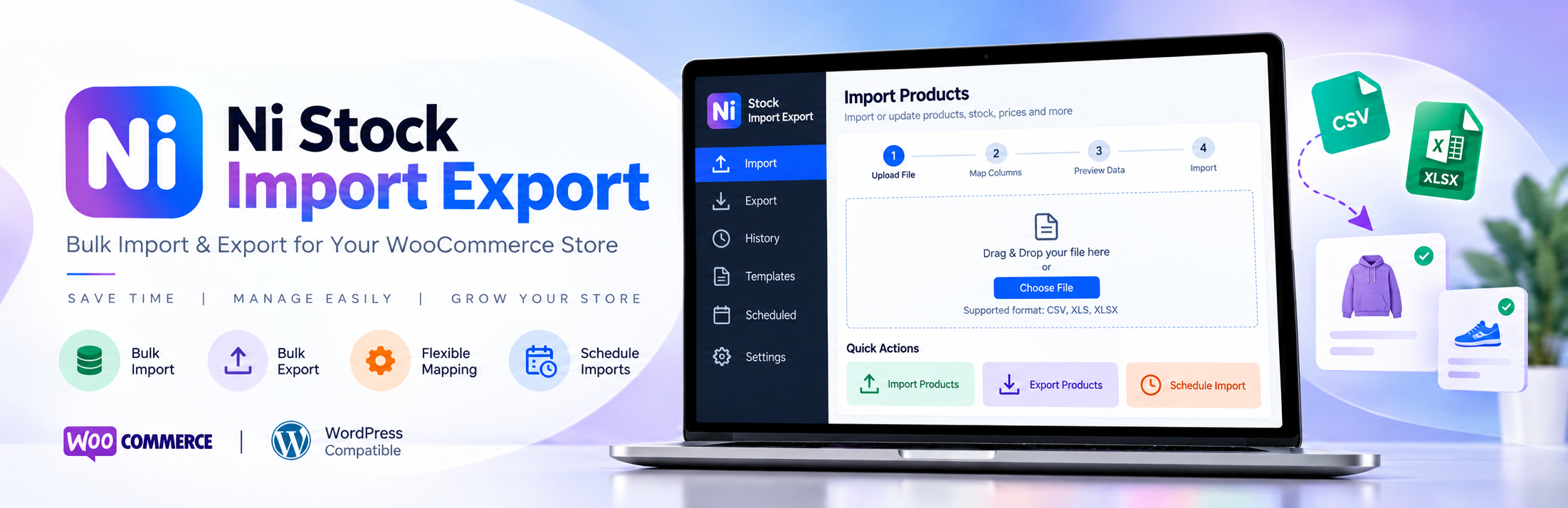
Ni Stock Import Export is a WooCommerce stock import and export tool. Update stock quantities for many WooCommerce products and variations at once using a CSV spreadsheet, without editing products one by one, and without risking the wrong product being changed.
The plugin is built around one safe workflow: download your current stock, change the quantities, upload the file, review exactly what will change, and confirm. Nothing in your store changes until you confirm.
Each row is matched by product ID and verified against its SKU, so a row can never update a different product. If stock changes after you review the preview (for example, because an order comes in), that product is reported as a conflict instead of being overwritten.
Features
- Download current stock as a CSV file, filtered by product type and category, with or without variations.
- Edit in Excel, Google Sheets or any spreadsheet app. Only the
stock_quantitycolumn needs to change. - Upload with drag & drop. The file is checked before anything else happens.
- Validation of the file format, template version, columns, product IDs, SKUs and quantities, with a clear explanation for every rejected row.
- Preview of changes against your current WooCommerce stock: current stock, new stock and the difference for each product, with search, filters and pagination.
- Explicit confirmation before any stock is updated.
- Conflict detection: a product whose stock changed after the preview is not overwritten.
- Background processing in batches, so large files do not time out. Progress is shown live and the import continues if you leave the page.
- Cancel an import at any time, and resume an import that stopped (for example after a server interruption).
- Import history with the outcome of every import and downloadable error and conflict reports.
- Simple products, variable products (stock managed on the parent) and individual variations.
How It Works
- Download Current Stock. Go to Ni Stock Import Export Download Stock and click Download CSV.
- Open the CSV in Excel or Google Sheets.
- Change only
stock_quantity. Leave every other column as it is. - Save as CSV (in Excel: File Save As CSV UTF-8).
- Upload the CSV on Ni Stock Import Export Import Stock.
- Review the preview. You see every change, every row that cannot be imported and why.
- Confirm the stock update. Only now is WooCommerce stock changed.
Nothing changes during upload, validation or preview.
The uploaded quantity is the final stock (“set stock to 50”), not an adjustment (“add 50”).
Usage
Download. Choose a product type (or all), a category (or all) and whether to include variations, then click Download CSV.
Import. Drag the edited CSV onto the upload area (or click Choose CSV File) and click Validate & Preview. The file is checked in the background; large files show a progress bar.
Review. The preview shows how many rows are valid, changed, unchanged and rejected. Only changed rows are listed by default; use the filter to see increases, decreases or unchanged rows. Rejected rows are listed separately and can be downloaded as a CSV error report.
Confirm. Click Confirm & Update Stock and confirm in the dialog. Stock is updated in batches with live progress. You can cancel at any time; products already updated keep their new stock.
Result and history. After the update you see how many products were updated, skipped, in conflict or failed. Every import is listed under Import History, where you can reopen its details and reports.
CSV Format
The downloaded file starts with a template line (nistimex_template_version,1.0) followed by a header row and one row per product or variation.
product_id(identity, do not edit): the WooCommerce product or variation ID, used to find the product.sku(identity, do not edit): the product’s SKU, used to verify the row matches the product.product_name(informational): for your reference only; changes are ignored.product_type(informational): simple, variable or variation.parent_id(informational): for variations, the ID of the variable product.stock_quantity(editable): the new stock quantity, as a whole number. Leave it empty to keep the current stock.stock_status(informational): in stock, out of stock or on backorder; WooCommerce updates it automatically.manage_stock(informational):yes,no, orparent(the variation’s stock is managed on its parent product row).backorders(informational): the product’s backorder setting.
Rows with an empty stock_quantity are left unchanged. Rows for products that do not manage stock, and variations whose stock is managed by the parent, can only be left empty.
Import Workflow
Upload Validate Review Confirm Complete.
- Upload: only
.csvfiles are accepted. The file is stored privately and deleted as soon as it has been read. - Validate: each row is checked against WooCommerce: the product must exist, its SKU must match exactly, its stock must be managed at that level, and the quantity must be a whole number. Duplicate product IDs or SKUs are rejected.
- Review: changes are calculated against the stock in WooCommerce now, not the stock in the downloaded file.
- Confirm: you confirm in a dialog that states how many products will change.
- Complete: each product is updated only if its stock still matches the preview. Otherwise it is reported as a conflict.
Security
- Only users with the Manage WooCommerce capability can use the plugin.
- Every action is protected against cross-site request forgery (nonces) and checked for permission on the server.
- Uploaded files:
.csvonly, type- and content-checked, size-limited, stored under a random name in a protected folder, never executed, and deleted after validation. - Products are identified by product ID and verified by SKU. Product names in the file are never used to identify products.
- Stock is written with a compare-and-set update and WooCommerce’s own stock functions, so stock status, the product lookup table and WooCommerce hooks stay in sync.
- Privacy: the plugin does not send any data to external servers. It has no tracking or telemetry.
Requirements
- WordPress 6.5 or later
- WooCommerce 8.0 or later (tested up to 11.1)
- PHP 7.4 or later (tested with 7.4, 8.1 and 8.2)
- MySQL/MariaDB with permission to create tables (two tables store import history)
Limits: there is no limit on the number of products or imports. The upload size is limited to 20 MB or your server’s upload limit, whichever is smaller (roughly 250,000 rows). The download is generated in a single request. In our tests, 50,000 products downloaded in under 2 minutes with about 115 MB of PHP memory; much larger catalogs, or slower servers with strict time limits, may need per-category downloads. See the FAQ.
Screenshots
No screenshots provided

