OrderArc – Order Archive For WooCommerce Wordpress Plugin - Rating, Reviews, Demo & Download

Plugin Description
On stores with tens or hundreds of thousands of orders, the WooCommerce orders screen gets slow and order search can stop working altogether (the server cuts the request before it finishes). Most of those orders are years old and nobody opens them, but every search still has to go through them.
OrderArc moves old orders into separate archive tables inside your own database. The orders screen and search only see recent orders, so they are fast again. Archived orders are still there: you can search them, open them and restore them with one click.
How it moves orders
- Every row of an order is moved: the order, addresses, items, item meta, notes, order meta, refunds, the legacy
wp_posts/wp_postmetacopy when there is one, and rows that other plugins keep per order (detected automatically, for example invoices or tracking numbers). - Each batch runs inside one database transaction. Before anything is deleted, OrderArc checks that the copy has the same number of rows and the same checksum of every column as the original. If anything differs, the whole batch is rolled back and those orders are not touched.
- It does not use the WooCommerce order API to move orders, so no emails are sent, stock is not changed and no “order deleted” hooks run.
- The order number stays reserved, so a new order never reuses an archived number.
- WooCommerce Analytics and reports keep counting archived orders (their tables are not moved).
- Download links that customers already received keep working; archived orders do not appear under Downloads in My Account.
What you get
- Overview: how your orders are stored (HPOS, legacy, with or without sync), how many orders are ready to archive, and a button that measures how long a real WooCommerce order search takes on your site.
- Preview before archiving, then “Archive now” or a daily automatic run.
- Runs in the background with Action Scheduler (included with WooCommerce), inside a time window you choose (01:00–06:00 by default), and slows down by itself if the server gets slow.
- If the site had no traffic during the night and the run did not start, it can continue slowly during the day or wait for the next night (your choice).
- “Archived orders” tab: search by order number, email, name or phone, open any archived order (read-only) and restore one, several or all.
- An “Archived (N)” link in the WooCommerce orders list, and old links to an archived order open its archived view.
- Customers see their archived orders under “Older orders” in My Account (only orders placed with their own account).
- Works with HPOS (with or without sync) and with legacy order storage.
- Orders that have child orders other than refunds (for example subscriptions), and renewal orders of a subscription, are never archived.
- Personal data requests (Tools Export Personal Data and Erase Personal Data) also cover archived orders, following the WooCommerce setting for removing personal data from orders.
What it does not do
- It does not delete orders. Archived orders stay in your database until you restore them.
- It does not send your data anywhere. Everything happens on your own server.
Screenshots

Overview: how orders are stored, how many are ready to archive, and how long a real WooCommerce order search takes.

Archive tab: choose statuses and age, preview exactly what would move, then archive now or every night.

Archived orders: search by number, email, name or phone, and restore one, several or all.
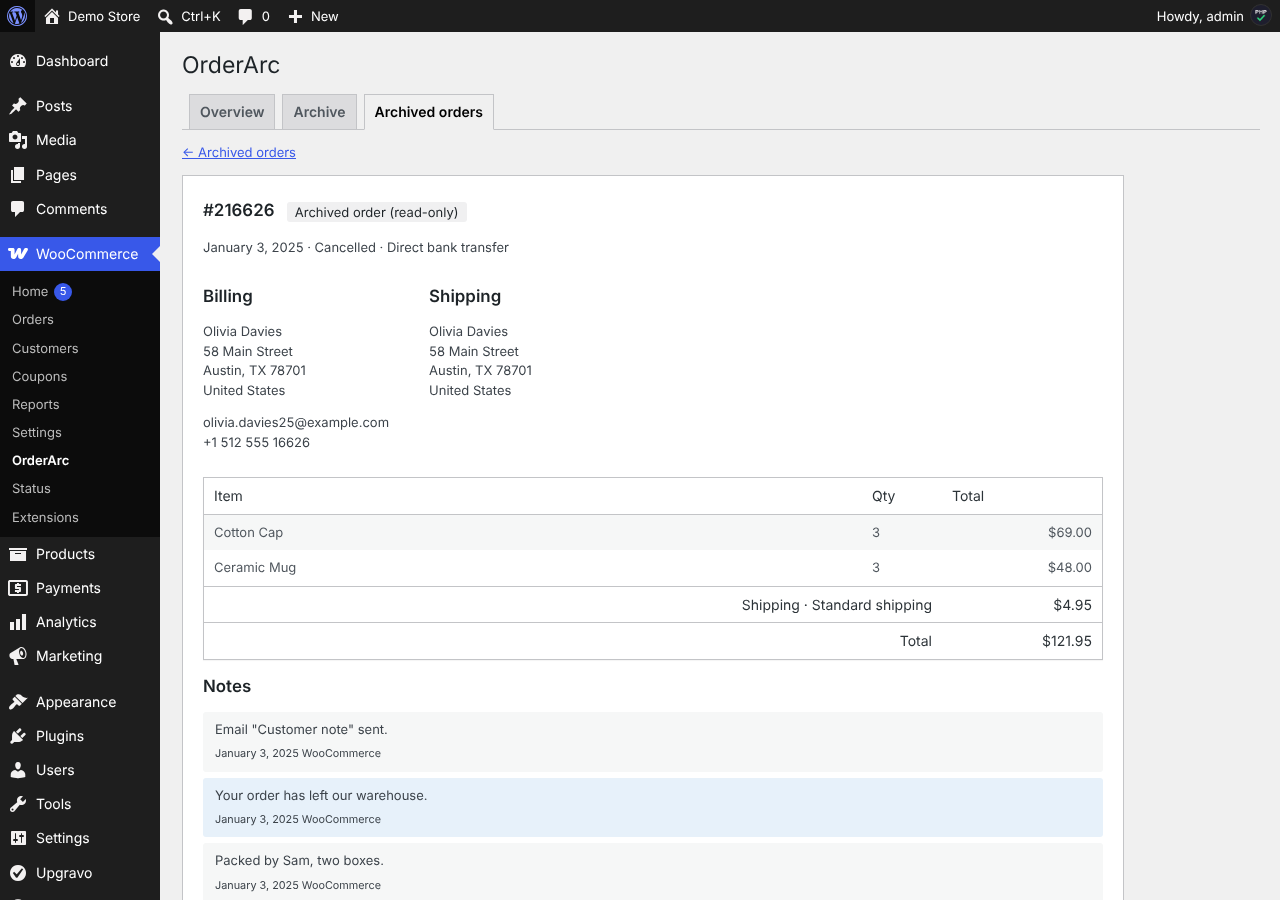
An archived order, opened read-only, with a Restore button.

The WooCommerce orders list with the “Archived” link.

My Account: customers still see their own archived orders under “Older orders”.