
PageCore Wordpress Plugin - Rating, Reviews, Demo & Download

Plugin Description
PageCore is the companion plugin for the PageCore FSE block theme. It is made of modules, and you decide which ones run on your site.
Switching a module off stops it running. It never removes anything the module created, so turning a module back on picks up exactly where it left off.
Modules
Modules appear automatically under PageCore in the admin menu. Each one owns its own screen, its own settings and its own data.
Some modules have no screen of their own and only change how blocks behave, such as Tablet Navigation and Absolute Position. Switch them on or off on the PageCore Settings screen. Tablet Navigation changes every Navigation block on the site, so it starts switched on only when the PageCore FSE theme is active; under any other theme it waits until you switch it on. Each of these modules saves its setting on the block as a CSS class, so switching a module off returns those blocks to how WordPress draws them, and switching it back on restores the setting.
Your data
PageCore only ever removes what PageCore imported, together with what depends on it. It has no “reset the site” option, and content PageCore did not import is not deleted.
A site holds one demo at a time. Importing another demo replaces the one already there, and the wizard asks you to agree first. It gives you a different complete site, so the demo already there goes completely: its pages, posts, images, templates, menus, categories and tags, and its WPForms contact forms. What depends on those goes with them: comments left on its pages and posts, the messages sent through its forms, menu items that link to its pages, and any changes you made to them. PageCore lists all of this and asks before anything is removed. Your own pages, posts and forms stay, though they can lose links or images that pointed at what was removed.
Every import keeps a record of what it did, and that record separates two things that are not the same. What the import created is deleted when you remove the demo. What the import changed without creating, such as your settings and your Styles record, is written back to what it held before rather than deleted. The record is kept in the database, where it is not reachable from the web.
That distinction is what makes importing a demo over a site you have already styled safe to undo. There is one Styles record per theme, so a demo does not add one, it overwrites yours. Your colours, fonts and custom CSS stay yours, and removing the demo gives them back.
Deleting the plugin leaves everything alone unless you have switched on “Remove Data on Delete” first, under PageCore > Settings > Advanced. With it on, deleting the plugin also removes its settings, your saved Design Library favorites, the demos it imported with what depends on them, and the fonts it downloaded. Content PageCore did not import is not deleted. On a multisite network each site makes this choice for itself. Favorites belong to each user rather than to one site, so on a network they are removed only when every site that used PageCore has this switched on.
Source code
The JavaScript in build/ is compiled with @wordpress/scripts from the readable sources that ship beside it, in src/ and modules/*/src/.
External services
PageCore only contacts another site when you ask it to, and only for the tasks below. It has no analytics or tracking of any kind. Three kinds of connection are involved, each described in its own section below: PageCore’s own content requests, made by your server; demo screenshots, loaded by your browser; and plugin or theme installs from WordPress.org, made by WordPress itself.
What PageCore’s own content requests contain
PageCore’s own content requests are the ones the plugin’s PHP makes to read demo manifests, demo content, pattern files, images and fonts. Each is a GET request, and everything it carries is listed here, so you can check this against what your server actually sends:
- The address being fetched.
- A user agent of “PageCore/” and the plugin’s version number, such as “PageCore/1.0.0”, and nothing else.
- An “Accept” header naming the kind of file it expects: JSON for a demo document, any type for an image or font file.
- No cookies, no WordPress credentials or authentication, no request body, no analytics, no account data, none of your site’s content, and no header naming your site, your licence, your account or your WordPress version.
Screenshots loaded by your browser and installs from WordPress.org do not go through these requests. They carry the normal information described under “Demo screenshots, loaded by your browser” and “WordPress.org” below.
Nothing is fetched on a schedule. PageCore reads a demo the first time you open a screen that needs it, and after that only when you press Sync or run an import. Your server’s own IP address is visible to the host being fetched, as it is for any outbound request from any plugin.
Which addresses PageCore will connect to
Only the hosts written in modules/demos/demos.json, which ships with the plugin and sits on your own disk, and the address the Style Library’s fonts are downloaded from.
Nothing a demo says can add to that list. A manifest or a pattern file can name a host that is already trusted; it cannot introduce a new one, and an image published anywhere else is left alone and reported rather than fetched.
Every request must be https, and any address resolving to a loopback, private, link-local or otherwise reserved IP is refused. A redirect is followed only to a host on the list above, at most three times, and each one is checked against all of these rules before it is requested. Every response is capped: 8MB for a demo document, 32MB for one image and 10MB for one font file. Anything larger is abandoned and the partial file deleted.
PageCore demo sites
The Starter Sites screen lists the demo sites at https://demos.pagecore.net and imports one when you choose it. To do that it reads each demo site’s public manifest, then downloads that demo’s content and images from the same site. The Design Library reads its patterns the same way, from the pattern files published at https://pagecore.net/pagecore-content/patterns/. The Style Library downloads a style’s font files from https://pagecore.net/pagecore-content/fonts/ when you import that style. All of these addresses are written in the plugin (modules/demos/demos.json and the Style Library), so you can see exactly where it connects.
These are public files, served to anyone who asks for them. PageCore sends a demo site nothing about your site in order to read them, and it does not report back to any demo site that an import happened.
Demo screenshots, loaded by your browser
The screenshots on the Starter Sites screen and in the Design Library are addresses, not files bundled with the plugin, so that listing hundreds of demos does not make the plugin larger. Your browser fetches each one directly from the address the demo list gives. The style thumbnails on the Style Library screen are loaded the same way, by your browser, from https://pagecore.net/pagecore-content/styles/.
That request comes from your browser rather than from your server, so it carries what your browser normally sends: its user agent and your own IP address. PageCore sets “no-referrer” on its own admin screens and on the Design Library’s large page preview, so the screenshot host (https://pagecore.net) is not told which site you are viewing them from. The smaller kit and page cards inside the block editor follow WordPress’s own admin setting instead, which tells the screenshot host your site’s domain but not which page you are on. It is still an ordinary image request to another host.
Terms of service and privacy policy: https://pagecore.net/terms.html and https://pagecore.net/privacy.html
WordPress.org
When a demo needs a plugin you do not have (currently WPForms Lite, for a demo’s contact form), the import wizard says so on its first step and offers a box on its second: “Install and activate WPForms Lite”, or “Activate WPForms Lite” when it is already installed. The box is ticked to begin with. If you leave it ticked and start the import, the wizard asks WordPress to install the plugin from WordPress.org and activate it, through WordPress’s own plugins REST endpoint, in your browser session and with your account’s permissions, exactly as the Plugins screen would. PageCore’s own code installs and activates no plugin. Untick the box and nothing is installed or activated; the demo is then imported without the parts that need the plugin, such as its contact form. The PageCore FSE theme is installed from the WordPress.org theme directory and activated when you press Install and activate, or during an import when a demo needs it and the wizard has told you so. Nothing is installed from anywhere else. The theme is fetched through WordPress’s own themes_api() and core theme installer, and the plugin by WordPress’s plugins endpoint, exactly as the Themes and Plugins screens do, so those requests carry whatever WordPress itself sends, which does include your site’s address and WordPress version. PageCore adds nothing to them. None of it happens if you decline.
Terms of service and privacy policy: https://wordpress.org/about/privacy/
Screenshots
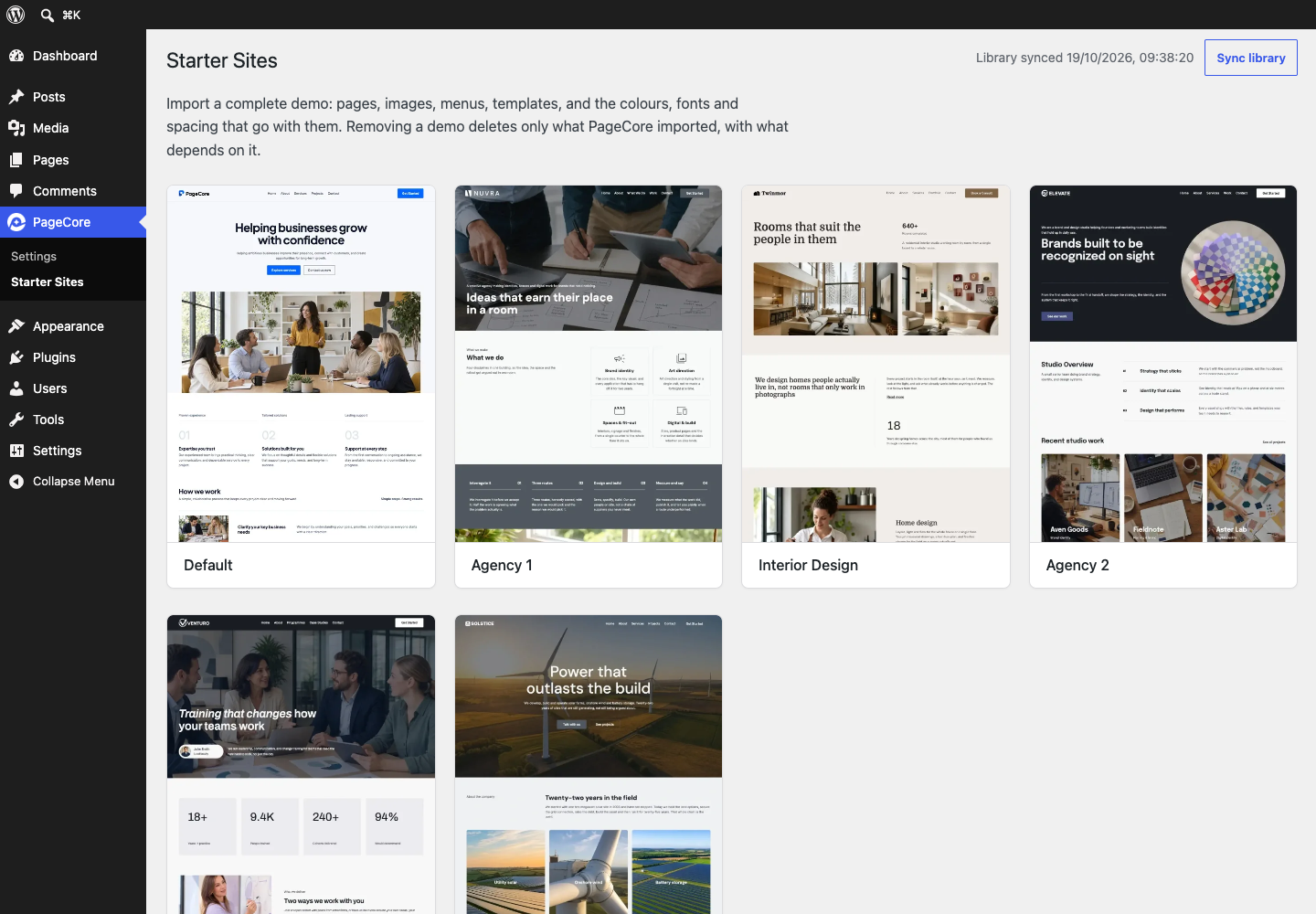
Starter Sites: complete websites to import, each with a live preview.

A starter site after import, ready to make your own in the Site Editor.
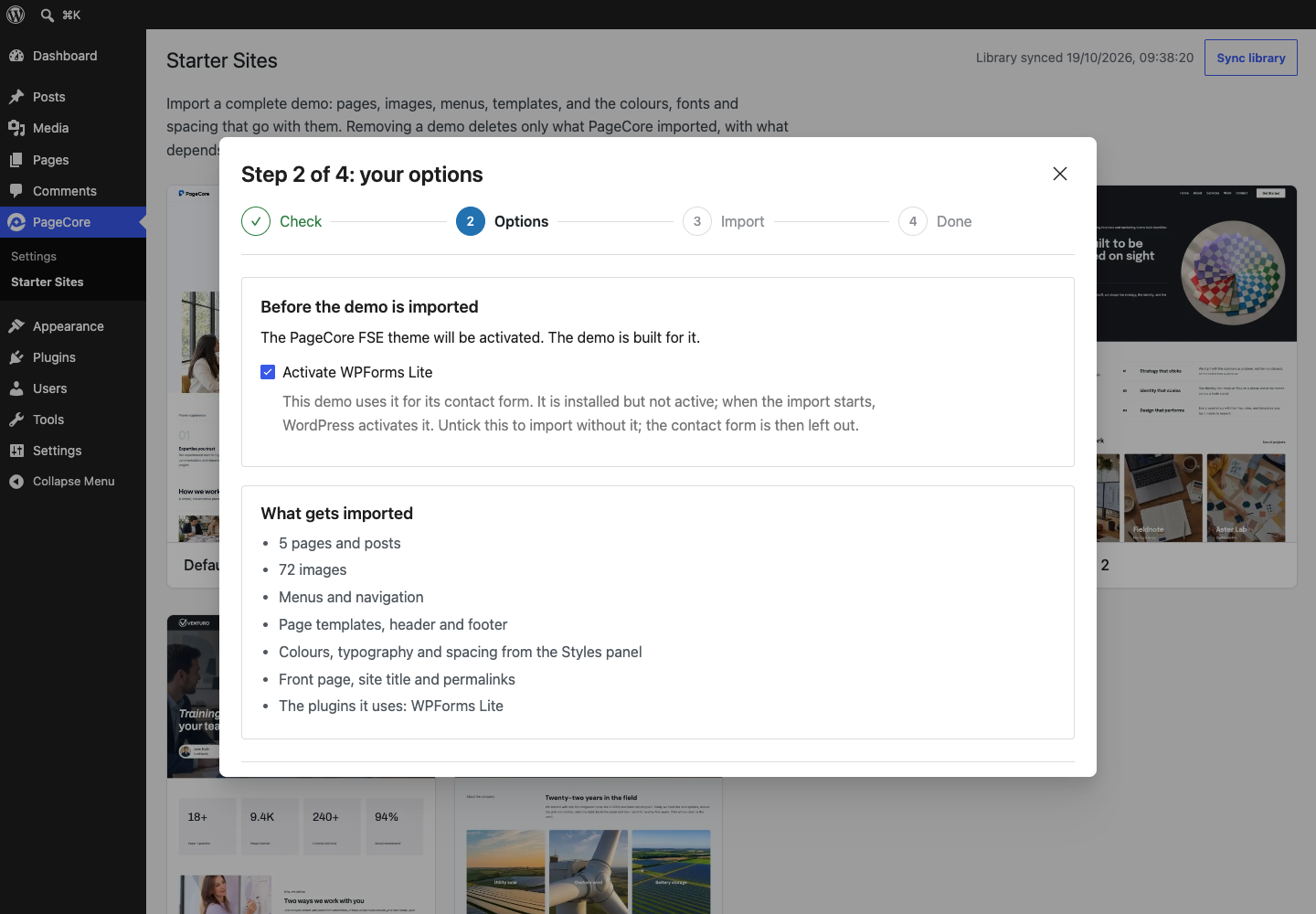
Before anything is imported, the wizard shows exactly what will come in and what the demo needs.
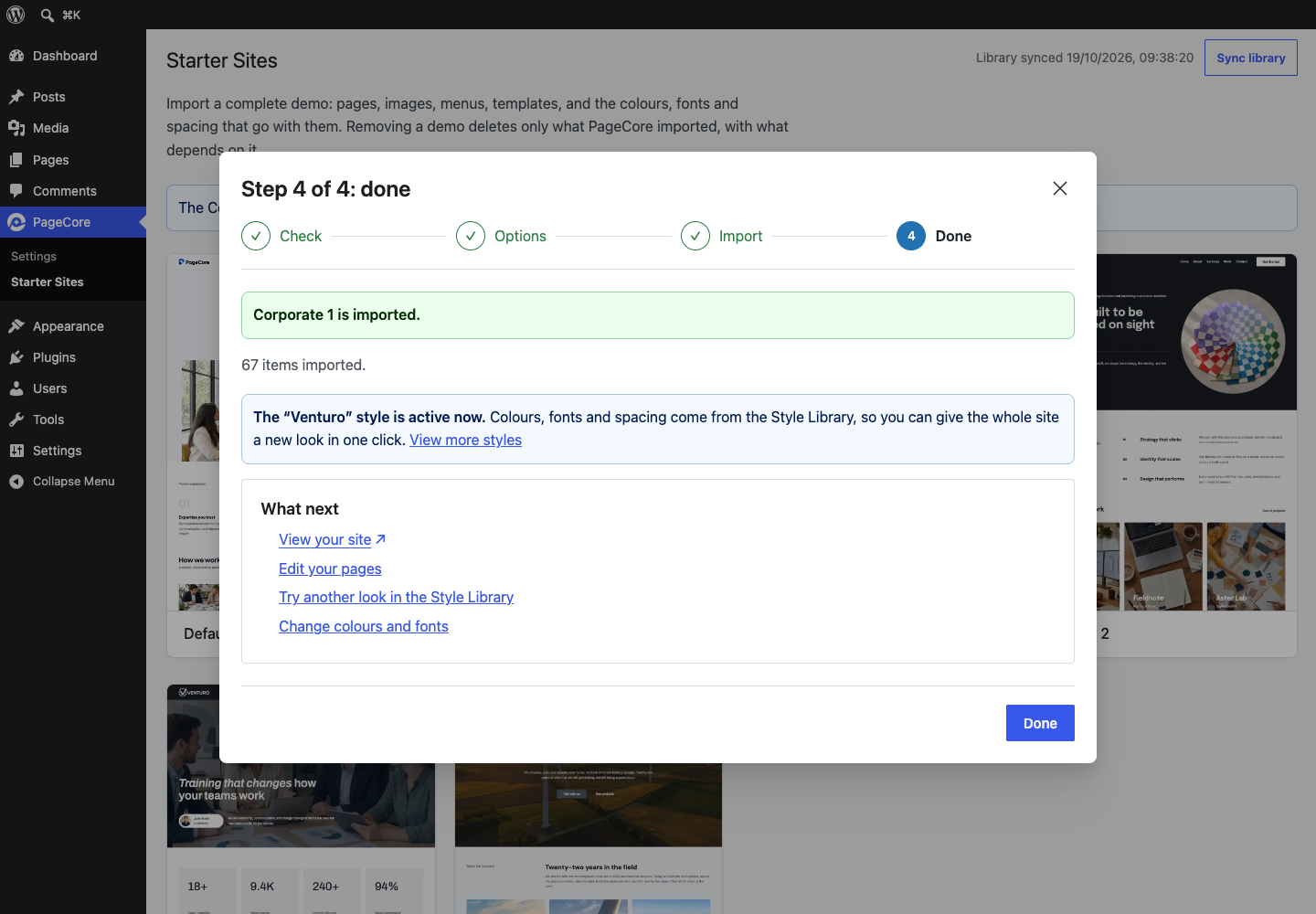
The demo is in place with its matching style, and the next steps are one click away.
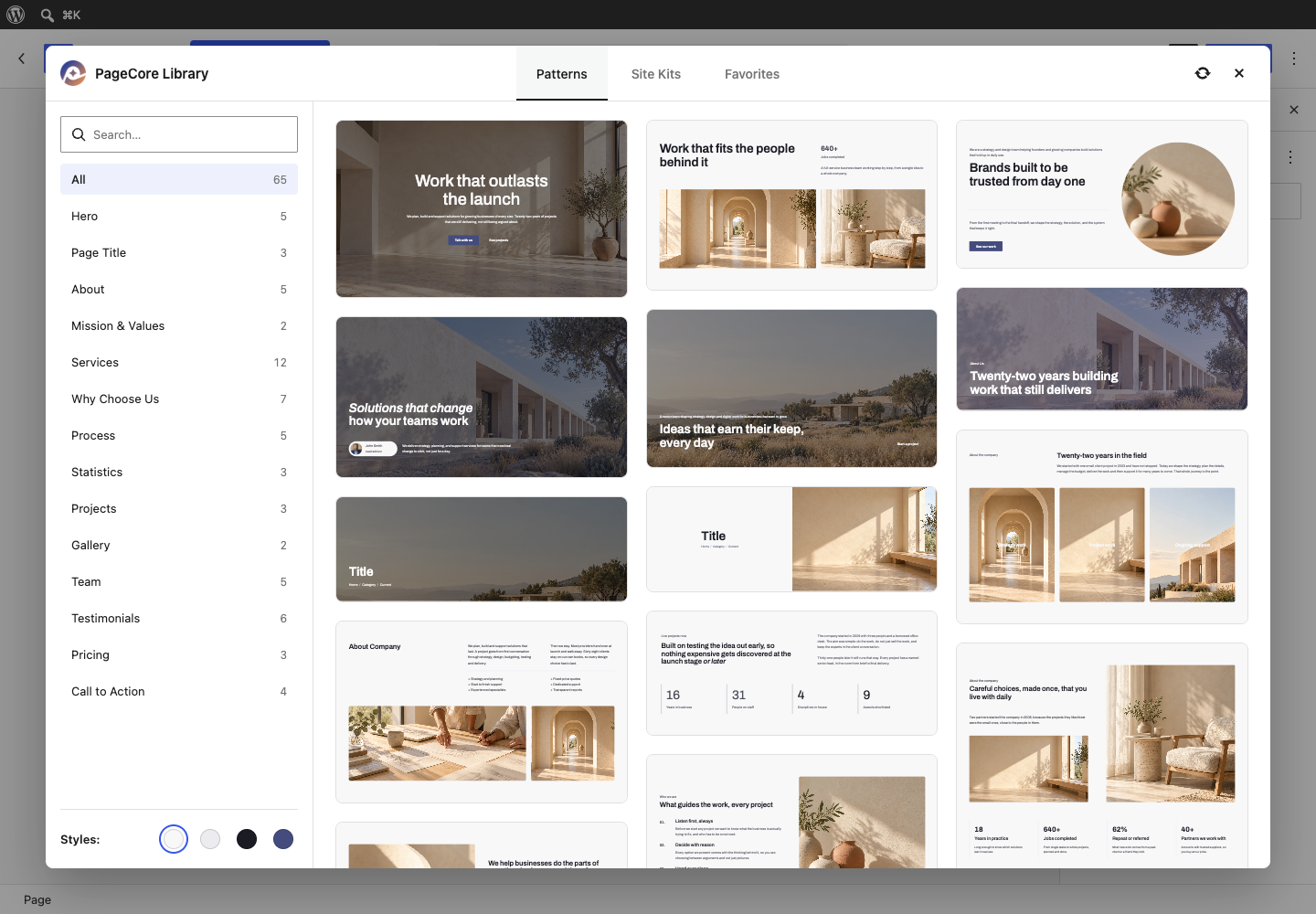
The Design Library in the block editor: ready-made sections, sorted by category.

Insert any page of a starter site as a whole page.
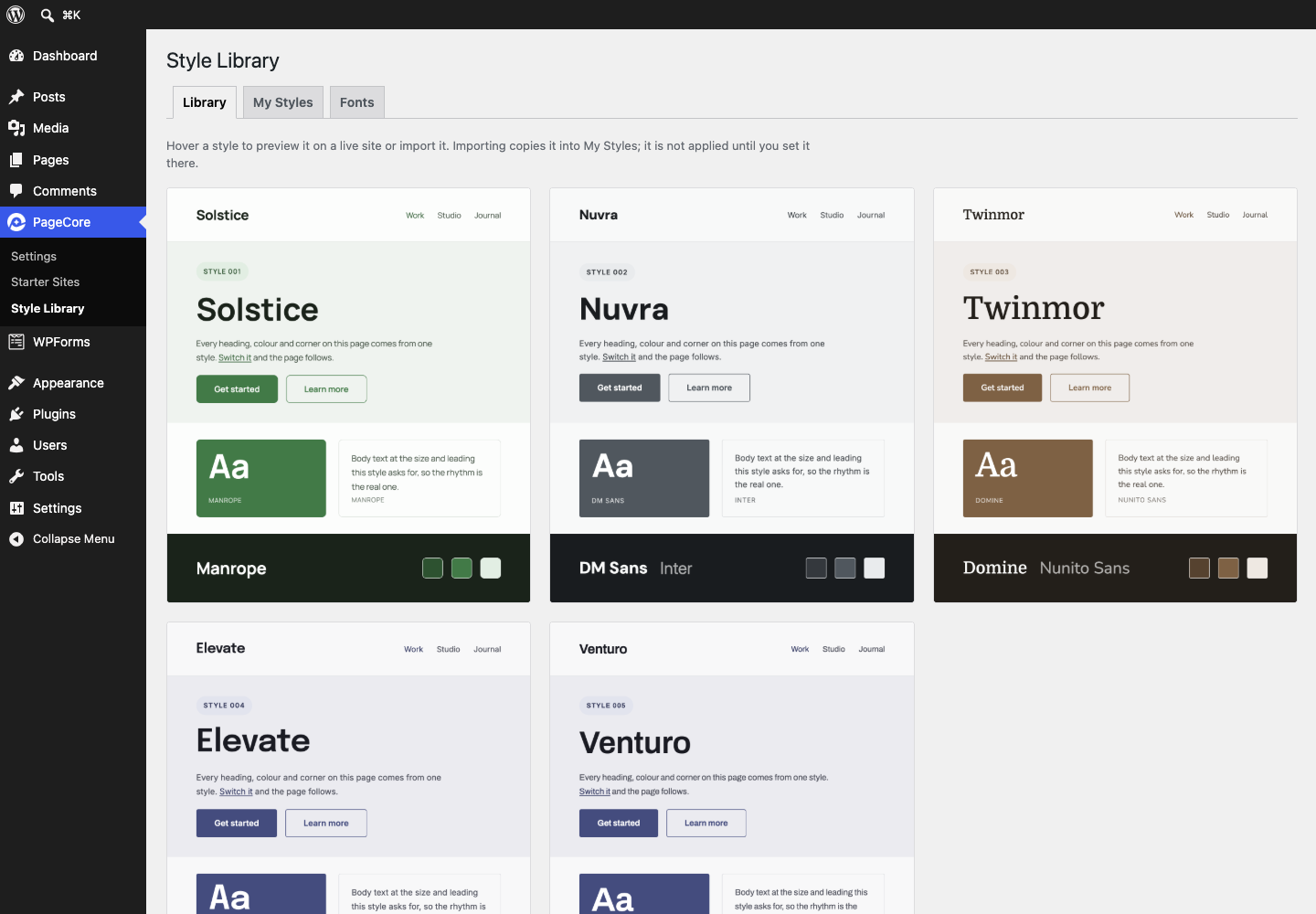
The Style Library restyles the whole site’s colours, fonts and spacing.

Settings: switch on only the features you need.


