PanelAlpha Migrator Wordpress Plugin - Rating, Reviews, Demo & Download
Plugin Description
Moving a WordPress site by hand means downloading files, exporting the database, uploading it all again and fixing links to the old address. PanelAlpha Migrator does this for you from the WordPress dashboard. You install it on your old site and on the new one, copy one address, paste it, and click Start Migration.
Everything comes along: pages, posts, images, themes, plugins, settings and user accounts. Links that point to the old address are changed to the new one while the site is copied, even inside saved plugin settings.
The plugin was made for moving sites to servers that run PanelAlpha, and PanelAlpha uses the same plugin when it moves a site for you. You can use it to move a site to any other WordPress site as well.
How to Move Your Site
- Install and activate PanelAlpha Migrator on both sites: your old site (the source) and the new WordPress you are moving to (the destination).
- On the new site, open Migrator in the dashboard menu, click the download icon (Destination) and copy the address.
- On the old site, open Migrator, paste the address and click Start Migration.
- Keep the tab open until it says the migration is complete. Then log in to the new site with the username and password from your old site.
Large Sites Are Fine
Your site travels in small pieces, and each piece is checked when it arrives. Big sites do not hit upload size or time limits on your host. If the browser closes or the connection drops halfway, open Migrator again and continue from where it stopped. Nothing is sent twice.
Move First, Switch the Domain Later
You can copy the site to the new server while your domain still points at the old one. Enter the new server’s IP address under Advanced Options (the gear icon). The new site is then ready before you change DNS.
What Gets Copied
- Every table in the old site’s database, including users and settings.
- Every file in the site folder: uploads, themes, plugins and hidden files, with their permissions and dates.
What Stays on the New Site
wp-config.php, so the new site stays connected to its own database.- The
.htaccessfile in the site folder. Copy your own redirects over by hand. - The migrator plugin and its own token.
-
Tables that exist only on the new site.
node_modules,
.gitand.svnfolders are never copied. You can leave out more files under Advanced Options.
Before You Start
The migration replaces the new site’s content with the old site’s. Each table that the old site has is deleted on the new site and created again from the old site, and files with the same path are overwritten. If the new site holds anything you want to keep, back it up first.
Treat the address you copy like a password. While the plugin is active, anyone who has it can write to the new site. When you are happy with the result, deactivate and delete the plugin on both sites.
External services
This plugin sends data to another WordPress site, and only while a migration runs.
- What is sent: the site’s files and its full database, including user accounts and settings.
- Where it is sent: the destination WordPress site whose address you paste on the Migrator page, or that PanelAlpha sets for the migration. This is a site that you or your PanelAlpha host control, usually a server managed through PanelAlpha.
- When: only while a migration started by an administrator or by PanelAlpha is running. The plugin sends nothing when no migration is running.
The plugin does not send data to PanelAlpha servers otherwise. It makes no other outbound requests.
Screenshots
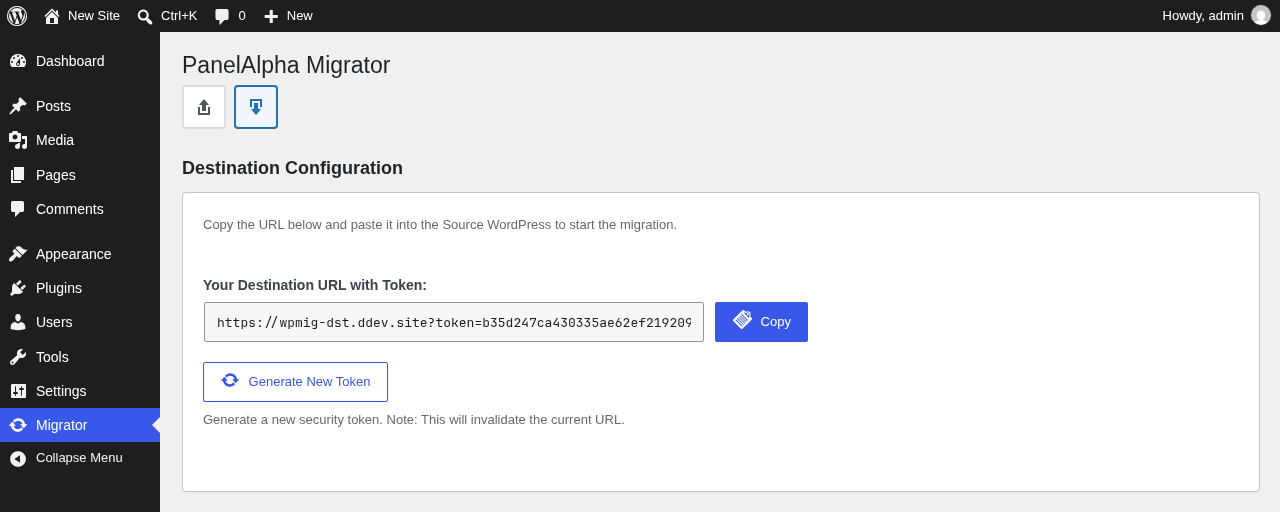
On the new site: copy the address with its token.
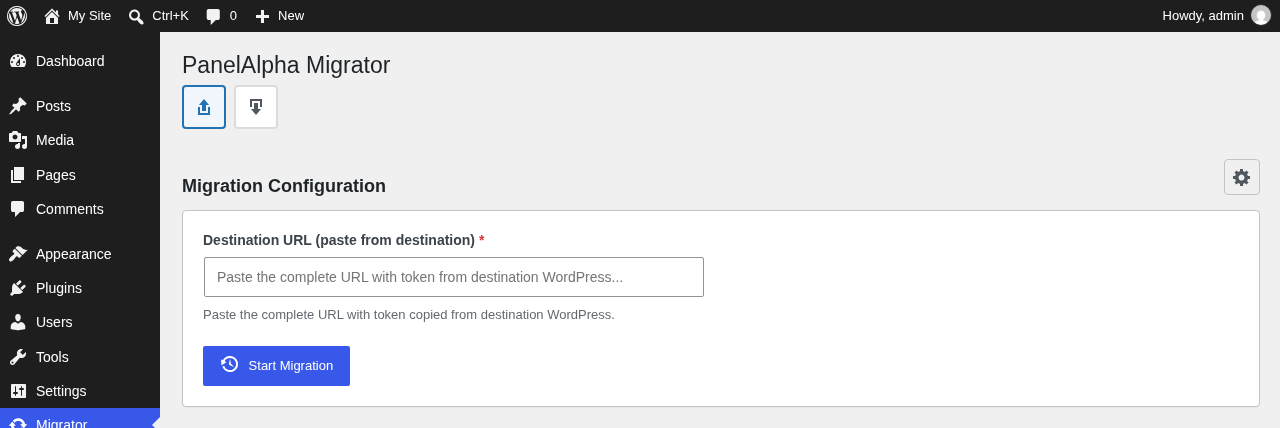
On the old site: paste the address and start the migration.
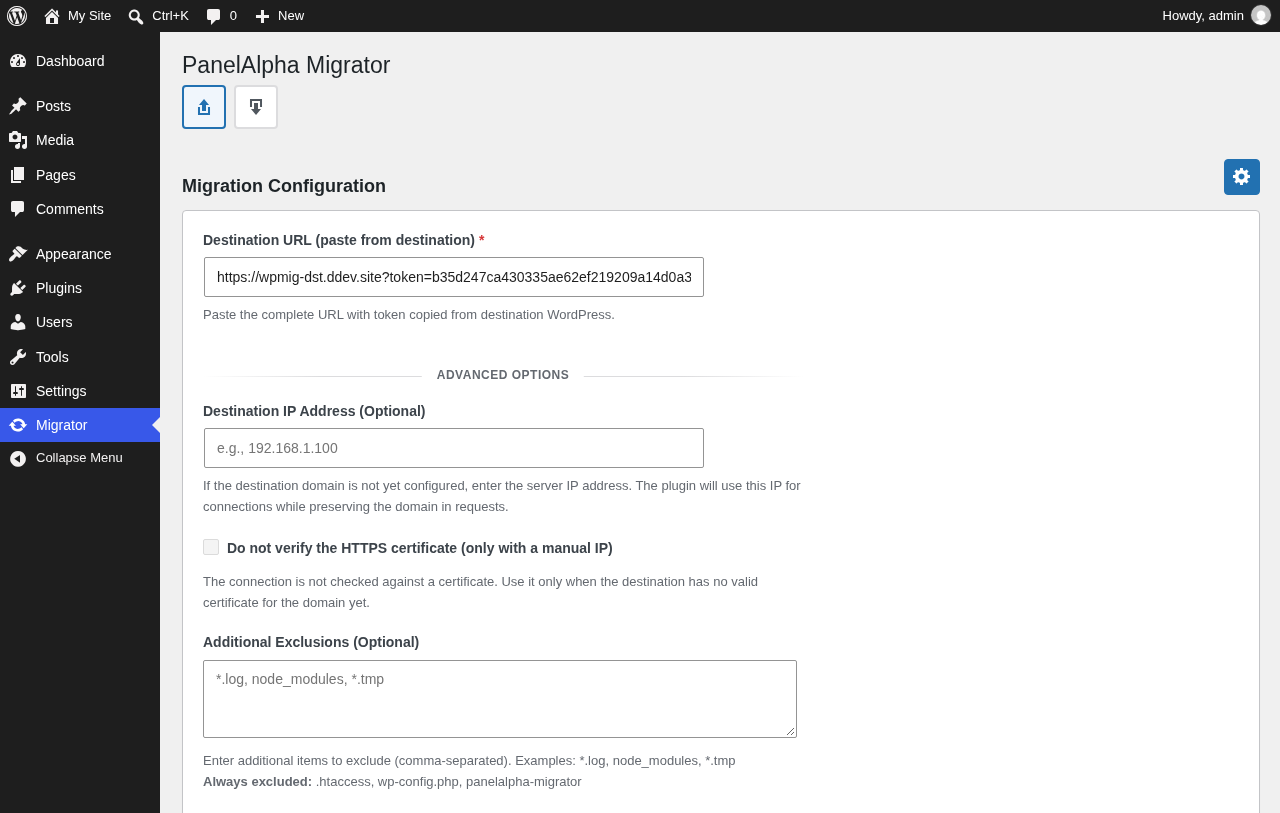
Advanced Options: move to a server before the domain points at it, and leave out files you do not need.
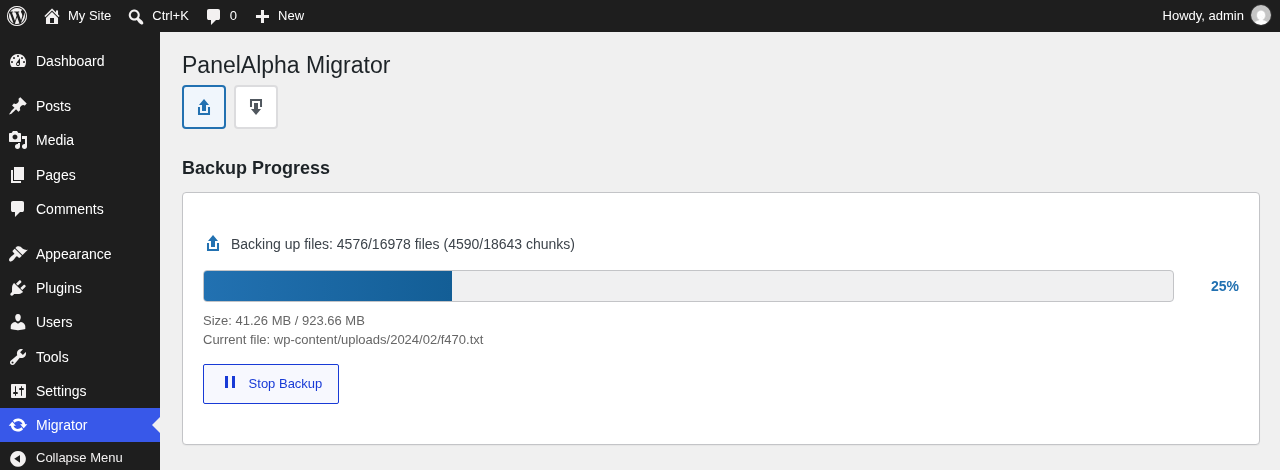
The migration in progress. Files travel in small pieces, so large sites are fine.
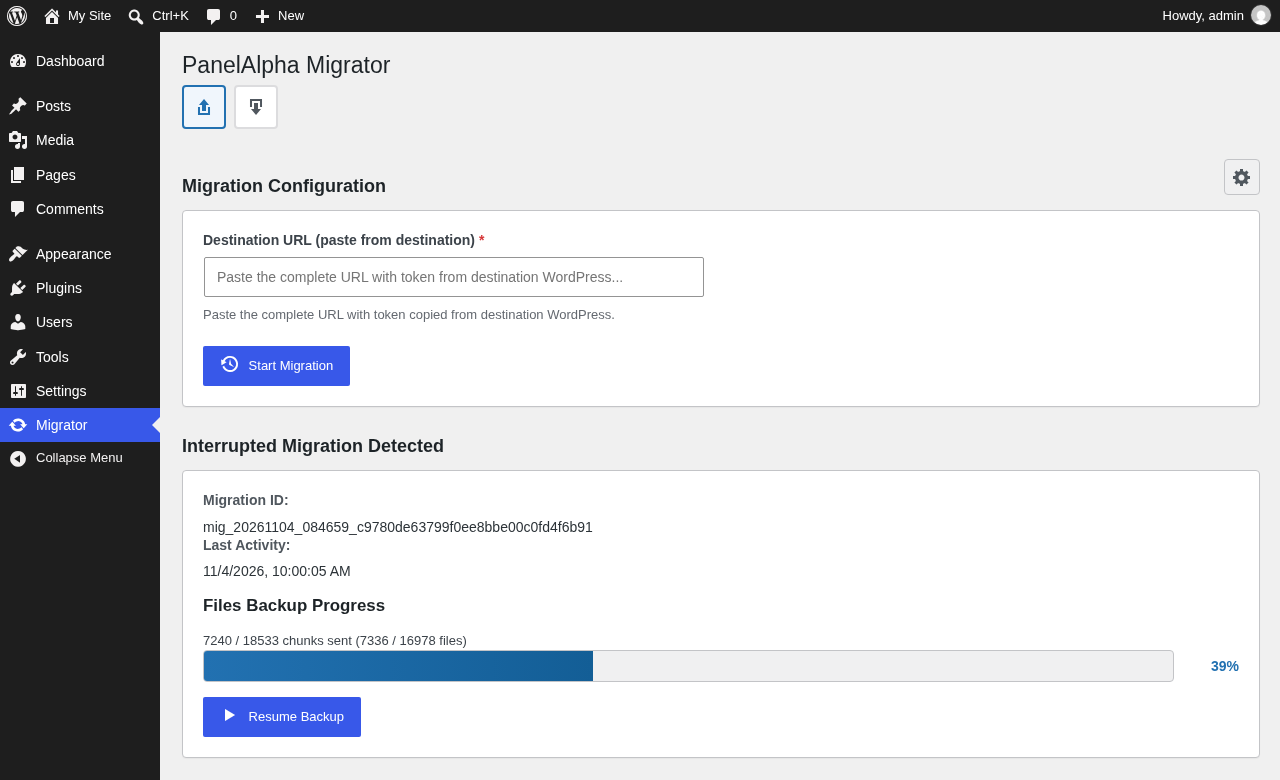
The browser closed halfway. Click Resume Backup to continue from where it stopped.
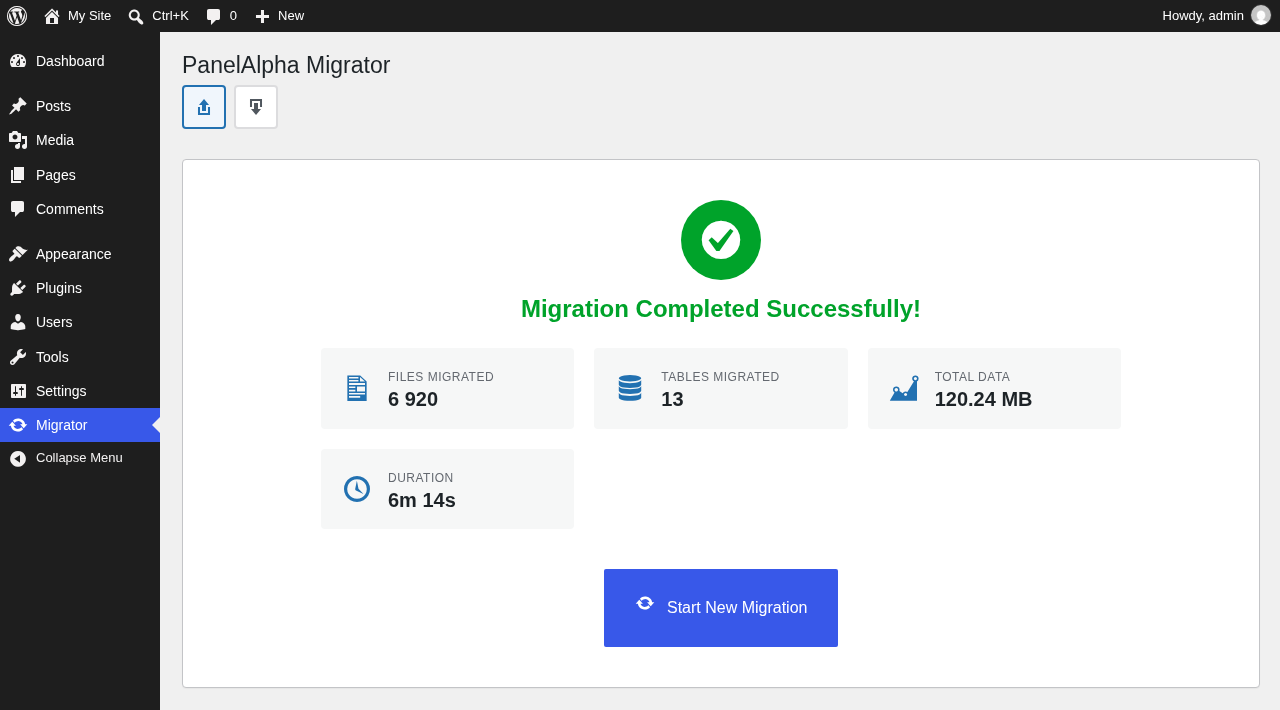
Done. The summary shows how many files and tables were copied and how long it took.