
Pilcha Try-On Wordpress Plugin - Rating, Reviews, Demo & Download

Plugin Description
Pilcha adds an AI-powered virtual try-on to your WooCommerce store: shoppers upload
a photo, see how a garment looks on them, and get a recommended size — right on the
product page. This increases conversion and reduces returns.
The plugin is the WooCommerce connector for Pilcha. It injects the Pilcha widget on
your product pages using your public Store Token. All the try-on processing happens
on the Pilcha platform (a hosted service); the plugin itself is a thin connector.
Setup in 3 steps:
- Install and activate the plugin.
- Go to WooCommerce Pilcha Try-On and paste your Store Token (from dashboard.pilcha.ai).
- Done — the widget shows automatically on every product page.
Pilcha is a third-party SaaS. You need a Pilcha account to use this plugin. See the
External Services section below for exactly what data is shared.
External services
This plugin connects your store to Pilcha, a third-party AI virtual try-on
service, to show the try-on widget on product pages.
What it does:
- Loads a script (the widget loader) from
https://cdn.pilcha.aion product pages. - The widget communicates with the Pilcha API at
https://api.pilcha.ai.
Data sent to Pilcha:
- Your public Store Token (identifies your store to Pilcha).
- The product identifier of the page being viewed.
- The photo and body measurements that a shopper uploads voluntarily to
generate their try-on. The shopper provides these directly in the widget; the
plugin does not collect or store them on your server.
The try-on generation and any image storage happen on the Pilcha platform, governed by:
- Terms & Conditions: https://pilcha.ai/tyc
- Privacy Policy: https://pilcha.ai/privacidad
By installing this plugin and configuring your Store Token, you enable this
connection. You can disable it at any time (deactivate the plugin or untick
“Enable widget” in its settings).
Screenshots
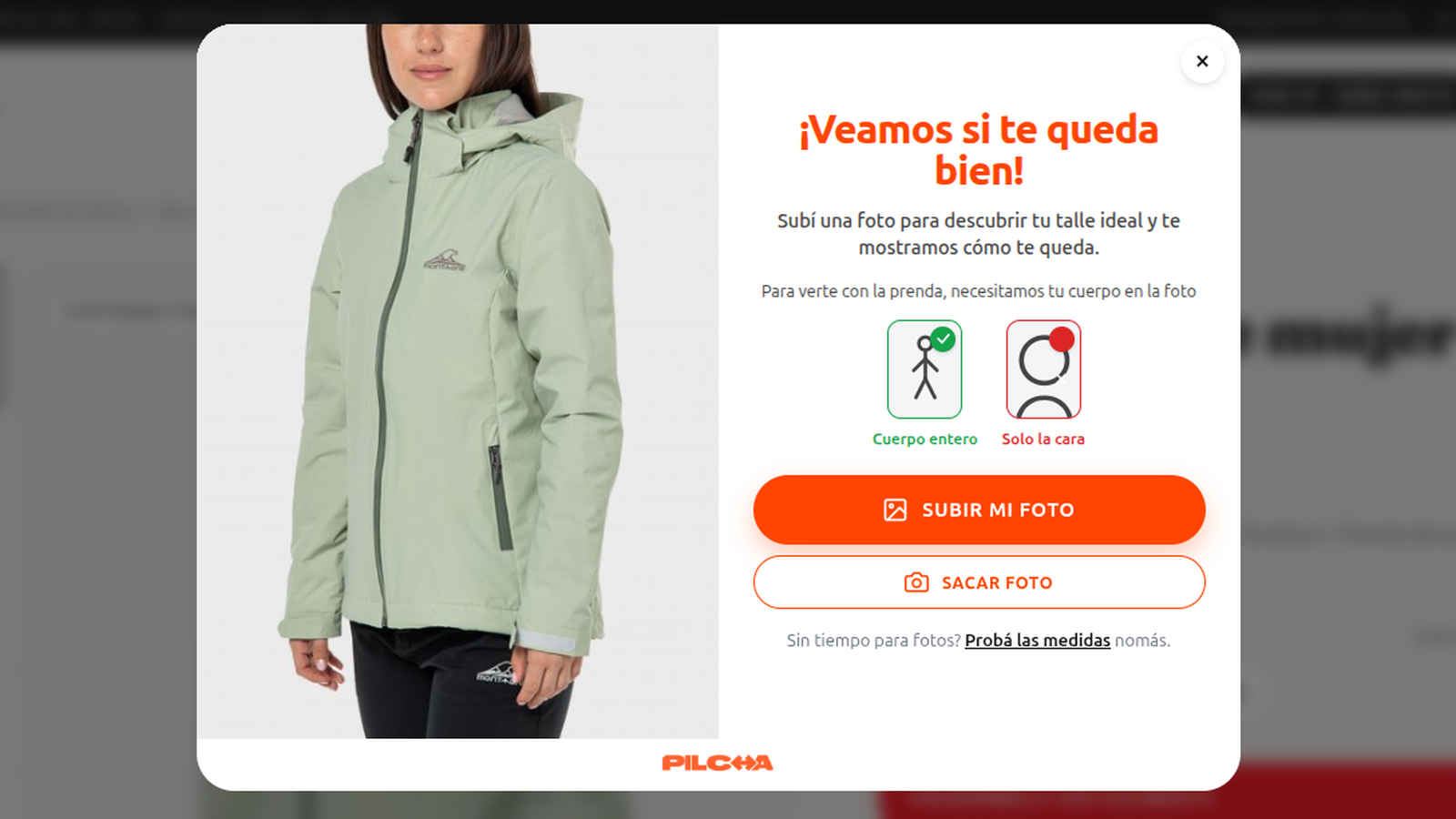
The Pilcha widget opens on the product page — the shopper uploads a photo to start the virtual try-on.
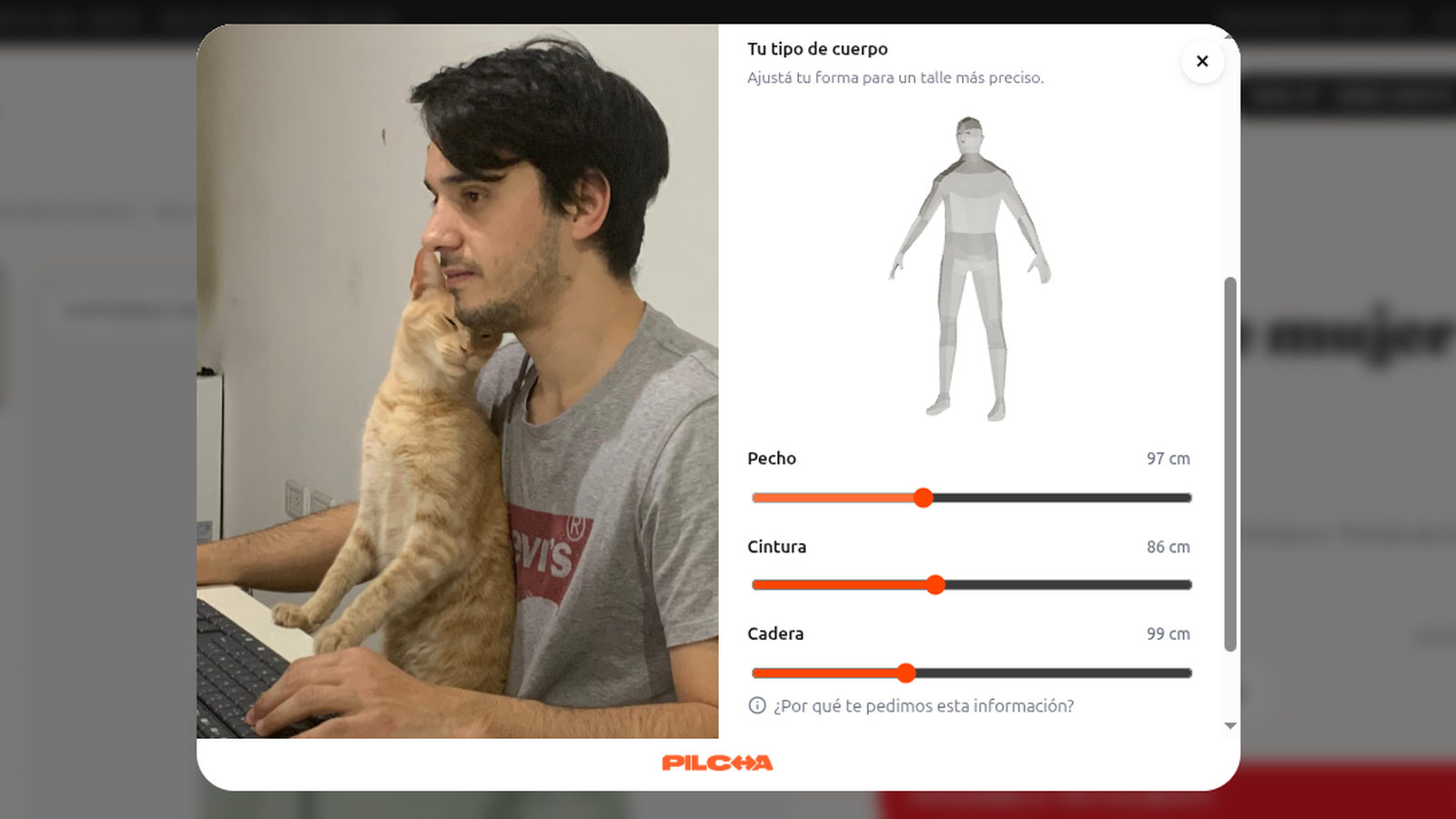
Body measurements step: the shopper adjusts sliders (chest, waist, hips) to fine-tune the size recommendation.
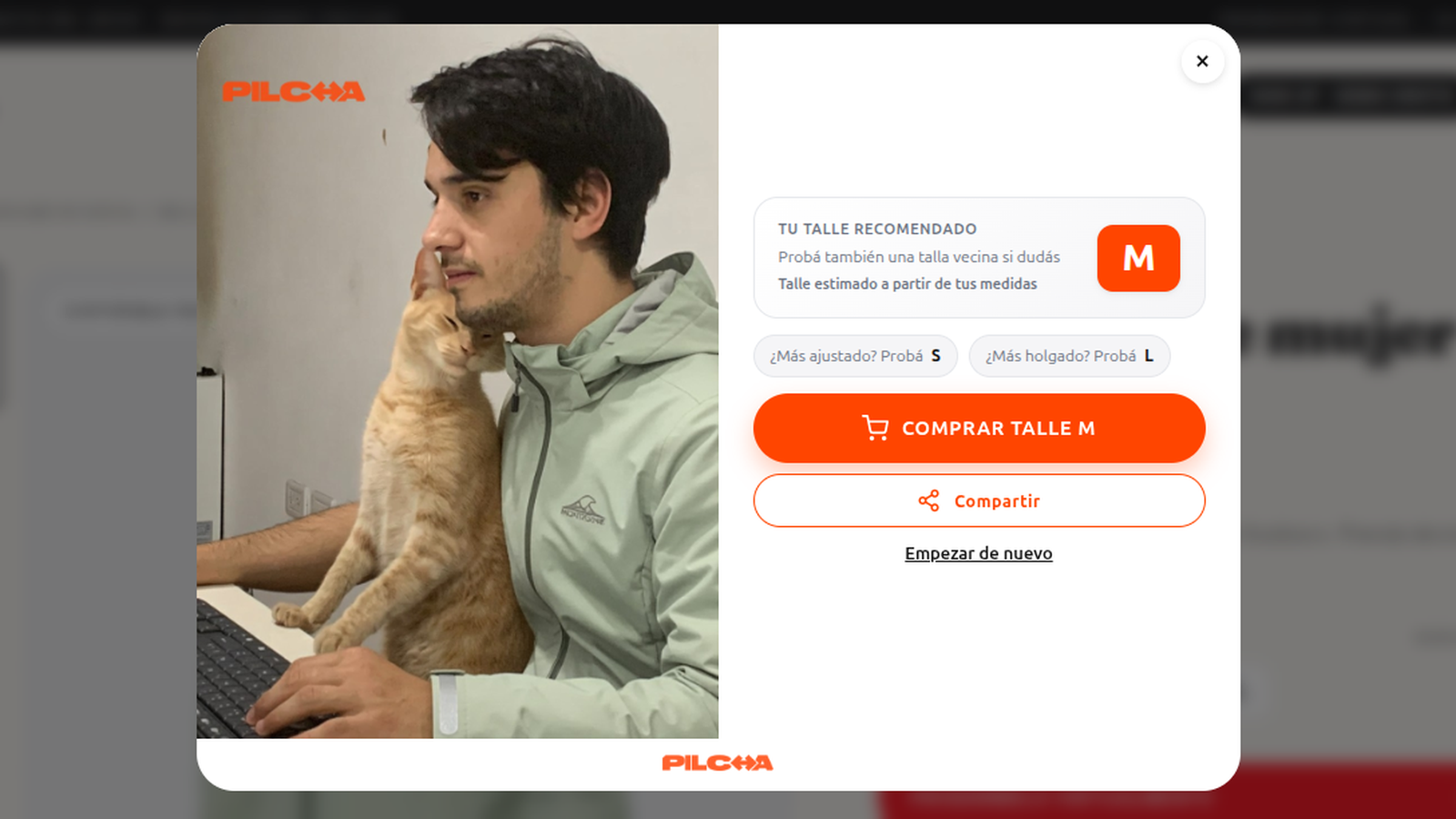
Result: the try-on image with the recommended size and a one-click “Buy size M” button.


