PluginCity Order Cutoff Time For WooCommerce - Rating, Reviews, Demo & Download
Plugin Description
PluginCity Order Cutoff Time for WooCommerce shows a clear dispatch message based on your shop’s weekly schedule. It tells customers whether today’s cut-off is still available, when the next dispatch is due, or whether the shop is temporarily closed.
The plugin is informational. It does not stop customers checking out or interfere with payment buttons. Your shop keeps control of its orders while customers get the timing information they need.
The free version is permanent, needs no licence key, and never contacts PluginCity.
What you get
- A weekly cut-off schedule for each day of the week
- A store timezone for the schedule, which can differ from the site’s
- Always-open and closed overrides for temporary changes
- Messages with dispatch dates, days, cut-off times and time remaining
- Informational product, cart, checkout and mini-cart notices
- A live countdown to today’s cut-off
- Details in WooCommerce cart and checkout blocks
- A shortcode,
[plugincity_oct_message], for other pages - Settings import and export for backups or another shop
- High-Performance Order Storage compatibility
There is no account, licence key or trial clock in the free version.
Pro is a separate paid version, sold and distributed by PluginCity. It adds dispatch rules by shipping method, zone, class, product and customer role, holidays and one-off cut-offs, notice styling, an order simulator, CSV import and export, and PluginCity licensing, updates and direct support. It is not included in this plugin and is not downloaded or installed by it.
Learn about Pro at https://plugincity.net/plugins/order-cutoff-time-for-woocommerce/.
Configuration
- Set the dispatch days and cut-off times under Dispatch schedule, and choose the timezone they are worked out in.
- Use Store status to keep the weekly schedule, open the shop temporarily, or mark it closed.
- Write the messages for before the cut-off, after it, and while the shop is closed.
- Choose which storefront locations show the message and whether to show the countdown.
The available message tags are {time_remaining}, {cutoff_time}, {dispatch_day}, {dispatch_date}, {next_dispatch_day} and {next_dispatch_date}.
Screenshots

The Order Cutoff Time settings page on the Dispatch schedule tab, with the store status, the timezone, and a dispatch switch and cut-off time for each day of the week.
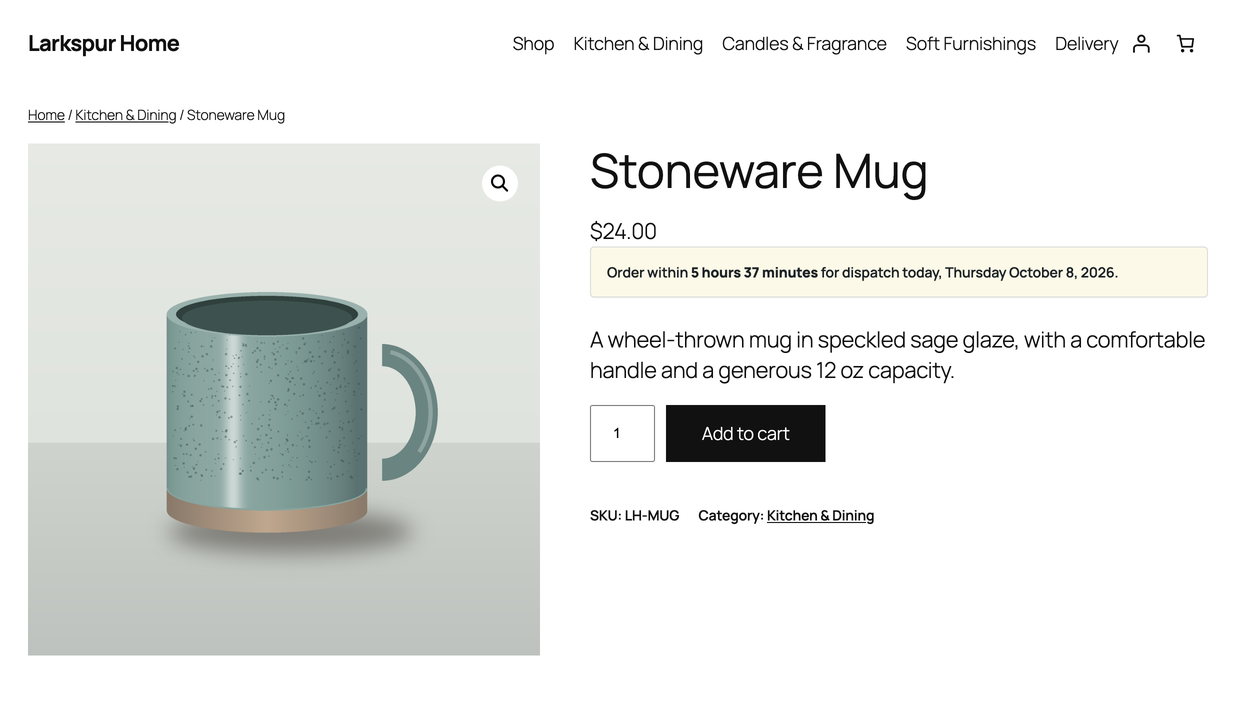
A product page showing the live countdown before today’s dispatch cut-off.
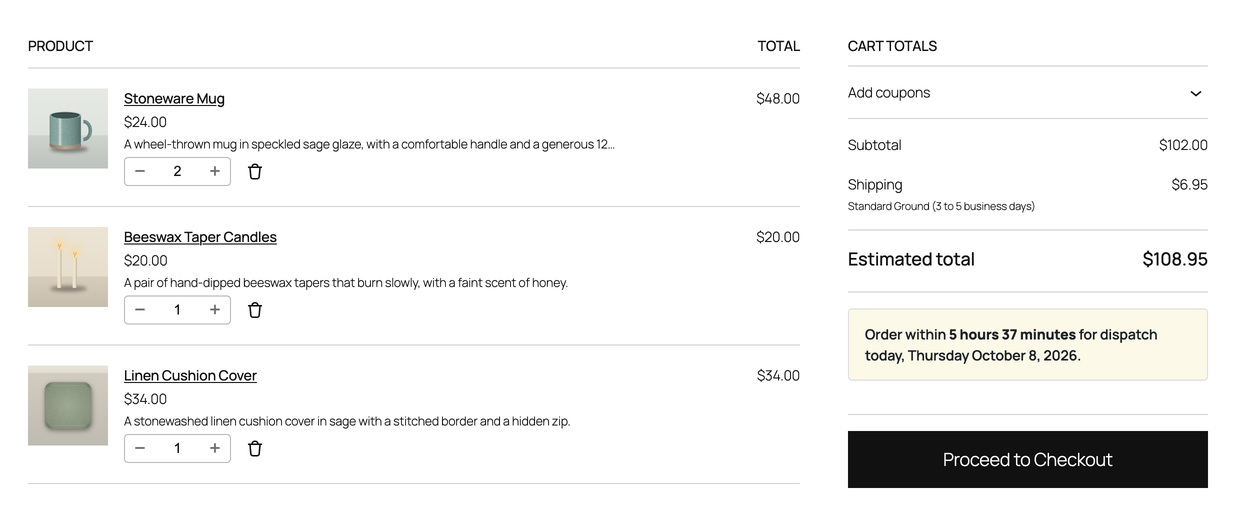
The cart showing the informational dispatch notice.
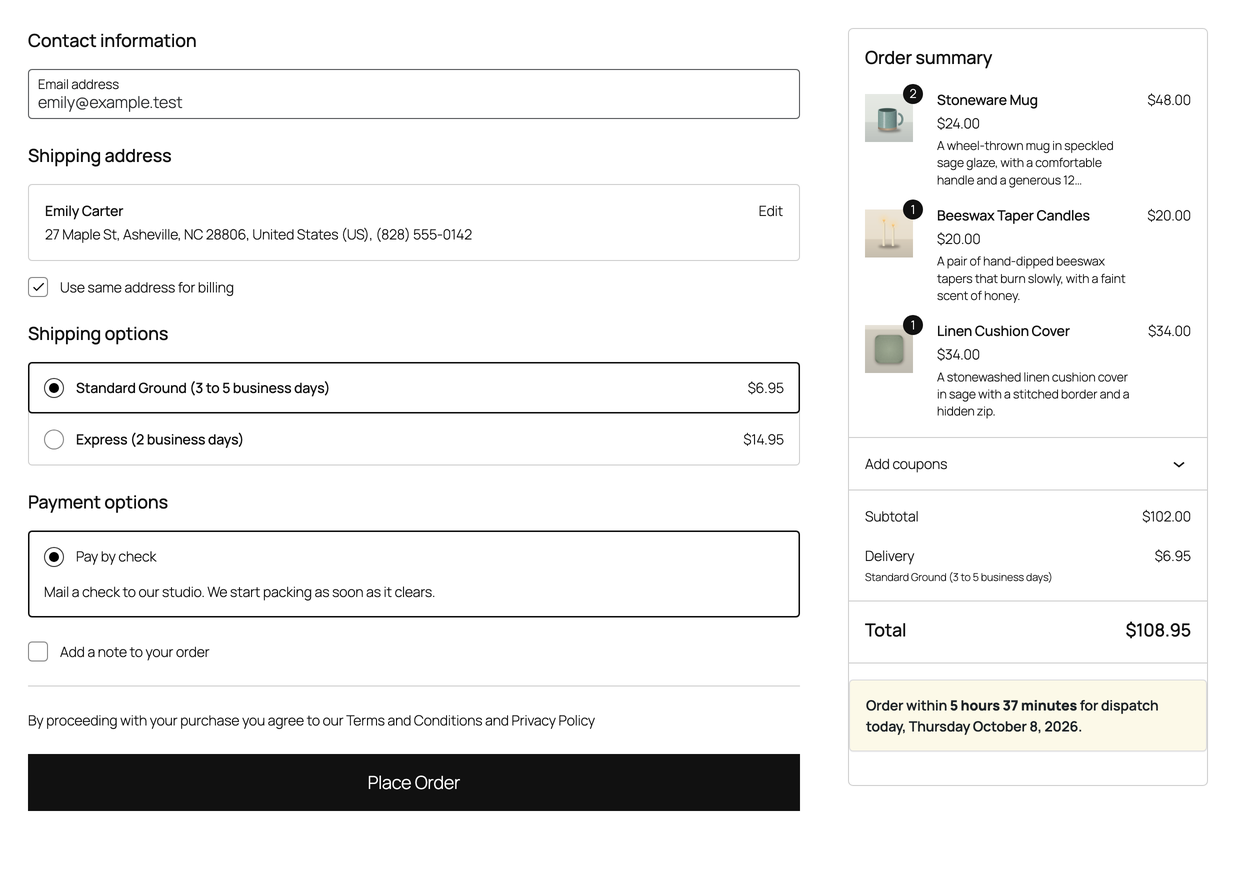
The checkout showing the informational dispatch notice.
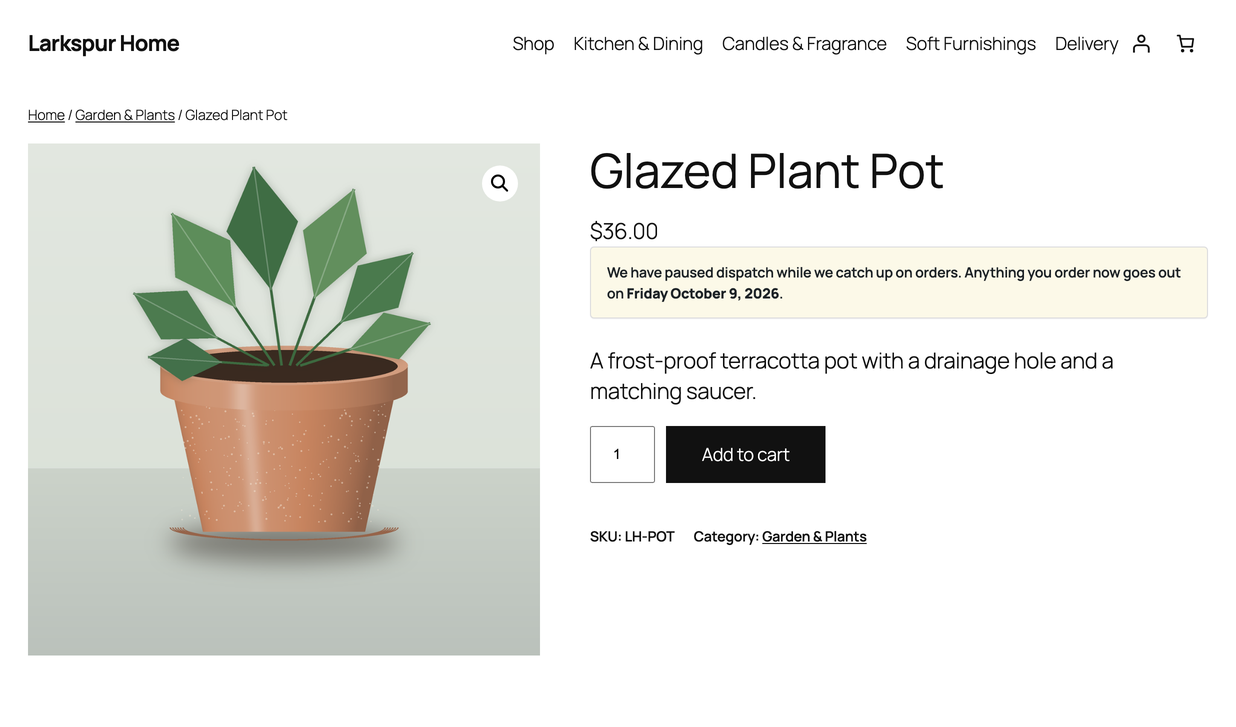
A product page showing the closed-dispatch message and next dispatch date.