
PureDash Cleaner Wordpress Plugin - Rating, Reviews, Demo & Download
Plugin Description
PureDash Cleaner is an enhanced WordPress plugin designed to clean up the WordPress admin interface by allowing users to hide annoying or redundant elements with a single click. It features a “Zen Mode” for interactive element selection and a robust system for persistent or session-based blocking.
Privacy Policy
This plugin utilizes the Freemius SDK to provide optional usage tracking and support services. Data is only sent to freemius.com if you explicitly opt in during activation. For more information, please refer to the Freemius Privacy Policy: https://freemius.com/privacy/
How to Use
Hiding an element with Zen Mode
- Log in to your WordPress admin as an administrator.
- Look for the PureDash Cleaner entry in the top admin bar (black bar at the top). Click it to open the submenu.
- Click Toggle Zen Mode. The page will enter selection mode — a blue highlight will follow your cursor as you move over admin elements.
- Hover over any element you want to hide (a menu item, a dashboard widget, an admin notice, etc.) and click it.
- A dialog will appear. Optionally give the element a label so you can identify it later, then click Hide Element to confirm.
- The element is now hidden for all admin sessions for your user. It will be hidden every time you load an admin page.
Viewing and managing blocked elements
- Go to Settings > PureDash Cleaner.
- The Blocked Elements tab lists every element you have hidden, grouped by category (Main Menu, Admin Bar, Dashboard Widgets, Admin Notices, Miscellaneous).
- To remove a block, click the Delete button next to the element. It will reappear immediately on the next page load.
- To rename a block’s label, click the pencil icon next to its name.
Safe Mode (emergency recovery)
If you accidentally hide a critical element (such as the admin menu) and cannot navigate:
- Add
?puredash_safe_mode=1to any admin URL, for example:https://yoursite.com/wp-admin/?puredash_safe_mode=1 - Or go to Settings > PureDash Cleaner > Help & Safe Mode and click Activate Safe Mode.
Safe Mode temporarily disables all blocks so you can access the settings page and delete the problematic entry.
Developer kill switch
You can disable the plugin entirely without deactivating it by adding the following line to your wp-config.php:
define( 'PUREDASH_DISABLE', true );
Screenshots
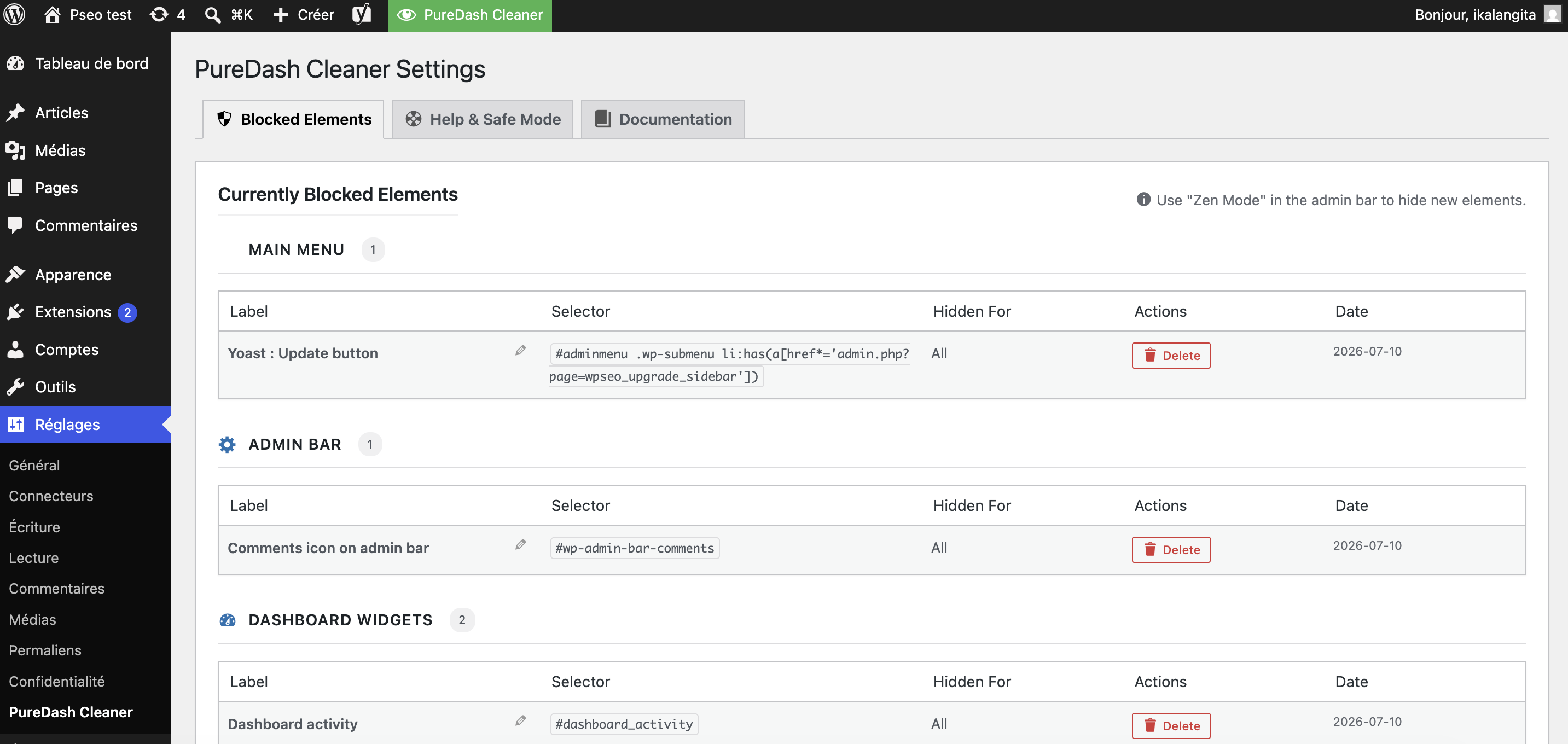
The PureDash Cleaner settings page showing blocked elements, grouped by category (Main Menu, Admin Bar, Dashboard Widgets, Admin Notices, Miscellaneous).
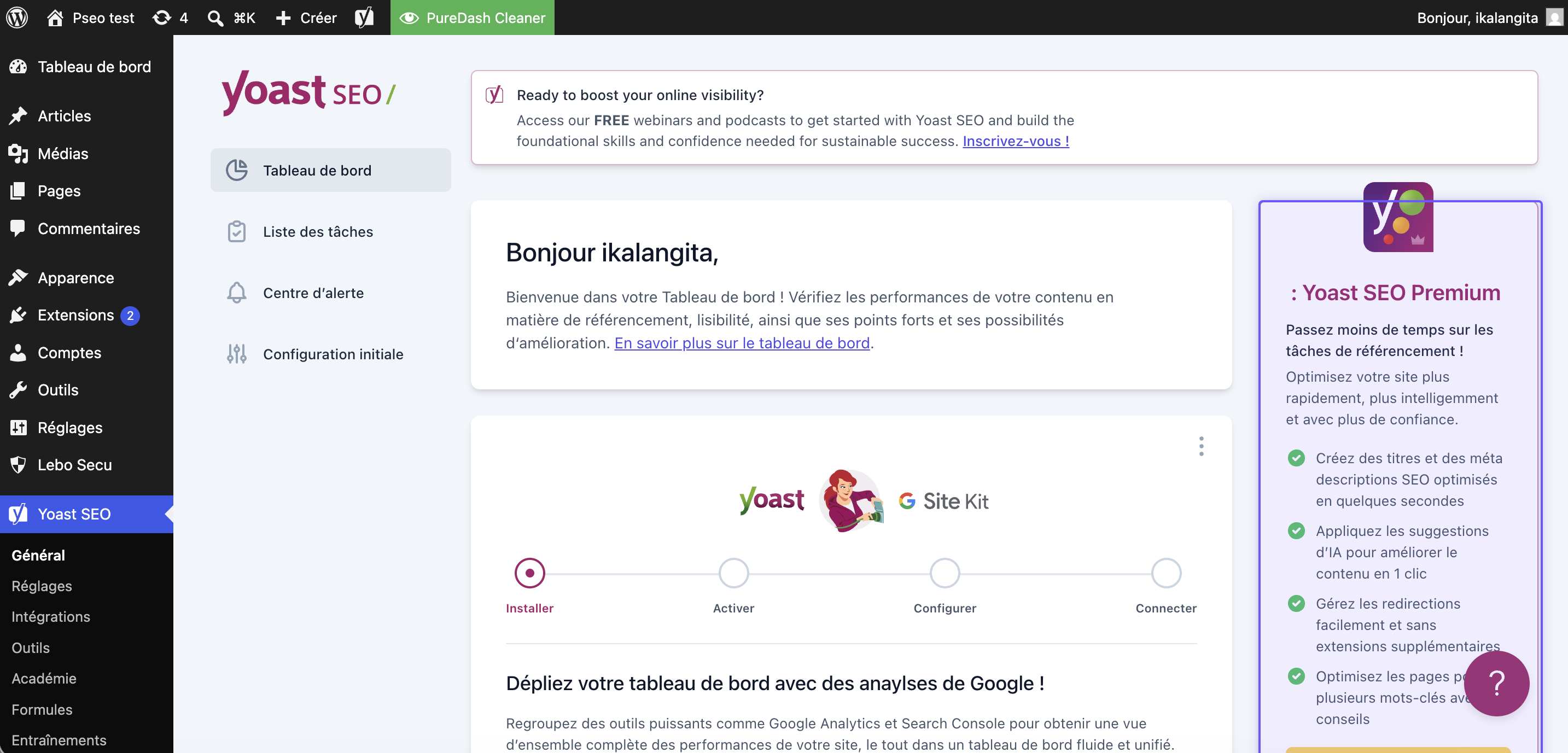
Zen Mode active: hover over any plugin element to highlight it in blue before hiding it.
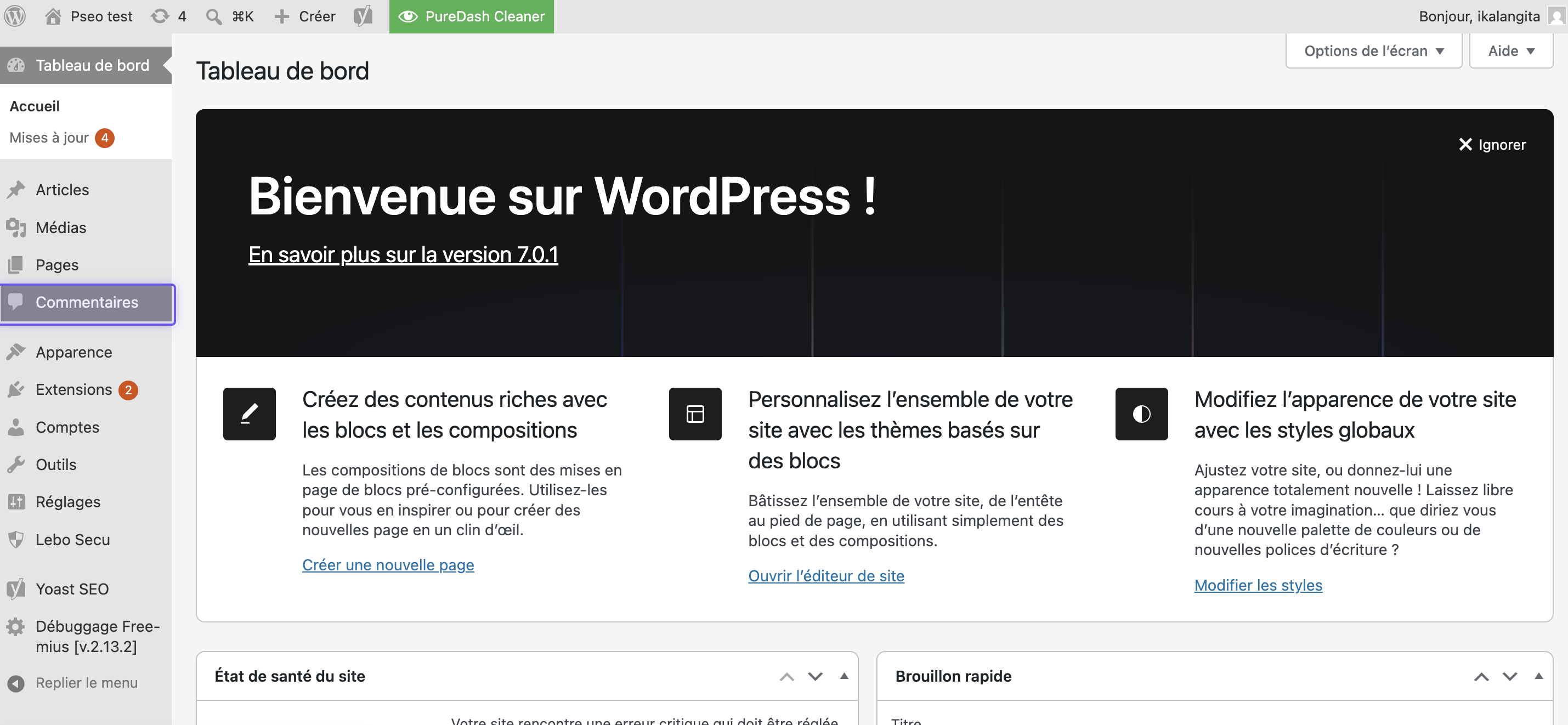
Zen Mode active: hover over any admin menu to highlight it in blue before hiding it.
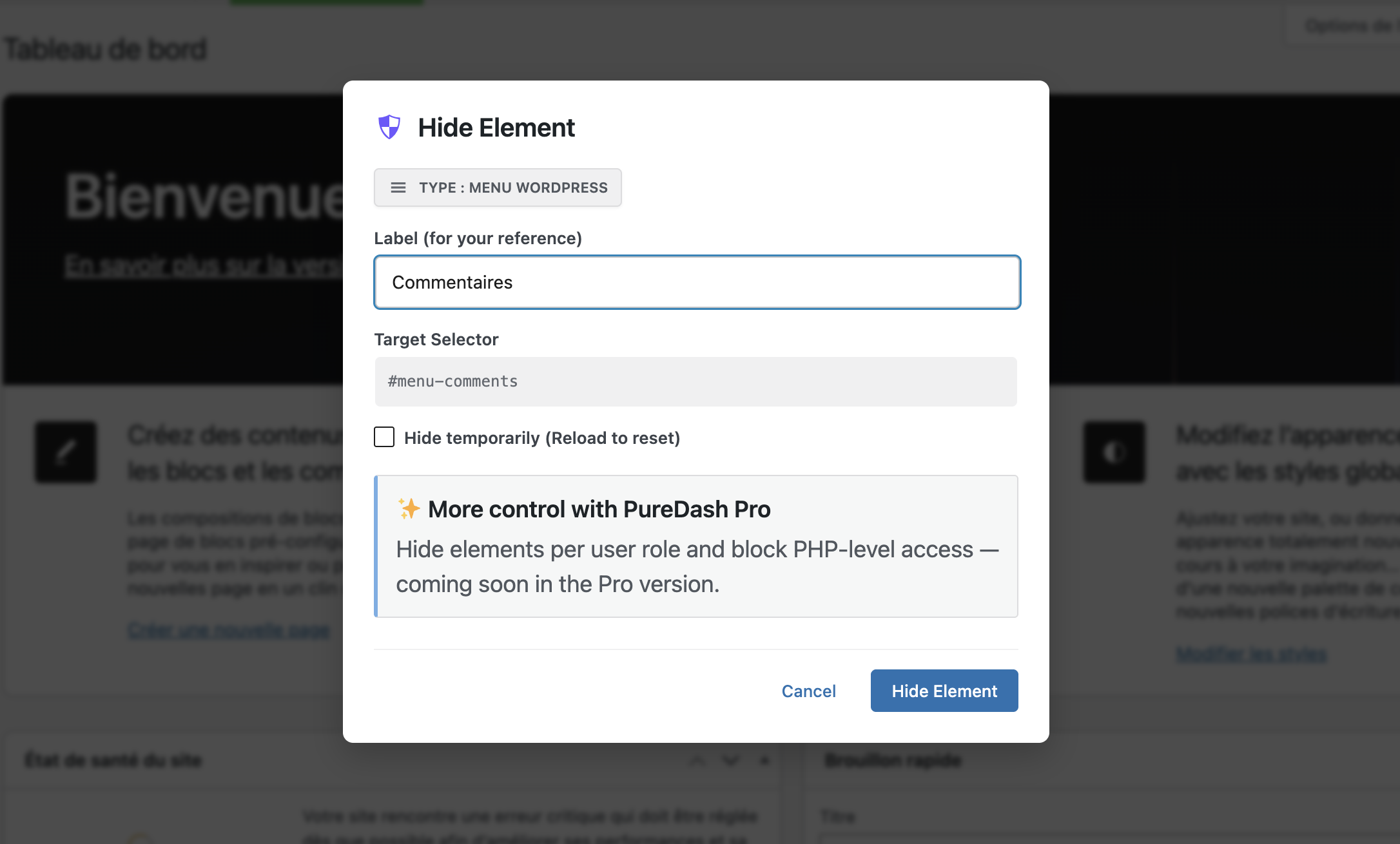
The “Hide Element” dialog, where you can optionally label an element before confirming.
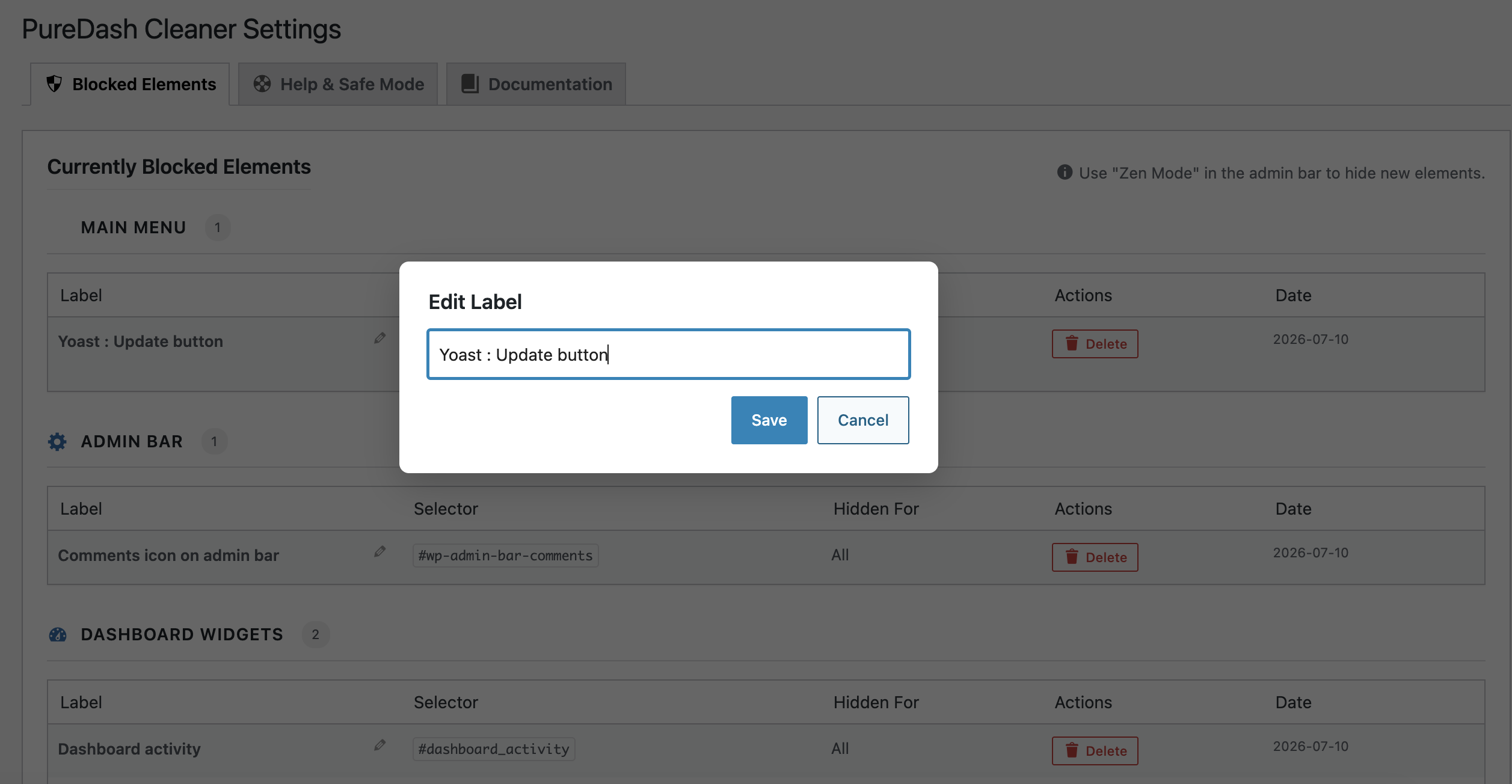
Editing or deleting a blocked element directly from the Blocked Elements list.
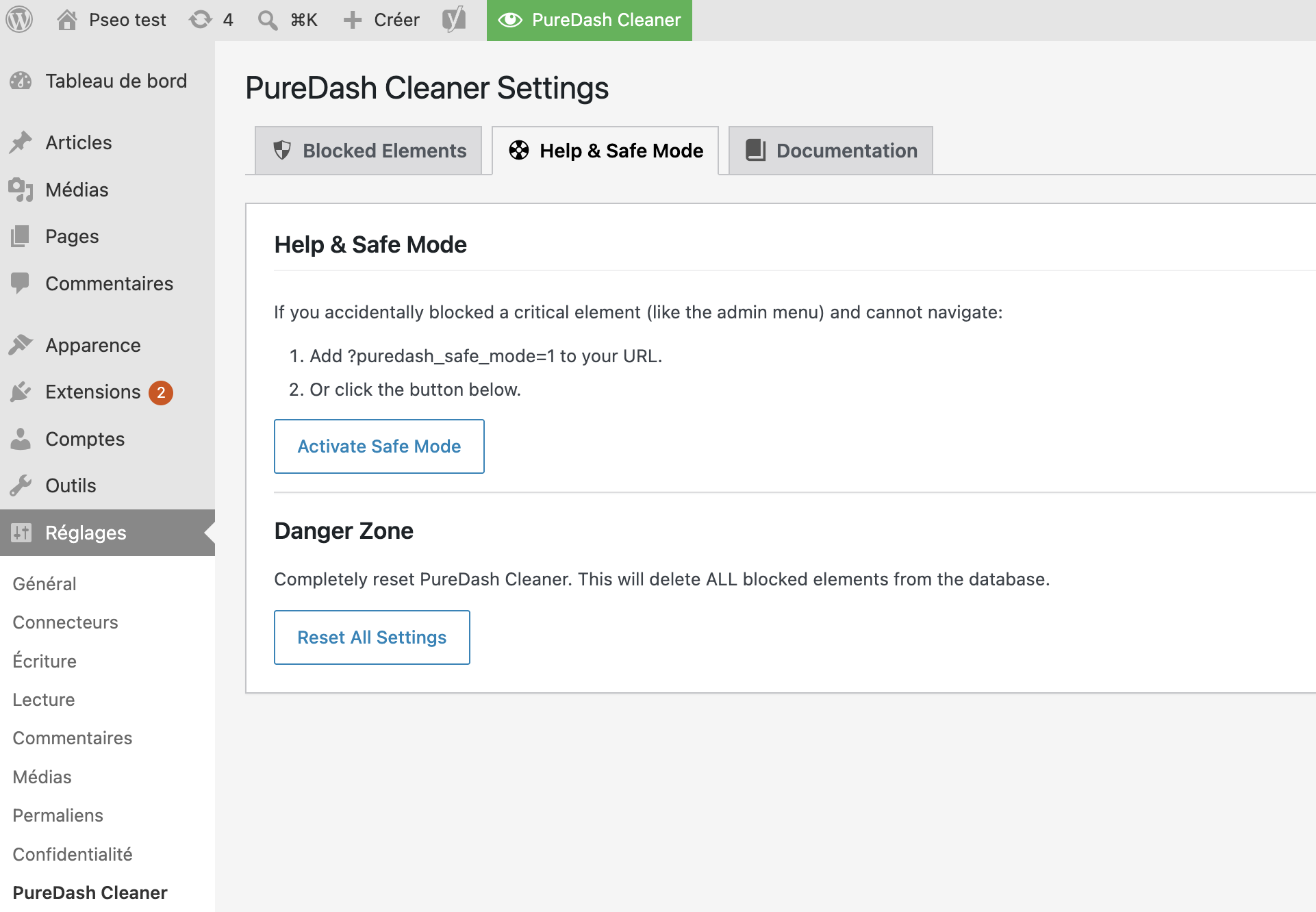
The Safe Mode recovery option, accessible from Settings > PureDash Cleaner > Help & Safe Mode.
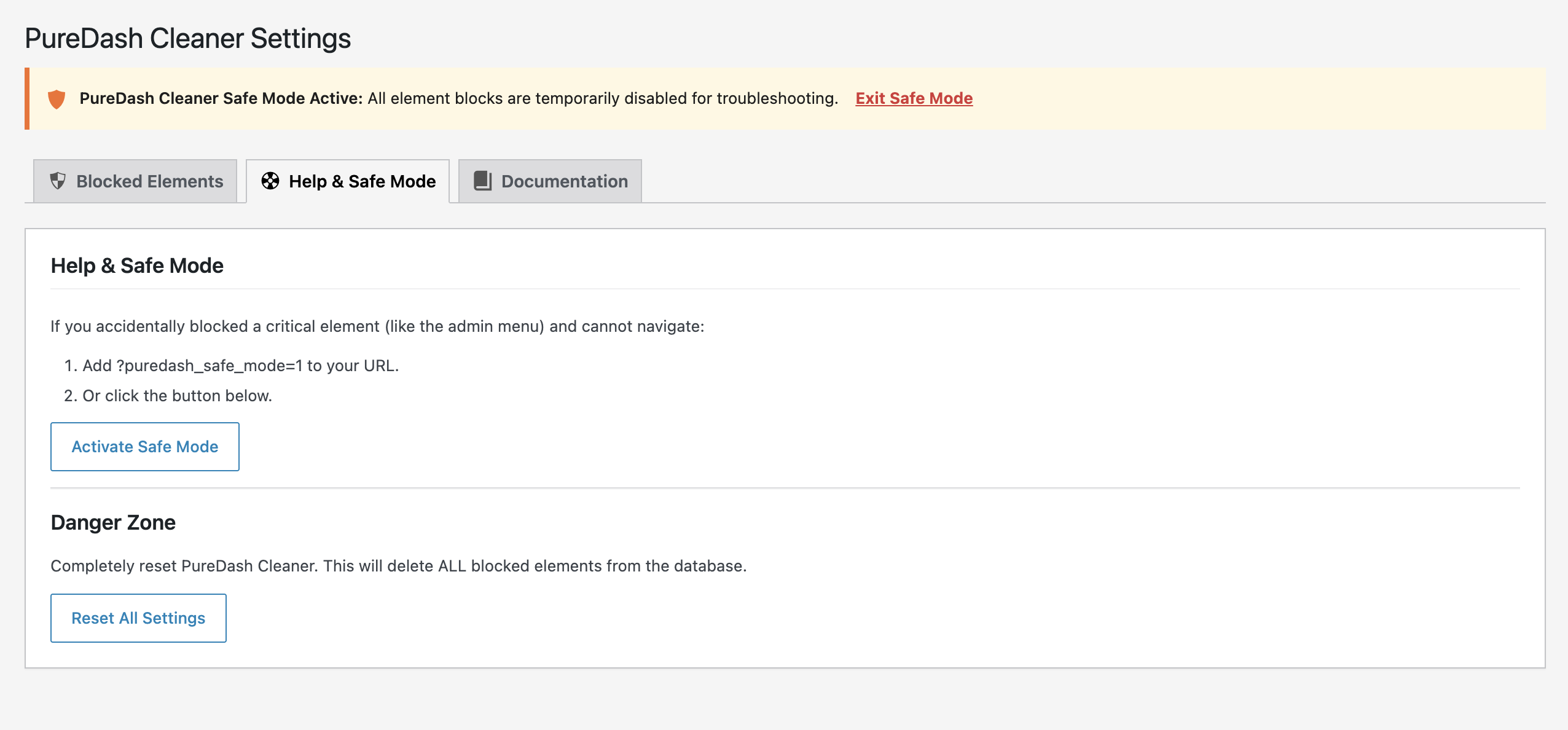
The Safe Mode recovery message


