Quicksloth Accessibility Toolbar Wordpress Plugin - Rating, Reviews, Demo & Download
Plugin Description
Give your visitors a toolbar that makes your pages easier to read on their own terms: bigger text, more spacing, stronger contrast, a dyslexia-friendly font, a reading guide, paused animations and a visible keyboard focus.
The toolbar works as soon as you activate the plugin. Everything runs in the visitor’s browser: there is no account to create, no connection to external servers, no cookies, no tracking, and no logo or link to us on your pages.
An accessibility toolbar helps some visitors; it does not make a website conform to WCAG or to the law. Fix your content and code first.
What your visitors get
A button in a corner of the page opens a panel with 25 tools in four groups. Choices are remembered in the visitor’s browser across pages and visits.
Text
- Text size: four steps, up to 175%, including text added later (sliders, infinite scroll).
- Line height: three steps, for more space between lines.
- Letter spacing: three steps.
- Text align: left, center or right.
- Bold text.
- Readable font: switches the page to the visitor’s system sans-serif font.
- Dyslexia-friendly font: OpenDyslexic, bundled with the plugin and loaded only when a visitor turns it on.
- Underline links.
- Highlight links.
- Highlight headings.
Colors
- High contrast, dark contrast or light contrast (one at a time).
- Monochrome.
- Saturation: low or high.
- Invert colors (images and videos in the page keep their real colors).
Reading
- Reading guide: a horizontal bar that follows the mouse.
- Reading mask: darkens the page above and below the mouse.
- Big cursor.
- Hide images, including background images.
- Stop animations, including video and audio.
- Mute media.
- Highlight on hover.
Navigation
- Visible focus: a thick outline on the element that has keyboard focus.
- Site map: up to 50 published pages, inside the panel.
The panel also has Reset all and Hide toolbar for this visit (it also switches the tools off in that browser tab; the visitor’s choices come back with the button on the next visit). A “Skip to content” link for keyboard users is added at the top of every page (you can turn it off).
What you can set
One page under Settings Accessibility Toolbar:
- Button position (any corner), color, size and icon.
- Which tools are shown, the pages where it does not load, hiding the button on small screens, or your own button instead of the floating one.
- Skip link on or off, and where it jumps to.
- Toolbar language: follow the language of each page, or a fixed locale.
- An optional “Accessibility toolbar by Quicksloth” line in the panel, off by default.
How it is built
- Light: one deferred script (about 9 KB gzipped) and the panel styles (about 2 KB); the page rules load only after a visitor turns a tool on. No jQuery.
- Isolated from your theme: the panel lives in a Shadow DOM, so theme and page builder CSS cannot change its layout.
- Keyboard and screen readers: the panel is a dialog that keeps Tab inside while open and closes with Esc, returning focus to the button. Every button exposes its name and state, for example “Text size, Level 2 of 4”.
- Language of the page: labels follow the language WordPress uses for each page, and the panel mirrors itself on right-to-left pages.
- Clean dashboard: no top-level menu and no dashboard notices; one review request on the plugin’s own settings page after 14 days, gone for good once dismissed.
What this plugin does not do
It does not scan or rewrite your site’s code, add missing alt text, or fix forms and headings. It changes how a page looks in one visitor’s browser while that visitor has a tool turned on, and nothing else.
Privacy
This plugin does not collect, send or share any personal data.
- Visitor choices are stored only in the visitor’s own browser (localStorage key
qsab:v1); “Hide toolbar for this visit” stores one flag in sessionStorage. Neither reaches your server or ours. - No cookies, no tracking, no telemetry, and no requests to external servers, on your site or in your dashboard.
- On your server the plugin stores only its settings, its activation date and whether you dismissed the review request. Deleting the plugin removes them.
The plugin adds a suggested paragraph to Settings Privacy Policy Guide. The dyslexia-friendly font is OpenDyslexic (SIL Open Font License 1.1, in assets/fonts/OFL.txt).
Screenshots
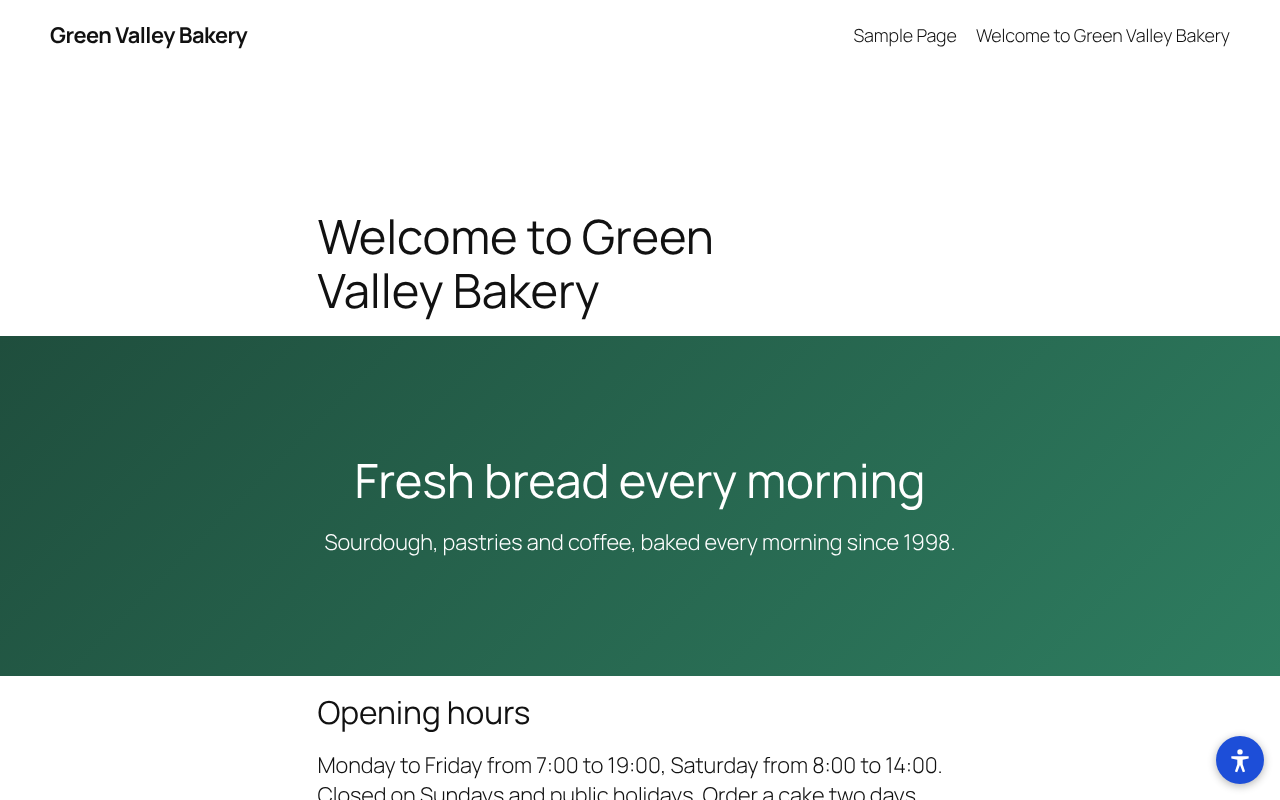
The toolbar button in the bottom-right corner of a page, with the default color and icon.
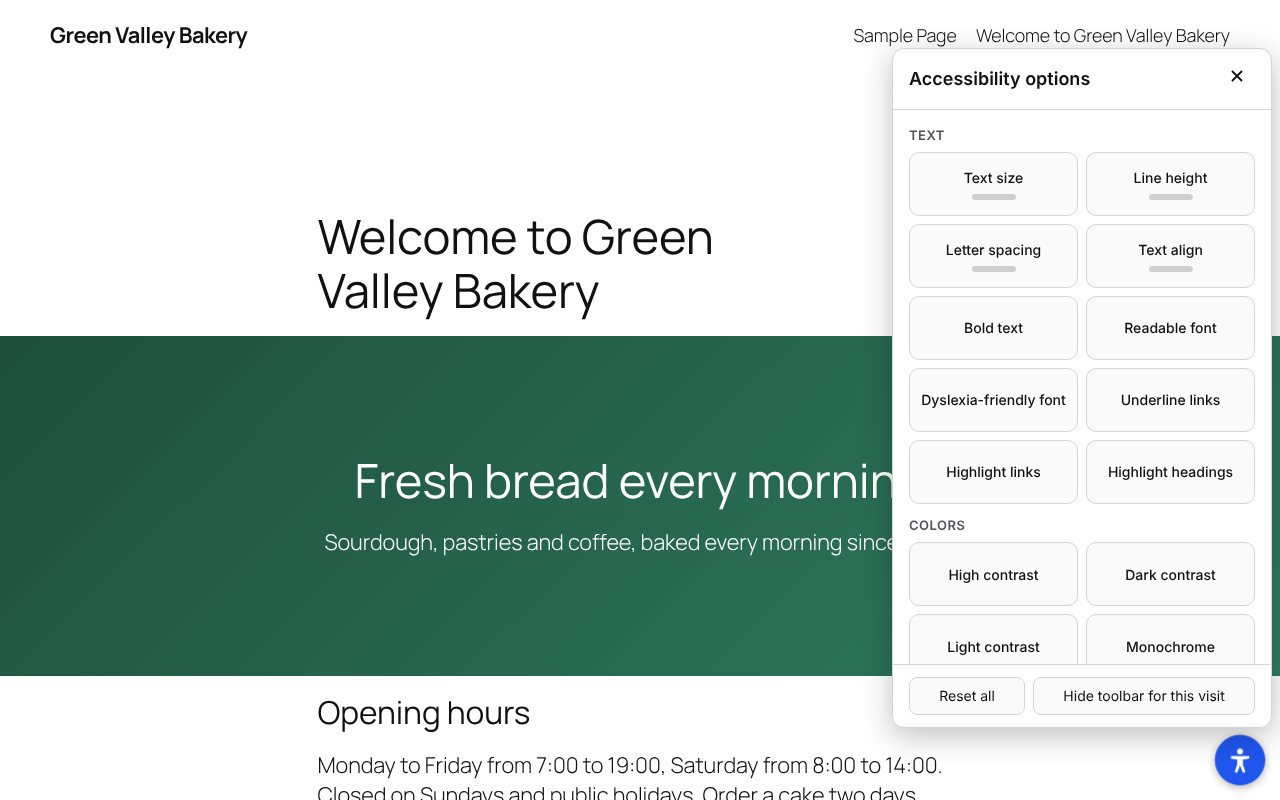
The open panel with the Text, Colors, Reading and Navigation groups, Reset all and Hide toolbar for this visit.
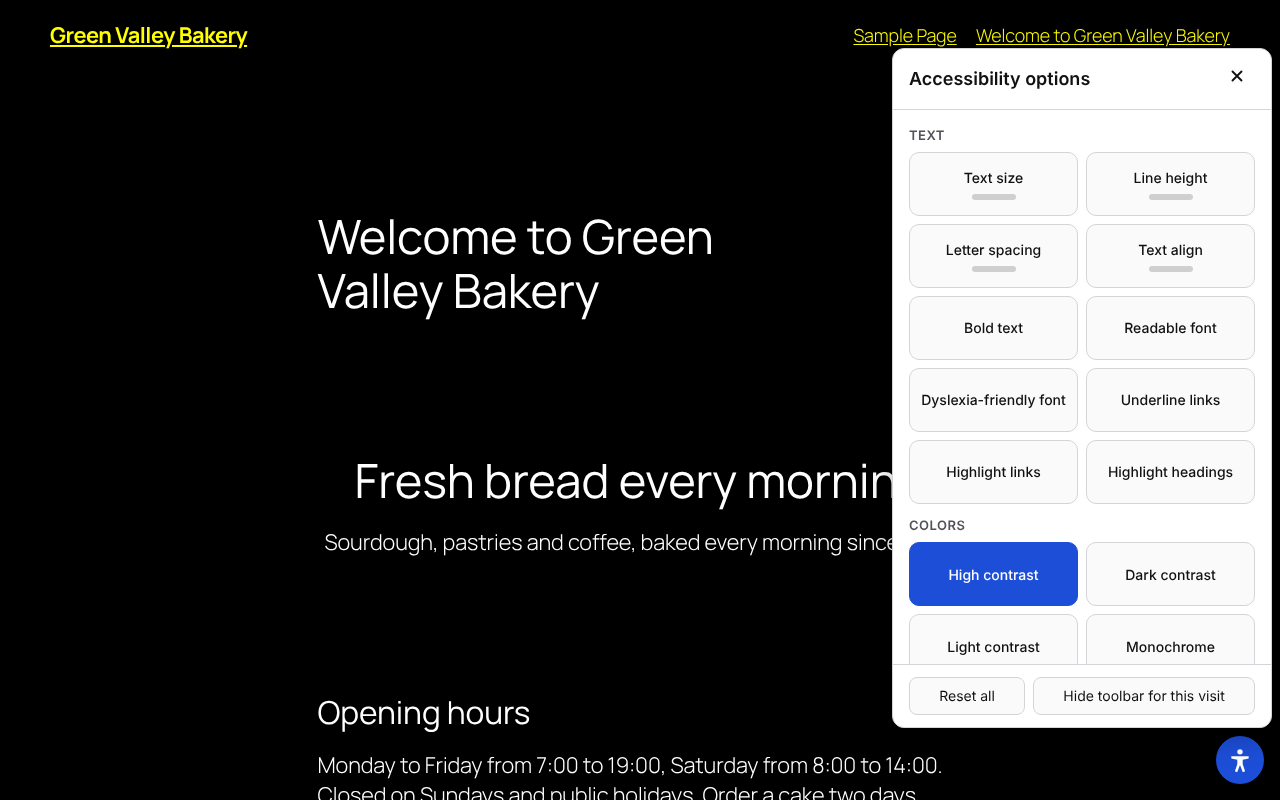
A page with High contrast turned on.
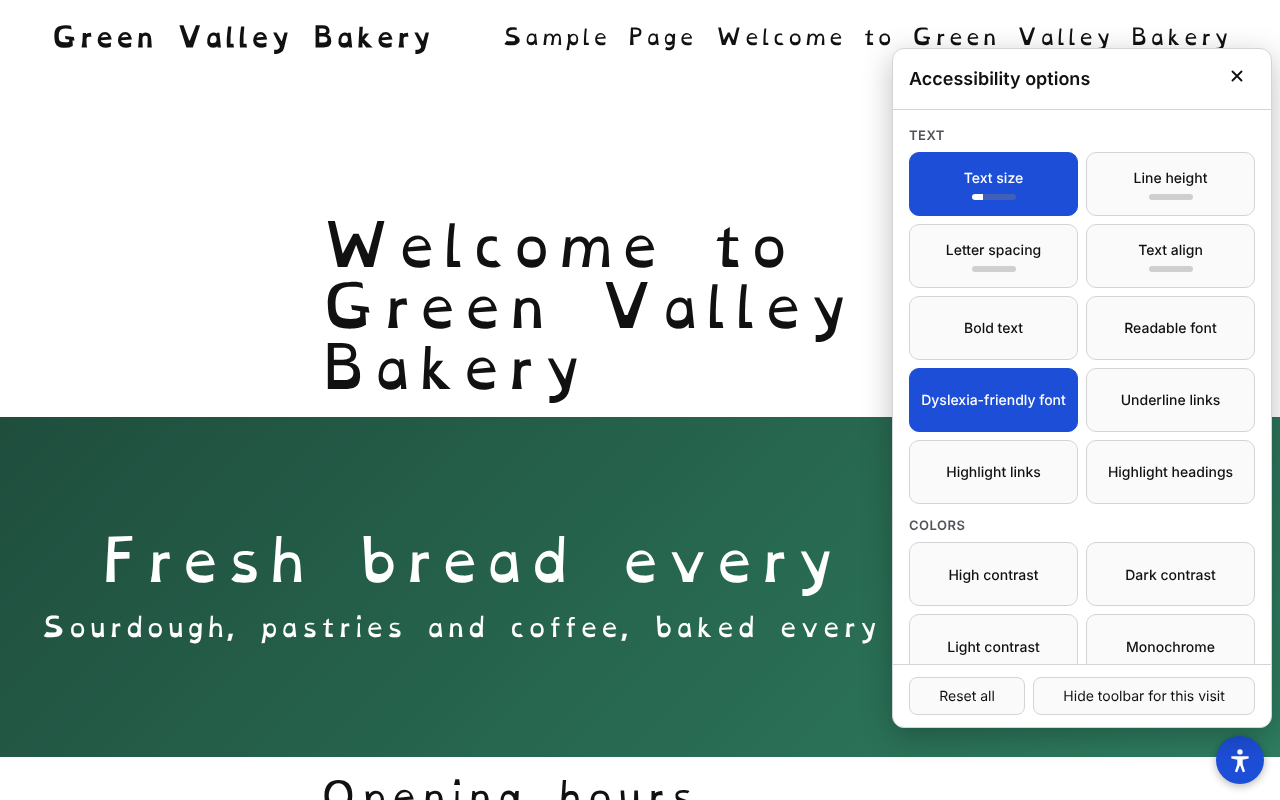
A page with the Dyslexia-friendly font and a larger Text size turned on.
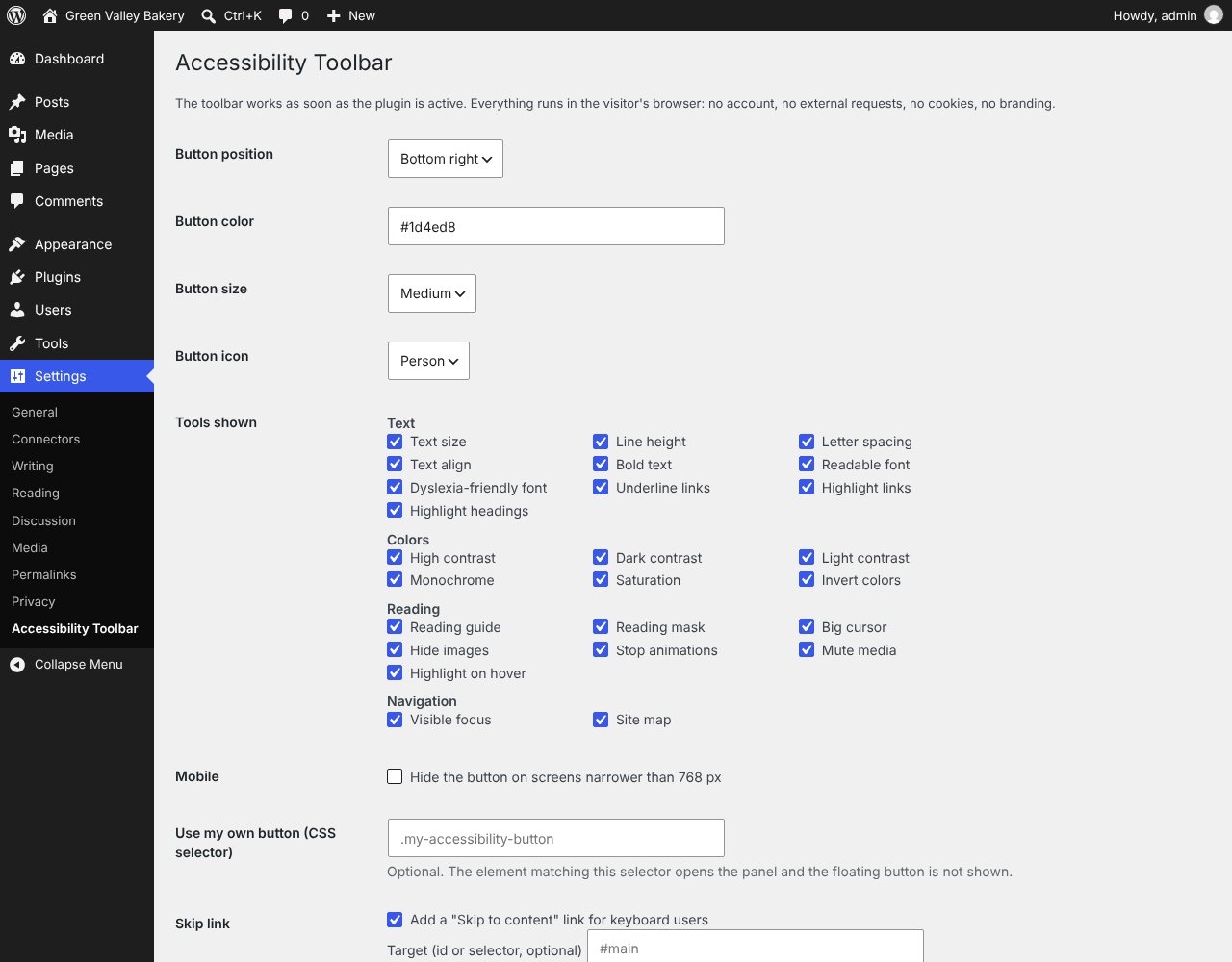
The settings page under Settings → Accessibility Toolbar.