RealApps AI Store Chat For WooCommerce Wordpress Plugin - Rating, Reviews, Demo & Download
Plugin Description
RealApps AI Store Chat for WooCommerce brings an intelligent shopping assistant directly to your WooCommerce store. It connects your product catalog to a hosted AI backend and renders a chat widget on the storefront where customers can ask questions about products, prices, availability, and more. Conversations are preserved in the browser so customers can continue previous chats — including follow-up questions and contextual product recommendations across sessions.
Key features:
- RealApps AI Store Chat — Customers ask questions in natural language and receive product recommendations with links.
- Automatic product sync — WooCommerce products, variations, prices, stock status, and categories are synced to the AI backend in real time.
- Smart filtering — Server-side price bounds, color, size, stock, and category filters ensure accurate results before the AI answers.
- Multilingual — The assistant responds in the customer’s language based on the WooCommerce locale.
- Fully styleable widget — built-in color pickers for header gradient, accent, bot background, and chat card. Choose position (left or right), toggle style (floating button or minimized), custom title and button text, and your own chatbot icon (pick one from your own files or use any emoji).
- Test mode — toggle the widget to admin-only visibility so you can test before going live.
- Quota management — Token usage is tracked per store with monthly limits. Plans range from free testing to high-volume agency use.
- Stripe billing — Upgrade, downgrade, pause, and resume subscriptions through the plugin settings. Billing portal included.
- Chat history — Conversations are saved in the customer’s browser (localStorage) and restored on return visits for up to 7 days. Customers can pick up where they left off, ask follow-up questions, and get contextual product recommendations based on previous interactions. A clear history button is available in the chat widget.
- Rate limiting — Built-in protection against abuse without impacting normal shoppers.
- Privacy-first design — Store owners can disconnect at any time to stop all data transmission.
The plugin is lightweight, does not modify storefront output beyond the chat widget, and stores all account data locally in the WordPress database.
External services
This plugin connects to the RealApps AI Store Chat SaaS backend at https://ai-store-chat.real-apps.com/. It is needed to power the RealApps AI Store Chat, process product syncs, handle Stripe checkout sessions, and manage store connections.
The following data is sent to the SaaS backend:
- Store URL and admin email (used for store registration and identification)
- WooCommerce product data (title, description, price, stock status, categories, SKU, and variations) — synced to power product search and recommendations
- Chat messages and conversation context — sent when a customer uses the chat widget
The SaaS backend also uses Stripe for billing (checkout sessions and the customer billing portal). No customer payment data is stored or processed by this plugin directly.
This service is provided by RealApps Software Development. Terms of Service: https://ai-store-chat.real-apps.com/terms.html. Privacy Policy: https://ai-store-chat.real-apps.com/privacy.html.
For support, privacy inquiries, and other questions, visit the WordPress.org support page for this plugin: https://wordpress.org/support/plugin/realapps-ai-store-chat-for-woocommerce/
Screenshots
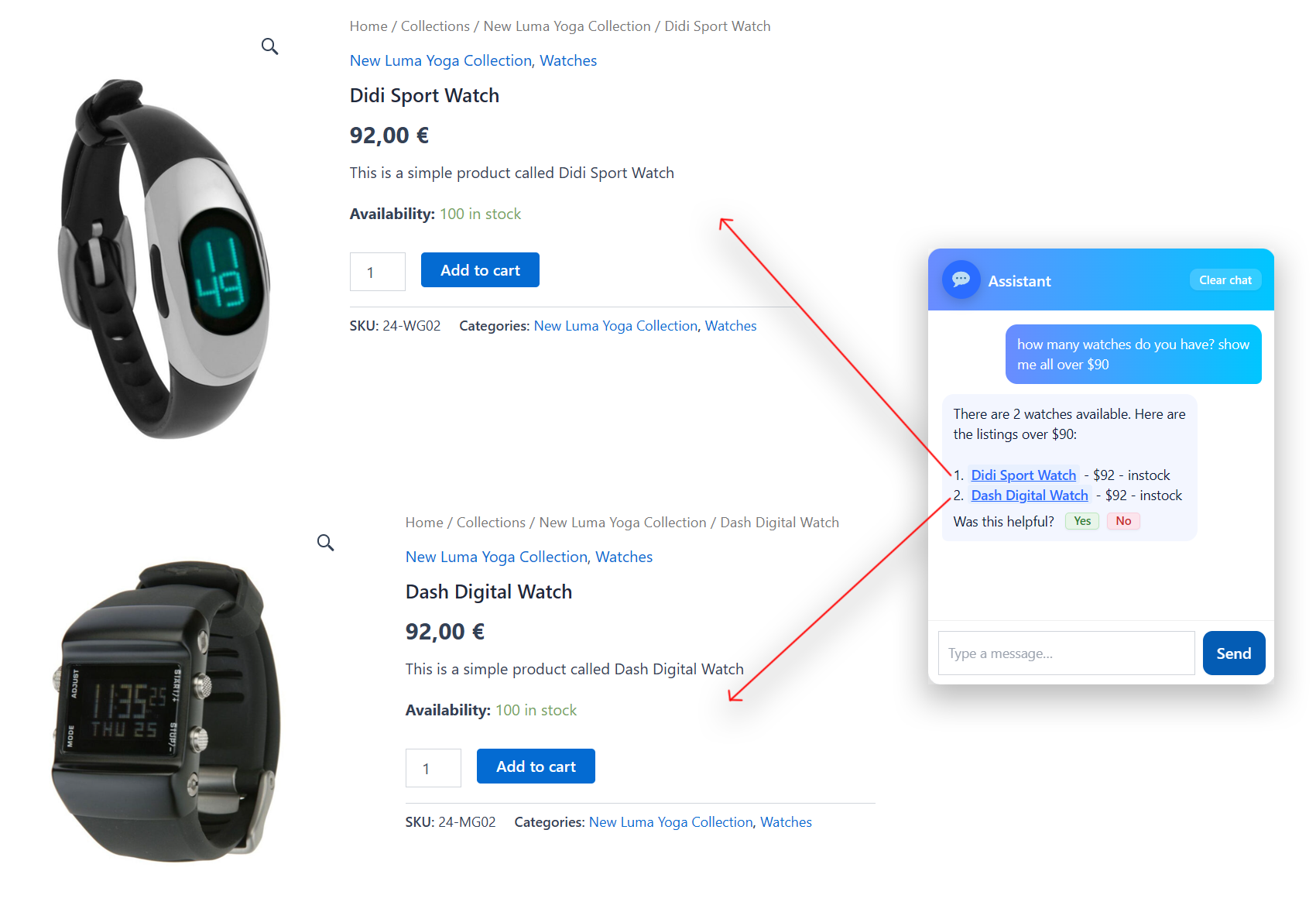
Storefront widget — product search — Customer asks “how many watches and how many over $90” and gets exact matches from the catalog with images, prices, and direct links. The assistant response points to each product result.
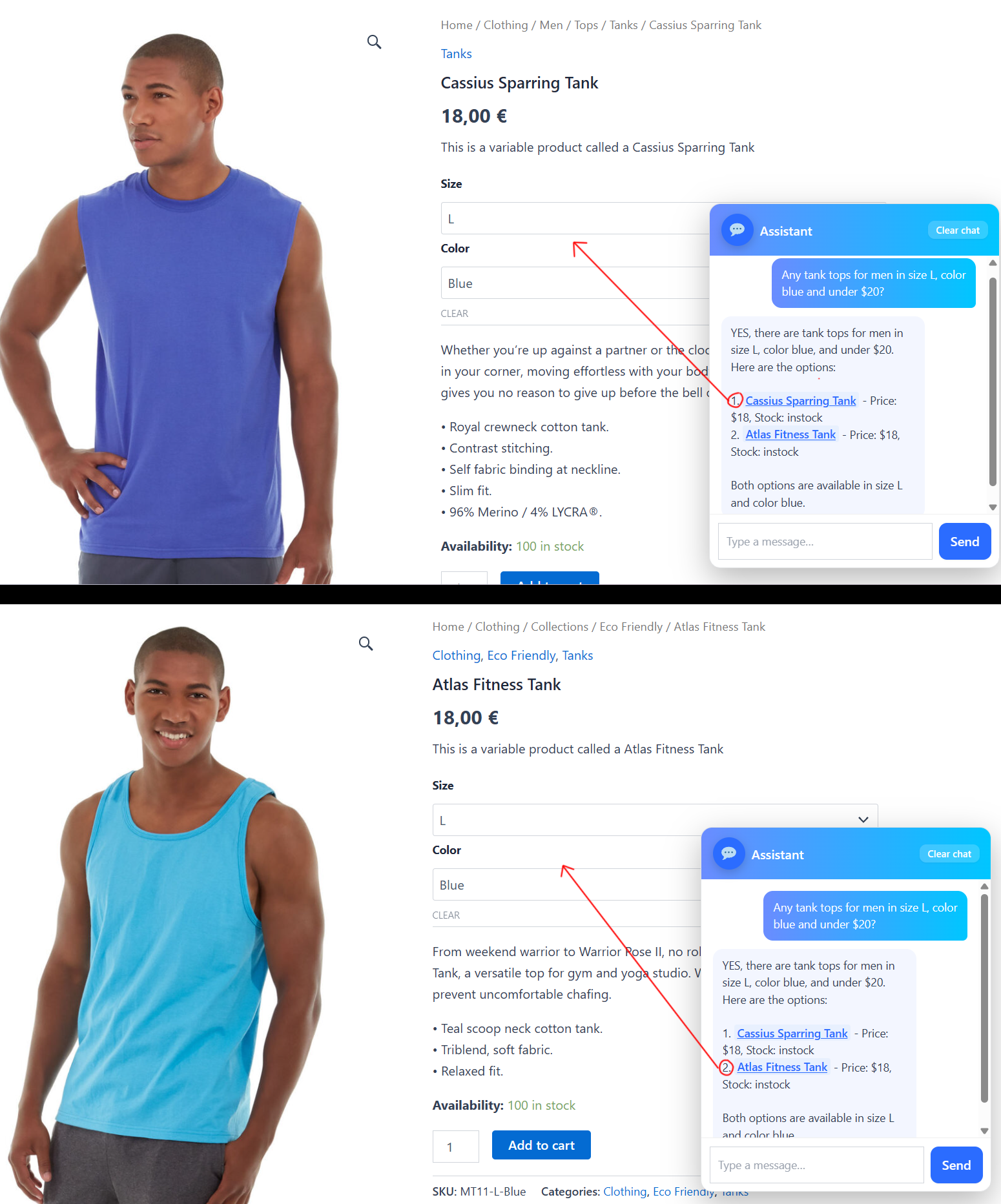
Storefront widget — filtered search — Customer asks for “blue men tank top in size L” and the assistant returns exact matches with images, prices, and links. The response clearly points to each product in the result collage.
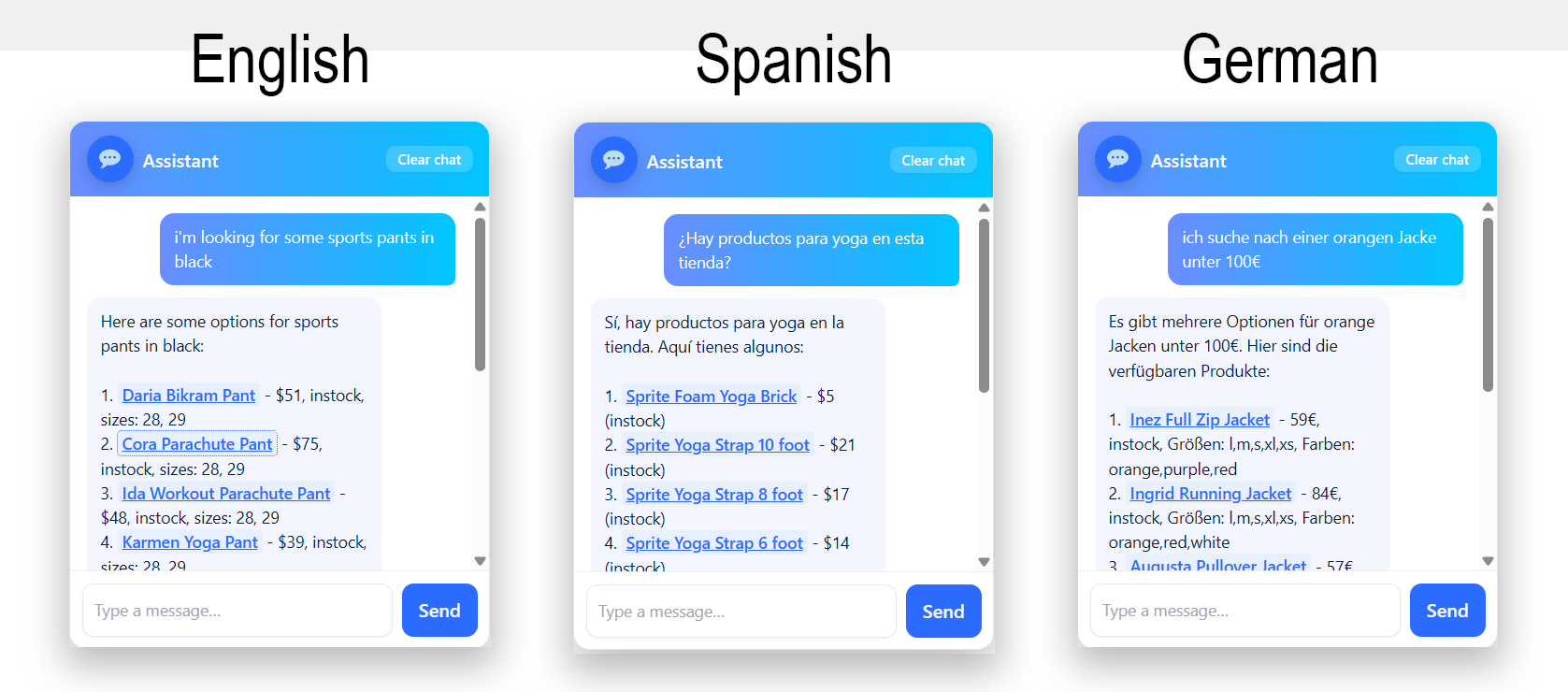
Storefront widget — multilingual — Collage of three widget conversations from the same English-language shop, showing the assistant responding in English, Spanish, and German. The shop language is English, but the assistant easily adapts to the customer’s browser language.
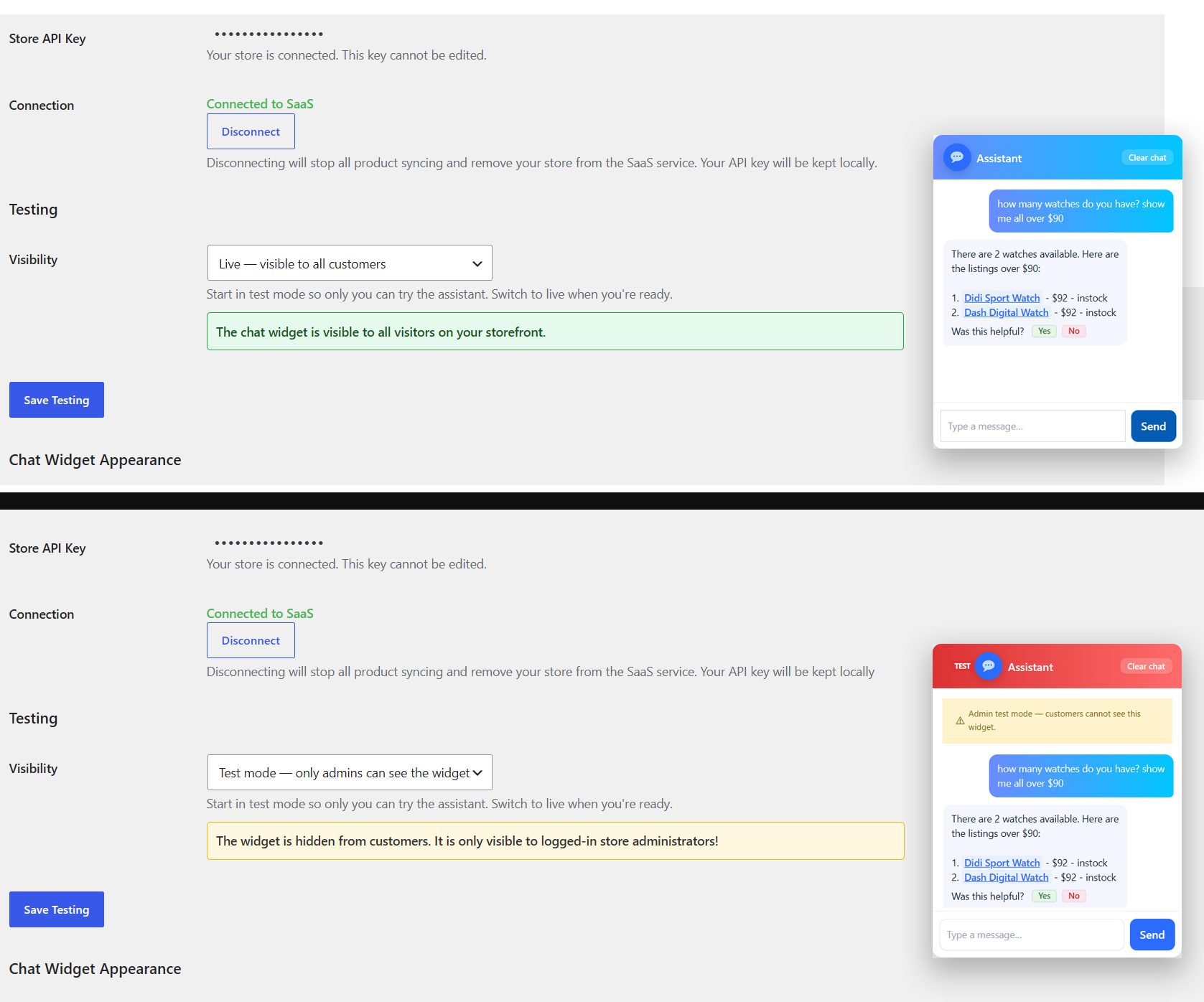
Test mode — Collage showing the test mode toggle in settings (left) and the resulting widget visibility (right). Top row: test mode set to “Admin only” with the widget visible. Bottom row: test mode set to “Visible for all” with the widget shown to everyone.
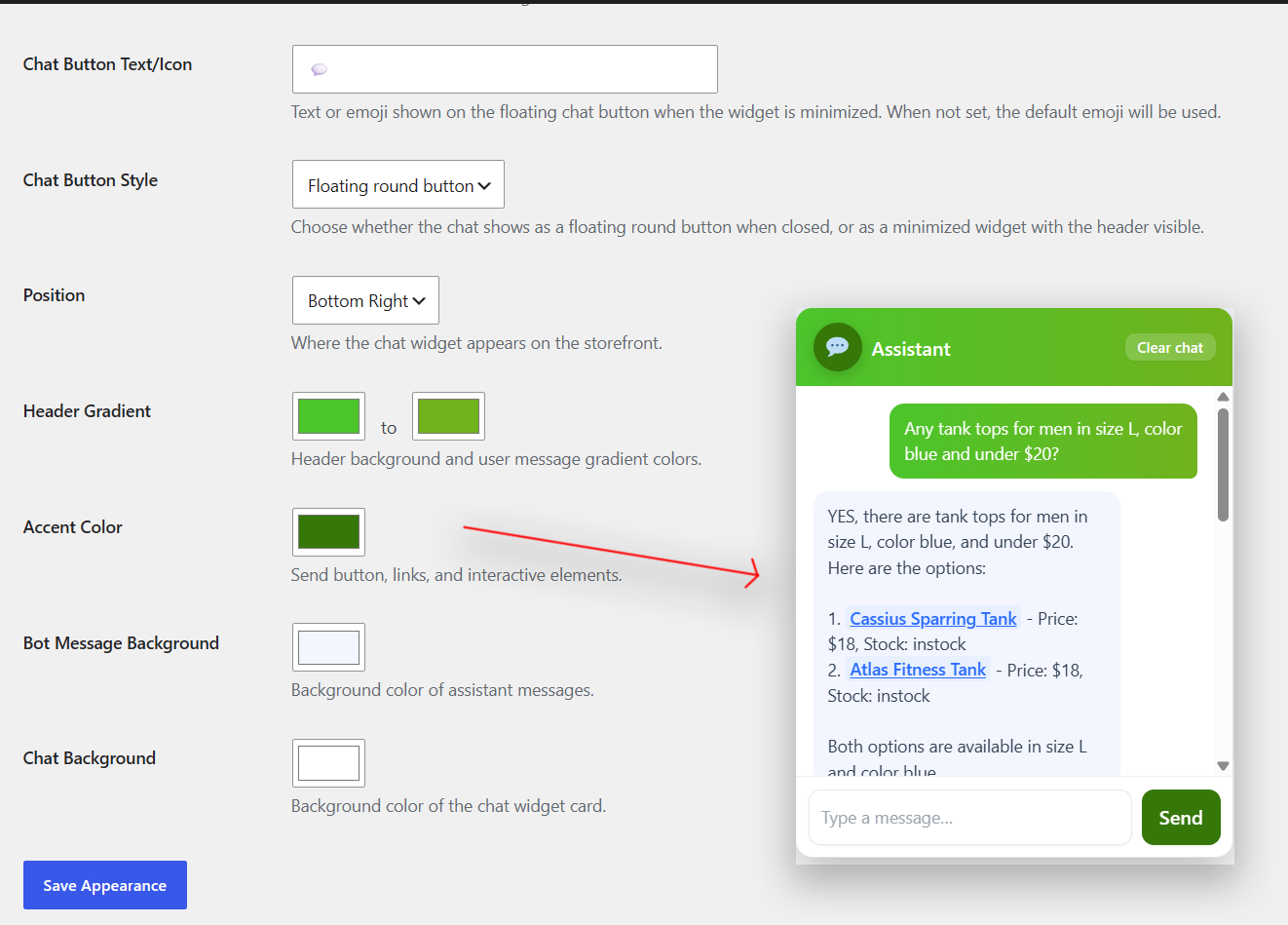
Widget customization — Side-by-side view of the styling settings (left) and the live widget preview (right). Green color scheme selected with header gradient, accent color, bot background, and chat card background all updated in real time.
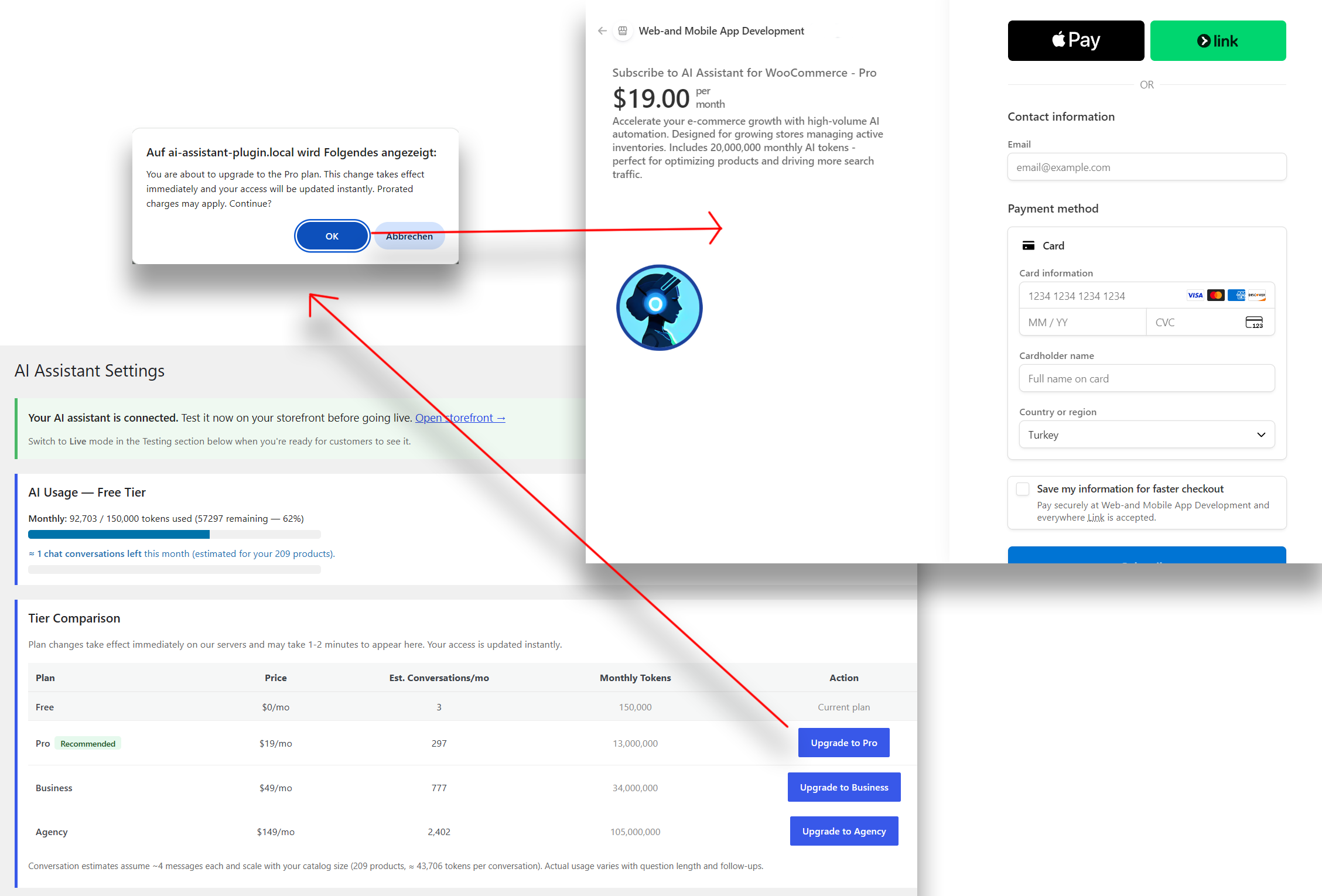
Upgrade flow — Free tier with the “Upgrade to Pro” button, leading to a confirmation alert, and then redirecting to the Stripe checkout window to complete the payment.
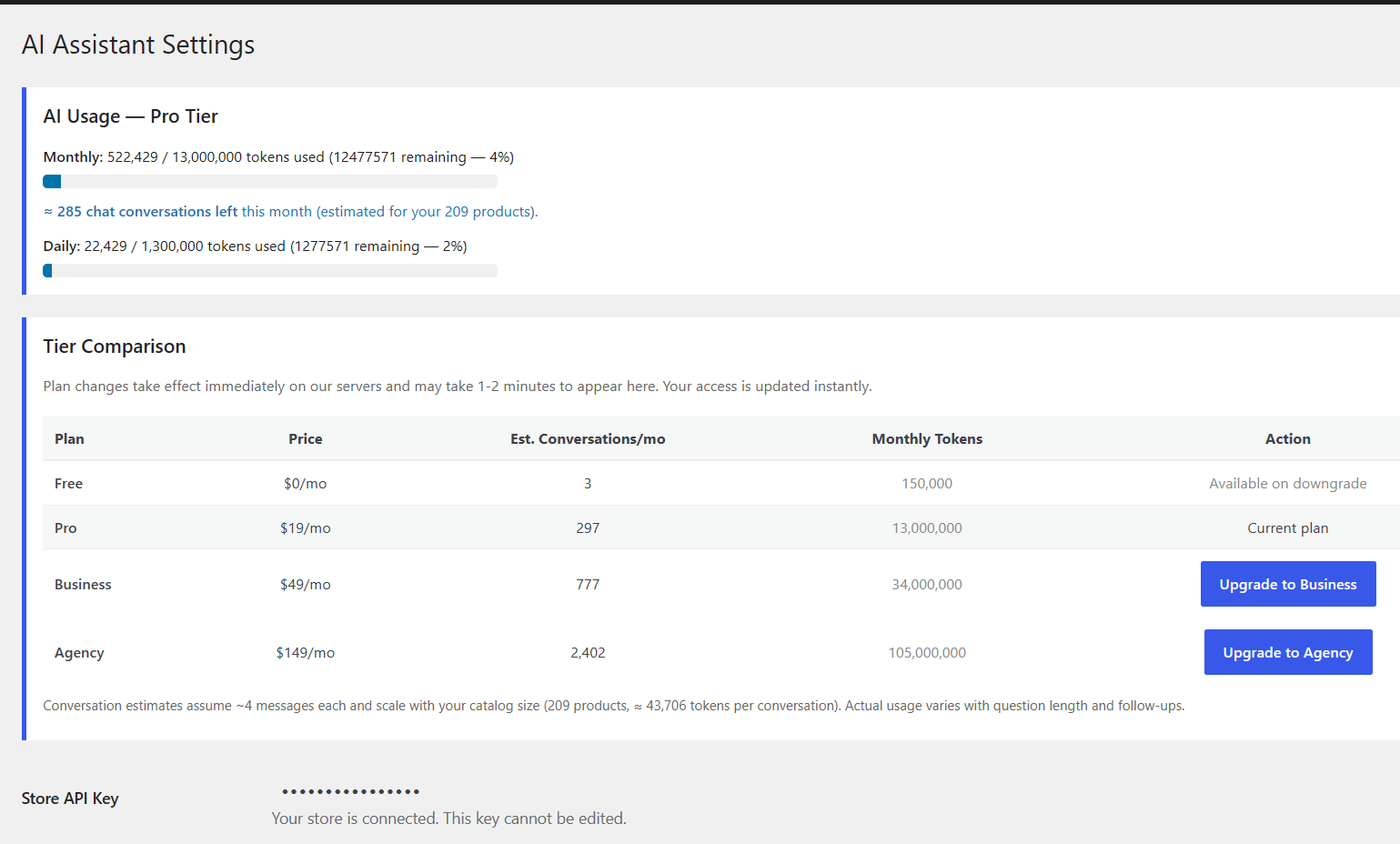
Admin area overview — paid tier — Upgraded admin view showing AI usage meters (e.g., 4% monthly, 2% daily) with color-coded progress bars, followed by the full tier comparison table with Free, Pro, Business, and Agency plans and their pricing.
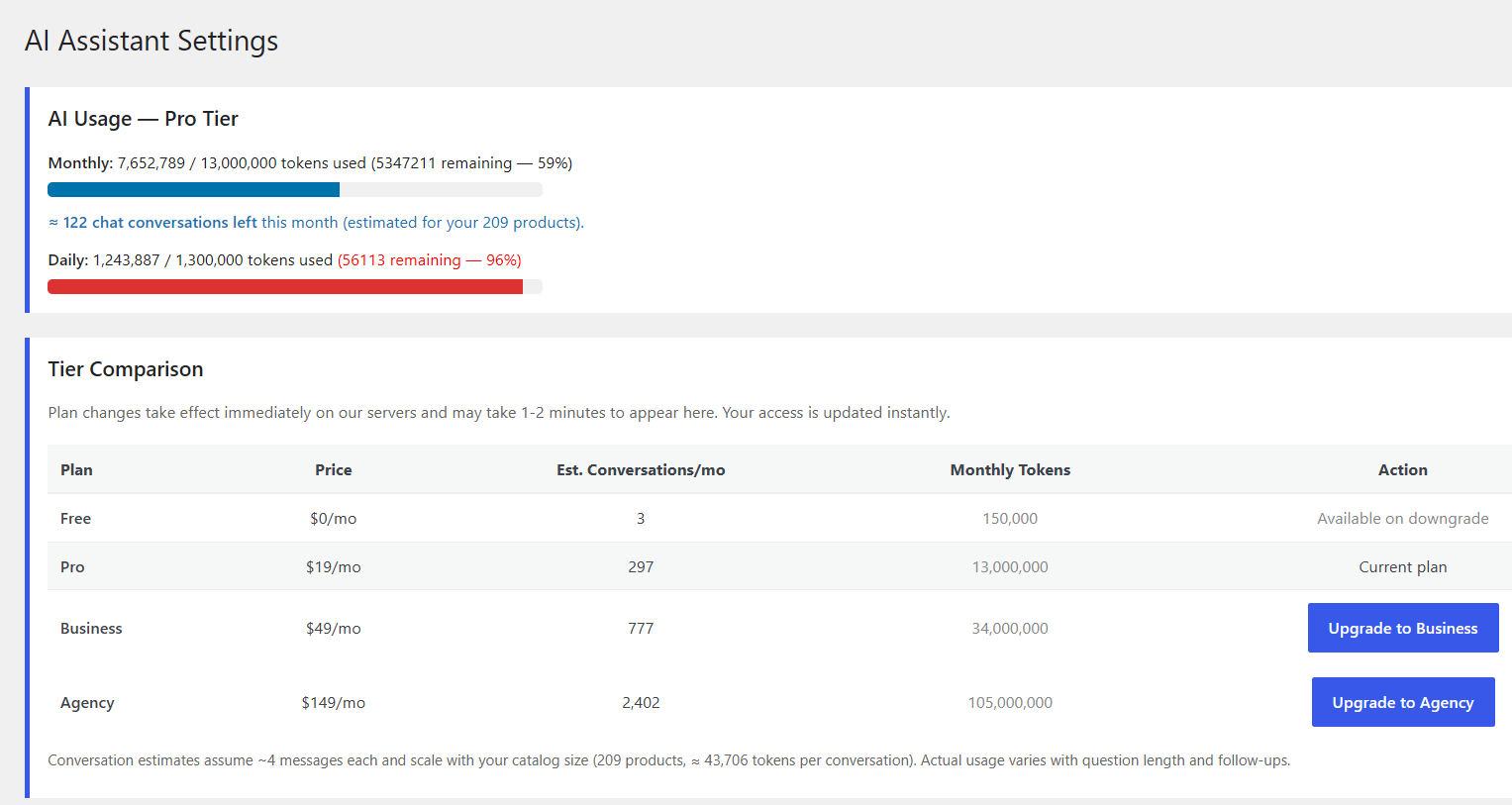
Admin area overview — near-limit usage — Usage meters showing 59% monthly and 96% daily (highlighted in red), warning that limits are approaching, with the tier comparison table still visible below for quick plan changes.
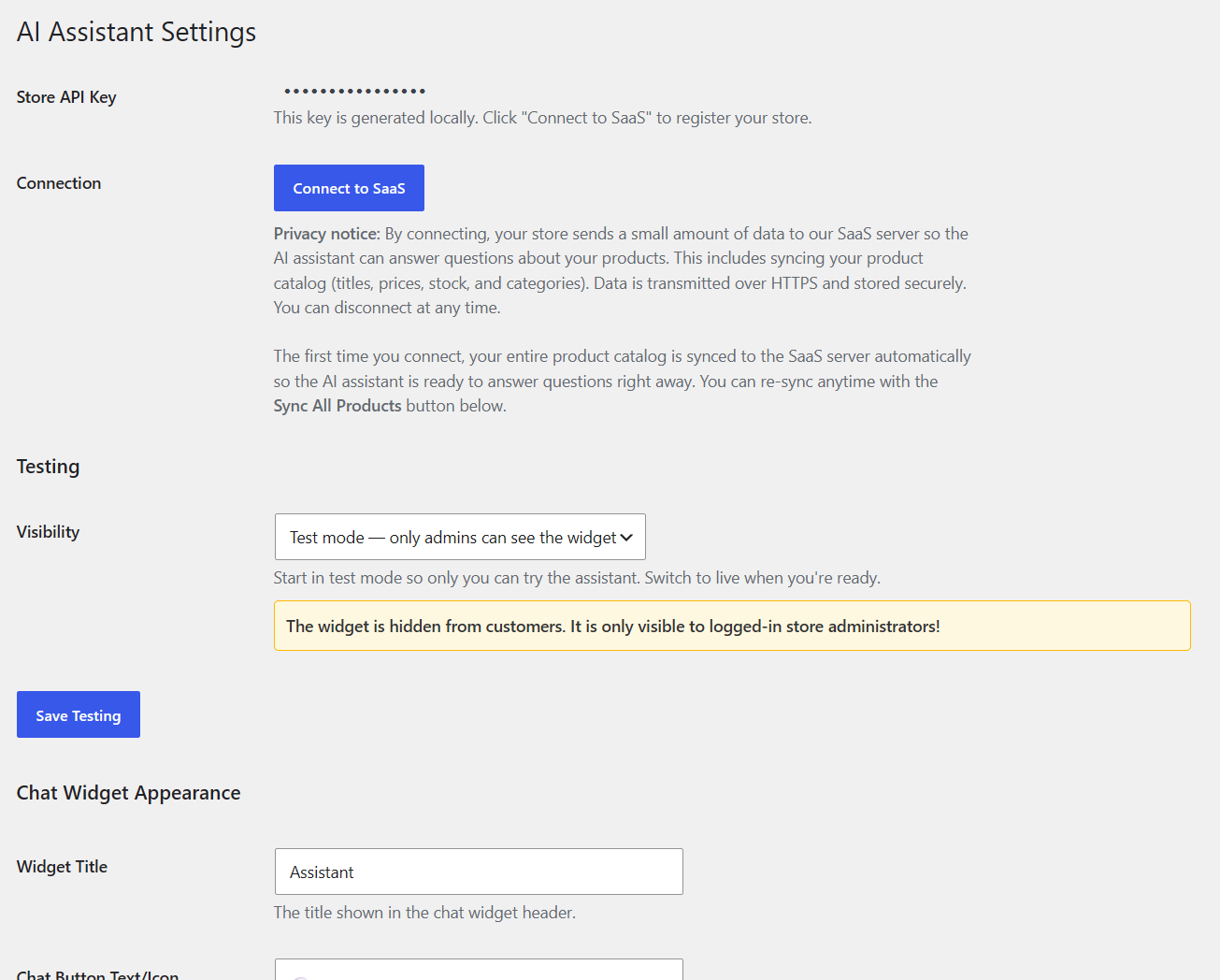
Tier comparison & upgrade — Inline plan switching with Stripe. Upgrade, downgrade, or manage your subscription without leaving WordPress.
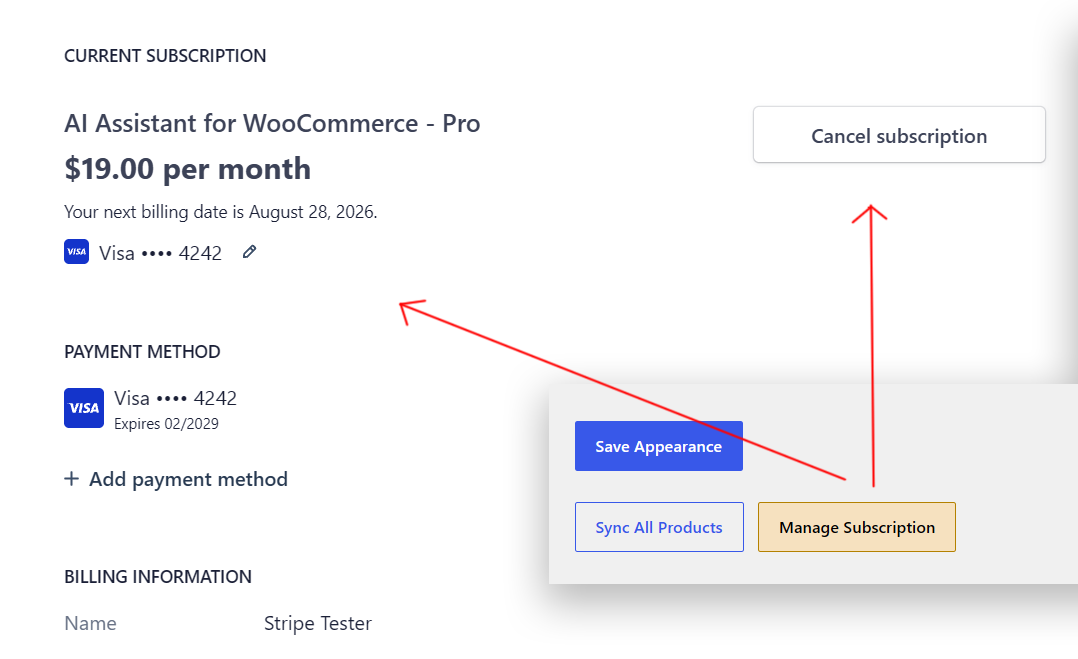
Manage subscription — Collage showing the “Manage Subscription” button in the plugin settings (left) and the Stripe billing portal (right) with customer info and cancel/resume options.
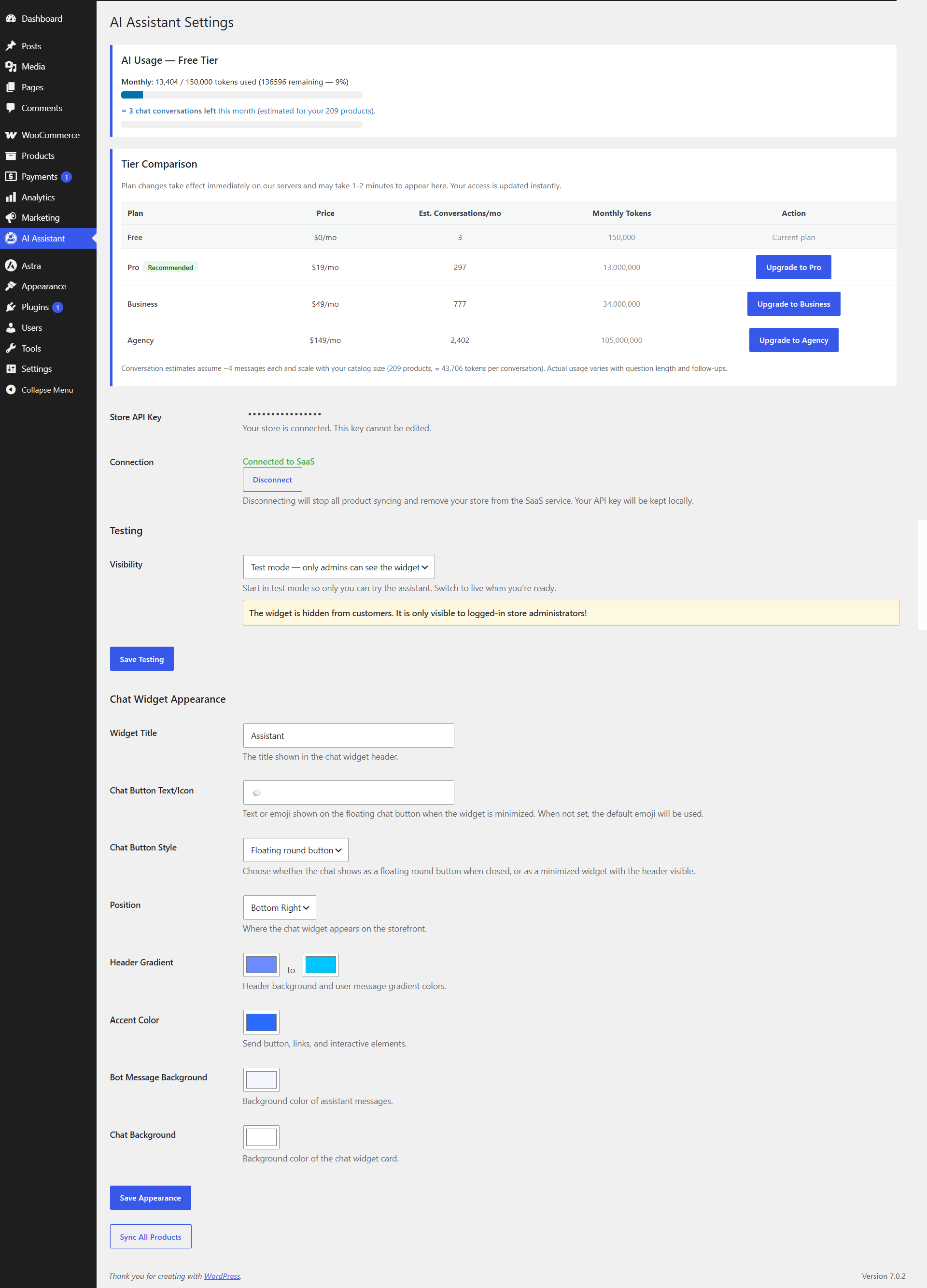
Admin area overview — Full view of the plugin settings page in free tier mode with the store already connected. Shows the complete admin interface with all options: API key, connection status, appearance settings, usage meters, tier comparison, and action buttons.
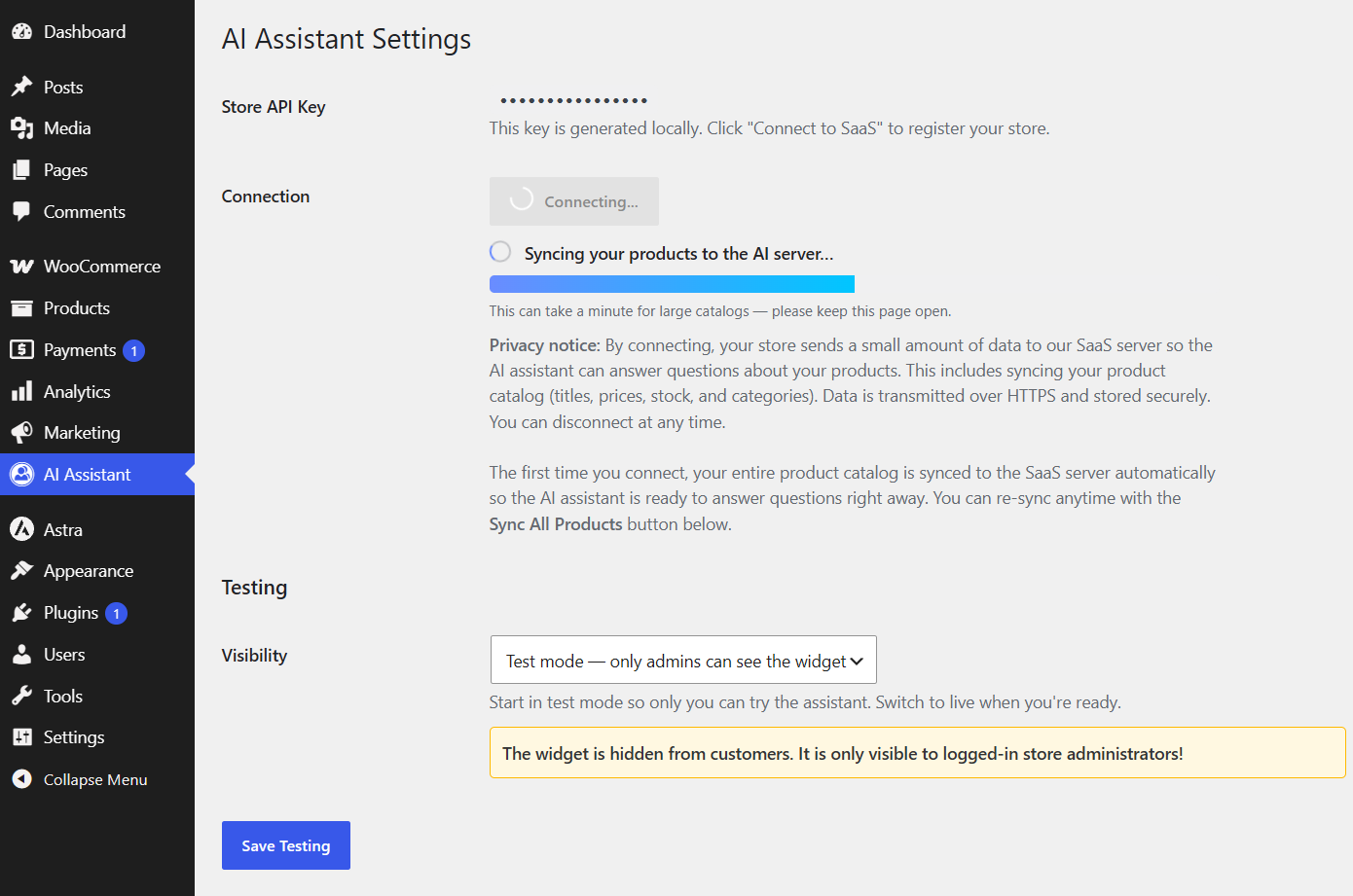
Admin settings — Connect & Sync — Shows the connection area with the “Connect to SaaS” button and the progress bar that appears during store registration and initial product sync.