RockHeron Wordpress Plugin - Rating, Reviews, Demo & Download

Plugin Description
Your ad platform counts its own results. RockHeron counts them on your site, and
puts the two numbers next to each other.
It records which campaign introduced every form submission and every WooCommerce
order, in your own database, on your own hosting. Then it shows what the platform
claimed beside what your site actually recorded, so you can see the gap rather
than take a dashboard’s word for it.
Lead source attribution
- First touch attribution: the campaign that introduced a visitor is remembered for thirty days, and the first one keeps the credit
- Source, medium, campaign, term and content, plus which parameter identified them
- Six form plugins: Contact Form 7, WPForms, Gravity Forms, Elementor Forms, Fluent Forms and WooCommerce
- WooCommerce orders, read from WooCommerce’s own order attribution rather than collecting a second copy
- A leads table showing every submission and the campaign behind it
- Results broken down by source, medium and campaign
What else it records on your site
- Visits, visitors and page views, with the previous period next to every number
- Goals: calls, emails, WhatsApp clicks, form sends, add to cart, or any element you name
- Clicks on any element you choose, by CSS selector, on all pages or only the ones you pick
- Elements seen on screen, video plays, scroll depth, outbound clicks, downloads, site searches
- Where visits come from: search, AI assistants, social, referral, campaigns, direct
- Devices, browsers, operating systems, countries, landing pages, top pages
- A live count of visitors in the last thirty minutes
Google data next to it
- Google Site Kit is used automatically when it is installed, so you do not connect Google twice
- No Site Kit? Connect Analytics 4 directly with your own Google Cloud OAuth client
- Search Console clicks, impressions, CTR and average position when Site Kit is present
- Import past months from Google Analytics so the dashboard is not empty on day one
- Import sixteen months of Search Console history with one button when Site Kit is connected, or from the export file when it is not
- Export any period as CSV or PDF, with the caveats carried into the file
Privacy
- No cookies are set for analytics, and no IP address is ever stored
- The one cookie RockHeron does set is first party and holds campaign details only: no name, no email address, no telephone number, nothing anybody typed into your form, and no advertising click identifier
- Visitors are counted with a one way hash that changes every day
- Do Not Track and Global Privacy Control are respected
- Works with CookiePile, the WP Consent API, or any consent cookie you name
- Raw events are cleared on your own retention schedule while daily totals keep the history
Languages
Fully translated into Hebrew, with a right to left layout. The translation is
delivered by WordPress.org as a language pack rather than bundled in this zip,
which is why languages/ holds only the POT file: a bundled catalog would
shadow the pack and stop you receiving corrections. Any other language can be
added from that POT file, or contributed at
https://translate.wordpress.org/projects/wp-plugins/rockheron/
External services
RockHeron contacts nothing on its own. Every connection below happens only
because you connected an account or switched a setting on, and each is listed
with what is sent and when.
Google OAuth, Analytics 4 and Google Ads (optional, off until you connect them)
If you choose to connect Google directly, with your own Google Cloud OAuth
client, the plugin talks to Google from your server to read your own reports:
accounts.google.com– where your browser goes to approve the connection. Nothing is sent there by the plugin; you sign in to Google yourself.oauth2.googleapis.com– exchanges the approval for an access token and refreshes it later. Sends your own OAuth client ID, client secret and the token.analyticsdata.googleapis.comandanalyticsadmin.googleapis.com– reads your Analytics 4 reports and property list. Sends the access token, the property ID and the date range and dimensions being requested.googleads.googleapis.com– reads campaign spend and clicks, and only when you have entered a Google Ads customer ID and a Google approved developer token. Sends the access token, the developer token and the customer ID.
These four read your figures in. Nothing the plugin recorded about your
visitors or your leads is sent out through them: no visit, no lead, no form
entry, no email address, no name, no IP address. That is a statement about
these four connections only, and not about the Google tag below, which is a
different thing and does send visitor data to Google.
If you use Google Site Kit instead, RockHeron reads the data through Site Kit
on your own site and makes no connection of its own.
Google tag (optional, off by default, and it does send visitor data to Google)
This one runs in your visitors’ browsers, not on your server, and it is the
ordinary Google tag. Switch on “Inject the Google tag”, enter a measurement ID,
and every page your visitors load fetches
https://www.googletagmanager.com/gtag/js and reports to Google on their
behalf.
What Google receives is what the Google tag always receives, which is visitor
data: the page being viewed and its title, the referring page, the visitor’s IP
address, their device, browser, operating system and screen size, their
approximate location derived from that IP address, and whatever Google’s own
cookies on that browser already identify. RockHeron does not choose or limit
any of it. It places the tag and Google does the rest.
Because of that:
- It is off by default and nothing is requested from Google until you turn it on.
- It is skipped entirely when Site Kit or another plugin is already tagging the same property, so nobody is double counted.
- It is not loaded until the visitor has allowed it. Consent and Do Not Track are evaluated in the visitor’s own browser, not on your server, so a cached page cannot serve one visitor’s answer to the next. If you have set a consent mode, no request reaches Google before that visitor consents; if they consent later on the same page, the tag loads then.
- Turning it on is a decision about your visitors’ data, not just your own reporting, and your privacy policy should say so.
These are Google services, governed by the Google Privacy Policy
(https://policies.google.com/privacy) and the Google APIs Terms of Service
(https://developers.google.com/terms). Analytics data handling is additionally
covered by the Google Analytics terms
(https://marketingplatform.google.com/about/analytics/terms/us/).
Nothing else
RockHeron contacts no service of ours, phones no home, and loads no script or
stylesheet from a CDN. Everything it ships runs from your own server, including
the charting library below, which is bundled rather than fetched.
Third party credits
Chart.js 4.6.1, MIT licensed, bundled at assets/vendor/chartjs/. The
dashboard and report charts are drawn with it. Its license is in
assets/vendor/chartjs/LICENSE.md and the source is at
https://github.com/chartjs/Chart.js/tree/v4.6.1
Nothing else is bundled.
Configuration guide
Everything below is in the plugin. Nothing here needs an account anywhere
unless you choose to connect Google.
First run, and the three screens you will use
- Activate the plugin and open RockHeron. Recording starts immediately and
the first visits appear within a minute. There is nothing to switch on. - RockHeron, Dashboard is traffic: sessions, daily visitors, page views,
goal completions and conversion rate, each against the previous period, with
cards for where visits came from, top pages and traffic over time. - RockHeron, Leads is the point of the plugin: every form submission and
WooCommerce order with the campaign that introduced the person, read as first
touch. A result nobody could attribute is listed as Not known rather than
dropped, so these totals never quietly disagree with your form plugin. - RockHeron, Tracked elements counts anything you name with a CSS selector:
a quote button, a telephone link, a PDF download. Tick “count this as a goal”
and it feeds the conversion figures. - RockHeron, Settings is where Google, privacy, retention and the Google
tag live.
Form plugins are read automatically, never written to. Contact Form 7, WPForms,
Gravity Forms, Elementor Forms, Fluent Forms and WooCommerce are supported, and
the Leads screen lists which of them it can see, so an empty screen tells you
why it is empty. Both the classic and the block WooCommerce checkout are
covered.
Google: what it is for, and what you need
You do not need Google at all. The plugin records visits and leads from
your own site, in your own database. Connecting Google only adds Google’s own
numbers beside yours.
If you want them, there are three separate things, and they are independent:
- Google Analytics 4 reporting. Settings, Google data. Either install Site
Kit by Google and RockHeron uses its connection, or connect directly. A
direct connection needs a Google Cloud project with the Analytics Data API
enabled and an OAuth client of type Web application, whose Client ID and
Client secret you paste into Settings. The scope requested is
analytics.readonly, which is read only: nothing is written back and no
visitor data is sent on this connection. - Google Ads. Only if you switch it on, which adds the
adwordsscope to
the same connection so spend and clicks can be read. - Search Console history. No API and no credentials. Open Search Console,
export the Performance report, and upload the zip, or the CSV files from
inside it, in Settings. That is the whole of it.
The Google tag is a separate thing again and is off until you enter a
measurement ID. It is the ordinary gtag.js, so switching it on sends Google
what the Google tag always sends: page views, device and IP address, under
Google’s terms rather than ours. The reporting connections above send Google
nothing. Leave the field empty and no Google tag is loaded.
Campaign CSV format (Pro)
Campaigns, Add or edit campaigns takes one row per campaign. Column order does
not matter and headings are matched in English or Hebrew. Recognized columns:
campaign, `platform`, `start`, `end`, `spend`, `impressions`, `reach`,
clicks, `results`
Dates are YYYY-MM-DD. platform is one of Meta, Google Ads, LinkedIn, TikTok
or Other. Only campaign is required; anything missing is left empty rather
than guessed. What the platform claimed is never reconciled against what your
site recorded: both are shown, and the gap between them is the number worth
looking at.
Consent, and Do Not Track
Settings, Privacy. Consent mode is off by default, which records every
visit. The other three modes are:
- WP Consent API, for any consent plugin that implements it. Statistics
consent is required before anything is recorded. - CookiePile, which is read directly.
- A cookie you name, for anything else: give the cookie name and the value
that means consent was given.
Where a mode is selected but cannot be evaluated, for example the consent
plugin has been deactivated, the plugin fails closed and records nothing.
Consent and Do Not Track are evaluated in the visitor’s browser, not on the
server, because a consent decision made in PHP is written into your page cache
and then served to the next visitor, whose answer may be the opposite. Respect
Do Not Track is a separate switch in the same panel. Somebody who accepts after
the page has loaded is picked up without a reload.
What is stored, how long, and how to delete it
What is kept about a lead is the campaign and a pointer to the form plugin’s
own entry. No name, no email address, no telephone number, and no advertising
click identifier. Your form plugin already holds the submission; a second copy
of every lead on your site is a duty rather than a feature.
Three retention settings, all in Settings, Stored data:
- Attribution window, default 30 days. How long the first touch campaign is
remembered in one first party cookie. 1 to 365. - Raw events, default 90 days. Individual page views are pruned nightly
after this; the daily totals they roll up into are kept. - Leads, default 400 days. 30 to 3650.
To remove everything: Settings, Stored data has a tool to delete recorded data
without uninstalling. Uninstalling with “delete my data” switched on drops every
table, option, transient and scheduled job the plugin created, found by prefix
rather than from a list. Deactivating alone removes nothing except the scheduled
jobs, so your data survives an update.
How the lists are stored
Every list on the dashboard, such as top pages, referrers, campaigns and
landing pages, is rolled up once a day. Each day keeps its busiest rows by name
and sums everything else into a single “everything else” figure, so the stored
rows always account for the whole day even when the list is long.
The totals are right either way. What a cap changes is only how much of the
long tail is broken out by name: a page that ranks below the cap every day of a
range is counted, but inside that one figure rather than under its own address.
The default is 200 rows a day for pages and landing paths, 100 for referrers,
campaigns, outbound links and site searches, and 50 for the lists that cannot
produce more than that anyway, such as device, browser and country.
Settings, Stored data has one field, “Rows kept per list, per day”, that sets
a single number for every list. Zero, the default, leaves each list on its own
default. The rockheron_dim_limit filter takes ( $limit, $dim ) if you want
to raise one list without raising the rest.
Each extra row is kept for good, because the daily totals outlive the raw events
they came from. Raising this on a site with thousands of URLs costs table rows
for every day the site runs, which is why it is a setting and not simply a
larger number.
Troubleshooting
- The dashboard is empty. The plugin only knows what it has recorded since
it was activated; it cannot see the past. Check you are not logged in as an
administrator or editor: those roles are excluded from recording by default,
in Settings, What to record, so browsing your own site while logged in
deliberately records nothing. - Nothing appears on a cached site. Recording runs in the browser and does
not need the page to be uncached. If you see nothing at all, check that your
caching or optimization plugin is not deferring or stripping the script. - Leads are missing. The Leads screen lists the form plugins it can see. If
yours is not listed it is not supported yet. If it is listed but entries are
not arriving, confirm the form actually completes: a submission that fails
validation is not a lead. - Google numbers will not load. Reconnect in Settings, Google data. A
connection that …
Screenshots

The dashboard. Sessions, visitors, goal completions and conversion rate, each with the previous period beside it, and where the visits came from.

Leads. Every form submission and WooCommerce order with the campaign that introduced it. First touch, remembered for thirty days.
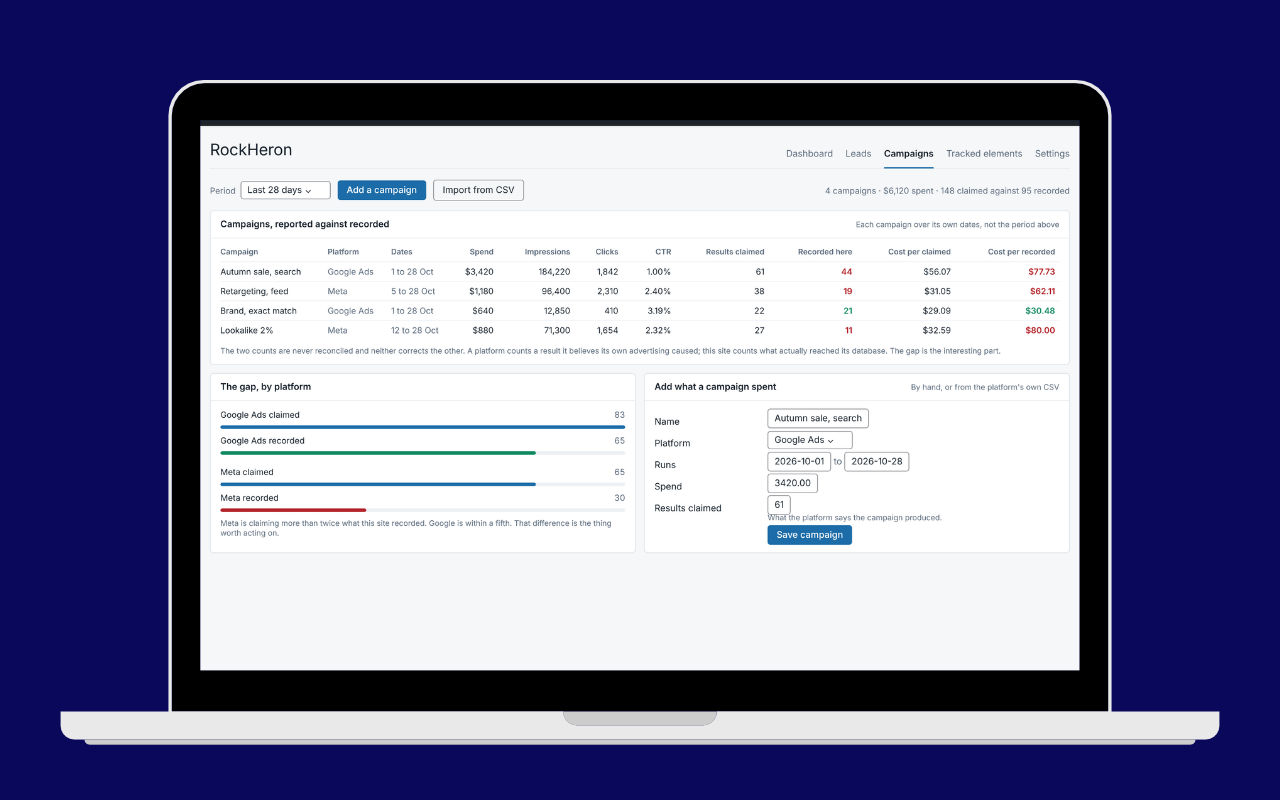
Campaigns, each reported over its own dates: what the platform claimed, what this site recorded, and the gap between them. Pro.

A report carrying your own name and logo, prepared for a client. Pro.

Settings. White labeling, the weekly or monthly send, and every site you look after in one table. Pro.

Tracked elements. What you asked to count, where it is counted, and what has been recorded so far.