SEO'n'AI – Image Locator & Find Unused Images Wordpress Plugin - Rating, Reviews, Demo & Download

Plugin Description
Every media library grows. Sooner or later you look at an image and ask the question WordPress cannot answer: is this still used anywhere?
Core shows you “Uploaded to” — the post an image happened to be attached to, which says nothing about where it actually appears. Image Locator answers the real question:
- A Usage column in the media list: used in how many places, unused, or not checked yet — with the first findings in the tooltip.
- A “Used in” panel on every image (list view and grid modal): each post, page, widget or setting that references the image, linked for one-click editing.
- A usage page per image: the image on one side, every place it is used on the other — each opening in a new tab for editing. Checked live on every visit, with a delete button that warns you properly if the image is in use.
- A filter: show only used, unused or unchecked images.
- A library scan that works through everything in small time-budgeted batches — it cannot time out, even on large libraries.
- A bulk action to delete unused images — see below for why it is the careful kind.
Where it looks
The scan searches the database, not just the post content:
- Post content: image blocks, classic editor markup, galleries — matched by attachment ID and by every size variant of the file name
- Featured images
- Custom fields and page-builder data (Elementor, Divi, WPBakery and others store image references in post meta as IDs or URLs — both are searched)
- Widgets, the site logo, the site icon
- Term images, including WooCommerce category images
Drafts count as usage — those are exactly the ones you want to know about before deleting. Revisions and trashed items do not count.
Deleting, done carefully
“Unused” from a cached scan is not enough to delete a file. The bulk action “Delete unused (verified)” re-checks every selected image live, immediately before deletion. If an image turns out to be in use after all — because content changed since the scan — it is skipped and reported, not deleted.
And if you try to delete an image the scan knows is used, the media list warns you first, with the number of places it appears.
Deletion is permanent and removes the actual files, like WordPress’ own delete. Keep backups.
Honest about the limits
A database scan cannot see everything. Images hard-coded in theme or plugin template files, images referenced from custom CSS, and use on other websites are invisible to any plugin of this kind. Treat “unused” as strong evidence, not as a court ruling — that is exactly why the bulk delete re-checks each image, and why nothing is ever deleted automatically.
Disclaimer
This plugin is a tool, not a promise. It reads your database and reports what it finds; it cannot see images hard-coded in theme or plugin template files, referenced from custom CSS, or used on other websites. Deleting images is always your decision and your responsibility: every deletion is started by you, confirmed by you, and permanent — the files are removed. Verify the findings before you delete (the usage page exists exactly for that) and keep backups. The author accepts no liability for deleted images, broken layouts or any other consequences of using this plugin.
Performance
The media list never scans on render — the column reads only cached results. Scanning happens when you ask for it: per image with one click, or for the whole library in batches with a strict time budget per request. When content changes, existing results are marked as outdated instead of silently lying to you.
One honest trade-off: a full library scan takes time on large libraries. Every image is checked individually, with the same logic that runs before any deletion — one truth, one code path. On a library with thousands of images that can take a while; on a typical site it is a few minutes, and it is a one-time cost — after the first full run, “Check new images” only looks at new uploads. To really catch everything, thoroughness beats speed. The front end of your site is never touched either way.
Screenshots
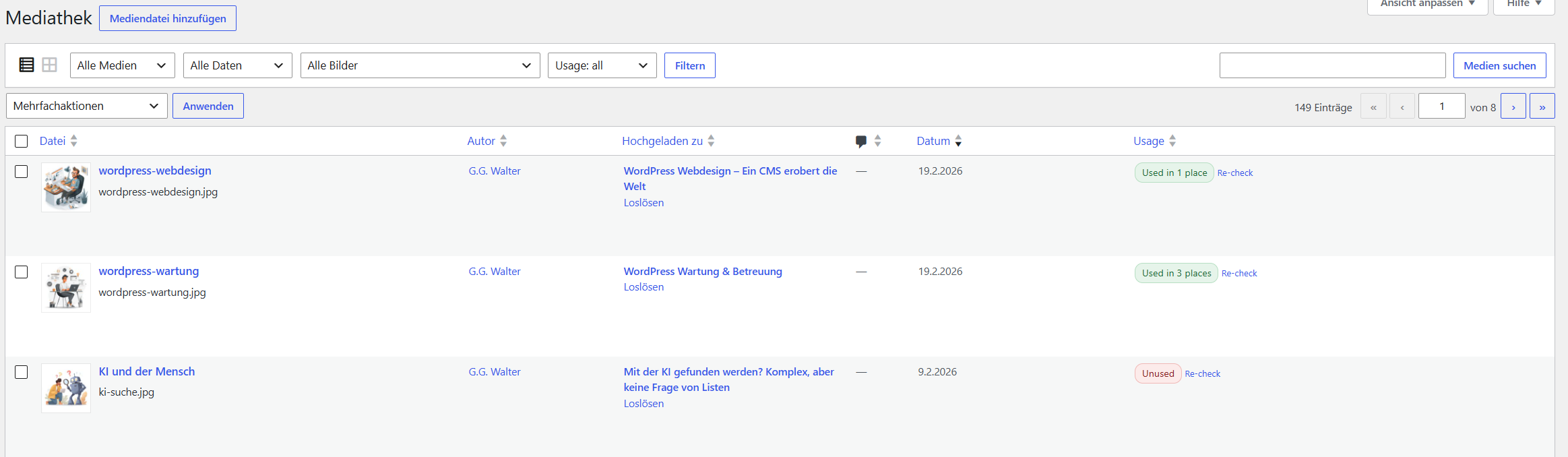
The Usage column in the media list, with the unused filter active
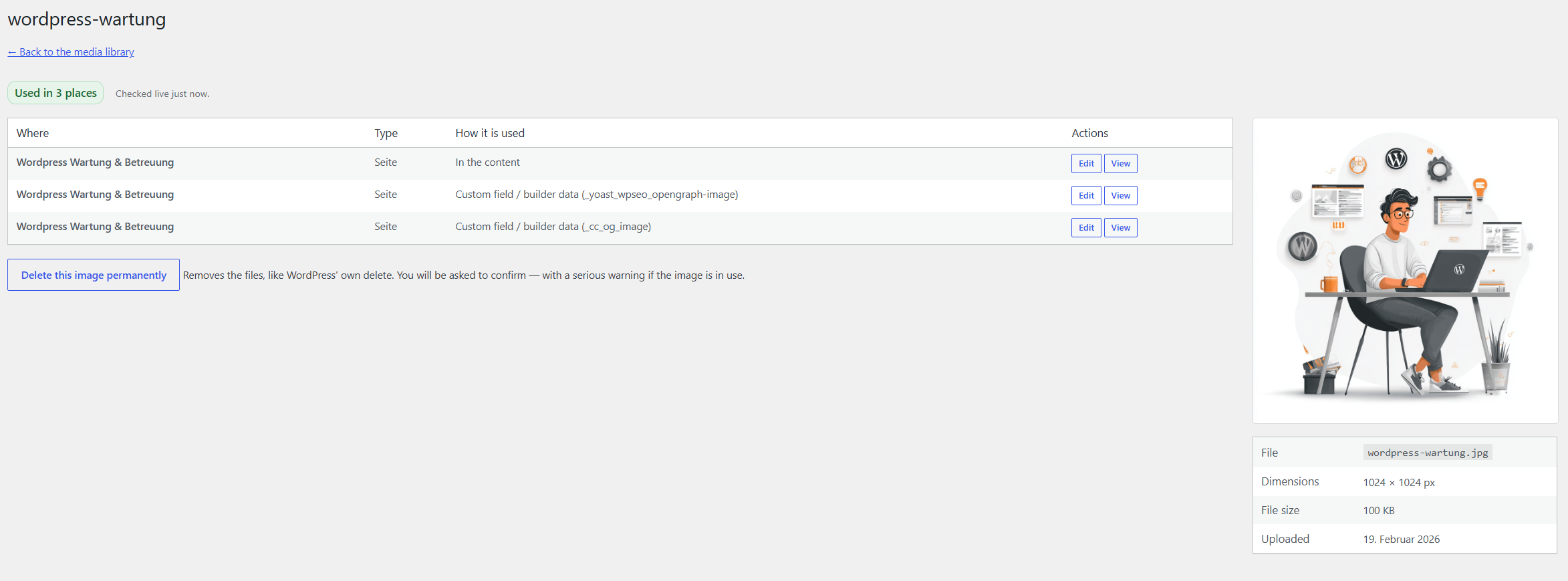
The usage page: the image next to every place it is used, each opening in a new tab

“Used in” on a single image, with linked findings
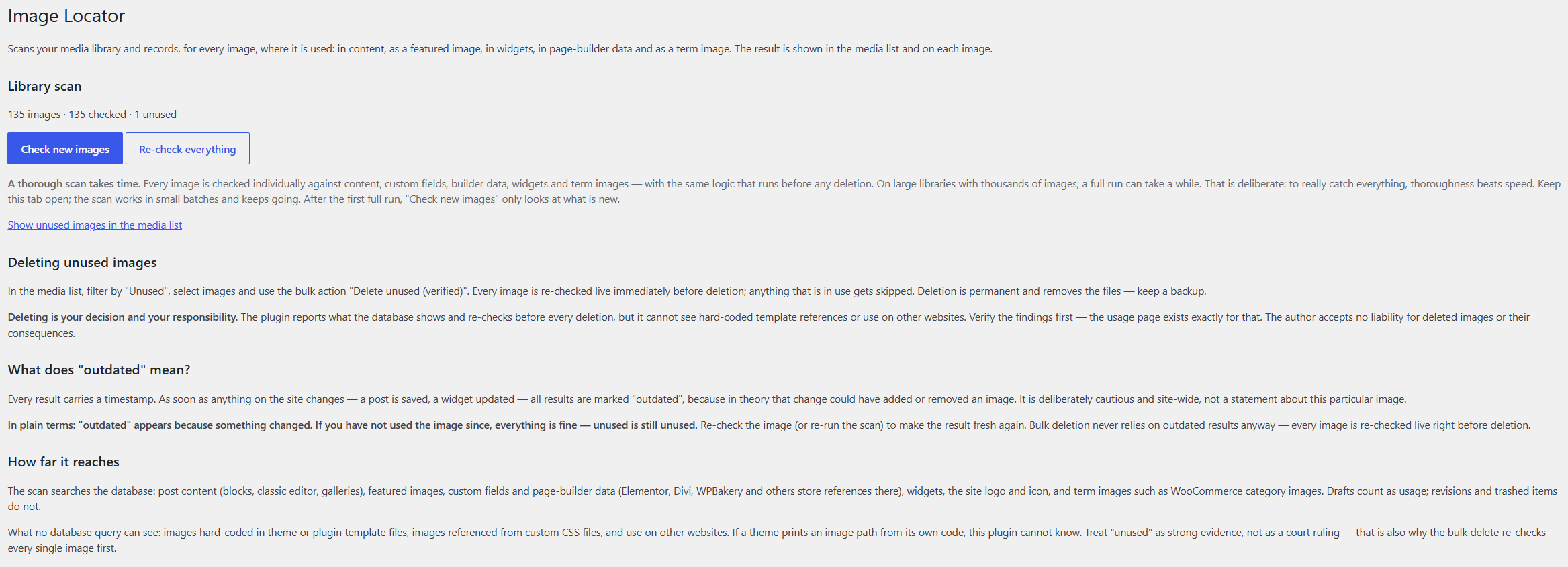
The library scan on Media → Image Locator