Seonix SEO Wordpress Plugin - Rating, Reviews, Demo & Download
Plugin Description
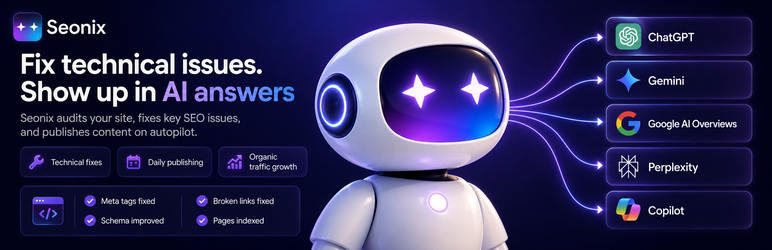
Seonix SEO is the AI agent for organic and AI-search growth. Connect your WordPress site and Seonix audits your technical SEO in real time, writes SEO-optimized articles, fixes site issues in one click, and publishes everything on autopilot — for Google and AI search engines like ChatGPT, Gemini, and Perplexity.
Built for site owners who want growth without learning SEO or hiring an agency.
What Seonix does for your site
- Real-time technical SEO audits — broken links, duplicate content, missing meta descriptions, image alt issues, schema gaps, sitemap problems, and dozens more checks.
- One-click SEO fixes — apply AI-suggested fixes for the most common technical issues directly from the Seonix dashboard. Rollback any change if you don’t like the result.
- AI-written articles, SEO-tuned end-to-end — Seonix learns your site, audience, voice, and topics, then generates articles with optimized titles, meta descriptions, internal links, headings, and schema markup.
- Autonomous publishing on a schedule — pick a cadence (daily, every 3 days, weekly), and the AI agent plans, generates, and publishes for you. Pause anytime.
- AI-search visibility — content is structured for both Google and the new generation of AI search engines (ChatGPT, Gemini, Perplexity), with built-in
llms.txtsupport. - Works with the SEO plugin you already use — Seonix writes the standard meta fields every major WordPress SEO plugin reads, so your existing setup keeps working.
- WooCommerce-ready — product pages flow into the AI context for relevant internal linking.
How the WordPress plugin fits in
The Seonix WordPress plugin is the bridge between your site and the Seonix service. The plugin handles the WordPress side — receiving published articles, syncing your site structure for internal linking, and applying SEO fixes — while the AI heavy-lifting runs on the Seonix platform.
How it works:
- Install and activate this plugin.
- Open the Seonix menu in your WordPress admin and click “Connect to Seonix” — pick your project in the Seonix app and the connection completes in one click.
- Seonix analyzes your site and starts publishing, syncing, and applying fixes via the REST API.
Prefer to connect manually? Copy the auto-generated API key from Seonix Settings and paste it into your Seonix project’s WordPress channel. No WordPress passwords either way.
External Service
This plugin connects your WordPress site to the Seonix service (https://seonix.ai), a third-party SaaS platform that generates and publishes SEO-optimized articles to your site. Using Seonix requires a Seonix account.
What the service does
Seonix uses AI to generate articles based on your site’s topic, optimize them for SEO (titles, meta descriptions, internal links, schema), and publish them back to WordPress through this plugin’s REST API. It also consumes a lightweight snapshot of your existing pages, posts, and WooCommerce products so generated articles can include relevant internal links.
How you connect
There are two ways to link your site, and BOTH require an explicit action by you:
- One-click connect (recommended): from the Seonix Dashboard inside wp-admin, click “Connect to Seonix”. Your browser opens
https://app.seonix.ai/connect, where you sign in (or sign up) and pick the project to link. Seonix then calls back to your site’s REST API to finish the handshake. Your site URL is passed in the link; a single one-time security code is passed in the URL fragment so it stays out of server logs. No WordPress password leaves your site. - Manual connect: copy the API key from
Seonix > Settingsand paste it into the Seonix dashboard. Seonix calls back to your REST API using the key.
When the plugin contacts Seonix
The plugin does NOT contact any external server until you connect it to a Seonix project:
- Install and activate the plugin — no external request is made.
- Connect via either method above. Until a connection succeeds, no outbound calls leave your site (clicking “Connect to Seonix” only opens the Seonix site in your browser — that browser navigation is initiated by you, not a background request from the plugin).
- Seonix calls back to your WordPress REST API to complete the handshake. After that, the Seonix engine URL is stored on your site.
- From that point on, the plugin can push a one-time site snapshot and per-post events to that engine URL, and can pull your SEO task list back from it.
Until step 3 succeeds, no outbound calls leave your site.
What data is sent
- Site snapshot (manual “Sync Now” button or weekly cron): for each public page, post, and WooCommerce product —
wp_id,content_type,title,slug,url,status,updated_at. Post content body is NOT sent. - Per-post events on save/delete: same shape as above plus an action flag (
created/updated/deleted). - Connect handshake: when Seonix completes the connection it reads your site name and site URL and stores the plugin’s API key so it can call your site later.
- Outbound calls go only to the Seonix endpoint authorized during connection.
What data is received
- SEO tasks: after Seonix scans your site (on connect and weekly), it sends your site’s audit results — a list of SEO/technical/AI-search issues with a title, description, recommendation, severity, and the affected URL — which the plugin stores locally and shows on the Seonix Dashboard. The plugin can also pull this same list on demand via the “Refresh tasks” button. No personal data is received; the tasks describe your own site’s content and configuration.
Terms and Privacy
By installing the plugin and connecting it to a Seonix project, you accept the Seonix Terms of Service and Privacy Policy:
- Service: https://seonix.ai
- Terms of Service: https://seonix.ai/terms-of-use
- Privacy Policy: https://seonix.ai/privacy-policy
Screenshots

Connect your WordPress site. In your Seonix dashboard, open Integrations → WordPress and enter your site URL.

Paste the API key. Copy the
sx_key the plugin generated on activation fromSeonix → Settingsand paste it back into the Seonix dashboard to complete the connection.