Servantly Ask – Private Q&A With Spam-Blocking Moderation Wordpress Plugin - Rating, Reviews, Demo & Download

Plugin Description
Stop paying for live Q&A tools with participant limits. Servantly Ask is completely free and runs on your own WordPress site, letting any audience — a conference or convention session, a company town hall, a classroom, or a congregation — submit questions, get them moderated, and see them live on a projector.
Conventions, schools, churches, companies, and event organizers all run into the same problem: they need a way to collect questions from a room (or a wider community) without a free-for-all, without a recurring SaaS bill, and without bots flooding the queue. Servantly Ask gives you a public Q&A submission form anyone can use (no login required), a private moderation queue for whoever’s running the session, optional public archive and upvoting/polling, and a Live Display + Control Panel pair for projector or monitor output during any live Q&A segment — a Sunday service, a lecture, a panel, a keynote, or a WordCamp talk.
What It Does, At a Glance
- Public Q&A submission form (no login) with honeypot, rate limiting, optional reCAPTCHA and Akismet spam protection
- Private moderation queue with bulk actions and new-submission email alerts
- Live Display + Control Panel for projector Q&A — 13 themes, self-hosted fonts, mobile-friendly, usable by a solo speaker with no AV volunteer
- Public Question Queue with optional voting/polling, engineered to stay fast for crowds of any size, from a classroom to a stadium
- Optional public archive with anonymous, cookie-based voting — no accounts, no IP tracking, GDPR-friendly
- Auto-generated, printable QR codes linking straight to your submission form, for room doors, slides, or a check-in table
- Sessions — run several independent Q&A sessions at once (WordCamps, multi-room conferences, multi-track events), each with its own queue, Live Display, Control Panel, and QR code, plus optional e-mail invites (secret, no-login links) for guest presenters
- Layered spam protection: honeypot, rate limits, reCAPTCHA, Akismet, and optional WhoKnew Shield integration
- Free forever — no per-participant pricing, no feature paywall, self-hosted on your own WordPress site
Built for conference and convention organizers, churches, schools, companies, and community events of any size — from a dozen people in a classroom to a stadium-sized crowd.
External Services
This plugin may connect to the following third-party services when you enable the related features.
Google reCAPTCHA (Google LLC)
When: If you enable reCAPTCHA v2 or v3 under Spam Protection and provide site and secret keys.
What is sent: Form submission tokens are verified server-side with Google’s siteverify endpoint. The reCAPTCHA script may load in the visitor’s browser when the form is shown.
Akismet (Automattic)
When: Only if the Akismet plugin is active on your site.
What is sent: Question text and submitter fields Akismet expects for a spam check, per Akismet’s API.
WhoKnew Shield Pro (optional)
When: Only if WhoKnew Shield Pro is installed, licensed, and the bot-report API is available — used to report honeypot catches (IP and plugin source metadata).
What is sent: Honeypot-triggering client IP and report metadata to your own site’s Shield Pro installation (not to WhoKnew.io servers for core Ask functionality).
Servantly Ask does not phone home to WhoKnew.io for question content or moderation data.
Screenshots
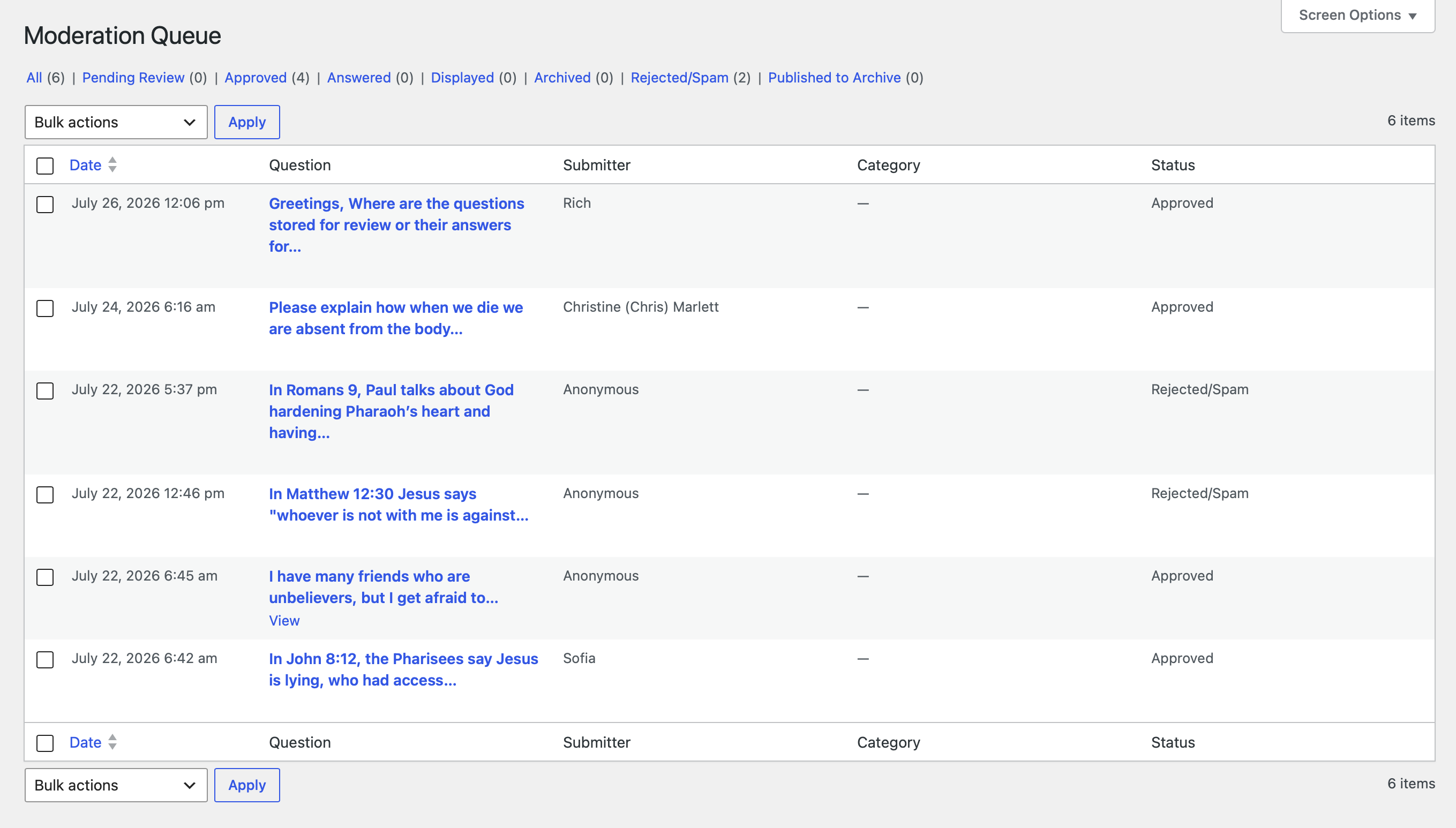
Moderation Queue in wp-admin — every submission with its status, and one-click filters for pending, approved, answered, displayed, archived, and rejected/spam.
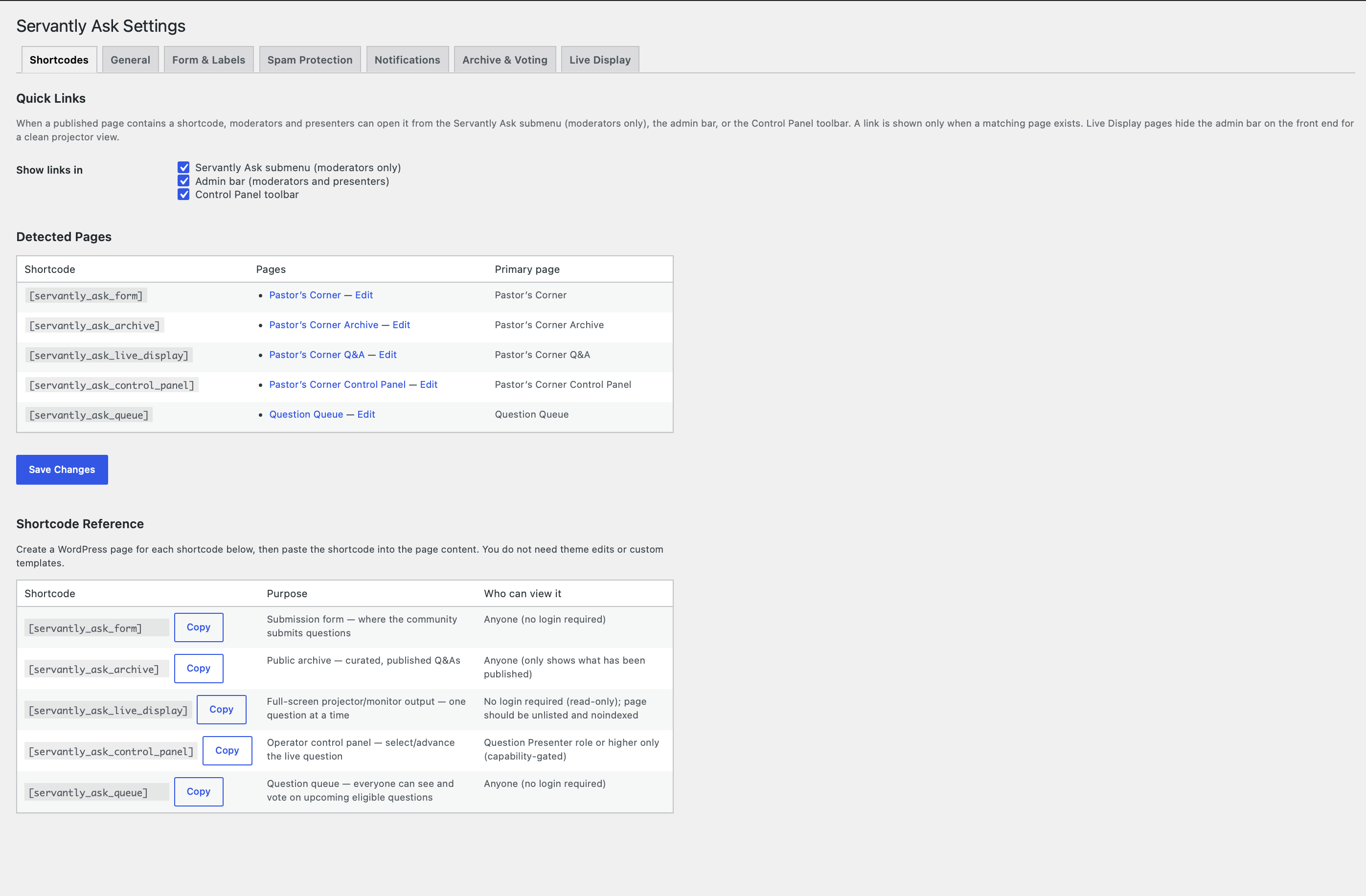
Settings — Shortcodes tab with a copy button for every shortcode, plus a Detected Pages table showing which page is wired to which feature.
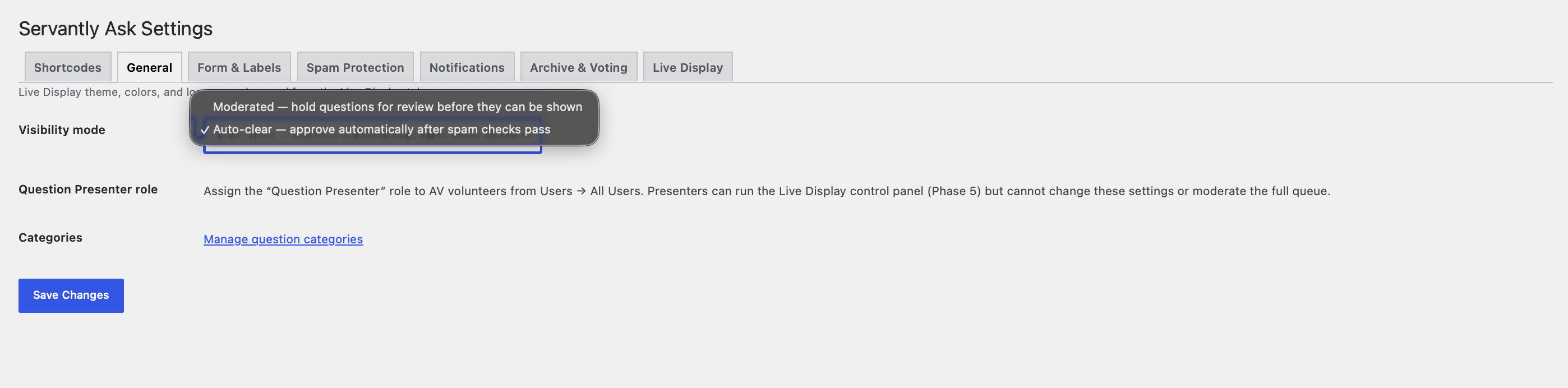
Settings — General tab, where you choose Moderated (hold every question for review) or Auto-clear (approve automatically once spam checks pass).
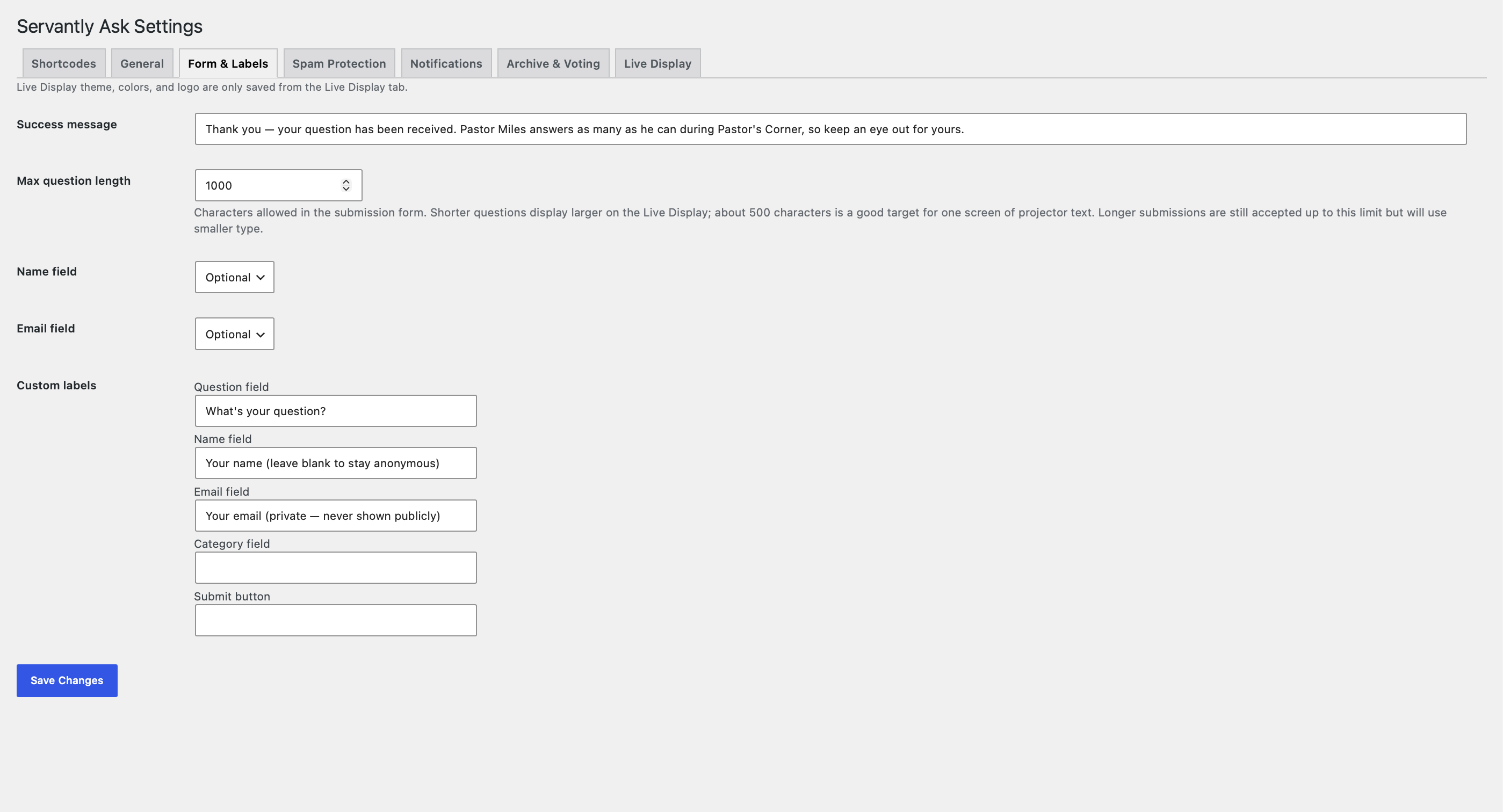
Settings — Form & Labels tab: success message, maximum question length, optional name and email fields, and fully customizable field labels.
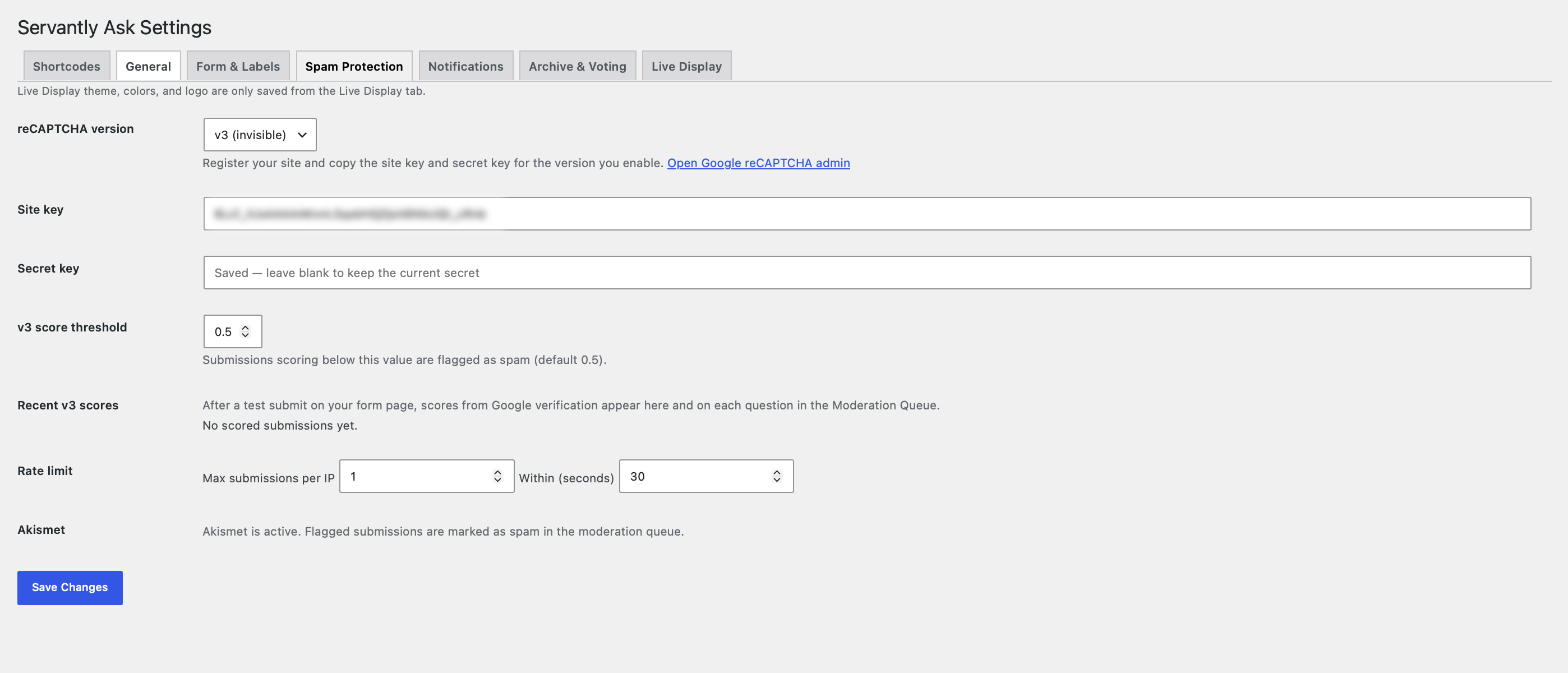
Settings — Spam Protection tab: invisible reCAPTCHA v3 with an adjustable score threshold, per-IP rate limiting, and Akismet.
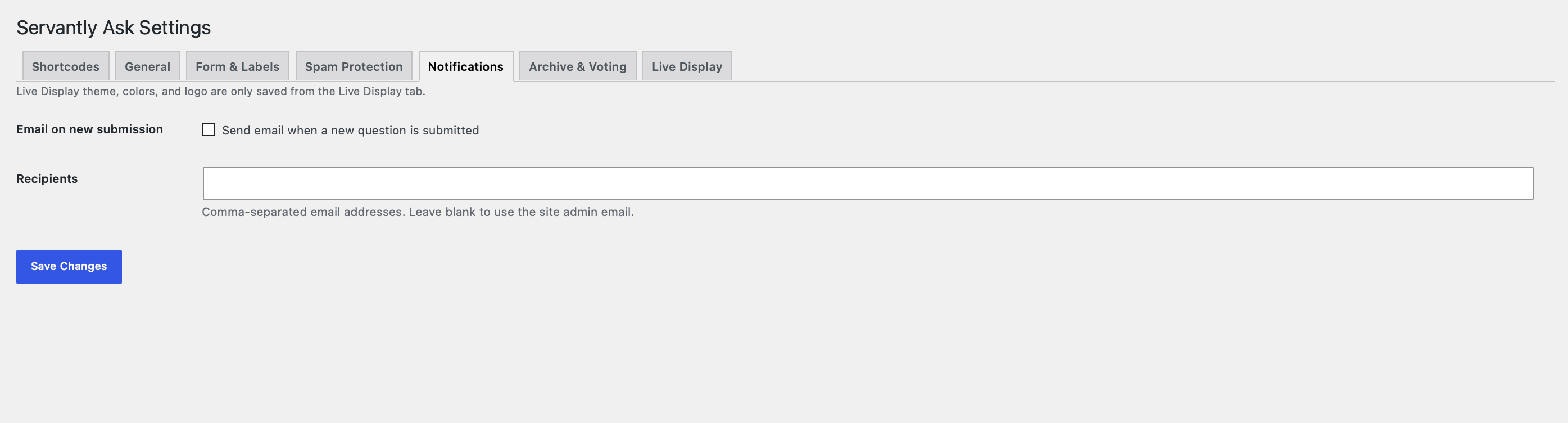
Settings — Notifications tab, for emailing one or more recipients whenever a new question is submitted.
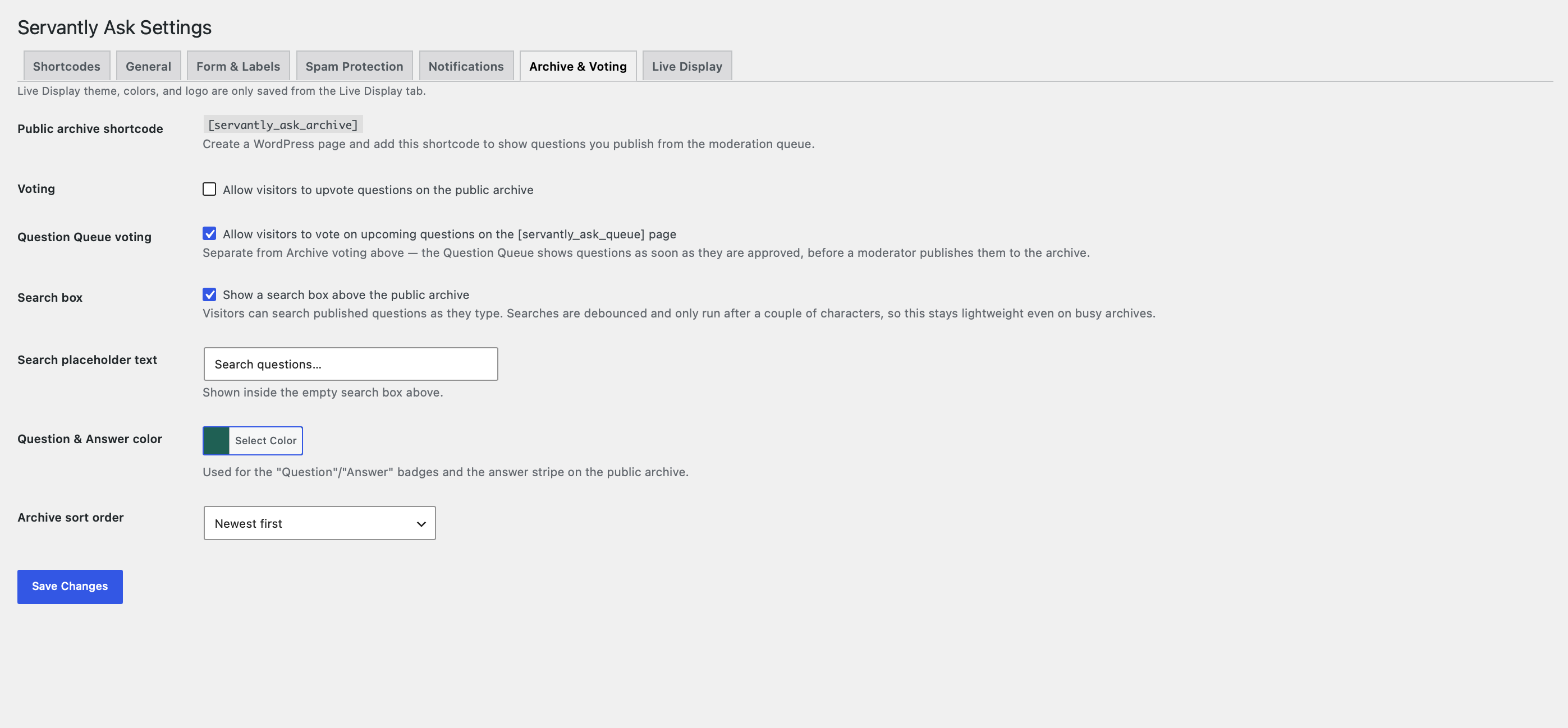
Settings — Archive & Voting tab: publish selected Q&As to a public archive, enable upvoting, and add a live search box.
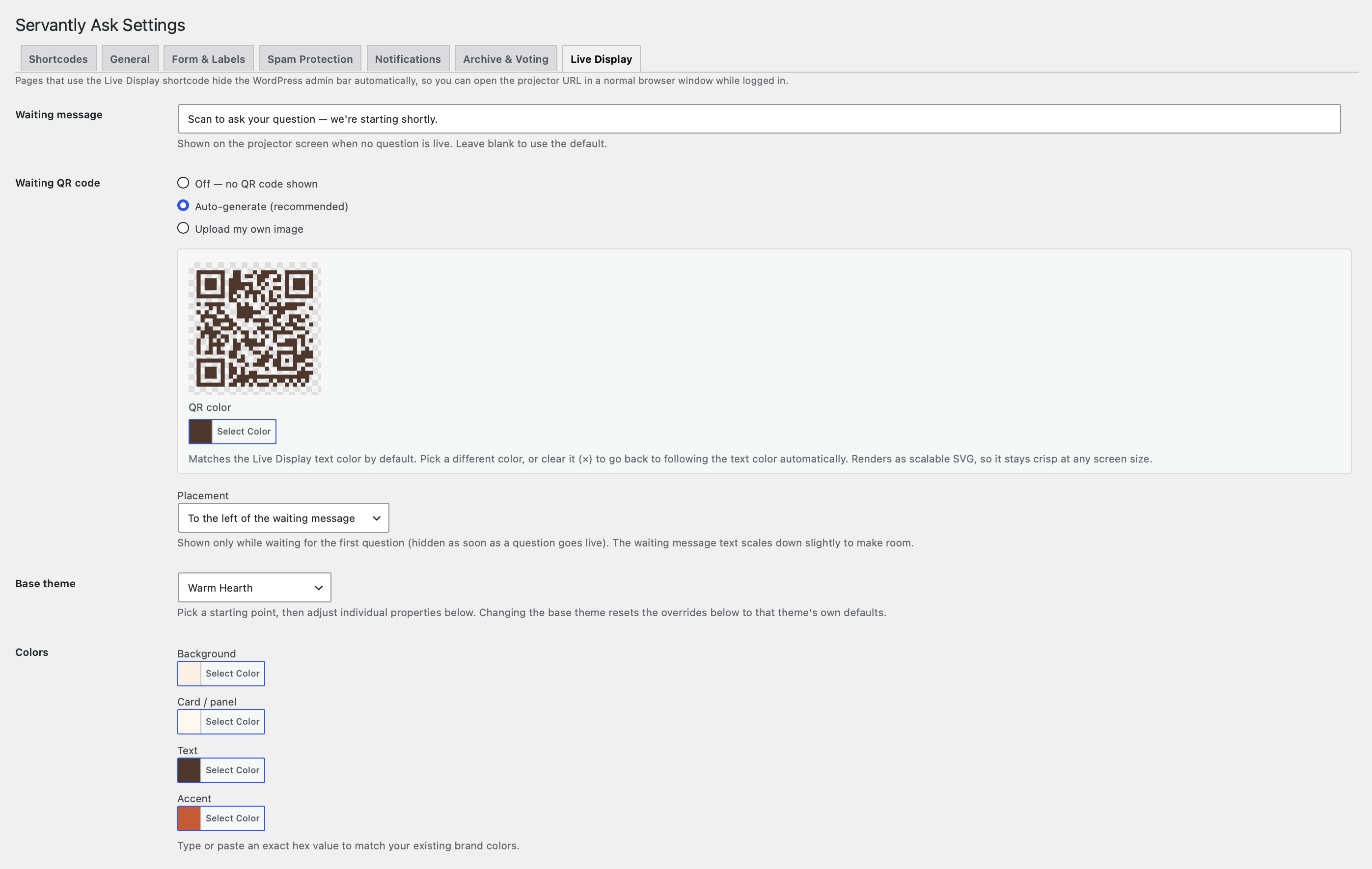
Settings — Live Display tab: waiting message and an auto-generated QR code so the room can scan to submit a question.
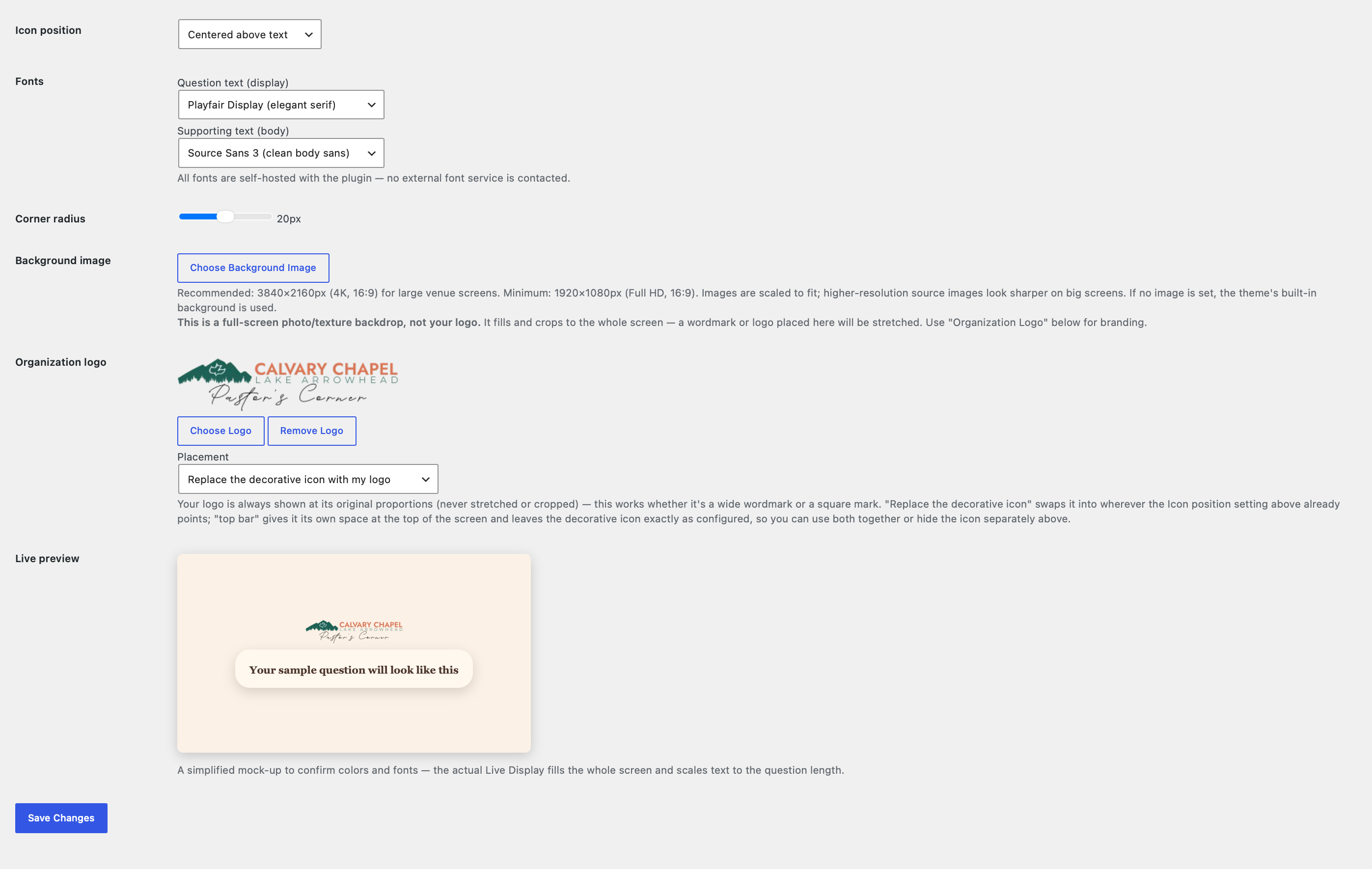
Settings — Live Display tab continued: self-hosted fonts, colors, corner radius, background image, your organization’s logo, and a live preview.
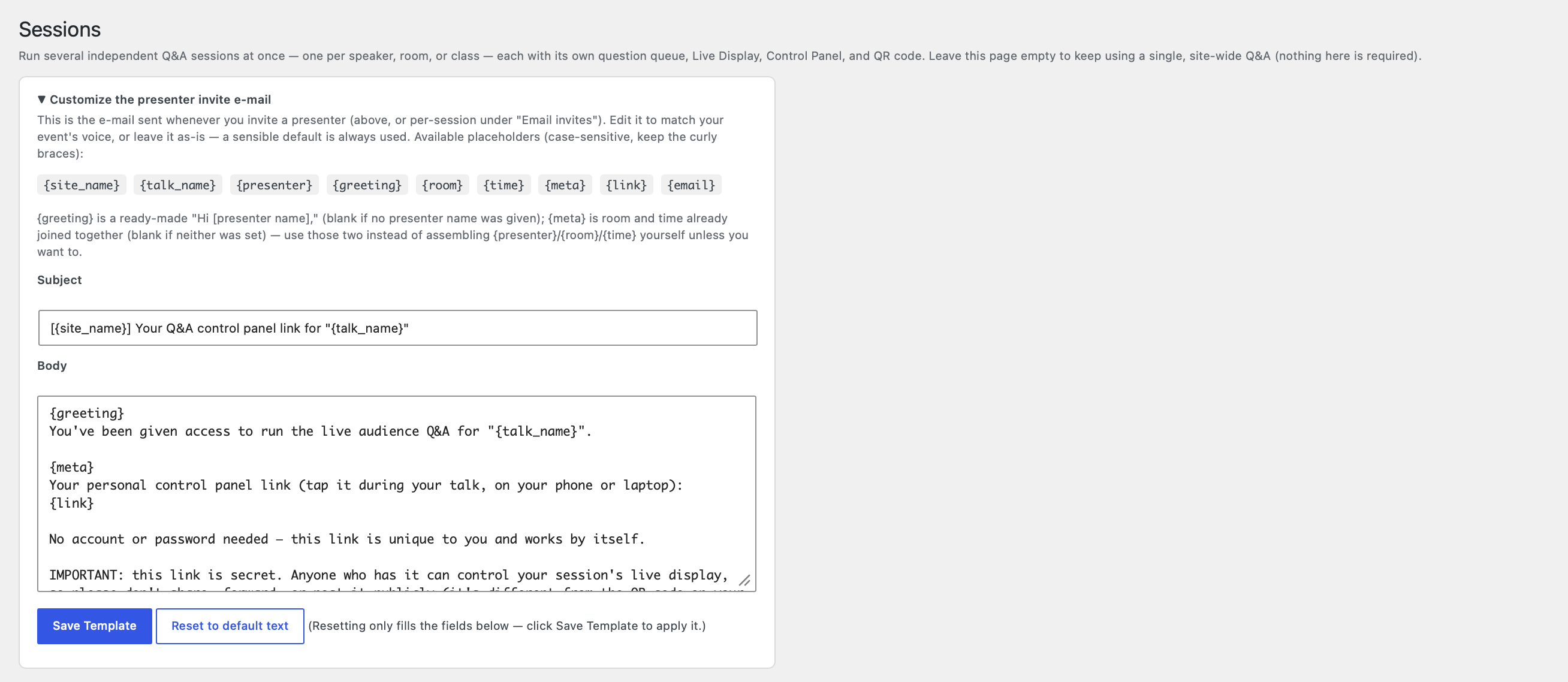
Sessions — the presenter invite email, editable with placeholders for the talk name, room, time, and secret control panel link.
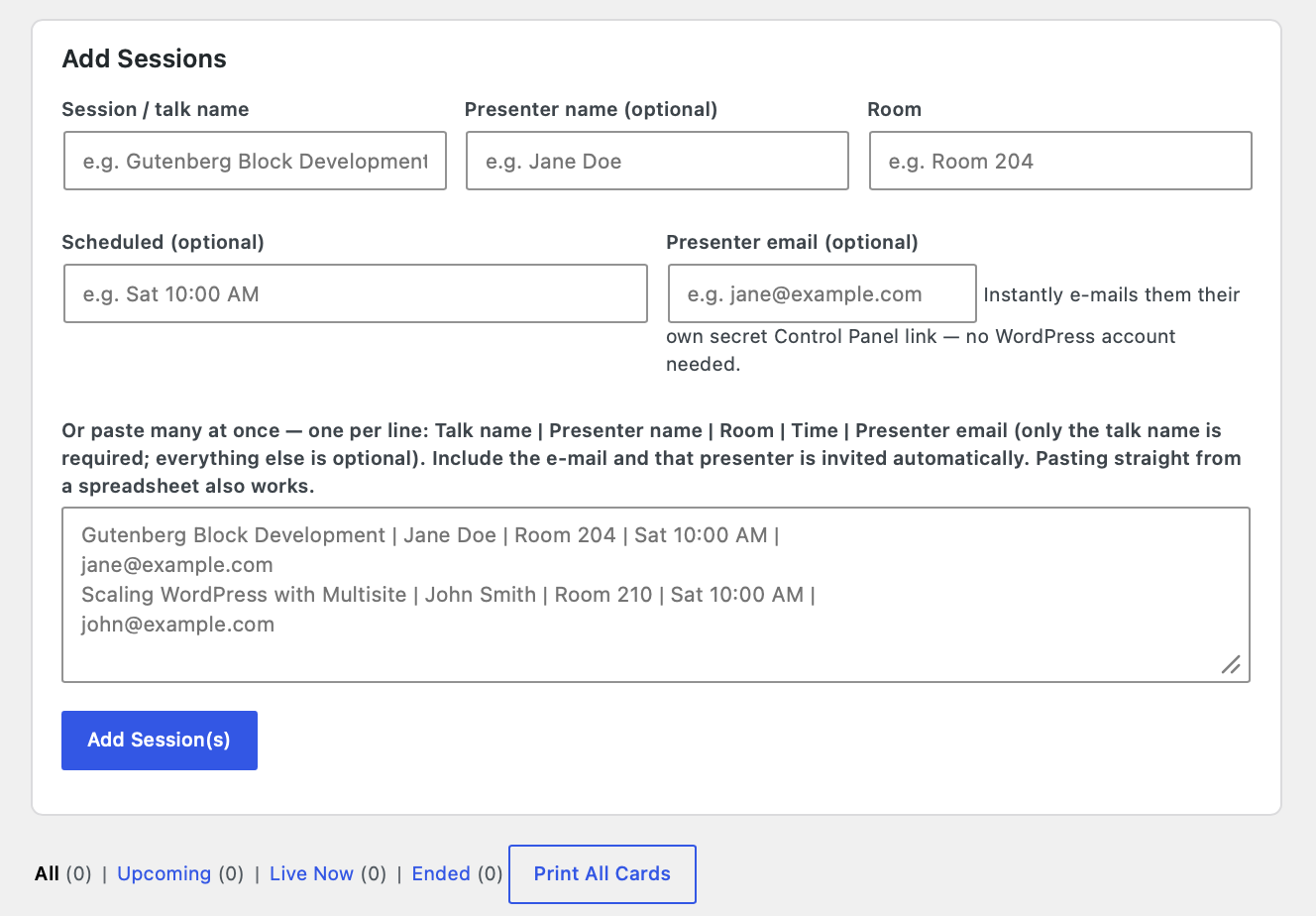
Sessions — add one talk at a time or paste an entire schedule at once; each session gets its own queue, Live Display, and QR code.
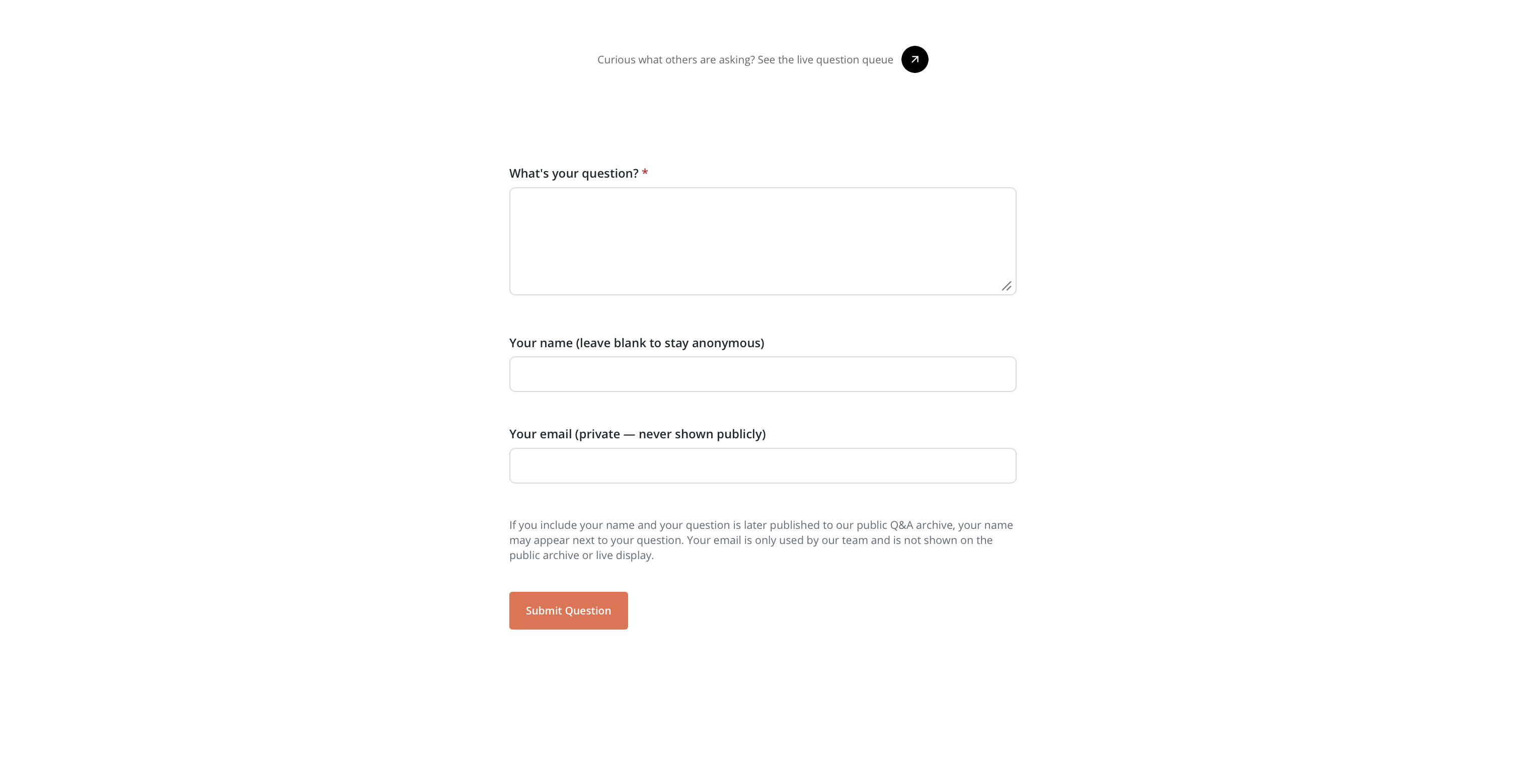
The front-end submission form — no login required, with name and email optional so guests can stay anonymous.
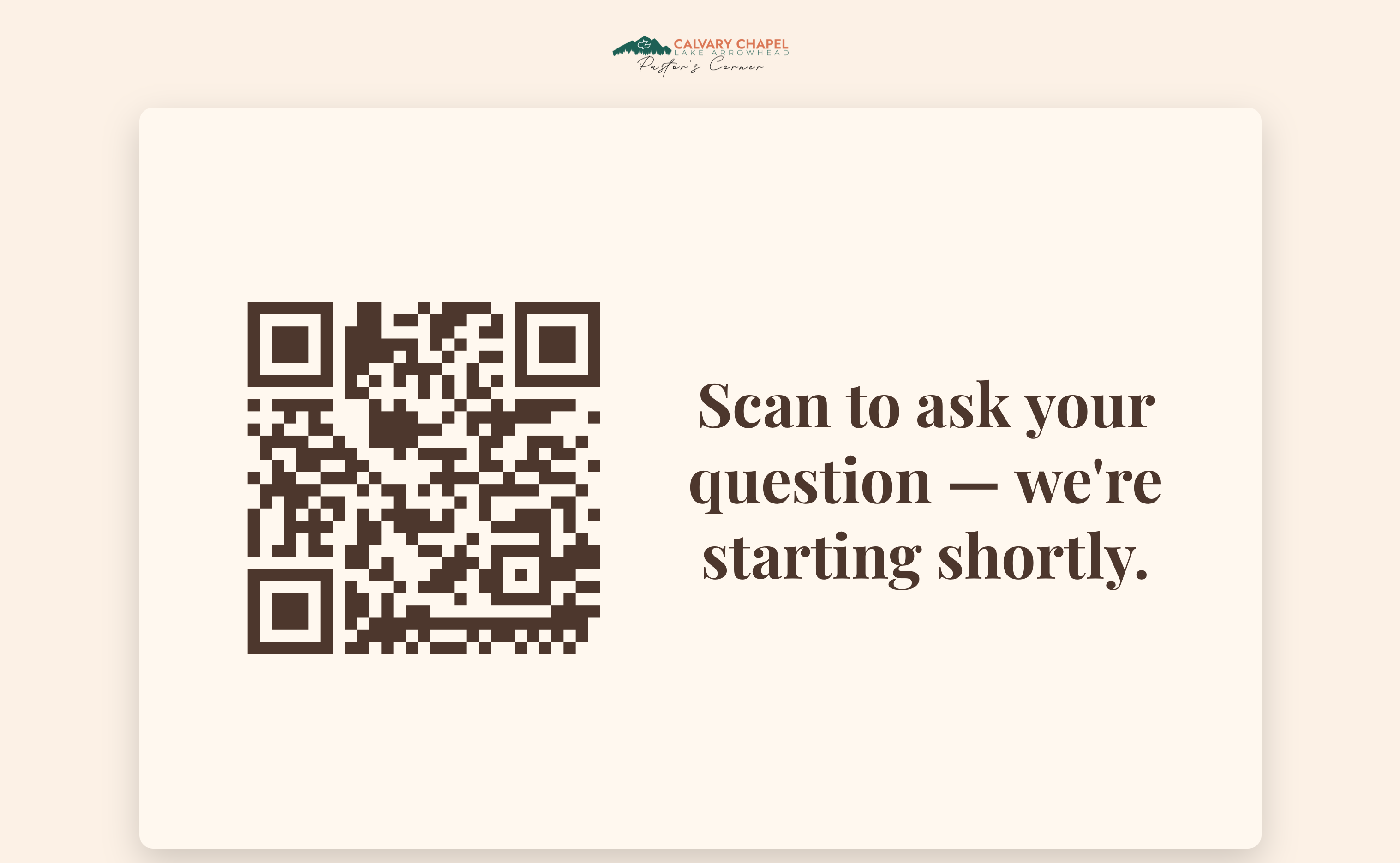
Live Display waiting screen on a projector — QR code, waiting message, and your logo, themed to match your brand.
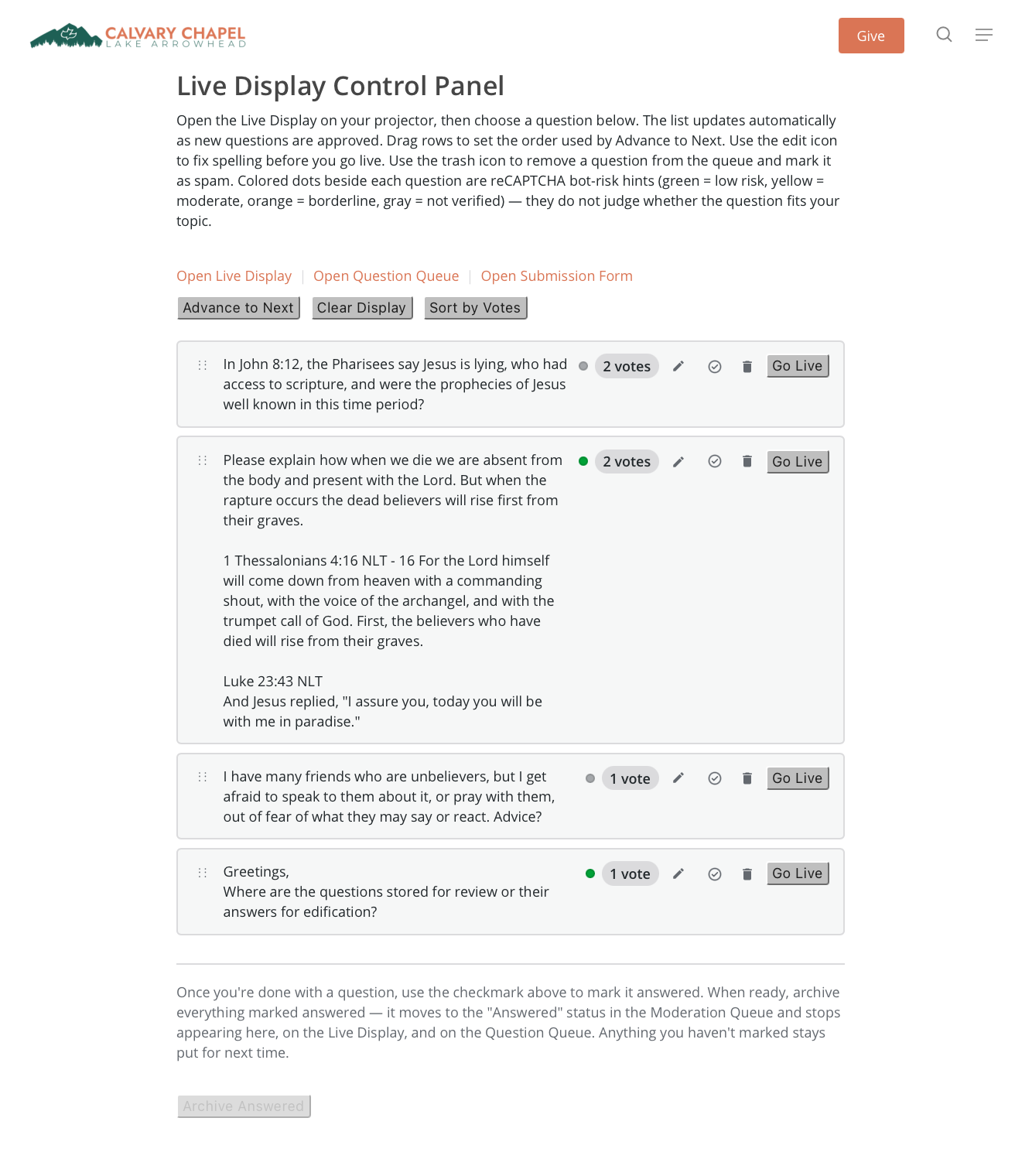
Live Display Control Panel — reorder the queue, see vote counts and bot-risk hints, then put a question on screen with Go Live.
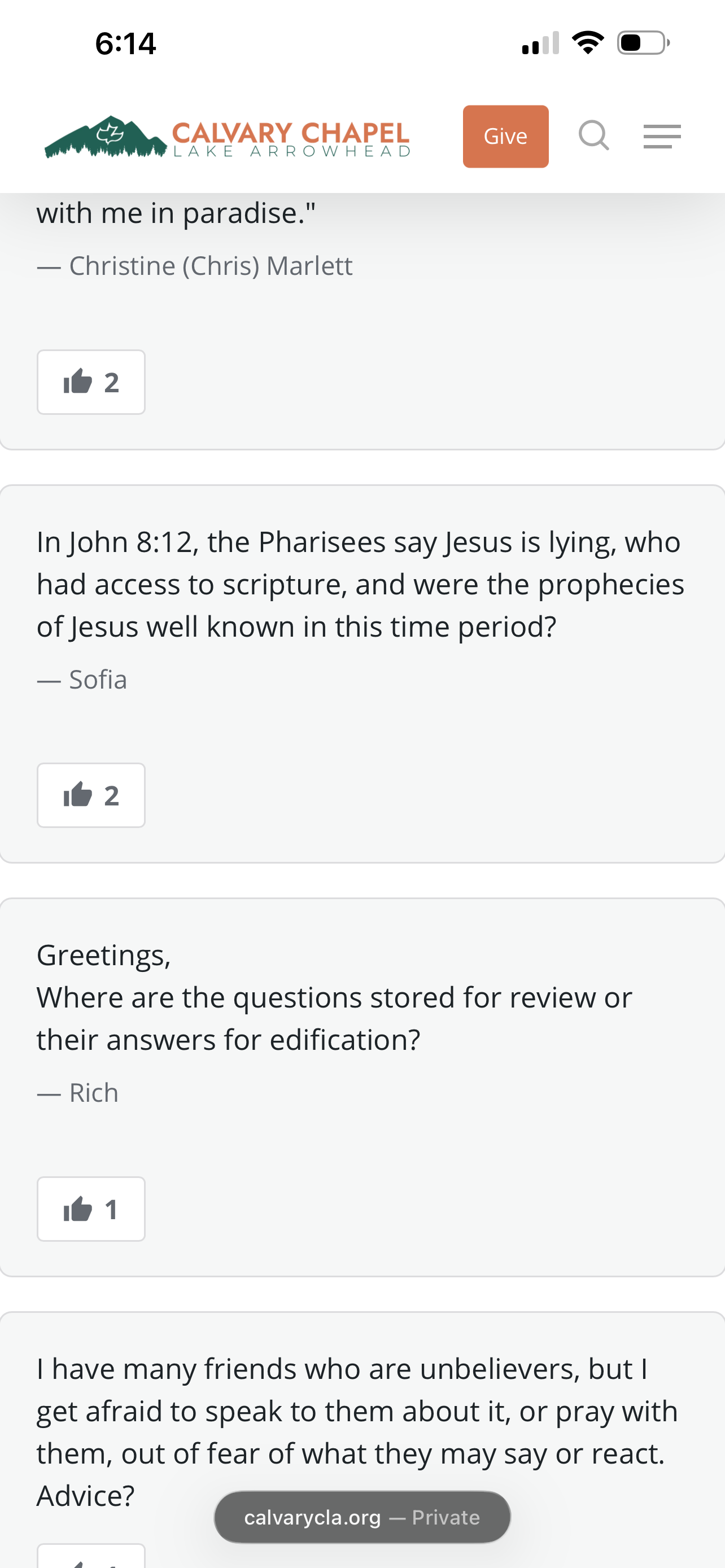
The public Question Queue on a phone — visitors see approved questions and upvote the ones they most want answered.
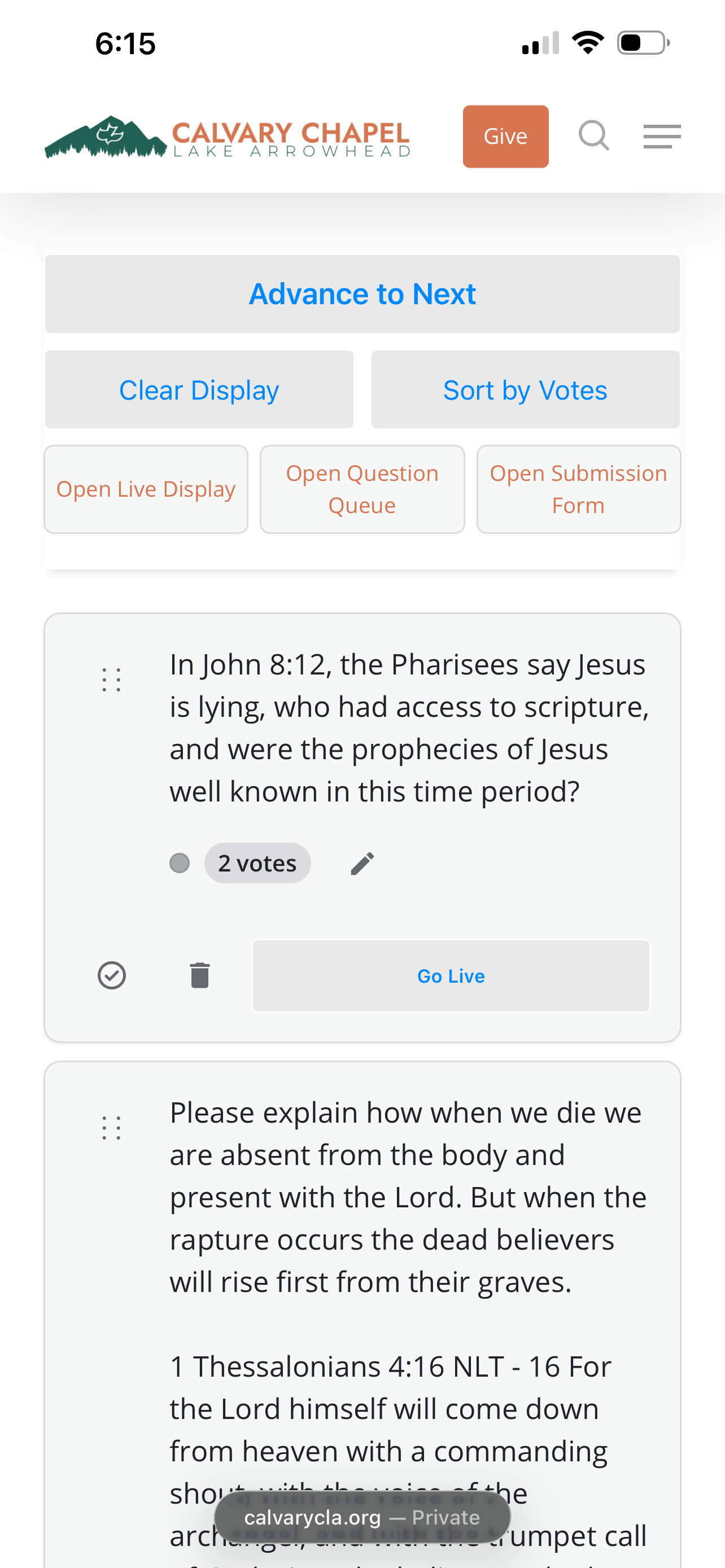
The Control Panel on a phone — presenters can run the whole live Q&A from the stage, no laptop required.